
WordPress Pre-Launch Checklist — 15 Things Before Going Live
You've done it. You picked a host, installed WordPress, configured your settings, chose a theme, installed essential plugins, and created your first content. If you've been following this learning path from the start, this is step 8 — the final step. But before you share your shiny new site with the world, let's make sure everything is properly buttoned up.
I've launched dozens of WordPress sites over the years, and I've learned the hard way that skipping even one item on this list can come back to bite you. A missing SSL certificate tanks your credibility. Forgetting to delete the default "Hello World" post makes you look amateur. Launching without backups is like driving without insurance — fine until it's not.
This 15-point checklist is the exact process I follow every single time. Print it out, open it in a second tab, whatever works — just don't skip any steps.
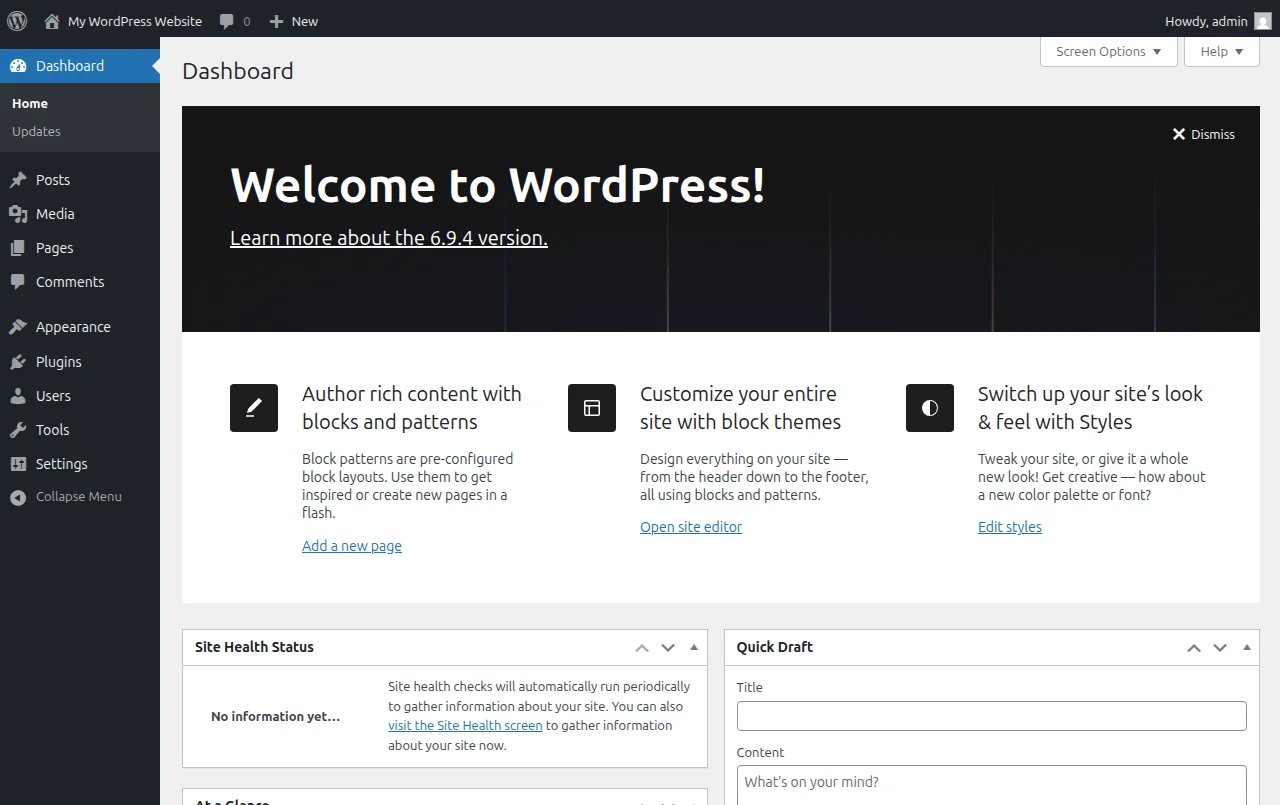
The 15-Point WordPress Pre-Launch Checklist
1. Confirm Your SSL Certificate Is Active
Look at your browser's address bar. Do you see a padlock icon and https:// before your domain? If not, your SSL certificate isn't working. Most hosts like Bluehost and SiteGround provide free SSL through Let's Encrypt — you just need to activate it in your hosting dashboard. Without SSL, browsers will warn visitors that your site is "Not Secure," and Google uses HTTPS as a ranking signal. There's no reason to launch without it. Check out my SSL setup guide if you need help.
2. Set Permalinks to "Post Name"
Go to Settings → Permalinks and make sure you've selected the "Post name" option. This gives you clean URLs like yoursite.com/my-first-post instead of the ugly default yoursite.com/?p=123. This matters for SEO and for humans who actually need to read and share your URLs. Change this now — changing permalink structure after you've published content and earned backlinks is a headache you don't want.
3. Verify Your Site Title and Tagline
Head to Settings → General and double-check your site title. This appears in browser tabs, search results, and your header. Make sure it's your actual site name — not "My WordPress Site" or whatever the installer defaulted to.
4. Upload a Favicon (Site Icon)
Go to Appearance → Customize → Site Identity and upload a site icon. This is the tiny image that appears in browser tabs, bookmarks, and mobile home screens. A 512×512 pixel PNG works best. Without one, you get the generic browser icon, which screams "this person didn't finish setting up their site."
5. Remove "Just Another WordPress Site"
While you're in Settings → General, check the tagline field. WordPress defaults to "Just another WordPress site" — and I've seen live sites with thousands of visitors that still have this. Either write a real tagline that describes what your site is about, or leave the field blank. Both are better than the default.
6. Delete Default Sample Content
WordPress ships with a "Hello World!" post, a "Sample Page," and sometimes a sample comment. Go to Posts → All Posts and Pages → All Pages and delete them. Also check Comments and remove the default comment by "A WordPress Commenter." It takes 30 seconds and prevents embarrassment.
7. Set Up a Static Homepage
By default, WordPress shows your latest blog posts on the homepage. If you want a custom landing page instead (and most sites do), go to Settings → Reading and select "A static page." Choose your homepage from the dropdown, and optionally set a separate page as your "Posts page" for your blog. This is the single biggest change that makes your site look intentional rather than like a default blog.
8. Create Essential Pages
Before launch, you need at minimum three pages beyond your homepage:
- About page — Tell visitors who you are and what the site is about. This builds trust.
- Contact page — Give people a way to reach you. A simple contact form works perfectly.
- Privacy Policy — This is legally required if you use analytics, cookies, or collect any data. WordPress can generate a starter template under Settings → Privacy.
If you're running any kind of business or affiliate site, also add a Terms of Service page and an Affiliate Disclosure page.
9. Test All Forms
Submit every form on your site yourself before launch. Contact form, newsletter signup, comment form — all of them. Check that you actually receive the submissions. I've launched sites where the contact form looked perfect but wasn't connected to an email address. Test now so your first visitor's message doesn't vanish into the void.
10. Install and Configure an SEO Plugin
If you haven't already, install an SEO plugin like Yoast SEO or Rank Math. Configure the basics: set your site's title format, write meta descriptions for your most important pages, and make sure your XML sitemap is being generated. This is how search engines understand your site. I cover this in detail in my WordPress SEO checklist.
11. Submit Your Sitemap to Google Search Console
Go to Google Search Console, verify your domain ownership, and submit your XML sitemap (usually at yoursite.com/sitemap_index.xml). This tells Google your site exists and helps it discover all your pages. Without this step, Google might take weeks or months to find your content on its own. It's free and takes about five minutes.
12. Set Up Google Analytics
You can't improve what you don't measure. Set up Google Analytics (GA4) so you can track how many visitors you get, where they come from, and which content performs best. Most SEO plugins let you paste your measurement ID right in the settings, or you can use a lightweight plugin like MonsterInsights. I walk through the full process in my Google Analytics installation guide.
13. Test Mobile Responsiveness
Over 60% of web traffic is mobile. Open your site on your phone — not just the homepage, but a blog post, your contact page, and your navigation menu. Check that text is readable without zooming, buttons are easy to tap, and images don't overflow the screen. You can also use Chrome DevTools (press F12 and click the phone icon) to test different screen sizes. If something looks broken on mobile, fix it before launch.
14. Check Your Page Speed
Run your homepage and one blog post through Google PageSpeed Insights. You don't need a perfect 100 score — anything above 80 on mobile is solid for a new site. If your scores are low, the most common culprits are unoptimized images, too many plugins, and missing caching. My speed optimization guide covers the quick wins that make the biggest difference.
15. Set Up Automated Backups
This is the one item on the list that people skip and regret the most. Install a backup plugin like UpdraftPlus and configure it to run automated backups at least weekly — daily if you're publishing frequently. Store backups off-site (Google Drive, Dropbox, or Amazon S3). If your site ever gets hacked, your host has a server issue, or you accidentally break something, a recent backup means you can restore everything in minutes. Read my backup guide for a full walkthrough.
Bonus: Uncheck "Discourage Search Engines"
This catches more people than you'd think. Go to Settings → Reading and make sure "Discourage search engines from indexing this site" is unchecked. Some people enable this during development (or their host enables it automatically) and forget to turn it off. If this box is checked, Google won't index your site no matter how good your content is.
Congratulations — You Did It!
If you've followed this entire learning path from step 1 through step 8, you now have a fully functional, properly configured WordPress website. That's a real accomplishment. You've gone from zero to a live WordPress site with a professional theme, essential plugins, real content, and a solid technical foundation.
But here's the thing — launching is just the beginning. The most successful WordPress sites are the ones that keep improving. Now that you've got the fundamentals down, here are some "go deeper" topics to explore next:
- The Complete WordPress SEO Checklist — drive organic traffic to your site
- How to Speed Up WordPress — make your site lightning fast
- WordPress Backup Guide — never lose your work
- SSL Setup Guide — secure your site properly
- Google Analytics Setup — understand your audience
You've built the foundation. Now go build something great on top of it.
Frequently Asked Questions
How long does it take to launch a WordPress site?
If you are starting from scratch with no content, a basic WordPress site can be live in a single weekend. Realistically though, most people need 2-4 weeks to choose a theme, write their core pages, configure essential plugins, and test everything properly. I would rather you spend an extra week getting things right than rush a half-baked site live — but do not let perfectionism keep you in "pre-launch" mode for months either.
Do I need an SSL certificate before launching?
Absolutely yes, and there is no excuse to skip this in 2026. SSL encrypts the connection between your site and visitors, and Google has been using HTTPS as a ranking signal since 2014. The good news is that virtually every hosting provider now offers free SSL certificates through Let's Encrypt — Hostinger, SiteGround, Cloudways, all of them. Just make sure it is activated and your WordPress URL starts with https:// before you go live.
When should I submit my site to Google Search Console?
On launch day, or even a few days before if your content is ready. There is zero benefit to waiting. Sign up for Google Search Console, verify your domain, and submit your XML sitemap right away. Google can take anywhere from a few days to a few weeks to start indexing your pages, so the sooner you submit the sooner you will start appearing in search results. Waiting months "until the site is perfect" is one of the most common beginner mistakes I see.
What if I miss something on the pre-launch checklist?
Do not panic — almost nothing on a pre-launch checklist is truly irreversible. Forgot to set up a contact form? Add it after launch. Missing an About page? Write one next week. The only items that are painful to fix later are your permalink structure and SSL setup, because changing those after Google has indexed your site requires redirect management. Everything else can be added or updated post-launch without any lasting damage.
Should I launch my site with placeholder content?
No, and I feel strongly about this. Launching with "Lorem ipsum" text or empty pages makes your site look unprofessional and gives Google nothing useful to index. At minimum, have your Home page, About page, Contact page, and Privacy Policy written with real content before going live. You do not need 50 blog posts on day one — even 3-5 solid articles are enough to launch with — but every page that is visible should have real, helpful content on it.
Do I need to set up backups before launching?
Yes, this is non-negotiable. A single plugin conflict, a bad update, or a security breach can wipe out everything you have built. Set up automated daily backups using a plugin like UpdraftPlus (free) or BlogVault (paid) and make sure the backups are stored off-site — not on the same server as your website. I have personally recovered client sites from backups more times than I can count, and the people who did not have backups had to rebuild from scratch.

Written by Marvin
Our team tests and reviews WordPress products to help beginners make confident choices.
Learn more about our team →You might also like
7 Essential Plugins Every WordPress Site Needs (2026)
Don't install 30 plugins. Start with these 7 that every WordPress site actually needs — for security, SEO, speed, and backups.
postHow to Choose & Install a WordPress Theme (Beginner's Guide)
Your theme controls how your site looks. Here's how to pick the right one and install it in under 5 minutes.
postEssential WordPress Settings After Install (2026 Guide)
Just installed WordPress? Here are the 10 settings you need to configure right away — before you do anything else.
postCreating Your First WordPress Pages & Posts (Step-by-Step)
Pages vs posts — what's the difference and when to use each? Here's how to create both using the WordPress block editor.