
WordPress SEO Checklist — 20 Steps to Rank Higher on Google in 2026
After building WordPress sites for over a decade, I've learned that SEO isn't some mysterious dark art. It's a checklist. Do the right things in the right order, and Google rewards you with traffic. Skip steps, and you're shouting into the void.
I learned this the hard way. My first WordPress site in 2006 had zero organic traffic for months — not because the content was bad, but because I skipped half the basics. Wrong permalink structure, no sitemap, no SSL, images with filenames like DSC_0042.jpg. When I finally ran through a proper SEO audit and fixed everything, traffic tripled in six weeks.
I created this checklist after auditing dozens of my own sites and client projects. These are the 20 things that actually move the needle. No fluff, no theory — just the steps. Bookmark this page and work through them one by one.
For a deeper dive into WordPress SEO strategy, see my complete WordPress SEO guide.
Setup (Steps 1-5)
Get these right from day one. Fixing them later is possible, but it's always harder than doing it upfront.
1. Choose Quality Hosting
Your hosting provider directly affects page speed, uptime, and server response time — all of which Google measures. Cheap shared hosting might save you $3/month, but it costs you rankings. I've seen sites jump from page 3 to page 1 just by migrating to better hosting.
Go with a reputable WordPress host that offers SSD storage, server-level caching, and a CDN. Your site's speed is only as good as the server it sits on. I personally run my projects on SiteGround and Cloudways — both deliver consistently fast server response times under 200ms, which Google specifically measures as Time to First Byte (TTFB).
2. Install an SSL Certificate
Google has used HTTPS as a ranking signal since 2014. If your site still loads on http://, you're leaving free ranking juice on the table. Most quality hosts include a free SSL certificate through Let's Encrypt — activate it and force HTTPS site-wide.
Check your WordPress Address and Site Address in Settings > General. Both should start with https://. Then install a plugin like Really Simple SSL (or handle it at the server level) to automatically redirect all HTTP requests to HTTPS. Mixed content warnings — where some resources still load over HTTP — are another common issue. Your browser's dev tools will flag these in the console.
3. Set Your Permalink Structure
Go to Settings > Permalinks and choose "Post name" (/%postname%/). This gives you clean, readable URLs like yoursite.com/wordpress-seo-checklist/ instead of yoursite.com/?p=123.
Do this before you publish any content. Changing permalinks later means redirecting every URL on your site — and I speak from painful experience. I once changed the permalink structure on a client's 200-post blog without setting up redirects first. Every single internal link broke, Google deindexed half the pages, and organic traffic dropped 70% overnight. It took three months to fully recover.
4. Install an SEO Plugin
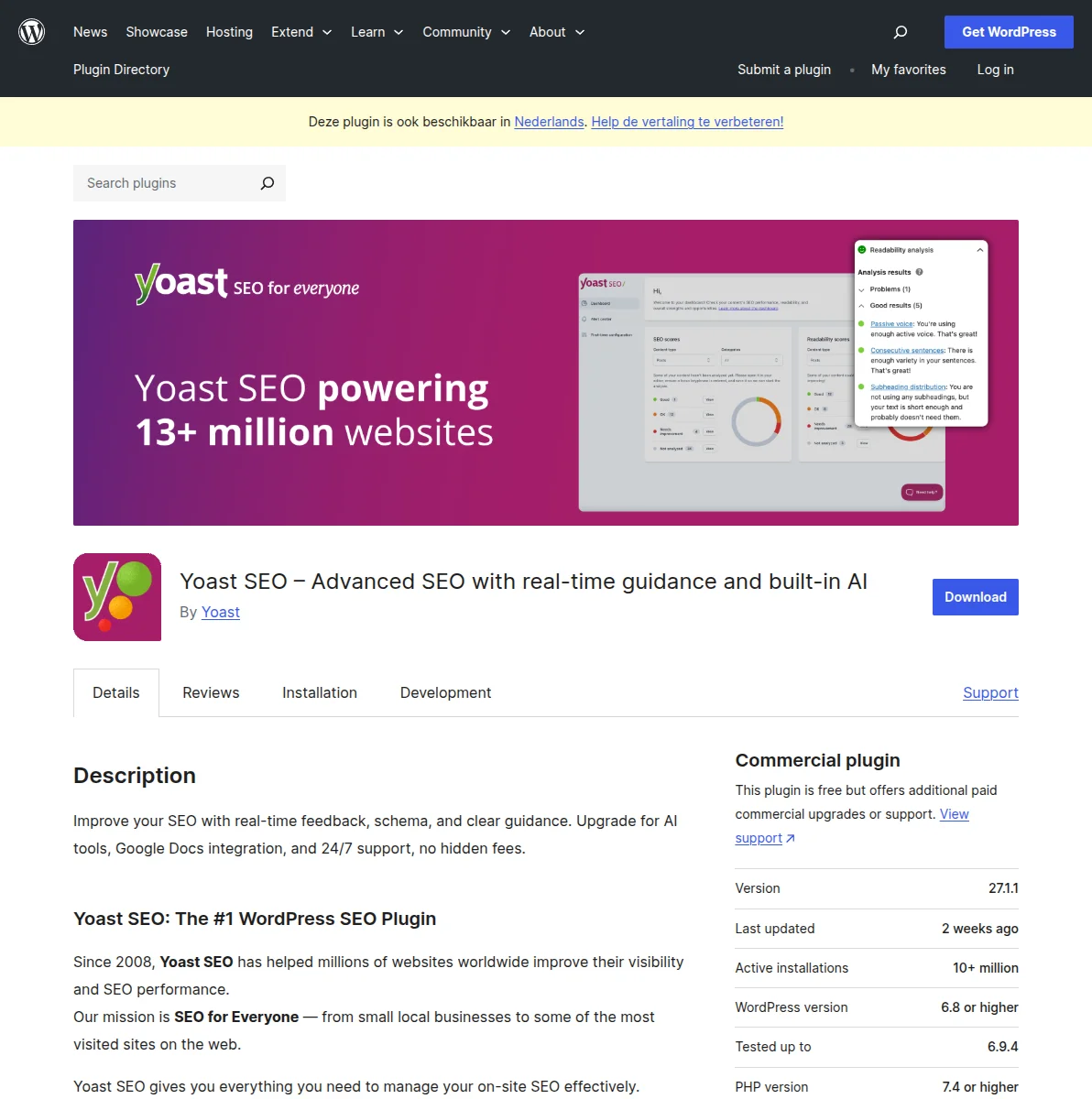
WordPress is SEO-friendly out of the box, but an SEO plugin takes it from "decent" to "competitive." You need one for meta titles, meta descriptions, XML sitemaps, schema markup, and content analysis.
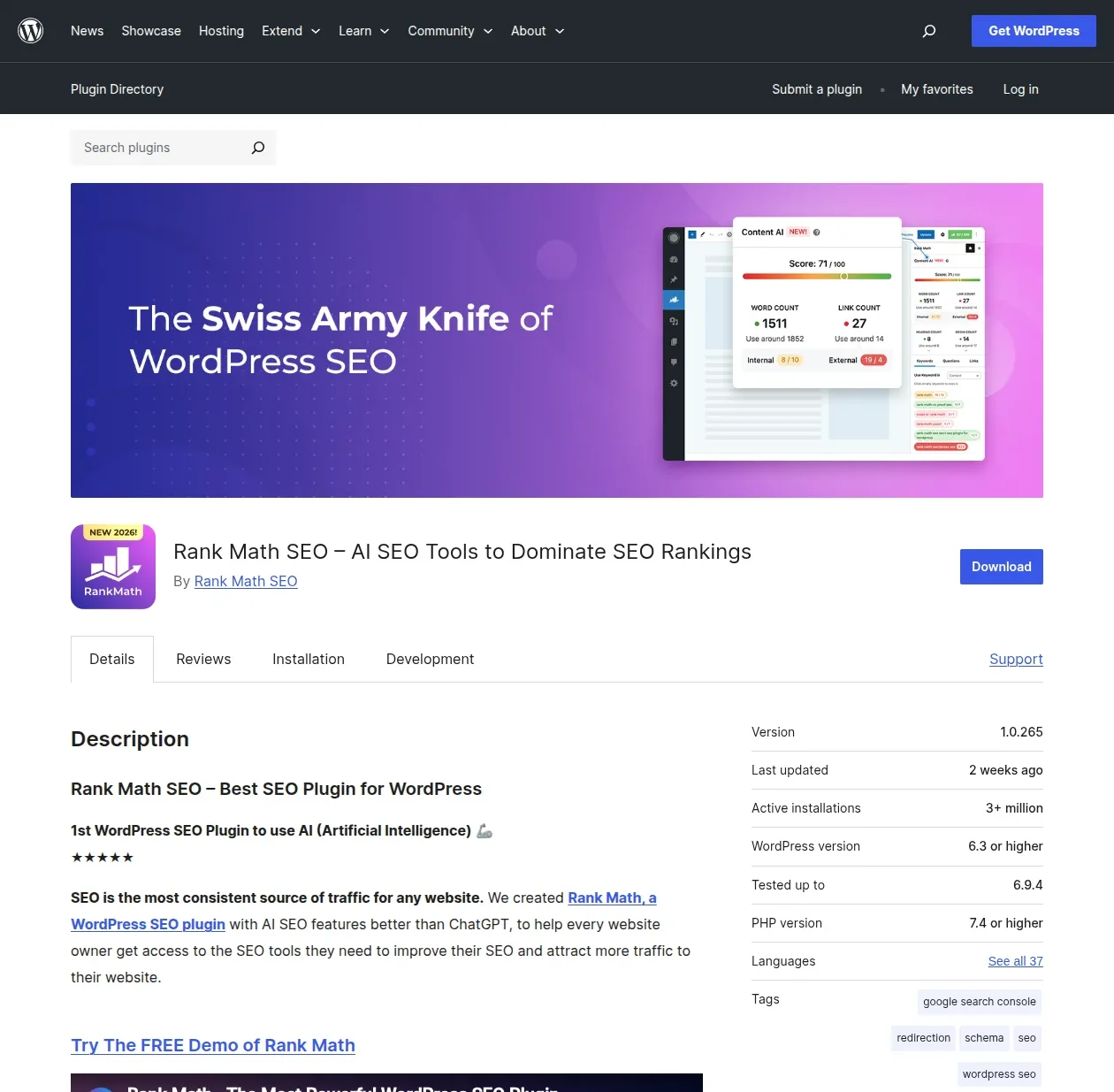
My recommendation: Rank Math (free version is incredibly powerful) or Yoast SEO (the industry standard). Both are excellent. See my detailed SEO plugin comparison to decide which one fits your needs.
5. Submit Your Sitemap to Google Search Console
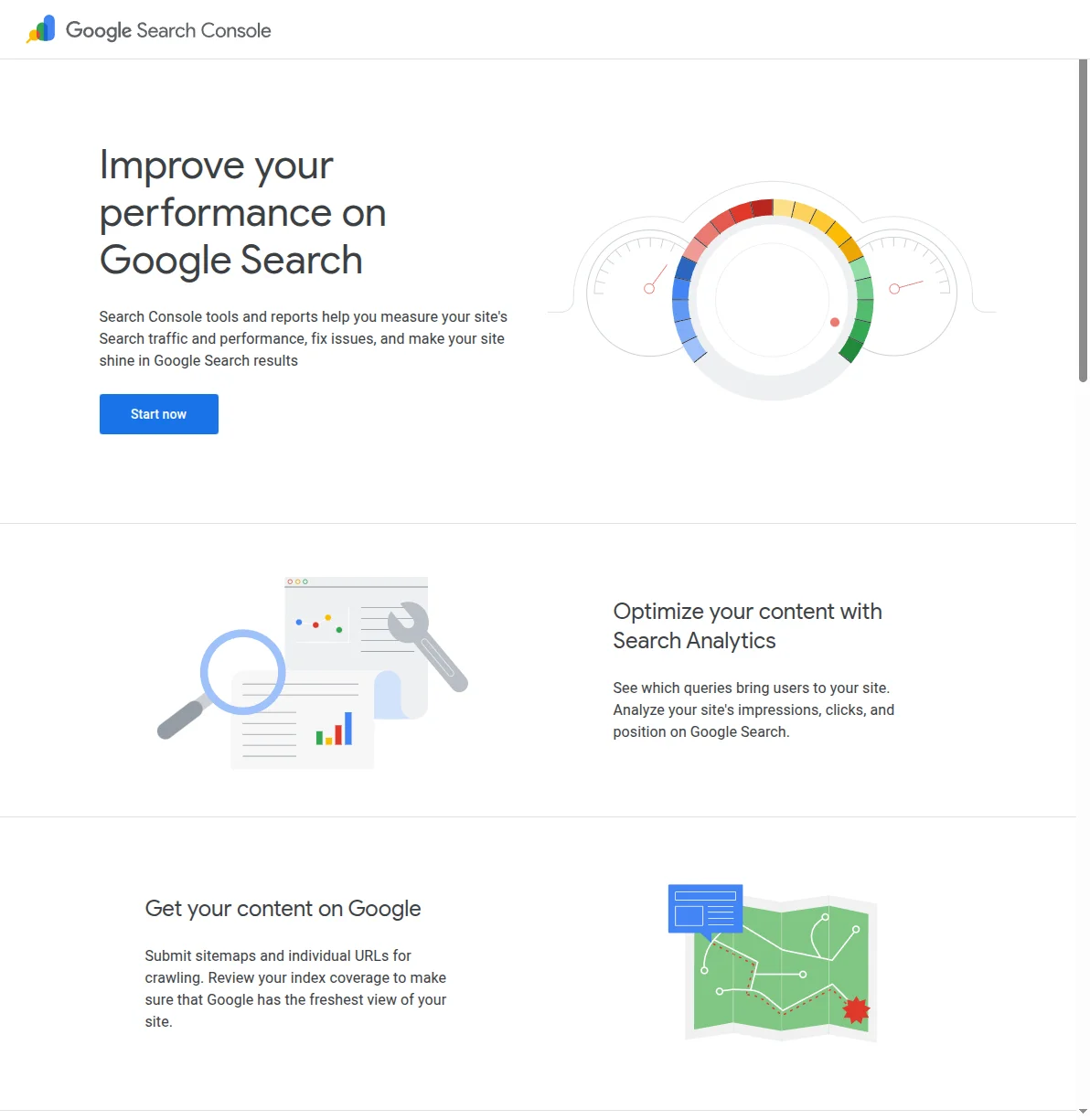
Google Search Console is non-negotiable. It's free, and it tells you exactly how Google sees your site — what's indexed, what's broken, and what queries drive traffic.
Your SEO plugin automatically generates an XML sitemap (usually at yoursite.com/sitemap_index.xml). Submit that URL in Search Console under Sitemaps. This tells Google "here's everything on my site — please crawl it."
Beyond sitemaps, Search Console gives you invaluable data: which keywords drive impressions, which pages have crawl errors, and whether Google considers your site mobile-friendly. I check my Search Console dashboards every Monday morning — it's become one of the most important 15 minutes of my week.
On-Page SEO (Steps 6-12)
On-page SEO is where most of your ranking power comes from. Get these right on every post and page.
6. Write Compelling Title Tags
Your title tag is what appears in Google search results. It's the single most important on-page SEO element. Include your target keyword naturally, keep it under 60 characters, and make it click-worthy.
Bad: "SEO Tips" — Good: "WordPress SEO Checklist — 20 Steps to Rank Higher on Google"
Your SEO plugin gives you a dedicated field for this. Use it on every post. I also like to add the current year when it makes sense — "WordPress SEO Checklist (2026)" performs noticeably better in click-through rates than a title without a year, because searchers know the information is current.
7. Optimize Meta Descriptions
Meta descriptions don't directly affect rankings, but they massively affect click-through rate. A compelling meta description can double your clicks from the same ranking position. Keep it under 160 characters, include your keyword, and treat it like ad copy — sell the click.
Pro tip: start your meta description with an action verb or a benefit. "Learn the 20 essential WordPress SEO steps..." outperforms "This article discusses WordPress SEO..." every time. Google sometimes rewrites your meta description if it thinks it has a better snippet from your content, but writing a good one gives you the best chance of controlling what searchers see.
8. Use Proper Heading Hierarchy
Use one H1 per page (your post title). Structure your content with H2s for main sections and H3s for subsections. Never skip levels (don't jump from H2 to H4). This helps Google understand your content structure and can earn you featured snippets.
Think of headings as an outline. If someone only read your headings, they should understand what the article covers. Google specifically looks at heading structure when deciding if your content deserves a featured snippet — those answer boxes at the top of search results that get massive click-through rates. I've earned featured snippets on several of my WordPress tutorial posts simply by structuring my headings as questions and immediately answering them in the first paragraph below.
9. Optimize Images
Images are a huge blind spot for most WordPress sites. Every image needs:
- Descriptive alt text — Tell Google what the image shows. Include your keyword if it's natural.
- Compression — Use a plugin like ShortPixel or Imagify to compress without visible quality loss.
- WebP format — Modern browsers prefer WebP. It's 25-30% smaller than JPEG at the same quality.
- Descriptive filenames —
wordpress-seo-checklist.webpbeatsIMG_4523.pngevery time.
10. Build Internal Links
Internal linking is the most underrated SEO tactic. Every time you publish a new post, link to 3-5 related posts on your site. Then go back to those older posts and add a link to the new one.
This does two things: it helps Google discover and understand your content, and it distributes "link equity" across your site. I've seen pages jump 10+ positions just from adding internal links.
Use descriptive anchor text, not "click here." Instead of "read more about SEO here," write "check out my WordPress SEO guide for the full strategy." The anchor text tells Google what the linked page is about, which strengthens its ranking potential for those keywords.
11. Link to Authority Sites
Don't be afraid to link out to authoritative external sources. Linking to Google's official documentation, reputable studies, or established industry sites signals to Google that you care about quality. It also provides genuine value to your readers.
The old myth that "linking out leaks PageRank" has been debunked for over a decade. Link generously to sources that support your content.
12. Optimize URL Slugs
Keep your URL slugs short, descriptive, and keyword-rich. Remove stop words (a, the, is, and) and unnecessary details.
Bad: /the-ultimate-complete-guide-to-wordpress-seo-tips-and-tricks-2026/
Good: /wordpress-seo-checklist/
Shorter URLs are easier to share, easier to remember, and tend to perform better in search. A Backlinko study analyzing 11.8 million Google results found that short URLs consistently outrank long ones. Set your slug manually rather than letting WordPress auto-generate it from your full title. WordPress defaults to using your entire post title as the slug, which creates unnecessarily long URLs filled with stop words.
Technical SEO (Steps 13-17)
Technical SEO makes sure Google can crawl, understand, and index your site without problems.
13. Ensure Mobile Responsiveness
Google uses mobile-first indexing, meaning it primarily evaluates the mobile version of your site for rankings. If your site looks broken on a phone, your rankings will suffer — even for desktop searches.
Use Google's Mobile-Friendly Test to check. Any modern WordPress theme should be responsive out of the box, but always verify. Pay special attention to font sizes, button spacing, and horizontal scrolling. I test every new site on my actual phone before launch — emulators miss things that real-world testing catches, like tap targets being too close together or content being clipped by a notch.
14. Optimize Page Speed
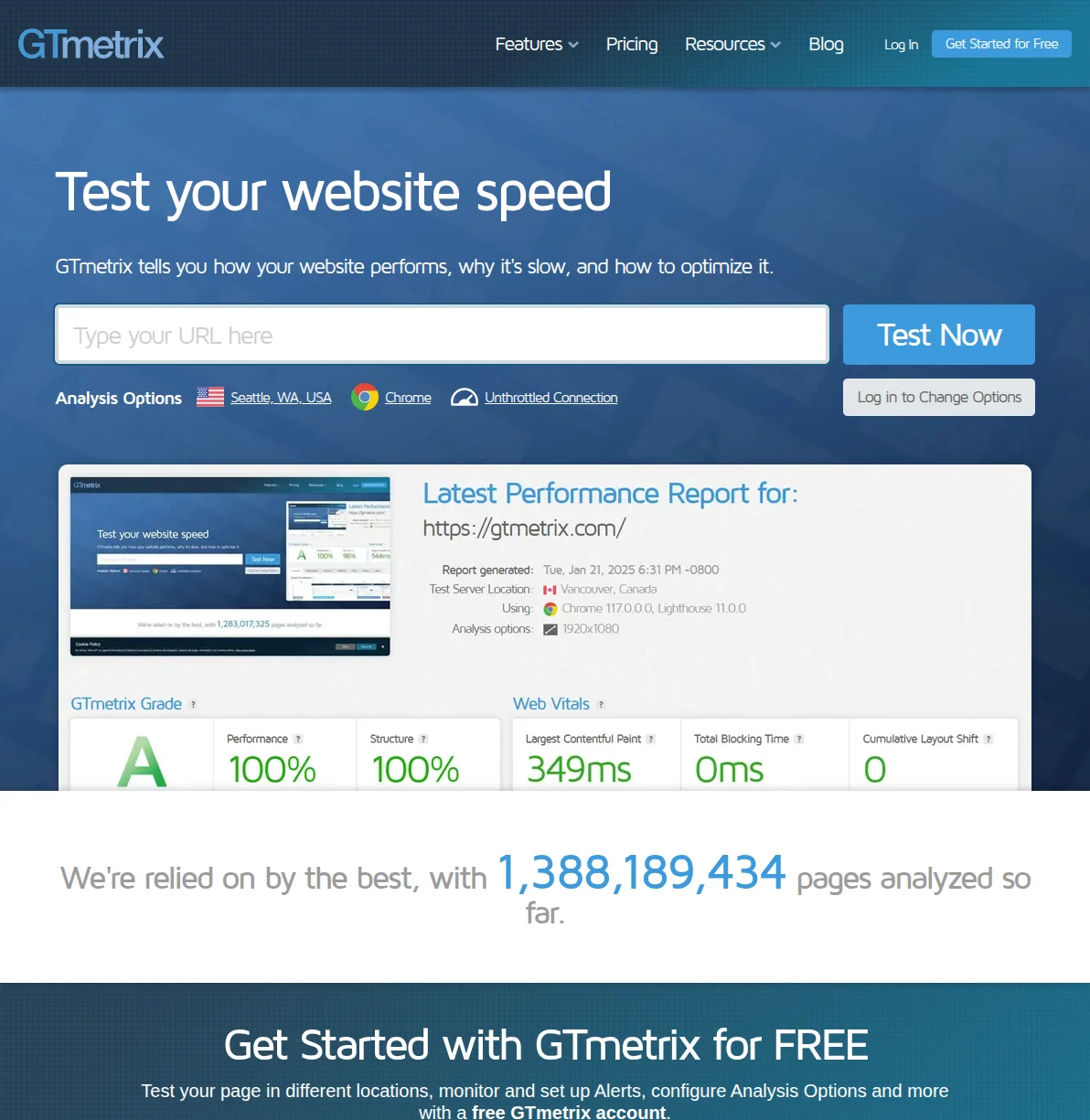
Page speed is a confirmed ranking factor, and it directly affects user experience. A site that loads in 1 second has a 3x higher conversion rate than one that loads in 5 seconds.
Test your site with GTmetrix or Google PageSpeed Insights. Then tackle the biggest issues first — usually it's unoptimized images, too many plugins, or missing caching. A good caching plugin can cut your load time in half.
Core Web Vitals — Largest Contentful Paint (LCP), Interaction to Next Paint (INP), and Cumulative Layout Shift (CLS) — are the specific metrics Google uses. Aim for LCP under 2.5 seconds, INP under 200ms, and CLS under 0.1. These aren't just vanity metrics; sites that pass all three Core Web Vitals thresholds get a ranking boost in Google's algorithm.
15. Fix Broken Links
Broken links (404 errors) frustrate visitors and waste Google's crawl budget. Use a plugin like Broken Link Checker or check Google Search Console's Coverage report regularly. Fix them by updating the URL or adding a 301 redirect.
Make this a monthly habit. Broken links accumulate fast, especially if you link to external sites. On one of my affiliate sites, I discovered 47 broken outbound links during a quarterly audit — products discontinued, companies rebranded, pages moved. Each one was a small trust signal I was losing with both Google and my readers.
16. Verify Your XML Sitemap
Your SEO plugin generates a sitemap automatically, but don't just assume it's working. Visit yoursite.com/sitemap_index.xml and verify it loads correctly. Check that it includes all your important pages and doesn't include pages you've set to noindex.
A well-structured sitemap helps Google discover your content faster — especially for new sites that don't have many backlinks yet.
17. Check Your robots.txt
Your robots.txt file tells search engines what they can and can't crawl. Visit yoursite.com/robots.txt and make sure you're not accidentally blocking important pages. The most common mistake I see: people leave their site in "Discourage search engines from indexing this site" mode (Settings > Reading) after launching. One checkbox can make your entire site invisible to Google.
A proper robots.txt for WordPress should allow all important crawlers access to your content while blocking unnecessary areas like /wp-admin/. Your SEO plugin handles this automatically in most cases, but always double-check after a site migration or major update. You can also use Google Search Console's robots.txt tester to verify your rules are working as expected.
Content SEO (Steps 18-20)
All the technical optimization in the world won't help if your content isn't worth ranking.
18. Target One Primary Keyword Per Post
Every post should target one specific keyword or topic. Don't try to rank for five different things in one article — you'll end up ranking for none of them. Use your SEO plugin's keyword analysis to check that you've naturally included your target keyword in the title, first paragraph, a heading or two, and a few times throughout the text.
Do basic keyword research before writing. Even free tools like Google's "People also ask" and autocomplete suggestions can reveal what people actually search for. If you want more data, Ubersuggest offers limited free searches, and Ahrefs' free keyword generator gives you keyword difficulty scores without a paid account. The goal isn't to stuff keywords — it's to understand searcher intent so you can write content that genuinely answers what people are looking for.
19. Write 10x Content
Google wants to rank the best result for any query. Look at what currently ranks on page 1 for your target keyword, then create something genuinely better — more thorough, more practical, better organized, or more up-to-date.
This doesn't mean longer. A 1,500-word article that perfectly answers the searcher's question beats a 5,000-word article that buries the answer in filler. Be concise, be practical, and respect your reader's time.
20. Update Old Content Regularly
Google favors fresh content. I set a calendar reminder to review my top-performing posts every 3-6 months. Update outdated information, add new sections if relevant, refresh screenshots, and update the published date.
I've seen articles that dropped to page 3 bounce back to position 1-3 after a thorough update. Content decay is real, but it's easily preventable with regular maintenance. One of my "best WordPress plugins" posts went from 3,000 monthly visitors to 800 over 9 months because the plugin landscape changed and my recommendations became outdated. After a comprehensive refresh — removing discontinued plugins, adding new contenders, updating pricing, and adding fresh screenshots — it climbed back to 4,200 monthly visitors within two months.
Putting It All Together
Don't try to tackle all 20 items in one day. Here's my suggested order:
- Week 1: Complete the Setup section (steps 1-5). These are one-time tasks that lay the foundation.
- Week 2: Apply the On-Page SEO checklist (steps 6-12) to your 5 most important pages.
- Week 3: Run through the Technical SEO checks (steps 13-17) and fix any issues.
- Ongoing: Follow the Content SEO practices (steps 18-20) every time you publish and review existing content quarterly.
SEO isn't a one-time project — it's a habit. The sites that win on Google are the ones that consistently follow these fundamentals month after month. No shortcuts, no tricks, just systematic optimization. I've been doing this for over a decade now, and the sites where I consistently follow this checklist always outperform the ones where I get lazy and cut corners.
Print this checklist out if it helps. Stick it next to your monitor. Run through it every time you publish a new post and do a full site audit quarterly. The compound effect of getting these 20 things right, consistently, is genuinely powerful.
For a comprehensive strategy guide, head over to my WordPress SEO guide. If you want more hands-on tactics beyond this checklist, my article on how to improve your WordPress SEO dives deeper into advanced techniques. And if you haven't chosen your SEO plugin yet, my SEO plugin comparison will help you pick the right one in under 5 minutes. For the newer layer on top of classic SEO — showing up inside ChatGPT, Claude, and Google AI Overviews — read my guide to optimizing WordPress for AI search (GEO). If DIY SEO feels overwhelming, consider hiring a pro — my guide to the best WordPress SEO services breaks down what's worth paying for.

Written by Marvin
Our team tests and reviews WordPress products to help beginners make confident choices.
Learn more about our team →You might also like
How to Improve WordPress SEO: 15 Tips That Actually Work
Your WordPress site is live but traffic is flat. After 20 years of building and optimizing WordPress sites, here are the 15 things I do on every single project to get Google traffic flowing.
postLearn WordPress SEO — Your Complete Guide to Ranking on Google
A structured learning path to master WordPress SEO. From choosing the right plugin to writing content that ranks, follow these 6 steps to get your WordPress site on Google's first page.
postHow to Write a Blog Post That Ranks on Google (Step by Step)
Most blog posts never get a single visitor from Google. I've written hundreds of posts over 20 years, and I've learned exactly what separates the ones that rank from the ones that collect dust. Here's my complete, no-fluff writing process.
postBest WordPress AI Internal Link Plugins in 2026 — 5 Smart Options Compared
I checked the current WordPress AI internal linking landscape and narrowed it to 5 realistic options: Link Whisper, Rank Math, LinkBoss, AI Internal Links, and Squirrly SEO.