
How to Improve WordPress SEO: 15 Tips That Actually Work
Your WordPress site is live but traffic is flat. I've been there — back in 2006, I published my first WordPress blog and waited for traffic that never came. WordPress doesn't magically rank on Google just because you hit "Publish." You have to give it a reason to show your site over millions of others. The good news? WordPress is already one of the best platforms for SEO. These 15 tips are the exact things I do on every project to get Google traffic flowing. Most take less than 10 minutes.
Beginner SEO Tips (Do These First)
If you haven't touched any SEO settings yet, start here. These five tips form the foundation that everything else builds on. Skip them, and nothing else on this list will matter much.
1. Set Your Permalink Structure to Post Name
This is the single most impactful 30-second change you can make. By default, WordPress uses "ugly" permalinks that look like yoursite.com/?p=123. That tells Google absolutely nothing about what the page is about. Go to Settings → Permalinks and select "Post name" so your URLs look like yoursite.com/how-to-improve-wordpress-seo/. Clean, keyword-rich URLs are a ranking signal, and they also look way more clickable in search results.
Warning: If your site already has indexed pages, changing permalinks will break existing URLs. For brand new sites, just do it now. For established sites, use the Redirection plugin to set up 301 redirects first.
2. Install an SEO Plugin
WordPress handles basics well, but it doesn't give you control over title tags, meta descriptions, sitemaps, or schema markup. You need an SEO plugin for that. I've used both Yoast and Rank Math extensively, and honestly, either one will get the job done. Rank Math gives you more features for free, while Yoast has been around longer and is slightly more beginner-friendly. Check my detailed Yoast vs Rank Math comparison to decide which fits your workflow.
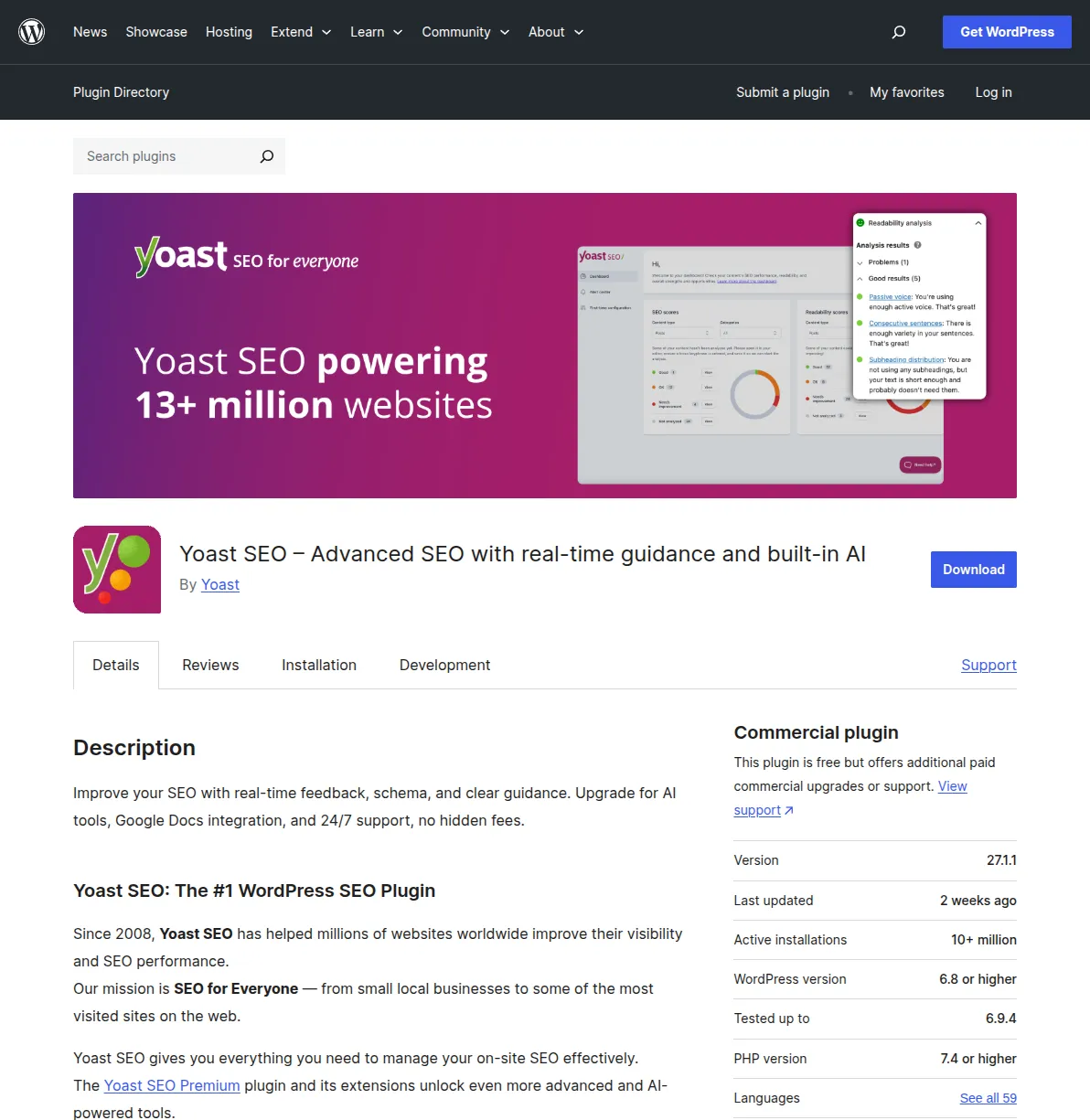
Once installed, walk through the setup wizard. The key features you want active from day one: XML sitemaps, title tag templates, meta description fields on every post, and Open Graph tags for social sharing. The defaults are solid — don't overthink the advanced settings yet.
3. Submit Your Sitemap to Google Search Console
Google Search Console is the single most underrated free SEO tool. It shows you exactly what Google sees when it looks at your site — crawl errors, indexed pages, search queries, and performance data. If you're not using it, you're flying blind. Head to search.google.com/search-console, verify your site ownership (the DNS method is the most reliable), and then submit your XML sitemap.
Your SEO plugin generates the sitemap automatically at yoursite.com/sitemap_index.xml. Once submitted, Google starts crawling within days. Check back weekly — I've caught broken pages, accidental noindex tags, and mobile issues all because Search Console flagged them early.
4. Write Compelling Title Tags with Your Target Keyword
Your title tag is the blue clickable link in Google search results. It's the first thing people see, and it's a direct ranking factor. Every page on your site should have a unique title tag that includes the keyword you're targeting, ideally near the beginning. Your SEO plugin adds a field for this right in the editor — use it on every single post and page.
"WordPress Tips" is boring. "15 WordPress SEO Tips That Actually Work (2026)" tells people exactly what they'll get. Keep titles under 60 characters so Google doesn't truncate them, and always preview using the snippet tool in your SEO plugin before publishing.
5. Write Meta Descriptions That Get Clicks
Meta descriptions don't directly affect rankings, but they massively impact click-through rate — and click-through rate does affect rankings indirectly. A compelling meta description can double your clicks even at the same ranking position. Think of it as your 155-character sales pitch. Include your target keyword (Google bolds matching terms), state the benefit clearly, and end with a subtle call to action.
Pro tip: If you don't write a meta description, Google auto-generates one by pulling random text from your page. I've seen it pull footer text and copyright notices. Write one yourself — 30 seconds of work gives you control over how your page appears in search results.
On-Page SEO Tips
Once your foundation is set, these five tips will help every individual post and page rank as high as possible. On-page SEO is where most beginners leave the biggest gains on the table — small tweaks that compound over dozens of posts.
6. Use Proper Heading Hierarchy
Your page should have exactly one H1 tag — that's your post title, and WordPress handles this automatically. After that, use H2 tags for main sections and H3 tags for subsections within those. Never skip levels (jumping from H2 to H4), and never use headings just to make text bigger. Google uses your heading structure to understand the hierarchy and topics on your page. A well-structured post with clear headings consistently outranks a wall-of-text post, even if the content quality is similar.
I structure every post before writing by outlining all H2s and H3s first, then filling in content. This keeps articles focused and scannable — reducing bounce rate, which Google pays attention to. Use my WordPress SEO checklist to make sure you're not missing structural elements.
7. Optimize Your Images
Images are often the heaviest elements on a page, and slow pages rank worse. Every image on your site needs three things: a descriptive filename (not IMG_4532.jpg), a meaningful alt tag that describes what the image shows, and compression. Rename your files before uploading — wordpress-dashboard-settings.webp tells Google what the image is about.
For compression, I use dedicated image optimization plugins that automatically compress and convert images to WebP format on upload. WebP images are 25-35% smaller than JPEG at the same visual quality. If your site has hundreds of unoptimized images, this single change can cut your page load time in half. Alt tags also make your site accessible to screen readers, which is both good practice and increasingly important for SEO.
8. Add Internal Links (3-5 Per Post)
Internal linking is the most underused SEO technique I see on WordPress sites. Every time you publish a post, link to 3-5 other relevant posts on your site using descriptive anchor text. Don't just link with "click here" — use anchor text that describes the target page, like WordPress SEO guide. This helps Google discover and understand the relationship between your pages, and it passes authority from your stronger pages to newer ones.
Here's something most tutorials skip: internal linking works both ways. After publishing a new post, go back to 2-3 older related posts and add links pointing to it. I spend 5 minutes after every publish adding reciprocal links — tedious, but one of the highest-ROI SEO activities you can do for free.
9. Target One Primary Keyword Per Post
Every post should target one specific keyword. Not three. Not five. One primary keyword, with a few natural variations sprinkled in. If you try to rank one post for "best WordPress themes" AND "how to install a WordPress theme," you'll end up ranking for neither. Each keyword deserves its own dedicated post. Your SEO plugin will show you whether you've used your target keyword in the title, headings, URL, meta description, and body — aim for green lights across the board.
Not sure how to pick keywords? Start with my keyword research for beginners guide. Target keywords with 100+/month search volume and keyword difficulty under 30. Long-tail keywords like "how to improve WordPress SEO" are easier to rank for than broad terms like "SEO" — and convert better because the intent is specific.
10. Optimize for Featured Snippets
Featured snippets are those answer boxes that appear above position #1 in Google. They pull content directly from a page and display it prominently — and they drive a disproportionate amount of clicks. To win them, structure your content in the format Google prefers: use numbered lists for step-by-step processes, bullet lists for collections, tables for comparisons, and short direct-answer paragraphs (40-50 words) right after your H2 headings.
The trick: put a concise, direct answer (40-50 words) right after your H2/H3, then follow with detailed explanation. Google wants the short answer for the snippet and the long answer to verify comprehensiveness. Tables are especially powerful for snippets. Learn to write blog posts that rank and you'll naturally capture these positions.
Technical SEO Tips
Technical SEO ensures Google can crawl, render, and index your site without issues. You don't need to be a developer for these — most are one-time setup tasks that keep working in the background.
11. Speed Up Your Site
Page speed is a confirmed ranking factor that got even more important with Core Web Vitals. A slow site doesn't just rank worse — visitors leave before content loads. The biggest speed killers are almost always the same: too many plugins, unoptimized images, no caching, and cheap shared hosting.
Test your site with Google PageSpeed Insights and aim for 80+ on mobile. Install a caching plugin, enable GZIP compression, and consider Cloudflare's free CDN. My guide on how to speed up WordPress covers every technique from quick wins to advanced tuning.
12. Make Sure Your Site Is Mobile-Friendly
Google uses mobile-first indexing, meaning it primarily ranks based on your mobile site. Most modern WordPress themes are responsive by default, but "responsive" doesn't always mean "mobile-friendly." Test on your actual phone, not just by resizing your browser window.
Common issues: text too small to read, buttons too close together, images causing horizontal scroll, and full-screen pop-ups. Google's PageSpeed Insights flags most of these. Over 60% of web traffic is mobile — if you're choosing a theme, check my best WordPress themes guide, they're all mobile-optimized.
13. Fix Broken Links
Broken links — both internal and external — hurt your SEO in two ways. First, they waste Google's crawl budget. Every time Googlebot hits a 404 page, that's a crawl it could have spent on an actual page. Second, they create a terrible user experience, and Google measures engagement signals like bounce rate and pogo-sticking. I install the Broken Link Checker plugin on every new WordPress site and run it monthly.
Pro tip: Find broken links on other sites in your niche, create equivalent content, then reach out suggesting your page as a replacement. This is broken link building — one of the most effective white-hat link building strategies.
14. Set Up SSL/HTTPS
If your site isn't running on HTTPS in 2026, Google will actively penalize you. Chrome shows a "Not Secure" warning on HTTP sites, which tanks your credibility and click-through rate. Most hosting providers offer free SSL certificates through Let's Encrypt — check your hosting control panel or contact support. Once the certificate is installed, you need to update your WordPress URL settings and set up redirects from HTTP to HTTPS.
I've written a complete walkthrough on how to set up SSL on WordPress covering every hosting provider. The process takes about 15 minutes. After switching, update your sitemap and Search Console property, and check for mixed content warnings. If you're on a new site, set up SSL before you publish anything — migrating later is doable but annoying.
15. Update Old Content Regularly
Google loves fresh content. Posts that haven't been updated in years gradually lose rankings to newer, more current competitors. I audit every post on my sites quarterly. I check if the information is still accurate, update screenshots, add sections covering new developments, refresh the publish date, and improve anything that feels thin. A 30-minute content refresh can often recover rankings that took months to build originally.
Pro tip: Check Search Console for posts declining in clicks — these are your highest-priority refresh targets. Add new sections, update statistics, replace outdated screenshots, then resubmit the URL using the URL Inspection tool. I've seen updated posts jump 10-20 positions within a week.
Quick Wins vs. Long-Term SEO Strategies
Not all SEO tips deliver results at the same speed. Here's how to prioritize based on the timeline you're working with:
| Tip | Time to Implement | Time to See Results | Impact |
|---|---|---|---|
| Set permalink structure | 1 minute | 1-2 weeks | High |
| Install SEO plugin | 10 minutes | 2-4 weeks | High |
| Submit sitemap to Search Console | 5 minutes | 1-2 weeks | High |
| Write title tags & meta descriptions | 5 min per post | 2-4 weeks | Medium |
| Fix heading hierarchy | 10 min per post | 2-6 weeks | Medium |
| Optimize images | 15 minutes (plugin) | 1-2 weeks | High |
| Add internal links | 5 min per post | 2-8 weeks | High |
| Target one keyword per post | Ongoing | 1-3 months | High |
| Optimize for featured snippets | 15 min per post | 2-8 weeks | Medium |
| Speed up your site | 1-2 hours | 1-4 weeks | High |
| Mobile optimization | Varies | 2-4 weeks | High |
| Fix broken links | 30 minutes | 2-6 weeks | Low-Medium |
| Set up SSL/HTTPS | 15 minutes | 1-2 weeks | High |
| Update old content | 30 min per post | 1-4 weeks | High |
If you only have an hour, focus on tips 1-3 (permalinks, SEO plugin, and Search Console). These three alone will put you ahead of 80% of WordPress sites that never touch their SEO settings. Then work through the on-page tips post by post — each one you optimize compounds the effect. Technical tips like speed and SSL are one-time investments that benefit every page on your site.
Frequently Asked Questions
How long does it take to see SEO results?
For a brand new site, expect 3-6 months before meaningful organic traffic. That's Google's own guidance — it needs time to crawl, index, and evaluate your content. However, sites with strong technical foundations can start ranking for low-competition keywords within 4-6 weeks. The key is consistency: keep publishing optimized content, build internal links, and the compound effect kicks in around month 4-5.
Do I need paid SEO tools to rank on Google?
Absolutely not. Google Search Console, Rank Math (free version), PageSpeed Insights, and the free tiers of Ubersuggest all cover what you need to start. Paid tools like Ahrefs and Semrush are powerful for competitive analysis, but they're investments that make sense once your site generates revenue. Start free, prove the concept, then upgrade.
Which single SEO tip matters most?
Internal linking (tip #8). You can have perfect title tags and blazing fast load times, but if pages aren't connected through logical links, Google struggles to understand your topical authority. I've seen sites jump 20+ positions just by adding strategic internal links. It's free, under your control, and surprisingly fast. See our complete WordPress SEO guide for the full picture. If you also want to be found inside AI answers (ChatGPT, Claude, Google AI Overviews), my guide to optimizing WordPress for AI search (GEO) is the natural next step. And if you'd rather bring in professional help, my guide to the best WordPress SEO services covers what to look for and what to expect to pay.
How often should I audit my site's SEO?
Lightweight weekly check (glance at Search Console for errors) and a thorough audit quarterly. During quarterly audits, I review every post for outdated info, broken links, thin content, and declining rankings. I also check if posts are ranking for unexpected keywords I can optimize further. Set a calendar reminder — SEO is ongoing maintenance, not a one-time project. Your competitors are improving constantly, and you need to keep up.

Written by Marvin
Our team tests and reviews WordPress products to help beginners make confident choices.
Learn more about our team →You might also like
WordPress SEO Checklist — 20 Steps to Rank Higher on Google in 2026
A concise, actionable WordPress SEO checklist covering setup, on-page optimization, technical SEO, and content strategy. Follow these 20 steps to give your WordPress site the best possible chance of ranking on Google.
postLearn WordPress SEO — Your Complete Guide to Ranking on Google
A structured learning path to master WordPress SEO. From choosing the right plugin to writing content that ranks, follow these 6 steps to get your WordPress site on Google's first page.
postBest WordPress AI Internal Link Plugins in 2026 — 5 Smart Options Compared
I checked the current WordPress AI internal linking landscape and narrowed it to 5 realistic options: Link Whisper, Rank Math, LinkBoss, AI Internal Links, and Squirrly SEO.
postBest WordPress AI Content Optimization Plugins in 2026 — 5 Tools Compared
I checked the current WordPress AI content optimization landscape and narrowed it to 5 tools that actually make sense: SEO Engine, AI Engine, Rank Math, Squirrly SEO, and GetGenie.