
How to Choose & Install a WordPress Theme (Beginner's Guide)
I still remember the moment I realized how much a WordPress theme actually matters. It was around 2008, and I had just spent three weeks writing content for a client's site. The posts were solid, the information was genuinely useful — but the site looked like it was built in 1999. Visitors bounced within seconds. We switched from a dated theme to a clean, modern one (it was a theme called Flavor, long gone now), and the average time on page tripled almost overnight. Nothing else changed — same content, same hosting, same everything. Just a different theme. That experience taught me something that I've carried with me through hundreds of WordPress projects since: your theme isn't just decoration. It's the first impression your website makes, and first impressions determine whether people stick around long enough to actually read what you've written.
In this guide, I'll walk you through everything you need to know about choosing and installing your first WordPress theme. I'll explain what themes actually do, how to tell a good theme from a bad one, and I'll give you my honest recommendations based on 20 years of building WordPress sites. By the end, you'll have a new theme installed and the confidence to customize it to match your vision. The whole process takes under five minutes — choosing wisely is the part that takes a bit longer, but that's what this guide is for.
If you haven't installed WordPress yet, head back to my How to Install WordPress guide first. And if you're following the Start Here learning path, you're right on track — this is the natural next step after configuring your basic settings.
What Is a WordPress Theme, Exactly?
A WordPress theme controls the visual appearance and layout of your entire website. Think of it this way: WordPress itself is the engine that powers your site — it handles content storage, user management, plugin functionality, all the behind-the-scenes stuff. Your theme is the body of the car — it determines what visitors actually see. The colors, fonts, header layout, sidebar position, how blog posts are displayed, how your homepage looks, the spacing between elements, the mobile layout — all of it comes from your theme.
Here's what's important to understand: your theme doesn't affect your content. If you switch from Theme A to Theme B, all your posts, pages, images, and settings stay exactly where they are. Your content lives in the WordPress database, completely independent of the theme. The theme just changes how that content is presented. This means you can experiment with themes without worrying about losing anything. I've switched themes on sites with hundreds of posts, and every word was right where I left it.
WordPress comes with a default theme pre-installed — currently Twenty Twenty-Five, which WordPress updates annually. The default themes are actually quite solid these days. They're well-coded, responsive, and follow WordPress best practices. But they're designed to be generic, which means they work for everyone but feel perfect for no one. That's why most people switch to a theme that better fits their specific needs, whether that's a blog, a business site, a portfolio, or an online store.
Free Themes vs. Premium Themes — Which Should You Pick?
This is one of the first decisions you'll face, and honestly, the answer is simpler than most people make it. For beginners, start with a free theme. Here's why: the best free themes in 2026 are genuinely excellent. They're fast, they're secure, they look professional, and they give you plenty of customization options. The gap between free and premium themes has shrunk dramatically over the past few years. Some of the most popular themes in the WordPress ecosystem — Astra, GeneratePress, Kadence — have free versions that power millions of websites.
Premium themes (typically $40-80 for a one-time purchase, or $50-100/year for subscription models) do offer extras: more starter templates, advanced header/footer builders, WooCommerce integration, priority support, and sometimes white-glove setup assistance. But here's the thing — you probably don't need any of that yet. When you're just starting out, a free theme gives you everything you need to build a professional site. You can always upgrade to the premium version later if you find yourself wanting features that the free tier doesn't include. I've built several sites that ran on free themes for over a year before I felt the need to upgrade, and some never needed to upgrade at all.
Warning: Never download "free" premium themes from random websites. These are almost always pirated copies bundled with malware, backdoors, or hidden spam links. I've cleaned up sites that were hacked through nulled themes, and it's always a nightmare — the malicious code is woven into the theme files in ways that are incredibly difficult to find and remove. Only download themes from the official WordPress.org theme directory or directly from the theme developer's website. If a $59 theme is being offered for free on a sketchy download site, ask yourself why. The answer is never good.
What to Look for in a WordPress Theme
With over 14,000 free themes in the WordPress directory alone, how do you narrow it down? Here's what I evaluate every single time I choose a theme, and it's served me well across hundreds of projects. I've organized these roughly by importance — the first few are non-negotiable, the rest are "nice to have."
1. Speed and Performance
This is the single most important factor, and it's the one most beginners overlook because you can't see it in a screenshot. A heavy, bloated theme can add 2-4 seconds to your page load time, and research consistently shows that every additional second of load time costs you visitors. Google also uses page speed as a ranking factor, so a slow theme can literally push you down in search results. Look for themes that advertise being "lightweight" and check their page size — good themes add less than 50KB to your page weight. The themes I recommend later in this article all score 95+ on Google PageSpeed Insights out of the box.
2. Mobile Responsiveness
Over 60% of web traffic now comes from mobile devices, and that number keeps climbing. Every theme you consider should look great on phones and tablets, not just desktop screens. The good news is that virtually all modern themes are responsive by default — but the quality of that responsiveness varies wildly. Some themes just shrink everything down, which technically works but creates a cramped, frustrating experience. The best themes are truly designed mobile-first, with touch-friendly navigation, appropriately sized tap targets, and layouts that genuinely make sense on a small screen. Always preview a theme on your phone before committing to it.
3. Active Development and Updates
WordPress releases major updates 2-3 times per year, and PHP (the language WordPress runs on) also updates regularly. Your theme needs to keep pace. A theme that hasn't been updated in two years is a ticking time bomb — it probably has security vulnerabilities, it might break with the next WordPress update, and it likely doesn't support the latest features like the block editor's newest patterns. On the WordPress.org theme page, check the "Last Updated" date. If it's been more than 6 months, think twice. If it's been more than a year, walk away. A theme with a developer who actively maintains it is one of the best investments you can make in your site's long-term health.
4. Ratings and Active Installations
Numbers don't lie. A theme with 500,000+ active installations and a 4.5+ star rating has been battle-tested by hundreds of thousands of real users. It's far less likely to have major bugs, compatibility issues, or hidden problems. On the flip side, a brand-new theme with 50 installations might be excellent, but it's an unknown quantity. For your first site, I'd stick with themes that have at least 100,000 active installations. You're not missing out on anything — the most popular themes are popular because they're genuinely good, not because of marketing hype.
5. Starter Templates and Customization Options
Modern WordPress themes often include a library of pre-built starter templates — complete website designs that you can import with one click and then customize with your own content. This is a game-changer for beginners because it gives you a professional-looking site immediately, without needing to design anything from scratch. Astra alone has over 200 starter templates covering blogs, businesses, portfolios, eCommerce, and more. Even if you don't use a starter template, look for themes with robust customization options in the WordPress Customizer — the ability to change colors, fonts, header layouts, and footer layouts without touching any code.
Quick Comparison: What Separates Good Themes from Bad Ones
| Factor | Good Theme | Bad Theme |
|---|---|---|
| Page weight | Under 50KB added | 200KB+ of bloat |
| Last updated | Within 3 months | Over 12 months ago |
| Active installs | 100,000+ | Under 1,000 |
| Star rating | 4.5+ stars | Below 4 stars |
| Mobile support | True responsive design | Desktop-only or broken mobile |
| Block editor | Full support | Classic editor only |
| Support forum | Active, quick responses | Unanswered questions |
My Personal Theme Recommendations for 2026
After testing dozens of themes over the years — on client sites, personal projects, and test installations — these are the three I consistently recommend to beginners. I'm not going to give you a list of twenty options because that's not helpful when you're just starting out. You need one good recommendation, not twenty mediocre ones. Any of these three will serve you well.
Astra — The All-Rounder I Recommend Most
If you ask me to pick just one theme for a beginner, it's Astra, every time. It's the most popular non-default WordPress theme for a reason — it's lightweight (adds less than 50KB to your page), works beautifully with the block editor and every major page builder, and has the largest library of starter templates I've seen. The free version is genuinely generous with features; I've built complete client sites on Astra Free without ever feeling limited. The theme loads fast, the customization options are intuitive, and the support community is massive — if you get stuck, someone has already asked and answered your question on their forum. For a detailed breakdown, check out my Astra theme review.
GeneratePress — For Speed Obsessives
If page speed is your top priority (and honestly, it should be up there for everyone), GeneratePress is the theme to beat. It adds less than 30KB to your page — that's absurdly lean. The design philosophy behind GeneratePress is "less is more," and it shows: there's no bloat, no unnecessary features, no JavaScript libraries loaded when they're not needed. The free version is more minimal than Astra's, so you get fewer customization options out of the box, but what you get is rock-solid and blazingly fast. GeneratePress consistently scores 100/100 on PageSpeed Insights on a fresh install, which very few themes can claim. It's slightly more developer-oriented than Astra, but beginners can absolutely use it — the learning curve just takes an extra afternoon.
Kadence — The Design-Forward Option
If you care about having a site that looks visually impressive from day one, Kadence is the best free option available. It strikes a perfect balance between aesthetics and performance — not quite as fast as GeneratePress, but noticeably prettier out of the box. Kadence's standout feature is its header and footer builder, which gives you drag-and-drop control over your site's header layout even in the free version. Most themes lock that behind a premium paywall. The starter templates are modern and polished, and the global color palette system makes it easy to change your entire site's color scheme in seconds. If you're building a portfolio, creative business site, or any project where visual design matters more than raw speed, Kadence is my pick.
Want to see more options? Check out my complete guide to the best free WordPress themes and the broader WordPress themes resource page.
How to Install a Theme from the WordPress Dashboard
Now for the practical part. Installing a theme from the WordPress dashboard is one of the easiest things you'll do — the whole process takes about two minutes. Here's exactly how to do it, step by step.
Step 1: Navigate to the Theme Installer
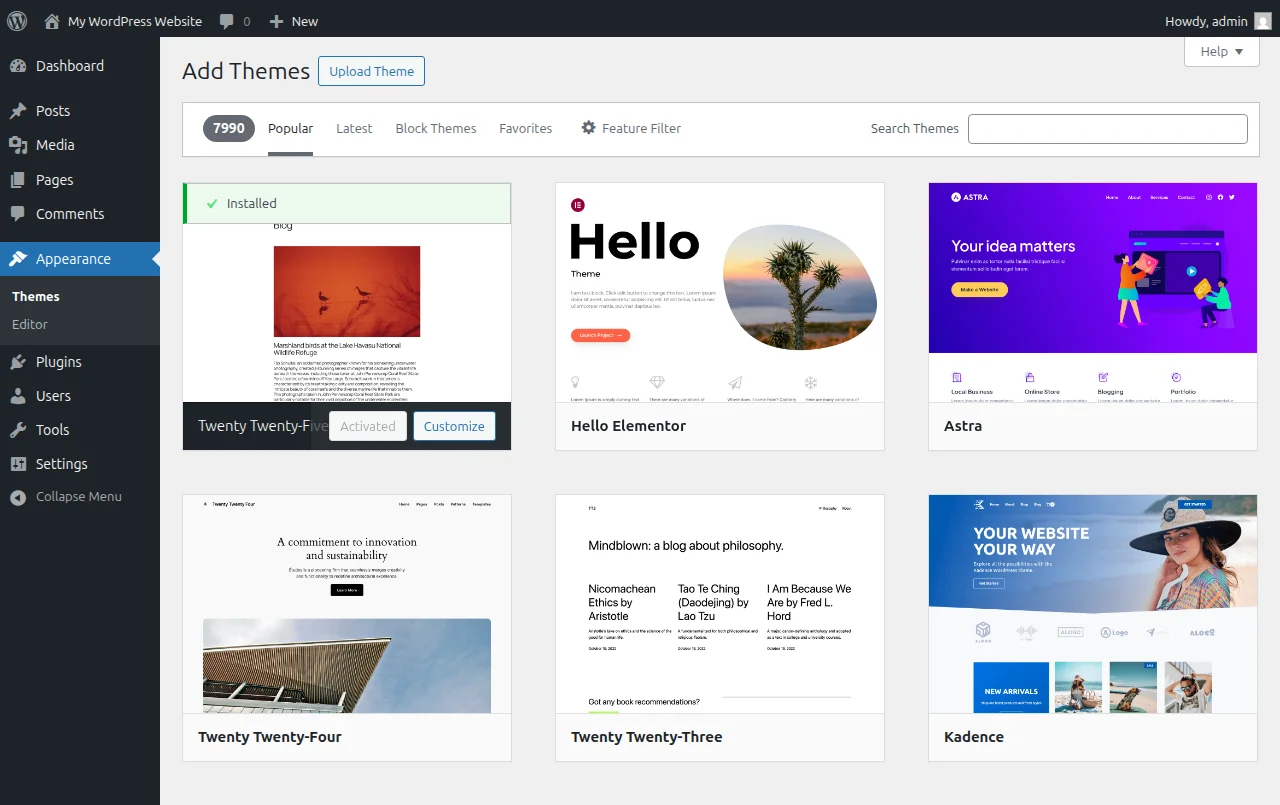
Log in to your WordPress admin dashboard (yourdomain.com/wp-admin) and go to Appearance > Themes in the left sidebar. You'll see your currently active theme along with any other themes that came pre-installed. Click the "Add New Theme" button at the top of the page. This opens the WordPress theme browser, which connects directly to the WordPress.org theme directory.
Step 2: Search for Your Theme
In the search bar at the top right, type the name of the theme you want — for example, "Astra." The results will appear instantly. You can also browse by category using the tabs (Popular, Latest, Block Themes) or use the Feature Filter to narrow down by features like layout type, subject matter, and specific features. But if you're following my recommendations, just search by name — it's faster and you know exactly what you're looking for.
Step 3: Preview the Theme
Before installing, hover over the theme thumbnail and click "Preview" (or "Live Preview" on some versions). This shows you a preview of how the theme will look. Keep in mind that the preview uses demo content, so it won't look exactly like your site will. But it gives you a good sense of the layout, typography, and overall vibe. If you like what you see, proceed to the next step. If not, search for another option.
Step 4: Install and Activate
Click the "Install" button. WordPress downloads the theme files and installs them — this usually takes 5-15 seconds. Once installation is complete, the button changes to "Activate." Click it. Your site now uses the new theme. That's literally it. If you visit your site's front end (click your site name in the top toolbar), you'll see the new design immediately. Don't panic if it looks a bit empty or different from the preview — that's normal. The preview uses demo content and custom settings that you haven't configured yet. Customization is the next step.
Pro tip: WordPress keeps previously installed themes in your system even after you activate a new one. This is useful for testing, but inactive themes can pose a security risk if they're not kept updated. My rule: keep your active theme and one default theme (like Twenty Twenty-Five) as a fallback, and delete everything else. Go to Appearance > Themes, click on any inactive theme you don't need, and hit "Delete" in the bottom right corner.
How to Install a Premium Theme (Upload Method)
If you've purchased a premium theme from a developer's website (like the paid versions of Astra, GeneratePress, or Kadence), the process is slightly different because it won't be in the WordPress directory. Instead, you'll have a .zip file. Here's how to install it:
- Go to Appearance > Themes > Add New Theme
- Click the "Upload Theme" button at the top of the page
- Click "Choose File" and select the .zip file you downloaded from the developer
- Click "Install Now" and wait for the upload to complete
- Click "Activate" once it's installed
Important: Upload the .zip file exactly as you downloaded it — don't unzip it first. WordPress expects a .zip archive. If you get an error that says "The package could not be installed. The theme is missing the style.css stylesheet," it usually means you've uploaded the wrong .zip file. Some theme developers nest their files inside a larger archive that also contains documentation and plugins. Open the download on your computer, look inside, and find the actual theme .zip file (it's usually named something like theme-name.zip or theme-name-v2.1.zip).
Customizing Your Theme: The First 10 Minutes
You've installed and activated your theme — now it's time to make it yours. WordPress provides a built-in customization tool that lets you change colors, fonts, layouts, and more without touching any code. Here's what to tackle in your first session.
Site Identity
Go to Appearance > Customize (or in newer WordPress versions with block themes, Appearance > Editor). Look for "Site Identity" or "Header" settings. This is where you set your site logo, site title, tagline, and site icon (favicon — the tiny image that appears in browser tabs). Upload your logo if you have one. If you don't, that's fine — your site title will display instead. Set the site icon to a simple square image (at least 512x512 pixels) — even just your logo on a solid background works.
Colors and Typography
Most modern themes have a global color palette system. In Astra, it's under Global > Colors. In Kadence, it's under Colors & Fonts. Pick a primary accent color that matches your brand, a text color (dark gray like #333333 is easier to read than pure black), and a background color. For typography, stick with system fonts or Google Fonts that load fast. I usually go with a clean sans-serif like Inter or DM Sans for body text, and something slightly bolder for headings. Don't overcomplicate this — two fonts maximum. One for headings, one for body text.
Navigation Menu
Go to Appearance > Menus (or in the block editor, Appearance > Editor and select the header/navigation area). Create a new menu, add your most important pages, and assign it to the "Primary" or "Main Navigation" location. Keep it simple at first — Home, About, Blog, Contact is a perfectly solid starting menu. You can always add more items later as your site grows. A cluttered navigation menu is worse than a sparse one.
Pro tip: Many themes (including Astra, GeneratePress, and Kadence) offer a setup wizard when you first activate them. Don't skip it. The wizard walks you through choosing a starter template, setting your colors and fonts, and importing demo content — all in about 3-5 minutes. It's the fastest way to go from a bare theme to a site that actually looks like the beautiful demos you saw during your research.
Common Theme Mistakes Beginners Make
After helping countless people with their WordPress sites over the years, I see the same mistakes come up again and again. Here's what to avoid:
Choosing a theme based only on the demo. Demos are designed by professional designers with professional photography and carefully crafted content. Your site will look different, and that's okay. Choose a theme based on its layout, speed, and customization options — not because the demo had a beautiful photo of a mountain.
Installing too many themes to "test." I've seen dashboards with 15 installed themes. Each one takes up space and presents a potential security vulnerability. Install one, try it for a few days, and if you don't like it, delete it before installing the next one. You should never have more than two or three themes installed at once.
Changing themes every few weeks. Give your theme time. Spend at least a month with it before deciding to switch. Most of the things you think are "wrong" with a theme are actually just customization settings you haven't discovered yet. Dig into the theme options, check the documentation, and ask in the support forum before jumping ship.
Ignoring mobile preview. You set everything up on your desktop, it looks perfect, and you call it done. Then you check on your phone and the header is overlapping, the text is too small, and the navigation is broken. Always, always check mobile. The WordPress Customizer has a mobile preview option in the bottom left — use it.
What to Do Next
You've got a theme installed and customized — your site is actually starting to look like a real website now. Here's where to head next:
- How to Make a WordPress Website — The complete beginner guide covering pages, content creation, and launching your site
- Essential WordPress Plugins — The must-have plugins that every WordPress site needs (this is the next step in the learning path)
- WordPress Themes Hub — Deep dives into specific themes, comparisons, and advanced customization
- Best Free WordPress Themes — A comprehensive comparison if you want to explore more options
- Start Here — Back to the full learning path to see what's next
Here's something most tutorials won't tell you: the theme you choose today probably won't be the theme you're using in two years. Your needs will evolve, your design taste will develop, and new themes will come along with better features. And that's perfectly fine. The beauty of WordPress is that switching themes is painless — your content stays put, and you can transform your entire site's look in an afternoon. So don't agonize over this decision. Pick one of my recommendations, install it, customize it, and move on to creating content. That's where the real work — and the real results — happen.
Frequently Asked Questions
Can I change my WordPress theme later without losing content?
Absolutely yes. Your posts, pages, images, and all your content are stored in the WordPress database, completely separate from your theme. Switching themes only changes the visual presentation — your content stays exactly where it is. The only things you might need to reconfigure are theme-specific settings like custom header layouts, widget areas, and menu locations, since those vary from theme to theme. I've switched themes on sites with 500+ posts, and not a single word of content was affected. Just make sure to preview the new theme before activating it and double-check your site after the switch to make sure everything looks right.
How many themes should I have installed?
Keep it minimal: your active theme and one backup theme (a default WordPress theme like Twenty Twenty-Five). Delete everything else. Each installed theme takes up server space and needs to be updated for security, even if it's not active. An outdated inactive theme is one of the most common attack vectors for WordPress hacks — the theme files are still accessible on your server even if the theme isn't active. I've personally cleaned up sites that were compromised through vulnerabilities in themes the site owner didn't even know were installed.
Do I need a page builder with my theme?
Not necessarily, and this is where I have a strong opinion that differs from many WordPress tutorials. The WordPress block editor (Gutenberg) has matured dramatically and can handle most content creation needs without a third-party page builder. Themes like Astra, GeneratePress, and Kadence work beautifully with the native block editor. Page builders like Elementor and Beaver Builder add a lot of weight to your site and create a dependency that makes it painful to switch later. My advice: start with the block editor, learn what it can do, and only add a page builder if you hit a genuine limitation. Most beginners never do.
Are WordPress block themes better than classic themes?
Block themes (also called Full Site Editing themes) represent the future of WordPress theming. They let you customize every part of your site — header, footer, templates, everything — using the block editor. Classic themes use the older Customizer system and PHP templates. In 2026, both approaches work well, but block themes offer more flexibility and are where WordPress development is heading. That said, classic themes like Astra and GeneratePress have been around longer, have more documentation, and are arguably easier for beginners to learn. My recommendation: if you're comfortable with the block editor, try a block theme like Kadence or Twenty Twenty-Five. If you prefer a more guided experience, a classic theme with a good Customizer panel is the safer bet.
What's the difference between a theme and a template?
People often use these terms interchangeably, but they're technically different. A theme is the overall design package — it controls your entire site's appearance and includes all the templates, stylesheets, and functionality files. A template is a specific layout within a theme for a particular type of content — like a template for blog posts, a template for pages, or a template for your archive page. One theme contains multiple templates. When people say "WordPress template," they usually mean "WordPress theme," and in casual conversation it doesn't matter much. But when you're digging into theme documentation or customization, understanding the distinction helps.
My theme looks nothing like the demo — what went wrong?
Nothing went wrong — this is completely normal. Theme demos are designed with specific images, content, and settings that you don't have yet. The demo uses professional photography, carefully crafted placeholder text, and all the theme settings dialed in to look perfect. When you install the theme fresh, you're starting with default settings and no content, so of course it looks different. Most good themes offer a way to import demo content (often through a starter template or demo import plugin) that gives you the same starting point as the demo. From there, you replace the demo content with your own. Astra's "Starter Templates" plugin is excellent for this — you pick a design, import it, and then customize from there.
Should I use a child theme?
If you're planning to make custom code changes to your theme (editing PHP files, adding custom CSS beyond what the Customizer offers, modifying template files), then yes, you should use a child theme. A child theme inherits all the styling and functionality of its parent theme but lets you make modifications that won't be overwritten when the parent theme updates. If you're only using the built-in customization options — Customizer, theme settings panels, the block editor — you don't need a child theme. Most beginners fall into the second category and can safely skip this until they're more advanced. When you're ready, your theme's documentation will walk you through creating a child theme.

Written by Marvin
Our team tests and reviews WordPress products to help beginners make confident choices.
Learn more about our team →You might also like
7 Essential Plugins Every WordPress Site Needs (2026)
Don't install 30 plugins. Start with these 7 that every WordPress site actually needs — for security, SEO, speed, and backups.
postEssential WordPress Settings After Install (2026 Guide)
Just installed WordPress? Here are the 10 settings you need to configure right away — before you do anything else.
postWordPress Pre-Launch Checklist — 15 Things Before Going Live
Before you share your site with the world, run through this 15-point checklist to make sure everything is ready.
postCreating Your First WordPress Pages & Posts (Step-by-Step)
Pages vs posts — what's the difference and when to use each? Here's how to create both using the WordPress block editor.