
7 Essential Plugins Every WordPress Site Needs (2026)
I have been building WordPress sites for close to two decades, and if there is one mistake I see beginners make over and over again, it is installing way too many plugins. They find a listicle with "50 Best WordPress Plugins" and go on an installation spree. Before they know it, their site takes eight seconds to load, plugins conflict with each other, and they have no idea which one is causing problems.
Here is the thing most tutorials will not tell you: you do not need 30 plugins. When I set up a new WordPress site today, I install exactly seven. That is it. Seven plugins that cover every essential function a WordPress site needs — security, SEO, speed, backups, forms, spam protection, and image optimization. Everything else is optional, and you should only add it when you have a specific need for it.
In this guide, I will walk you through the seven plugins I install on every single WordPress site I build, explain why each one matters, and show you how to get them set up. If you are following along with the ZeroToWP learning path, you have already picked your theme in the previous step — now it is time to add the functionality your site needs to succeed.
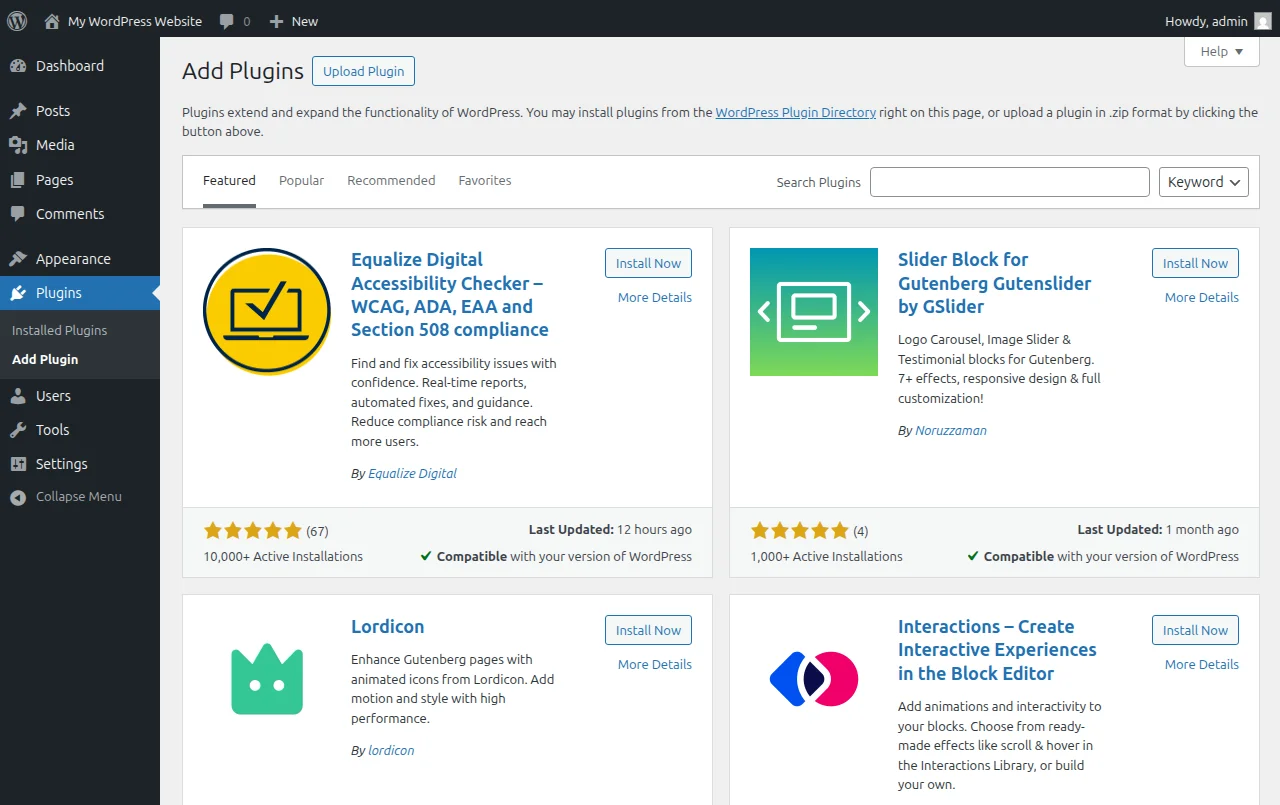
How WordPress Plugins Work (30-Second Version)
A plugin is a piece of software that adds new features to your WordPress site. Think of WordPress as a smartphone — it comes with basic functionality out of the box, but you install apps to make it do more. Plugins are those apps. They can do anything from adding a contact form to turning your site into a full online store.
WordPress has over 60,000 plugins in its official plugin directory, and thousands more sold by third-party developers. The official directory only hosts free plugins (some with premium upgrades), and every plugin listed there has been reviewed by the WordPress team for basic security and coding standards. That is where you should install plugins from — never download random plugin ZIP files from sketchy websites. I have seen too many sites get hacked that way.
To learn more about what plugins are and how they work, check out my detailed WordPress plugins guide.
Why Less Is More: The Plugin Bloat Problem
Before I give you my list, let me explain why I am so adamant about keeping your plugin count low. Every plugin you install adds PHP code that runs on every single page load. More plugins means more code, which means slower load times, more potential security vulnerabilities, and more things that can break when WordPress or another plugin updates.
I once helped a friend troubleshoot her food blog that had become unbearably slow. She had 43 active plugins. Forty-three. She had three different SEO plugins (which were fighting each other), two caching plugins (also fighting each other), and a dozen plugins she had installed once, used for five minutes, and forgotten about. After we stripped it down to the essentials and removed the junk, her page load time dropped from 9 seconds to under 2 seconds. That is the difference plugin bloat makes.
My rule of thumb: keep it under 15 plugins total, and ideally under 10. Quality over quantity, always. For a brand-new site, these seven are all you need. You can read more about optimizing your site speed in my WordPress speed optimization guide.
1. Rank Math SEO — Get Found in Google
What it does: Rank Math helps you optimize every page and post for search engines. It analyzes your content, suggests improvements, generates XML sitemaps, handles meta titles and descriptions, adds schema markup, and integrates with Google Search Console — all from one plugin.
Honestly, I used Yoast SEO for years. It was the default recommendation everywhere. But I switched to Rank Math about three years ago and I am never going back. The free version of Rank Math includes features that Yoast charges for — like multiple focus keywords, a built-in redirect manager, a 404 monitor, and support for 20+ schema types. Rank Math has over 3 million active installations now and has become the go-to SEO plugin for modern WordPress sites.
How to install: Go to Plugins → Add New Plugin in your WordPress dashboard, search for "Rank Math SEO," click Install Now, then Activate. Rank Math has a setup wizard that walks you through the initial configuration — follow it step by step. It will ask you to connect your Google account, set your site type, and configure basic SEO settings. The wizard takes about five minutes and gets everything set up correctly.
Pro tip: After installing Rank Math, go to Rank Math → Dashboard → Modules and enable only the modules you actually need. Start with SEO Analysis, Sitemap, Schema, and Redirections. You can always enable more later.
2. Wordfence Security — Protect Your Site from Hackers
What it does: Wordfence is a comprehensive security plugin that includes a web application firewall (WAF), malware scanner, login security, real-time traffic monitoring, and brute force attack protection. It blocks malicious traffic before it reaches your site.
Here is something most beginners do not realize: the moment you put a WordPress site online, bots start attacking it. Not because your site is special — they attack every WordPress site automatically. I have seen brand-new sites with zero content receive hundreds of brute-force login attempts within the first week. Without a security plugin, you are relying entirely on your hosting provider to protect you, and that is a gamble I am not willing to take.
Wordfence is my security plugin of choice because of its massive threat intelligence network. With over 4 million active installations, Wordfence detects new threats quickly and pushes firewall rules to protect all sites using it. The free version includes the firewall (with a 30-day delay on new rules compared to premium), full malware scanning, and login security features like two-factor authentication.
How to install: Search for "Wordfence Security" in Plugins → Add New Plugin, install and activate it. Wordfence will show you a setup wizard — enter your email address for security alerts and follow the prompts. After setup, go to Wordfence → All Options and enable brute force protection. I also recommend turning on two-factor authentication under Wordfence → Login Security.
Warning: Do not install multiple security plugins. Running Wordfence alongside Sucuri or iThemes Security causes conflicts and can actually make your site less secure. Pick one and stick with it.
3. LiteSpeed Cache — Make Your Site Lightning Fast
What it does: LiteSpeed Cache is a caching and optimization plugin that dramatically speeds up your site. It creates static HTML versions of your pages so WordPress does not have to run PHP and query the database on every single visit. It also includes image optimization, CSS/JS minification, database cleanup, and lazy loading.
Now here is where it gets interesting. If your hosting uses LiteSpeed web server (and many popular hosts do — Hostinger, A2 Hosting, NameHero, and others), LiteSpeed Cache gives you server-level caching that is significantly faster than any other caching plugin. But even if your host uses Apache or Nginx, LiteSpeed Cache still works brilliantly as a general optimization plugin — it just does not get the server-level caching benefit.
I switched from WP Super Cache to LiteSpeed Cache a couple of years ago, and the difference was noticeable. Page load times dropped by about 40% on the same hosting. The plugin does more than just caching — its built-in image optimization (through QUIC.cloud) and CSS/JS minification mean you do not need separate plugins for those tasks. One plugin replaces three or four.
How to install: Search for "LiteSpeed Cache" in the plugin directory, install and activate. The default settings work well for most sites. For an extra speed boost, go to LiteSpeed Cache → Page Optimization and enable CSS Minify, JS Minify, and CSS Combine. Test your site after each change — occasionally, minification can break something if a theme or plugin uses JavaScript in an unusual way.
Pro tip: If your host does not use LiteSpeed server, WP Super Cache or W3 Total Cache are solid alternatives. But check with your host first — many modern hosts now run LiteSpeed.
4. UpdraftPlus — Never Lose Your Site
What it does: UpdraftPlus creates complete backups of your WordPress site (files and database) and lets you restore them with one click. You can store backups on cloud services like Google Drive, Dropbox, or Amazon S3, and schedule automatic backups to run on whatever interval you choose.
I cannot stress this enough: backups are not optional. They are the single most important thing you can set up on your WordPress site. I have lost count of how many people have contacted me in a panic because their site got hacked, their host had a server failure, or they accidentally broke something with a plugin update — and they had no backup. Without a backup, you start from zero. With a backup, you click one button and you are back to normal.
UpdraftPlus is the most popular backup plugin with over 3 million active installations, and the free version covers everything most sites need. You get scheduled backups, manual backups, one-click restore, and cloud storage integration. The latest version (updated March 2026) is rock-solid. Premium adds incremental backups and migration tools, but the free version is plenty for a new site.
How to install: Install and activate UpdraftPlus from the plugin directory. Go to Settings → UpdraftPlus Backups and set up a schedule — I recommend daily database backups and weekly file backups for most sites. Choose a remote storage location (Google Drive is free and easy), connect your account, and run your first manual backup right away to make sure everything works.
Warning: Do not store backups only on your server. If the server crashes or gets hacked, your backups go down with it. Always use remote storage.
5. WPForms Lite — Add a Contact Form
What it does: WPForms lets you create drag-and-drop forms — contact forms, feedback forms, newsletter signups, survey forms, and more. The Lite version is free and includes everything you need for a basic contact form.
WordPress does not come with a built-in contact form, which surprises a lot of beginners. You need a plugin for that. And while you could just put your email address on a page, that is a terrible idea — spam bots scrape email addresses from websites and you will be drowning in junk mail within a month. A proper contact form with spam protection keeps your inbox clean while making it easy for visitors to reach you.
I have tried many form plugins over the years — Contact Form 7, Ninja Forms, Gravity Forms, Formidable Forms. WPForms Lite wins for beginners because it has the cleanest drag-and-drop interface. You can create a professional contact form in under two minutes with zero coding. The free version handles contact forms perfectly. If you later need payment forms, conditional logic, or advanced features, the premium version is reasonably priced.
How to install: Install WPForms Lite from the plugin directory. After activation, go to WPForms → Add New and select the "Simple Contact Form" template. Customize the fields if you want (the defaults are fine), click Save, then add the form to any page using the WPForms block in the editor. That is literally it — two minutes from install to working form.
6. Akismet Anti-Spam — Keep the Spammers Out
What it does: Akismet automatically checks every comment submitted on your site against its global spam database and filters out the junk. It works silently in the background — you do not need to configure rules or check spam queues.
This next part trips up a lot of beginners: comment spam is a massive problem on WordPress sites. Within days of launching a new site, you will start getting comments like "Great post! Visit my site for cheap handbags" or worse. Without Akismet, your comment section will be 95% spam within a month. I have seen sites with thousands of spam comments that the owner never noticed because they did not check their comment moderation queue.
Akismet comes pre-installed on every new WordPress installation — it is made by Automattic, the company behind WordPress.com. It catches over 99.9% of spam comments. You just need to activate it and connect your API key. The plugin is free for personal blogs and non-commercial sites. If you run a commercial site, plans start at a few dollars per month, but honestly, it pays for itself by saving you hours of manual spam cleanup.
How to install: Akismet is already installed — just go to Plugins → Installed Plugins, find Akismet, and click Activate. It will ask you to set up an Akismet account and enter an API key. Go to akismet.com, sign up for the free plan (select "personal" and slide the price to $0/year), and paste the API key into the plugin settings.
7. ShortPixel Image Optimizer — Shrink Your Images
What it does: ShortPixel automatically compresses and optimizes every image you upload to WordPress. It reduces file sizes by 60-80% without visible quality loss, converts images to modern formats like WebP and AVIF, and can process your existing image library in bulk.
Images are almost always the heaviest part of any web page. A single unoptimized photo from your phone can be 3-5MB. If you have five of those on a page, that is 15-25MB of images alone — your page will take forever to load on mobile. ShortPixel fixes this automatically. You upload a 4MB image, ShortPixel compresses it to 400KB in the background, and your visitors never see the difference in quality.
I chose ShortPixel over alternatives like Smush and Imagify because of its generous free tier (100 images per month with no size limits), excellent compression quality, and WebP/AVIF conversion. For a new site that is not uploading hundreds of images per month, the free tier is plenty. The paid plans are affordable too — $3.99 per month for 7,500 images if you outgrow the free tier.
How to install: Install ShortPixel from the plugin directory. After activation, sign up for a free API key at shortpixel.com and enter it in the plugin settings. Go to Settings → ShortPixel and set the compression type to Lossy (best balance of size reduction and quality). Enable WebP conversion. From now on, every image you upload is automatically optimized.
Pro tip: After installing ShortPixel, go to Media → Bulk ShortPixel and optimize all your existing images. Even if you only have a few images from setting up your theme, get them optimized from the start.
How to Install Any WordPress Plugin (General Steps)
The process is the same for all plugins. Here is the quick version:
- Log in to your WordPress dashboard.
- Go to Plugins → Add New Plugin.
- Search for the plugin name in the search bar.
- Click Install Now next to the correct plugin (check the developer name and number of installations to make sure you have the right one).
- Click Activate after installation completes.
- Configure the plugin settings (each plugin has its own settings page).
Important: Always check three things before installing any plugin: (1) when it was last updated (avoid anything not updated in over a year), (2) how many active installations it has (more installations generally means more reliable), and (3) the star rating and reviews. These three indicators save you from installing abandoned or poorly coded plugins.
What About Other Plugins?
You might be wondering about plugins I did not mention. What about WooCommerce? What about a page builder? What about a social sharing plugin? Those are all great plugins — but they are not essential for every site. They are situational.
| If you need... | Then add... | But only when... |
|---|---|---|
| An online store | WooCommerce | You are ready to sell products |
| Advanced page layouts | Elementor or Divi | Your theme is not flexible enough |
| Email marketing integration | MailPoet or MC4WP | You have a lead magnet ready |
| Social sharing buttons | Social Snap or Grow | You are publishing content regularly |
| Analytics | MonsterInsights or Site Kit | You want dashboard analytics |
The point is: start with the seven essentials, get your site running smoothly, and add more plugins only when you have a clear reason. Every plugin you add is a trade-off between functionality and performance. For a deeper dive into the best plugins in every category, check out my best WordPress plugins roundup.
Frequently Asked Questions
How many plugins is too many for WordPress?
There is no hard limit, but I recommend keeping it under 15 for most sites. The actual impact depends on the quality of the plugins — five well-coded plugins can be lighter than one poorly coded one. Focus on quality over quantity, remove anything you are not actively using, and monitor your site speed after installing each new plugin.
Do plugins slow down WordPress?
They can, but it depends on the plugin. A lightweight plugin like Akismet adds almost zero overhead. A heavy plugin like WooCommerce or a page builder adds noticeable load time. The seven plugins I recommended are all well-optimized and should not noticeably slow your site. If your site becomes slow after installing a plugin, that plugin is either poorly coded or doing something very resource-intensive — use the Query Monitor plugin to identify the bottleneck.
Are free WordPress plugins safe?
Plugins from the official WordPress.org plugin directory go through a basic review process and are generally safe. However, "free" does not automatically mean "safe." Check when the plugin was last updated, how many installations it has, and read a few reviews. Avoid plugins that have not been updated in over a year — they may have unpatched security vulnerabilities. And never download plugins from unofficial websites.
Can I use Yoast SEO instead of Rank Math?
Absolutely. Yoast SEO is still a great plugin and powers millions of sites. I personally prefer Rank Math because the free version includes more features (like multiple focus keywords and built-in redirects). But you cannot go wrong with either one. Just do not install both at the same time — pick one SEO plugin and stick with it.
Do I really need a backup plugin if my host does backups?
Yes. Many hosts do provide automatic backups, but you are trusting a third party with your only copy. What if the host has a catastrophic failure that takes out their backup servers too? What if they only keep backups for seven days and you do not notice a problem until day eight? UpdraftPlus gives you your own independent backups stored in your own cloud storage account. It is an extra layer of protection that costs nothing and takes five minutes to set up. There is no reason not to have it.
Should I delete plugins I am not using?
Yes — deactivate and delete them. A deactivated plugin is still sitting on your server as PHP files. Those files can contain security vulnerabilities even when the plugin is not active. If you are not using a plugin, remove it completely. You can always reinstall it later if you need it again.
What Is Next?
With these seven plugins installed, your WordPress site is secure, fast, backed up, and ready for search engines. You have built a solid foundation. In the next step of the ZeroToWP learning path, we will tackle creating your first pages and blog posts — the actual content that will attract visitors to your site. For now, take a few minutes to make sure each plugin is configured properly, run a site speed test to see your baseline performance, and create your first UpdraftPlus backup. Your future self will thank you.

Written by Marvin
Our team tests and reviews WordPress products to help beginners make confident choices.
Learn more about our team →You might also like
How to Choose & Install a WordPress Theme (Beginner's Guide)
Your theme controls how your site looks. Here's how to pick the right one and install it in under 5 minutes.
postEssential WordPress Settings After Install (2026 Guide)
Just installed WordPress? Here are the 10 settings you need to configure right away — before you do anything else.
postWordPress Pre-Launch Checklist — 15 Things Before Going Live
Before you share your site with the world, run through this 15-point checklist to make sure everything is ready.
postCreating Your First WordPress Pages & Posts (Step-by-Step)
Pages vs posts — what's the difference and when to use each? Here's how to create both using the WordPress block editor.