
How to Speed Up WordPress: 10 Proven Optimizations (2026 Guide)
I'll cut straight to it: if your WordPress site takes more than 3 seconds to load, you're losing roughly half your visitors before they ever see your content. I've been building and optimizing websites for over 20 years, and speed is the single most impactful thing you can improve. Not design, not copy, not your color palette. Speed. Google has confirmed it's a ranking factor, it directly affects your Core Web Vitals scores, and every fraction of a second shaved off your load time translates to measurable improvements in bounce rate and conversions.
The good news? You don't need to be a developer to make your WordPress site fast. I've taken sites from painfully slow to blazing fast using the exact steps I'm about to walk you through. Every optimization below is ranked by impact, so if you're short on time, start at #1 and work your way down. Even implementing the top three will make a dramatic difference.
Test Your Current Speed First
Before you change anything, you need a baseline. You can't improve what you don't measure. I use two free tools for every speed audit: GTmetrix and Google PageSpeed Insights. GTmetrix gives you a detailed waterfall chart showing exactly what's loading and how long each resource takes. PageSpeed Insights shows your Core Web Vitals — the metrics Google actually uses to evaluate your site in search rankings. Run both tools on your homepage and your most important landing page. Write down your scores. We'll come back to compare after the optimizations.
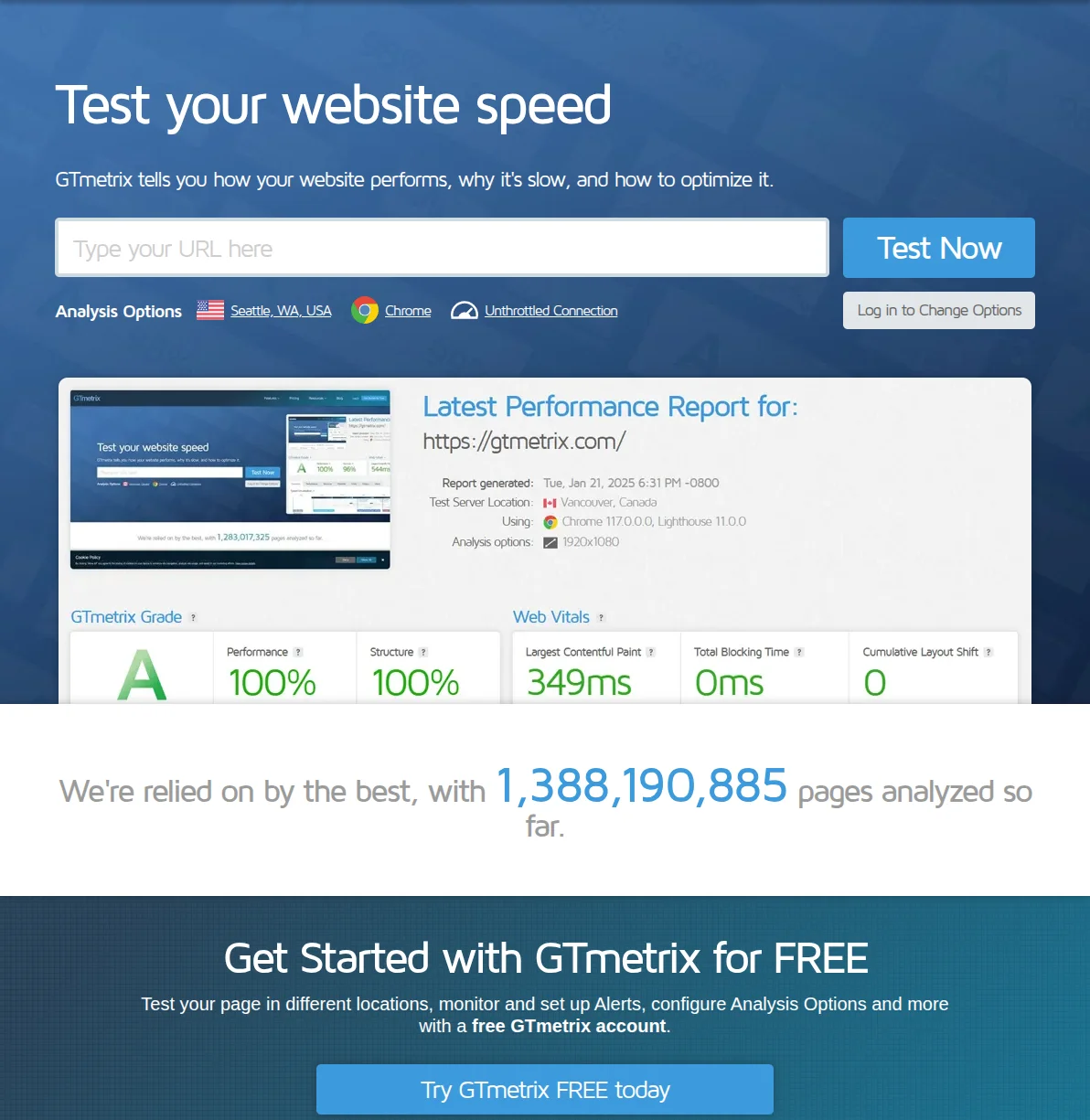
What the scores mean: In GTmetrix, you want a Performance score above 90% and a fully loaded time under 2 seconds. In PageSpeed Insights, aim for "Good" on all three Core Web Vitals: Largest Contentful Paint (LCP) under 2.5s, Interaction to Next Paint (INP) under 200ms, and Cumulative Layout Shift (CLS) under 0.1. If your numbers are worse than this, the optimizations below will help — a lot.
10 Speed Optimizations Ranked by Impact
#1 — Choose Fast Hosting
This is the single biggest factor in your site's speed, and it's the one most people get wrong. I've seen WordPress sites go from 4+ second load times to under 1.5 seconds just by switching hosts — no other changes. Cheap shared hosting (the $2.99/month kind) puts your site on an overcrowded server with hundreds of other sites, all competing for the same resources. During traffic spikes, your site crawls. I've helped dozens of people debug "slow WordPress" issues that turned out to be nothing but terrible hosting.
If you're serious about speed, invest in quality hosting from the start. I've written a complete guide to choosing WordPress hosting that breaks down the options. For most people, I recommend starting with a solid shared host like Hostinger or SiteGround, then graduating to managed WordPress hosting once your traffic justifies it. Managed hosts like Cloudways or Kinsta handle server-level caching, automatic updates, and performance tuning for you — it's like having a pit crew for your website.
Pro tip: Choose a server location closest to your primary audience. If most of your visitors are in Europe, don't host in a US data center. This alone can cut 100-200ms off your response time.
#2 — Install a Caching Plugin
WordPress generates pages dynamically — every time someone visits your site, PHP queries the database, assembles the page, and sends it to the browser. Caching stores a pre-built version of each page so your server doesn't have to rebuild it from scratch for every single visitor. The difference is enormous: I've measured page generation times drop from 800ms to under 50ms after enabling caching. That's a 16x improvement from a single plugin.
My go-to recommendations: WP Rocket if you want the best set-it-and-forget-it experience (it's premium but worth every penny), or LiteSpeed Cache if your host runs LiteSpeed servers (it's free and incredibly powerful). I've compared all the major options in my best caching plugins guide. Whichever you choose, make sure to enable page caching, browser caching, and GZIP compression — most caching plugins handle all three.

Warning: Don't install two caching plugins at the same time. They'll conflict and can actually make your site slower or break it entirely. Pick one, configure it properly, and stick with it. If something breaks during optimization, check my guide to common WordPress errors — it covers the white screen, plugin conflicts, and other issues you might run into.
#3 — Use a CDN
A Content Delivery Network copies your site's static files (images, CSS, JavaScript) to servers all over the world. When someone visits your site, those files load from the server nearest to them instead of traveling halfway across the globe. I use Cloudflare's free tier on every site I build — it costs nothing, takes about 15 minutes to set up, and consistently shaves 200-500ms off load times for international visitors. There's genuinely no reason not to use it.
To set up Cloudflare: create a free account, add your domain, update your nameservers at your registrar to point to Cloudflare's, and enable the proxy (the orange cloud icon). That's it. Cloudflare also provides free SSL, DDoS protection, and basic firewall rules — it's absurd how much value they give away for free.
#4 — Optimize Images
Images are almost always the heaviest elements on any WordPress page. I've audited sites where a single unoptimized hero image was 3MB — larger than the rest of the page combined. The fix is straightforward: compress your images and convert them to modern formats like WebP or AVIF. ShortPixel is my favorite plugin for this. Install it, enter your API key, and it automatically compresses every image you upload. It can also bulk-optimize all your existing images and convert them to WebP with a single click.
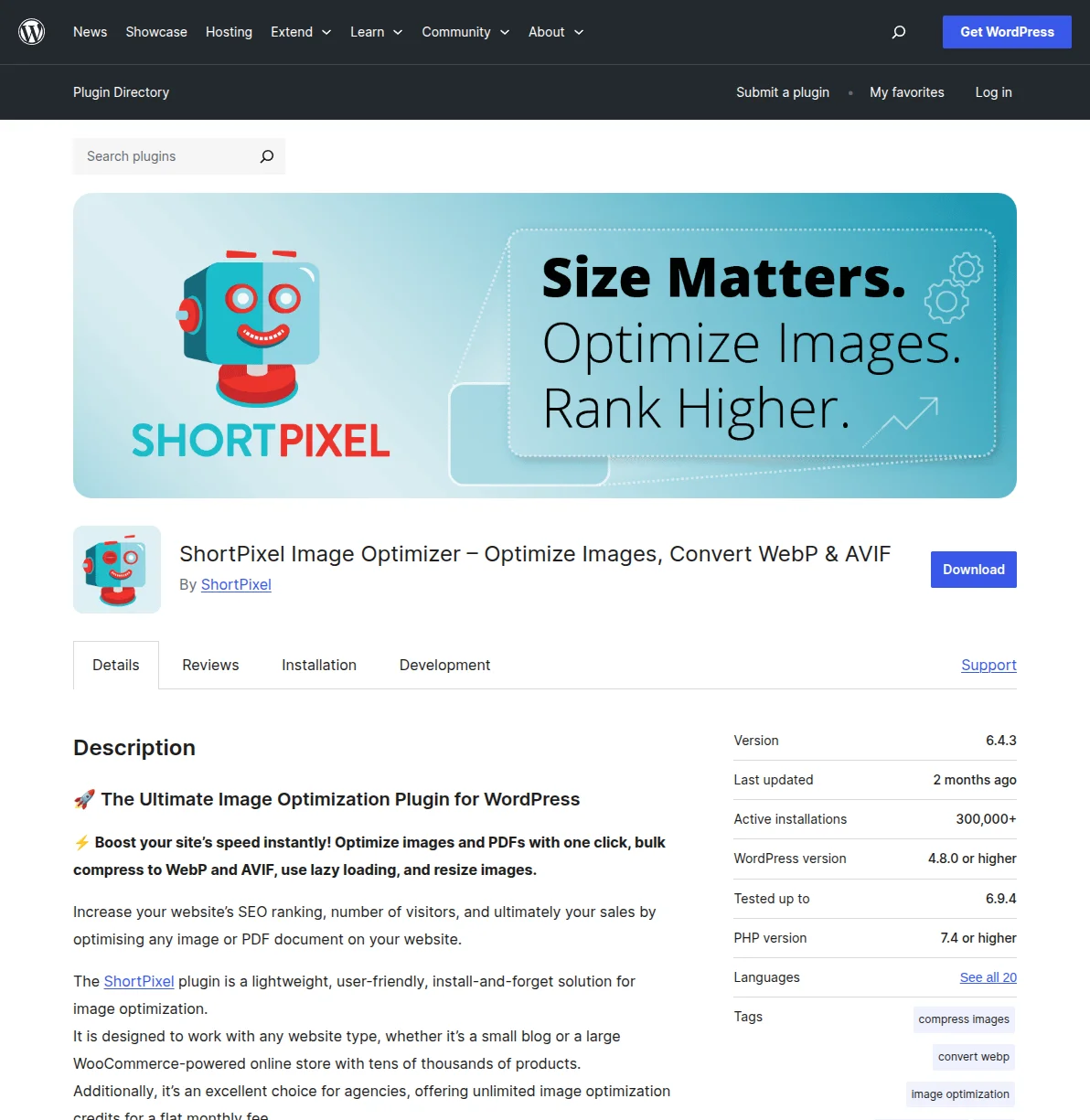
Pro tip: Before uploading any image, resize it to the actual display size. If your content area is 800px wide, there's no reason to upload a 4000px photo. I resize in an image editor first, then let ShortPixel handle the compression. This two-step approach consistently gets me 70-80% file size reductions without visible quality loss.
#5 — Use a Lightweight Theme
Your WordPress theme is the foundation of every page load. A bloated theme packed with features you'll never use can add 500ms-1s to every single page load. I've seen "multipurpose" themes that load 15+ CSS files, multiple JavaScript libraries, and several custom fonts — all on every page, whether they're needed or not. That's insane. Switching from a heavy theme to a lightweight one is often the second most impactful change you can make after hosting.
My recommendations: GeneratePress or Astra — both are fast, well-coded, and highly customizable. I've compared them head-to-head in my GeneratePress vs Astra comparison. You can also check my full best WordPress themes guide for more options. The key metric to look for is the theme's page weight: a good lightweight theme adds under 50KB to your pages. Some popular themes add 300KB+.
#6 — Minimize Plugins
Here's something that trips up a lot of beginners: every plugin adds code that loads on every page of your site. Some plugins are lightweight and well-coded. Others are resource hogs that inject scripts, stylesheets, and database queries everywhere. I make it a habit to audit my plugins quarterly: go to Plugins > Installed Plugins, and honestly ask yourself for each one — do I actually use this? If the answer is no, deactivate and delete it. I've seen sites running 40+ plugins where half were inactive or redundant.
Important: The number of plugins matters less than their quality. Five well-coded plugins will be faster than two bloated ones. Use the must-have plugins I recommend and skip the rest. If a plugin hasn't been updated in over a year, that's a red flag — find an alternative.
#7 — Enable GZIP/Brotli Compression
GZIP and Brotli compress your HTML, CSS, and JavaScript files before sending them to the browser — typically reducing file sizes by 60-80%. It's like zipping a file before emailing it. Most modern hosts enable this by default, but I've encountered plenty that don't. If you're using WP Rocket or LiteSpeed Cache, they'll handle this automatically. Otherwise, add the GZIP rules to your .htaccess file (for Apache) or ask your host to enable Brotli (which compresses even better than GZIP).
You can check if compression is enabled by running your site through GTmetrix — it'll flag it if it's missing. This is a set-it-once-and-forget-it optimization that benefits every single page load.
#8 — Lazy Load Images and Videos
Lazy loading means images and videos below the fold don't load until the visitor scrolls down to them. This dramatically reduces initial page weight and speeds up the perceived load time. WordPress has built-in lazy loading since version 5.5, but it only covers images. For embedded YouTube videos (which are shockingly heavy — each embed loads 500KB+ of scripts), use your caching plugin's lazy load feature or a plugin like WP YouTube Lyte that replaces the embed with a lightweight placeholder until clicked.
Pro tip: Don't lazy load your above-the-fold hero image or LCP element. That actually hurts your Core Web Vitals score because the browser delays loading the most important content. Most caching plugins let you exclude specific images from lazy loading. For a complete walkthrough of lazy loading best practices, see my WordPress lazy loading guide.
#9 — Optimize Your Database
Over time, your WordPress database accumulates junk: post revisions, spam comments, transient options, orphaned metadata, and auto-drafts. On a site that's been running for a year or two, I routinely find databases bloated to 3-4x their necessary size. Install WP-Optimize (free), run a cleanup, and schedule automatic weekly optimizations. It safely removes expired transients, trashed posts, spam comments, and old revisions while keeping your data intact. I typically see database query times improve by 20-30% after a good cleanup. For a deeper dive into keeping your database lean, see my dedicated WordPress database optimization guide.
#10 — Use PHP 8.2+
This is the easiest speed win most people overlook. PHP 8.2 and 8.3 are dramatically faster than older versions — benchmarks show 15-25% faster execution compared to PHP 7.4. Updating is usually just a dropdown selection in your hosting control panel (cPanel, Plesk, or your host's custom dashboard). Check your current version in WordPress under Tools > Site Health > Info > Server. If you're running anything below PHP 8.1, update today. Just make sure your theme and plugins are compatible first — check their plugin pages for minimum PHP requirements.
Before and After: Real Results
To show you this isn't theoretical, here are the numbers from a real optimization I did on a client's WordPress blog last month. The site was running a bloated theme on cheap shared hosting with no caching, unoptimized images, and 35 plugins (half of them inactive).
| Metric | Before | After | Improvement |
|---|---|---|---|
| Full Page Load Time | 4.2s | 1.3s | 69% faster |
| Page Size | 3.8 MB | 890 KB | 77% smaller |
| HTTP Requests | 87 | 24 | 72% fewer |
| GTmetrix Performance | Grade D (58%) | Grade A (96%) | +38 points |
| LCP (Largest Contentful Paint) | 3.8s | 1.1s | 71% faster |
| TTFB (Time to First Byte) | 1.2s | 180ms | 85% faster |
The changes: switched to Cloudways hosting (#1), installed WP Rocket (#2), added Cloudflare CDN (#3), bulk-optimized all images with ShortPixel (#4), switched to GeneratePress (#5), removed 18 unused plugins (#6), and updated PHP to 8.2 (#10). Total time: about 4 hours. Total cost increase: around $15/month for better hosting. The site's bounce rate dropped by 23% the following month, and organic traffic increased by 15% over the next quarter as Core Web Vitals scores improved.
Frequently Asked Questions
How fast should my WordPress site load?
Aim for under 2 seconds fully loaded and under 1 second for Time to First Byte (TTFB). Google considers a Largest Contentful Paint under 2.5 seconds "Good" for Core Web Vitals. In practice, every site I've gotten under 1.5 seconds has performed well in search rankings. Don't obsess over hitting a perfect 100 on speed tests — anything above 90 is excellent. Focus on the real-world user experience.
Will a caching plugin conflict with my hosting's built-in cache?
It can, yes. If your managed host (Kinsta, WP Engine, Cloudways) already provides server-level caching, you usually don't need a separate caching plugin for page cache. However, plugins like WP Rocket still add value through file minification, lazy loading, and database optimization. Check your host's documentation — most will tell you which caching features to disable in your plugin to avoid conflicts.
Is Cloudflare really free? What's the catch?
Cloudflare's free plan is genuinely free with no catch. You get CDN, basic DDoS protection, SSL, and DNS management. They make money from their paid plans aimed at businesses needing advanced features like WAF rules, image optimization, and priority support. I've used the free plan on dozens of sites for years without ever needing to upgrade. It's one of the best deals on the internet.
Do I need to do all 10 optimizations?
No. The first five will get you 80-90% of the speed improvement. Good hosting, caching, CDN, image optimization, and a lightweight theme are the foundation. The remaining five are diminishing returns — still worth doing, but don't stress if you skip #7-10 initially. If you can only do one thing today, switch your hosting. If you can do two, add a caching plugin. These two changes alone can cut your load time in half.

Written by Marvin
Our team tests and reviews WordPress products to help beginners make confident choices.
Learn more about our team →You might also like
WooCommerce AI Automation: How to Run Your Store With AI in 2026
A practical guide to WooCommerce AI automation in 2026: the real tools, the working AI agent setups, and the parts of your store you should never hand over to a bot.
postWordPress 7.0: Everything You Need to Know About the 2026 Release
WordPress 7.0 is the biggest release in years — real-time collaboration, the Abilities API for AI, and expanded Block Bindings. Here is the confirmed timeline, the feature list, and exactly how to prepare your site.
postBest AI Plugins for WordPress in 2026 (Tested and Reviewed)
I spent three months testing AI plugins on my own WordPress sites. Here are the 9 that are actually worth installing in 2026 — honest pricing, real install counts, and where each one fits.
postHow to Connect AI Agents to WordPress: Complete MCP Setup Guide (2026)
A practical walkthrough of connecting Claude Desktop (or any MCP client) to WordPress using the official WordPress MCP Adapter, with real config, auth, and security notes.