
15 Best WordPress Plugins in 2026 — My Essential Picks After 10+ Years
I've been building WordPress websites for over 10 years. In that time, I've installed, tested, cursed at, and uninstalled more plugins than I can count. I've seen plugins that transformed a basic blog into a money-making machine — and I've seen plugins that brought a perfectly good site to its knees.
So when someone asks me "which WordPress plugins do I actually need?" — I don't point them to a generic list of 50 plugins they'll never use. I give them the same list I use myself. The plugins I install on every single WordPress site I build, whether it's a personal blog, a client's business site, or an ecommerce store doing six figures a year.
This guide is that list. Fifteen plugins, battle-tested over hundreds of projects. I'll tell you exactly what each one does, what it costs, whether the free version is good enough, and what alternatives exist if my top pick doesn't fit your situation. No fluff, no filler, no affiliate-driven nonsense — just honest recommendations from someone who's been in the trenches.
My "Install These First" List
Let me save you some scrolling. Here are the six plugins I consider absolutely essential — the ones that go on every single site before I do anything else:
| Plugin | Category | Price | Active Installs |
|---|---|---|---|
| Yoast SEO | SEO | Free / $99/yr | 10M+ |
| Wordfence | Security | Free / $149/yr | 5M+ |
| UpdraftPlus | Backups | Free / $70/yr | 3M+ |
| WPForms Lite | Forms | Free / $49.50/yr | 6M+ |
| LiteSpeed Cache | Performance | Free | 7M+ |
| WooCommerce | Ecommerce | Free | 7M+ |
These are the plugins I install on literally every WordPress site I build. After 10+ years and hundreds of sites, this list has been refined to only the essentials. Each one earns its place by solving a real problem without bloating your site or causing conflicts.
Now let me walk you through every plugin on my list — including the alternatives you should know about.
How I Choose Plugins (And How You Should Too)
Before we dive into specific recommendations, let me share the criteria I use when evaluating any WordPress plugin. After a decade of trial and error, I've developed a pretty reliable system for separating the good from the garbage.
Active installs matter. I generally avoid plugins with fewer than 1,000 active installs unless they're brand new from a trusted developer. A plugin with 5 million installs has been tested on millions of different server configurations, themes, and plugin combinations. That's a level of real-world testing no QA team can match.
Check the "Last Updated" date. If a plugin hasn't been updated in 3+ years, walk away. WordPress itself gets major updates every few months, and a plugin that isn't keeping up is a ticking time bomb — security vulnerabilities, compatibility issues, you name it.
WordPress version compatibility. On the plugin page in the WordPress directory, you'll see "Tested up to" followed by a WordPress version number. If that number is more than two major versions behind the current release, proceed with caution.
Reviews and star ratings. I look for plugins with at least a 4-star average and, more importantly, I read the negative reviews. One-star reviews from people who clearly didn't read the documentation don't concern me. But multiple reports of the same bug? That's a red flag.
Less is more. This is the most important principle of all. Every plugin you add increases your site's load time, expands your attack surface, and creates another potential point of failure. I've seen it happen too many times to count.
Here's a story that still gives me chills. A client came to me a few years back with a WordPress site that took 12 seconds to load. Twelve. Seconds. When I looked under the hood, they had 47 active plugins. Some were duplicates doing the same thing. Some hadn't been updated in years. Three of them had known security vulnerabilities. One was a social sharing plugin from 2017 that was injecting tracking scripts from a domain that no longer existed. The whole thing was a house of cards.
We stripped it down to 14 carefully chosen plugins. Load time dropped to 2.1 seconds. That experience reinforced what I already knew: the best plugin strategy is a minimal plugin strategy.
Pro Tip: Before installing any plugin, ask yourself: "Does WordPress already do this?" The block editor, for example, now handles a lot of things that used to require plugins — columns, tables, buttons, image galleries. Don't install a plugin for something WordPress does natively.
SEO Plugins
If you want anyone to actually find your WordPress site, you need an SEO plugin. WordPress is reasonably SEO-friendly out of the box, but a good SEO plugin takes it to another level — sitemaps, meta descriptions, schema markup, content analysis, and more.
#1 Yoast SEO
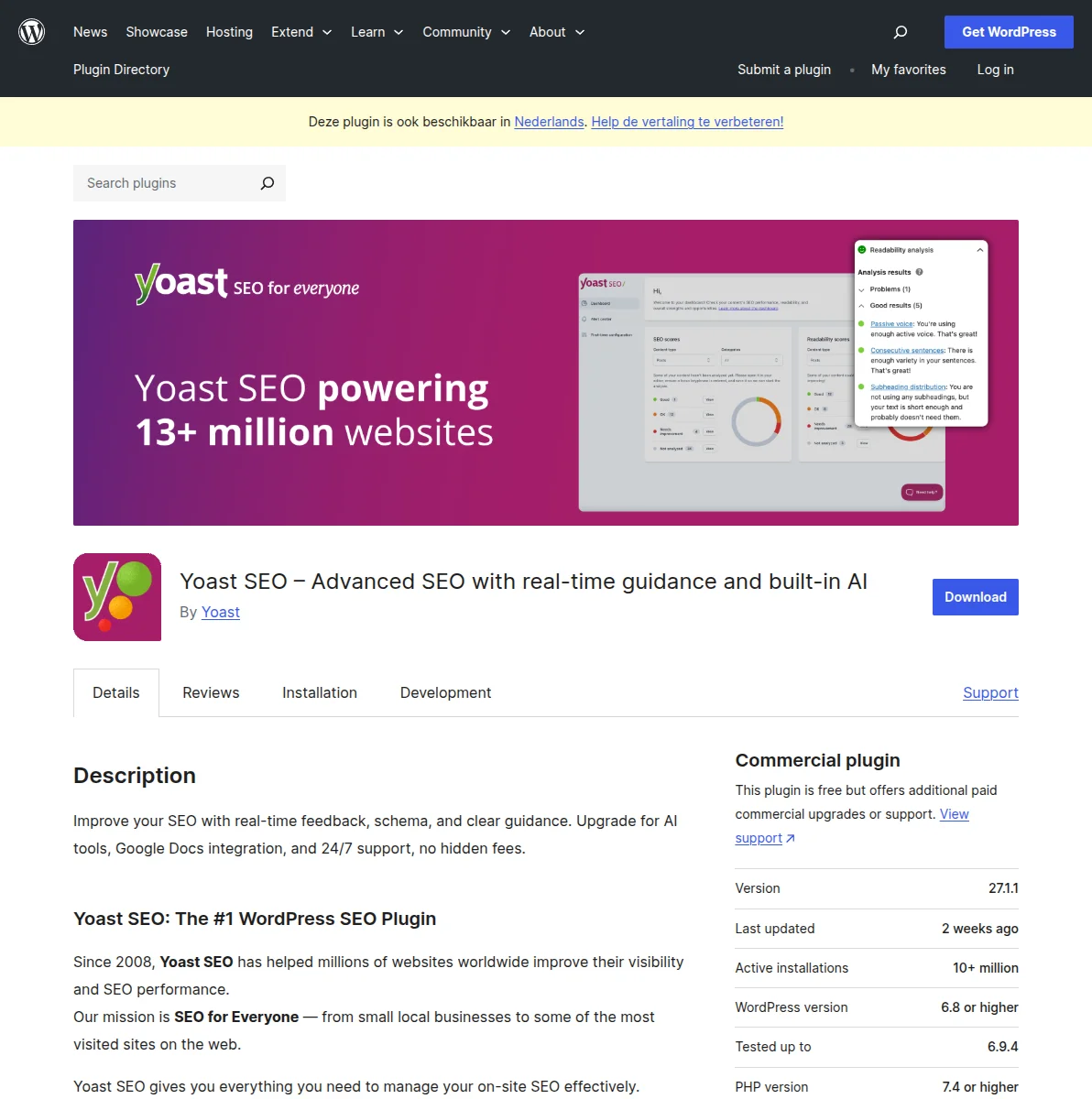
I've used Yoast SEO on every WordPress site I've built since 2014. It's not perfect — no plugin is — but it's the most reliable, well-maintained SEO plugin in the WordPress ecosystem, and the one I trust to handle the technical SEO basics so I can focus on creating great content.
What Yoast does: It generates XML sitemaps automatically, lets you write custom meta titles and descriptions for every page and post, adds schema markup (breadcrumbs, FAQ schema, article schema), provides a content analysis tool that checks your writing for SEO best practices, and handles the technical stuff like canonical URLs and robots meta tags.
The free version is genuinely excellent and covers everything most sites need. I'd estimate 80% of the sites I build run on Yoast Free without any issues.
Yoast Premium ($99/year) adds internal linking suggestions, redirect management, multiple focus keywords per post, and the ability to optimize for synonyms and related keyphrases. It's worth it for content-heavy sites — blogs, news sites, affiliate sites — where internal linking and keyword optimization directly impact revenue.
For a deeper dive into WordPress SEO strategy, check out my complete WordPress SEO guide.
Alternative: Rank Math
I'd be doing you a disservice if I didn't mention Rank Math. It's the fastest-growing SEO plugin in the WordPress world, and for good reason — the free version includes features that Yoast charges $99/year for, like multiple focus keywords, redirect management, and advanced schema markup.
So why is Yoast still my #1? Two reasons. First, track record. Yoast has been around since 2010. It's been tested on more server configurations and plugin combinations than any other SEO plugin. When something goes wrong, Yoast's support team has seen it before. Second, stability. Rank Math packs a lot of features into one plugin, and occasionally that means updates can introduce unexpected behavior. Yoast updates are boring — and in software, boring is good.
That said, if you're on a tight budget and want premium SEO features for free, Rank Math is a legitimate choice. I've used it on several personal projects and it performs well.
| Feature | Yoast SEO (Free) | Yoast SEO Premium | Rank Math (Free) |
|---|---|---|---|
| Price | Free | $99/yr | Free |
| Focus keywords | 1 per post | 5 per post | 5 per post |
| XML sitemaps | Yes | Yes | Yes |
| Redirect manager | No | Yes | Yes |
| Schema markup | Basic | Advanced | Advanced |
| Content analysis | Yes | Yes (enhanced) | Yes |
| Internal linking suggestions | No | Yes | Yes |
| Active installs | 10M+ | 3M+ | |
| Learning curve | Low | Medium | |
Security Plugins
WordPress powers over 40% of the web. That makes it the biggest target for hackers, bots, and script kiddies. A security plugin isn't optional — it's as essential as locking your front door. For more on hardening your WordPress site, see my WordPress security guide.
#2 Wordfence Security
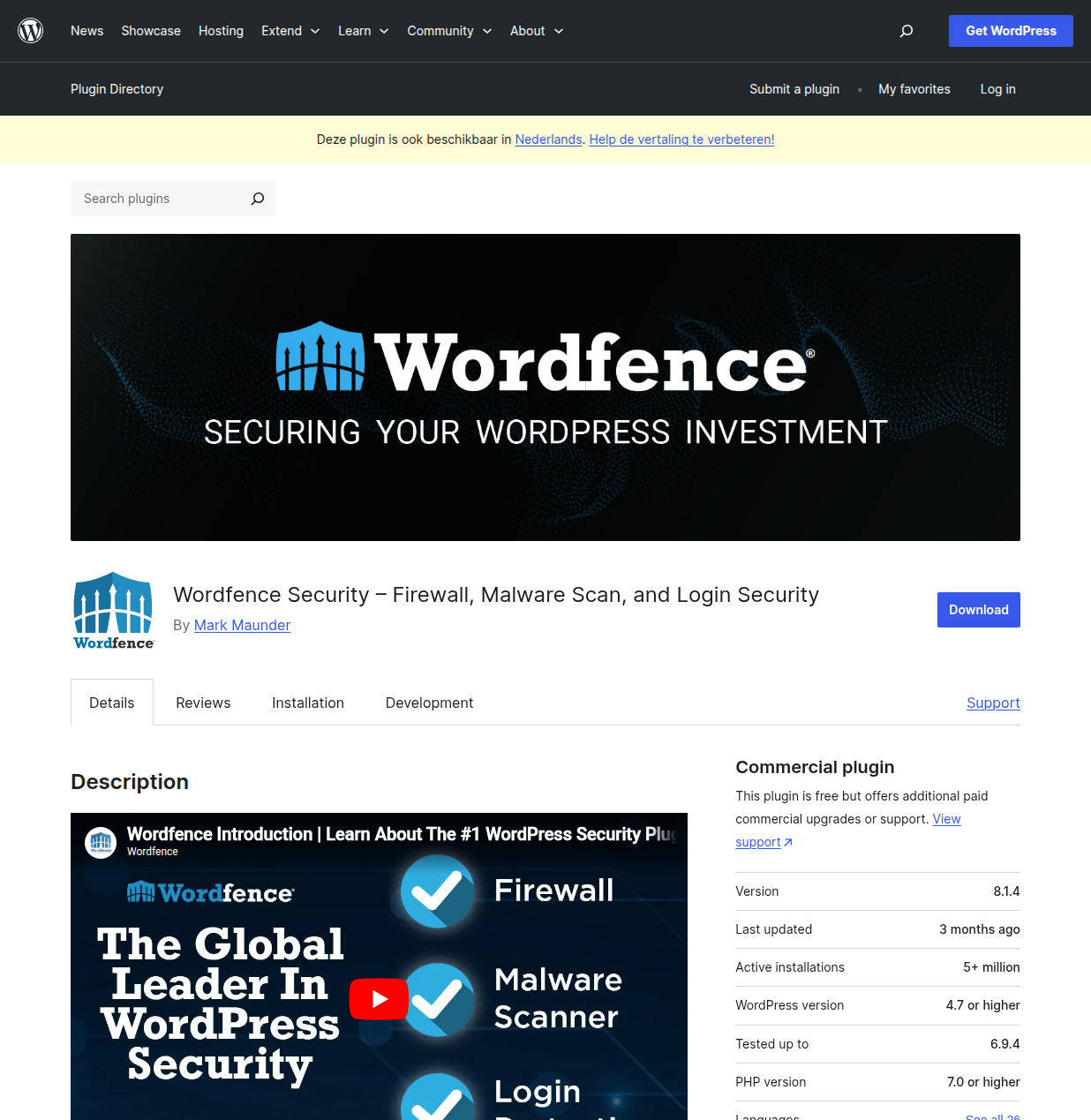
Wordfence is the security plugin I trust with my sites and my clients' sites. It combines a web application firewall (WAF), a malware scanner, two-factor authentication, login attempt limiting, and real-time traffic monitoring in one package. With 5 million+ active installs, it's the most popular WordPress security plugin for a reason.
The free version is excellent. It includes the full firewall (with rules delayed by 30 days compared to Premium), malware scanning, 2FA, and brute force protection. For most personal and small business sites, Wordfence Free is more than enough.
Wordfence Premium ($149/year) adds real-time firewall rules (instead of the 30-day delay), real-time IP blocklists, country blocking, and premium support. If your site handles sensitive data, processes payments, or is a frequent target, Premium is worth the investment.
One thing I love about Wordfence: it sends you detailed email notifications. Every blocked attack, every failed login attempt, every file change — you know exactly what's happening on your site. Some people find the emails overwhelming. I find them reassuring. I'd rather get too many security alerts than too few.
Alternative: Sucuri Security
Sucuri takes a different approach — it's a cloud-based web application firewall that sits between your visitors and your server. All traffic passes through Sucuri's network first, where malicious requests get blocked before they ever reach your site. This makes it especially effective against DDoS attacks and large-scale bot attacks.
The free WordPress plugin is basically just a security audit tool. The real power is in the Sucuri Firewall ($229/year), which includes CDN, DDoS protection, and virtual patching. It's more expensive than Wordfence, but for sites that are under active attack or need enterprise-grade protection, it's hard to beat.
My recommendation: Wordfence for most sites, Sucuri if you need cloud-based protection or are dealing with active attacks.
Backup Plugins
I have a simple rule: if you don't have backups, you don't have a website. You have a website that could disappear at any moment. Server failures, hacked sites, bad plugin updates, accidental deletions — I've seen all of these wipe out sites that had no backups. Don't be that person.
#3 UpdraftPlus
UpdraftPlus is the most popular backup plugin for WordPress, with over 3 million active installs. It lets you schedule automatic backups to Google Drive, Dropbox, Amazon S3, Microsoft OneDrive, and a dozen other cloud storage providers. The free version handles scheduled backups and one-click restores — which is genuinely all most sites need.
I set up every site with weekly full backups and daily database backups, stored on Google Drive. It runs quietly in the background, and I've only needed to restore from backup a handful of times — but each time, UpdraftPlus saved me hours of work and potentially thousands of dollars in lost revenue for clients.
UpdraftPlus Premium ($70/year) adds incremental backups (faster, smaller backups that only include what changed), migration/cloning tools, more storage destinations, and the ability to backup to multiple locations simultaneously. Worth it if you manage multiple sites or need more granular control.
Alternative: BlogVault
BlogVault ($89/year) is a premium-only backup solution that offers real-time backups, one-click staging, and easy migrations. It stores your backups on BlogVault's own servers, so you don't need to configure cloud storage. It's particularly good for WooCommerce sites where real-time backups matter — you don't want to lose orders because your last backup was 12 hours ago.
For most blogs and business sites, UpdraftPlus Free is perfect. For WooCommerce stores or sites where every transaction matters, consider BlogVault.
Performance and Caching Plugins
Speed matters. Google uses page speed as a ranking factor. Visitors leave if your site takes more than 3 seconds to load. And every additional second of load time reduces conversions by roughly 7%. A caching plugin is the single easiest way to make your WordPress site faster. For a complete speed optimization strategy, see my WordPress speed guide.
#4 LiteSpeed Cache
If your host runs LiteSpeed web servers — and many popular hosts do, including Hostinger, some SiteGround plans, and A2 Hosting — then LiteSpeed Cache is far and away the best caching plugin you can use. It's completely free, with no premium tier, and it integrates directly with the server at a level that other caching plugins simply can't match.
LiteSpeed Cache handles page caching, browser caching, database optimization, image optimization (via QUIC.cloud), CSS/JS minification and combination, lazy loading, and CDN integration. It's essentially a complete performance optimization suite in one plugin.
I've seen LiteSpeed Cache cut page load times in half on Hostinger. On one client site, we went from a 4.2-second load time to 1.8 seconds just by installing and configuring LiteSpeed Cache. No other changes.
Important: LiteSpeed Cache's server-level caching features only work on LiteSpeed servers. If your host uses Apache or Nginx, you can still install LiteSpeed Cache for its optimization features (image optimization, minification, lazy loading), but you won't get the full page caching benefits. In that case, use WP Super Cache or W3 Total Cache instead.
#5 WP Super Cache
WP Super Cache is made by Automattic — the company behind WordPress.com and WooCommerce. It's simple, reliable, and works on any server. There are no premium tiers, no upsells, no complicated settings panels with 200 options you don't understand.
You install it, enable caching, and you're done. For most sites, that's all you need. Advanced users can tweak settings like CDN integration and cache preloading, but the defaults are sensible and effective.
I recommend WP Super Cache for beginners and for sites where simplicity matters more than squeezing out every last millisecond of performance. If LiteSpeed Cache is a sports car, WP Super Cache is a reliable sedan — it won't win any races, but it'll get you where you need to go every time.
Alternative: W3 Total Cache
W3 Total Cache is the Swiss Army knife of caching plugins. It offers page caching, object caching, database caching, browser caching, CDN integration, minification, and about 50 other settings. It's incredibly powerful — but the learning curve is steep. Misconfigure one setting and you can actually make your site slower, or break it entirely.
I only recommend W3 Total Cache for experienced users who know what they're doing and want granular control over every aspect of their site's caching. For everyone else, stick with LiteSpeed Cache or WP Super Cache.
Contact Form Plugins
Every website needs a contact form. It's the most basic way for visitors to get in touch with you. And yet, I've tested dozens of form plugins over the years, and the quality varies wildly — from elegant simplicity to confusing, bloated nightmares.
#6 WPForms Lite
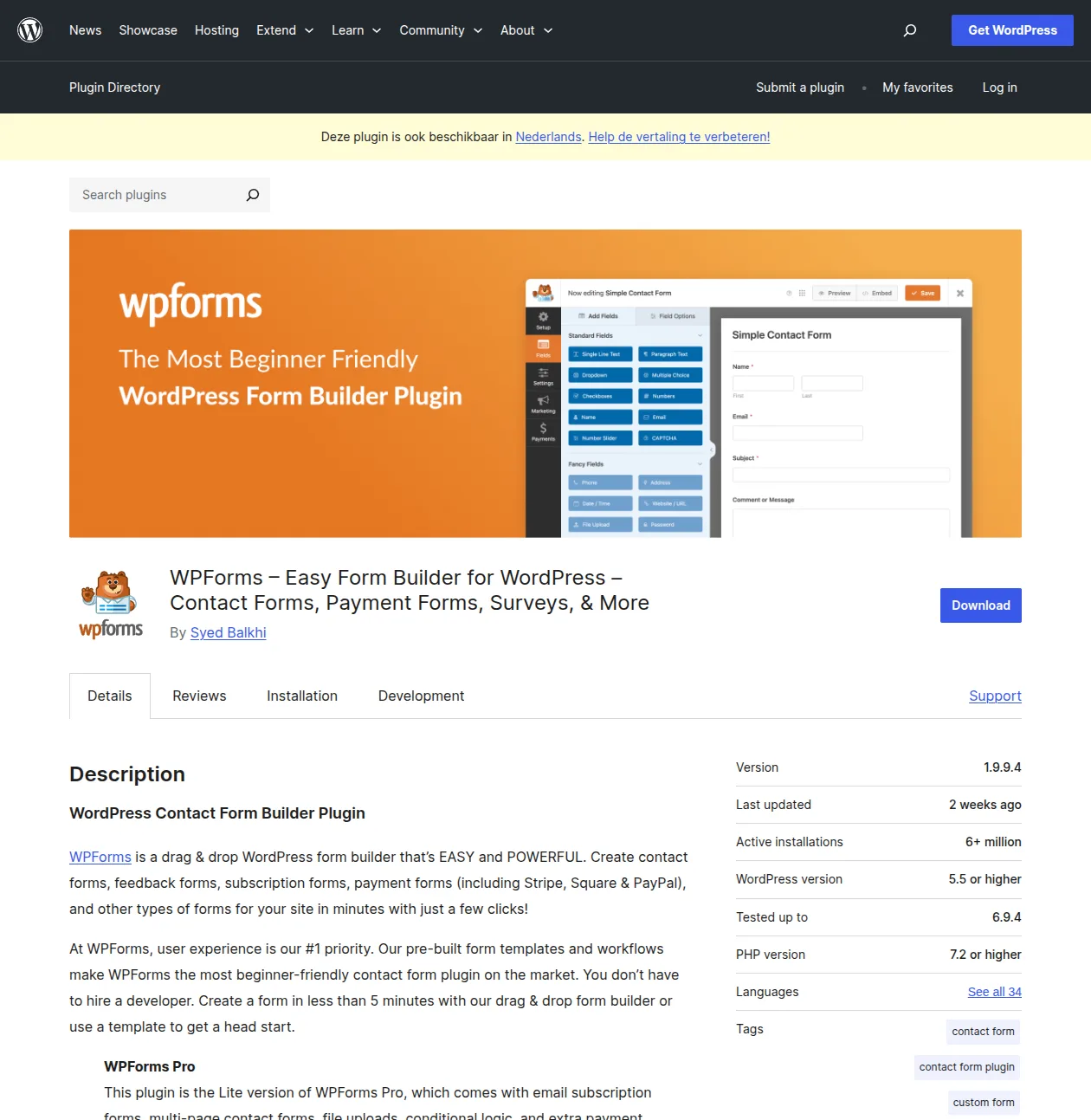
I've tested dozens of form plugins, and WPForms is genuinely the easiest one I've ever used. The drag-and-drop form builder is intuitive enough that my least tech-savvy clients can create and edit forms without calling me for help. That alone makes it worth recommending.
WPForms Lite (free) lets you create simple contact forms, email notification forms, and basic GDPR-compliant forms. For a "get in touch" form on a small business site, the free version is all you need.
WPForms Pro (from $49.50/year) unlocks multi-page forms, conditional logic, payment integrations (Stripe, PayPal), surveys and polls, user registration forms, and 1,800+ pre-built templates. If you need anything beyond a basic contact form, the Pro version is excellent value.
Alternative: Contact Form 7
Contact Form 7 is the OG of WordPress form plugins — free, lightweight, and with over 5 million active installs. It works. It's reliable. But the interface is... let's call it "developer-friendly." You configure forms using shortcodes and HTML-like markup, which is fine if you know what you're doing but intimidating for beginners.
If you just need a basic contact form and you're comfortable with a slightly more technical interface, Contact Form 7 is a perfectly good choice. If you want drag-and-drop simplicity, go with WPForms.
Ecommerce Plugins
#7 WooCommerce
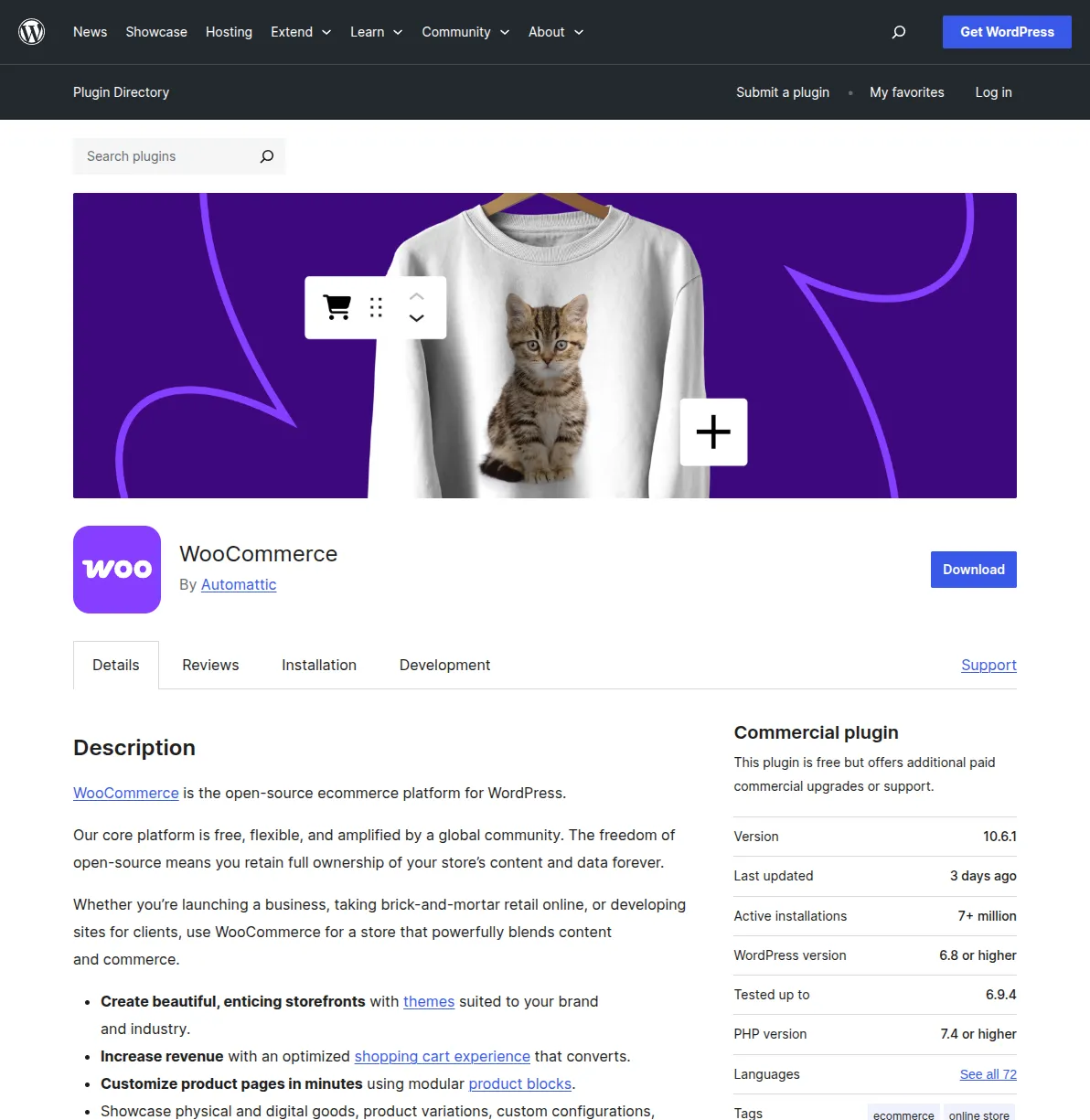
If you want to sell anything on WordPress — physical products, digital downloads, subscriptions, bookings, anything — WooCommerce is the only serious option. With 7 million+ active installs and a 38% share of all ecommerce sites on the web, it's the standard. Period.
The core WooCommerce plugin is free and includes everything you need to run a basic online store: product listings, shopping cart, checkout, payment processing (via Stripe and PayPal), shipping calculations, tax settings, inventory management, and order tracking.
Where WooCommerce gets expensive is the ecosystem. Need subscriptions? That's $199/year. Bookings? $249/year. Product add-ons, memberships, advanced shipping — each is a paid extension. A fully-featured WooCommerce store can easily cost $500-1000/year in extensions. But the base is free, and you can start selling with just the core plugin and free payment gateways.
One caveat: WooCommerce is resource-heavy. It adds significant database overhead to your WordPress installation. If you're running it on a shared hosting plan, make sure you're on at least a mid-tier plan (like Hostinger Business or SiteGround GrowBig). For serious ecommerce, consider managed WooCommerce hosting — read our detailed hosting reviews to find the best fit.
Page Builder Plugins
#8 Elementor
Elementor is the most popular visual page builder for WordPress, with over 10 million active installs. It lets you design complex page layouts using a drag-and-drop interface — no coding required. Headers, footers, product pages, landing pages — you can build it all visually.
The free version includes 40+ widgets, responsive editing, and a solid template library. It's genuinely powerful for a free tool. Elementor Pro (from $59/year) adds 100+ widgets, a theme builder, WooCommerce integration, popup builder, and form builder.
Here's my honest take: I'm moving away from heavy page builders toward the native WordPress block editor (Gutenberg). The block editor has improved dramatically in recent years, and for most content — blog posts, pages, basic layouts — it's more than capable. Page builders add significant weight to your site (extra CSS, JS, and database queries), and they create vendor lock-in. If you ever deactivate Elementor, your pages turn into a mess of shortcodes.
That said, Elementor still has its place for complex layouts — landing pages, multi-column feature sections, animated elements, and highly customized WooCommerce product pages. If you need pixel-perfect design control and you're comfortable with the trade-offs, Elementor is the best in class.
Alternative: Spectra
Spectra (formerly Starter Templates / Ultimate Addons for Gutenberg) takes a different approach. Instead of replacing the WordPress editor, it enhances it with additional blocks and design options. It's lighter weight, doesn't create vendor lock-in, and works within the native WordPress ecosystem rather than alongside it.
If you want a richer editing experience without the overhead of a full page builder, Spectra is an excellent middle ground.
Image Optimization Plugins
#9 ShortPixel
Images are usually the single biggest factor in page size. An unoptimized hero image can easily be 2-3MB — that's more than the rest of your page combined. ShortPixel compresses your images automatically when you upload them to WordPress, reducing file sizes by 50-80% with no visible quality loss.
I've saved clients hundreds of megabytes with this plugin. One photography site had 4GB of uncompressed images. ShortPixel brought it down to 1.1GB. Page load times dropped by 40%.
ShortPixel offers a free tier of 100 images per month, which is enough for most small blogs. Paid plans start at $3.99/month for 5,000 images. There's also a one-time credit option if you prefer not to subscribe.
ShortPixel also handles WebP and AVIF conversion — modern image formats that are significantly smaller than JPEG and PNG. Most modern browsers support WebP, and serving WebP images instead of JPEG can cut image sizes by another 25-35%.
Alternative: Imagify
Imagify (made by the WP Rocket team) offers similar compression with a slightly different pricing model — 20MB/month free, then $5.99/month for 500MB. If you're already using WP Rocket for caching, Imagify integrates nicely. Otherwise, ShortPixel generally offers better value.
Anti-Spam Plugins
#10 Akismet
Akismet comes pre-installed on every WordPress site. It's made by Automattic, the same company behind WordPress.com and WooCommerce. And it's been protecting WordPress sites from comment spam since 2005.
Here's what Akismet does: it automatically checks every comment submitted on your site against its global spam database. Spam gets filtered out before you ever see it. Legitimate comments come through. It's remarkably accurate — I can count on one hand the number of false positives I've seen in 10+ years of using it.
Akismet is free for personal sites (they use an honor system — you set your own price, including $0). Commercial sites need a paid plan starting at $8.33/month. For most bloggers and personal sites, the free tier is all you need.
Without Akismet (or a similar anti-spam plugin), a popular WordPress site can receive hundreds or even thousands of spam comments per day. Trust me — you do not want to moderate those manually.
Other Essential Plugins
The following plugins don't need a full section each, but they're all worth knowing about. Each solves a specific, common problem that most WordPress sites will encounter.
#11 Redirection
Redirection is a free plugin for managing 301 redirects. Changed a URL? Redirection ensures visitors (and search engines) find the new location instead of hitting a 404 page. It's essential after any site restructure, permalink change, or content migration. I install it on every site as a safety net — even if you don't need it today, you will eventually.
#12 WP Mail SMTP
WordPress uses PHP's built-in mail function to send emails — password resets, contact form submissions, order confirmations. The problem? Many hosts block or limit PHP mail, and emails sent this way often land in spam. WP Mail SMTP routes your WordPress emails through a proper SMTP server (Gmail, SendGrid, Mailgun, etc.), dramatically improving deliverability.
Every WordPress site needs this plugin. I cannot stress this enough. If your contact form submissions are disappearing into the void or your WooCommerce order emails aren't arriving, WP Mail SMTP is the fix. The free version works with Gmail and other free SMTP services. Pro ($49/year) adds email logging and additional mailer services.
#13 MonsterInsights
MonsterInsights is the easiest way to add Google Analytics to your WordPress site. Instead of editing theme files or adding tracking code manually, MonsterInsights connects to your Google Analytics account and gives you traffic stats right in your WordPress dashboard. The free version covers basic analytics. Pro ($99.60/year) adds ecommerce tracking, form conversion tracking, and custom dimensions.
#14 Broken Link Checker
Broken Link Checker scans your posts and pages for dead links — links that point to pages that no longer exist. Over time, every site accumulates broken links as external sites change their URLs, delete pages, or go offline entirely. Broken links hurt your SEO and frustrate your visitors. This plugin finds them so you can fix them.
Pro Tip: Run Broken Link Checker periodically rather than leaving it active 24/7. It's resource-intensive when scanning, and you don't need real-time link checking. Activate it once a month, fix the broken links it finds, then deactivate it.
#15 All-in-One WP Migration
All-in-One WP Migration is the easiest way to move a WordPress site from one host to another. Export your entire site (database, media, plugins, themes — everything) as a single file, then import it on the new host. The free version handles sites up to 512MB (more than enough for most sites). The paid Unlimited extension ($69 one-time) removes the size limit.
I've used this plugin to migrate dozens of sites. It works every time. No dealing with database exports, no editing wp-config.php, no FTP transfers. If you ever need to move your site, this is the plugin to use. For more on setting up WordPress on a new host, see my guide on how to install WordPress.
Plugins I Avoid (And Why)
Just as important as knowing what to install is knowing what to avoid. Here are the types of plugins I steer clear of — and I recommend you do the same.
"All-in-one" plugins that try to do everything. You've seen them — plugins that promise to handle SEO, security, caching, forms, social sharing, analytics, and backups all in one package. They're bloated, they're opinionated, and when something goes wrong (and it will), debugging a single monolithic plugin is a nightmare. Use specialized plugins that do one thing well.
Abandoned plugins. If a plugin hasn't been updated in 2+ years, it's a security risk. WordPress evolves constantly, and plugins that aren't keeping up will eventually break — or worse, become an entry point for hackers. Check the "Last Updated" date before installing anything.
Plugins that require PHP file modifications. Any plugin that asks you to edit your wp-config.php, .htaccess, or theme files directly is asking for trouble. Modern WordPress plugins should handle everything through the admin interface. If a plugin needs manual file edits, it's either poorly designed or doing something it probably shouldn't be.
Too many social sharing plugins. I've seen sites with three different social sharing plugins — floating bars, inline buttons, pop-ups. Pick one lightweight solution (the built-in Jetpack social sharing, or a simple plugin like Social Warfare) and leave it at that. Your visitors don't need five ways to share your post on Twitter.
Premium plugins from sketchy sources. If someone is offering a $99 premium plugin for free (or $5) on a random download site, it's almost certainly malware-infected. Only download premium plugins from the official developer's site or the WordPress.org directory. I've cleaned up multiple hacked sites where the entry point was a "nulled" premium plugin. Don't do it.
How Many Plugins Is Too Many?
This is one of the most common questions I get, and the honest answer is: there's no magic number. I've seen sites with 30 plugins that run beautifully, and sites with 12 plugins that are a mess. It depends entirely on the quality of the plugins and how well they're configured.
That said, I aim for 15-20 active plugins maximum on a typical site. That gives me room for the essentials (SEO, security, backups, caching, forms) plus a few category-specific plugins (WooCommerce for stores, a translation plugin for multilingual sites, etc.) without going overboard.
I've seen sites with 50+ plugins that are basically unusable. Every page load triggers dozens of database queries, loads hundreds of kilobytes of CSS and JavaScript, and creates so many potential conflict points that updating any single plugin becomes a high-stress event.
Quality over quantity, always. Five well-chosen plugins will outperform twenty mediocre ones every single time. If you find yourself approaching 30+ active plugins, take a step back and audit your list. Chances are, several of those plugins overlap in functionality, or you installed something for a one-time task and forgot to remove it.
Pro Tip: Once a quarter, go to your Plugins page in WordPress admin and ask yourself about each one: "Do I still need this? Is there a lighter alternative? Can WordPress core do this now?" You'd be surprised how many plugins you can safely remove.
Frequently Asked Questions
Are WordPress plugins free?
Many are! The WordPress.org plugin directory has over 60,000 free plugins. Most popular plugins follow a "freemium" model — a free version with core features and a paid version with advanced features. For most personal blogs and small business sites, the free versions of the plugins on this list will serve you well. You can always upgrade later if you need premium features.
How do I install a WordPress plugin?
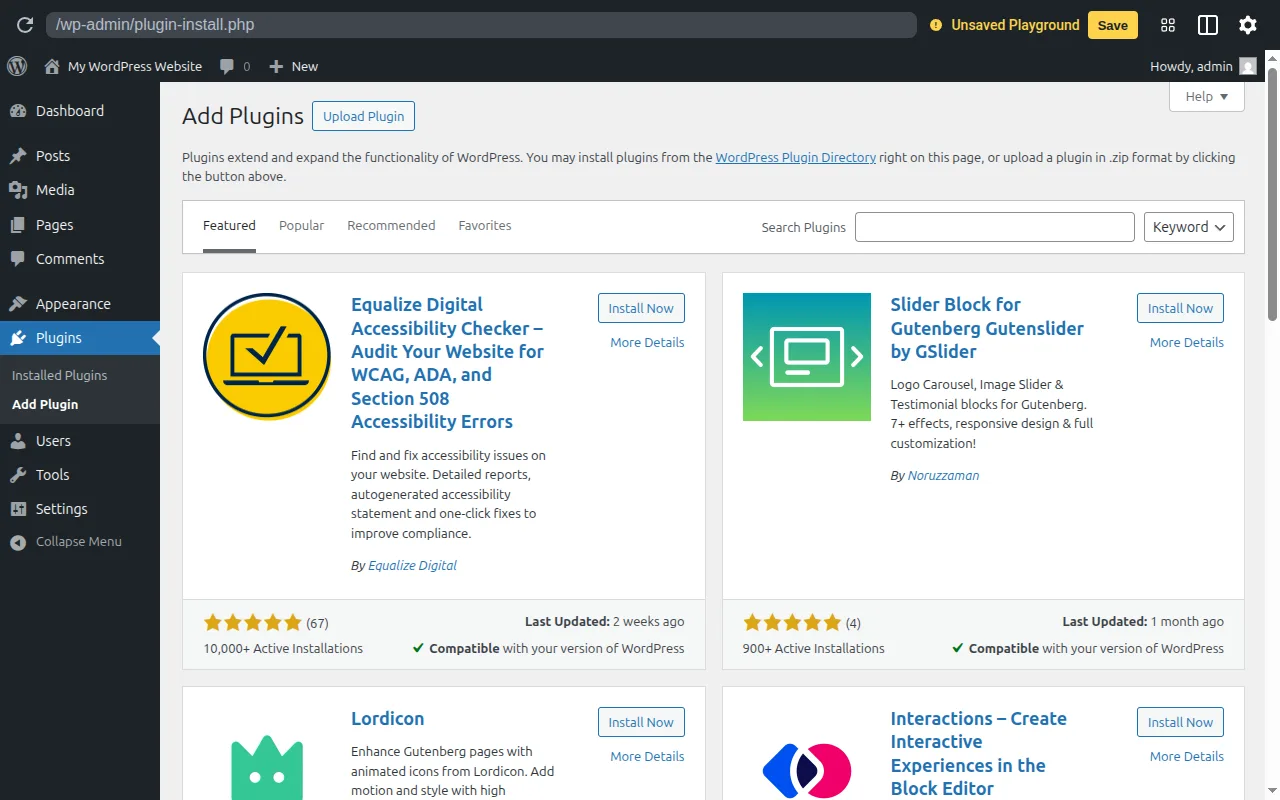
From your WordPress dashboard, go to Plugins → Add New. Search for the plugin by name, click Install Now, then click Activate. The whole process takes about 30 seconds. For premium plugins purchased outside of WordPress.org, you'll download a .zip file and upload it via Plugins → Add New → Upload Plugin. For a complete walkthrough, see my guide on building a WordPress website.
Can plugins slow down my site?
Yes, absolutely. Every plugin adds code that WordPress needs to load and execute. Poorly coded plugins, plugins that make external API calls on every page load, and plugins that add large CSS/JS files can significantly impact your site's performance. That's why I recommend keeping your plugin count low and only using well-maintained, lightweight plugins. Use a tool like Query Monitor to identify which plugins are slowing down your site.
How often should I update plugins?
As soon as updates are available — with one caveat. Before updating, make sure you have a current backup (that's why UpdraftPlus is on my essential list). Most plugin updates are safe, but occasionally an update can conflict with your theme or another plugin. If you have a staging environment (available on SiteGround GrowBig+ and Hostinger Business+), test updates there first. If not, update promptly and check your site immediately after.
What happens if a plugin breaks my site?
Don't panic. WordPress has a built-in recovery mode that activates when a fatal plugin error is detected. You'll receive an email with a special link to access your site in recovery mode, where you can deactivate the problem plugin. If that doesn't work, you can deactivate plugins manually by renaming the plugin folder via FTP or your host's file manager. Worst case, restore from your UpdraftPlus backup. This is why backups are non-negotiable.
Can I use multiple SEO plugins?
No. Never. Running two SEO plugins simultaneously (like Yoast and Rank Math together) will cause conflicts — duplicate meta tags, conflicting sitemaps, and potential schema markup errors that confuse search engines. Pick one SEO plugin and stick with it. If you're switching from one to another, both Yoast and Rank Math have import tools to transfer your SEO settings.
Are premium plugins worth the money?
It depends on the plugin and your needs. For most of the plugins on this list, the free version is genuinely sufficient for typical use cases. Premium versions are worth it when: (a) they save you significant time, (b) they directly contribute to revenue (like WooCommerce extensions for an online store), or (c) they provide critical functionality you can't get elsewhere (like Wordfence Premium's real-time firewall rules for high-risk sites). Don't pay for premium just because a plugin nags you to upgrade — evaluate whether the premium features actually matter for your site.
Final Thoughts
Choosing the right plugins is one of the most impactful decisions you'll make for your WordPress site. Get it right, and you'll have a fast, secure, SEO-friendly site that practically runs itself. Get it wrong, and you'll spend your time troubleshooting conflicts, worrying about security, and wondering why your site is so slow.
My advice? Start with the essentials from this list — Yoast SEO, Wordfence, UpdraftPlus, a caching plugin, WPForms, and WP Mail SMTP. That's six plugins that cover the fundamentals. Then add only what you specifically need for your site's purpose. Resist the temptation to install a plugin for every little thing. For a broader overview of plugins and services I recommend, see our complete toolkit.
And remember: plugins are tools, not solutions. The best plugin in the world won't help if you don't configure it properly, keep it updated, and understand what it's doing. Take the time to learn each plugin you install. Read the documentation. Explore the settings. Understand what each option does before toggling it.
If you're just getting started with WordPress, check out my Start Here guide for a complete roadmap, or learn the basics with my What is WordPress? explainer. For platform-specific guidance, see my articles on choosing the right hosting, picking a theme, and optimizing your site's speed. And if you're specifically interested in the AI category — chatbots, content optimization, automation — head to my best AI plugins for WordPress in 2026 roundup for the tested picks.
Happy plugin hunting!

Written by Marvin
Our team tests and reviews WordPress products to help beginners make confident choices.
Learn more about our team →You might also like
WooPayments Review: WooCommerce's Built-In Payment Plugin
WooPayments lets you accept credit cards, Apple Pay, Google Pay, and more directly from your WordPress dashboard — no separate Stripe account needed. Here's what it does well, where it falls short, and when you should use the direct Stripe plugin instead.
postBest WordPress Security Plugins in 2026 — 5 Plugins I Actually Trust
After cleaning up hacked sites, blocking millions of brute force attacks, and testing every major security plugin, these are the 5 WordPress security plugins I genuinely recommend.
postBest WordPress AI Chatbot Plugins in 2026 — 5 Options Compared
I checked the current WordPress AI chatbot plugin landscape and narrowed it to 5 realistic options: AI Engine, Tidio, Chatway, WPBot, and Smartsupp.
postBest WordPress Lead Generation Plugins in 2026 — 5 Tools Worth Using
I researched the current WordPress lead generation plugin landscape and narrowed it to 5 tools that actually make sense: WPForms, OptinMonster, Thrive Leads, Hustle, and Fluent Forms.