
What Is WordPress? A Beginner-Friendly Explanation
If you've ever thought about building a website, you've probably heard the name WordPress. But what exactly is it? And why does everyone keep recommending it?
I've been building websites for over 20 years, and I've used dozens of different tools and platforms. WordPress is the one I keep coming back to — and for good reason. In this guide, I'll break down everything you need to know about WordPress in plain English.
What Is WordPress?
WordPress is a free, open-source content management system (CMS) that lets you create and manage websites without needing to write code from scratch. Think of it as the engine that powers your website — it handles everything from displaying your content to managing your pages, images, and settings.
Originally launched in 2003 as a simple blogging tool, WordPress has grown into a full-featured website builder that now powers over 43% of all websites on the internet. That's not just blogs — we're talking about everything from small business sites to major publications like Rolling Stone, Time Magazine, and even NASA.
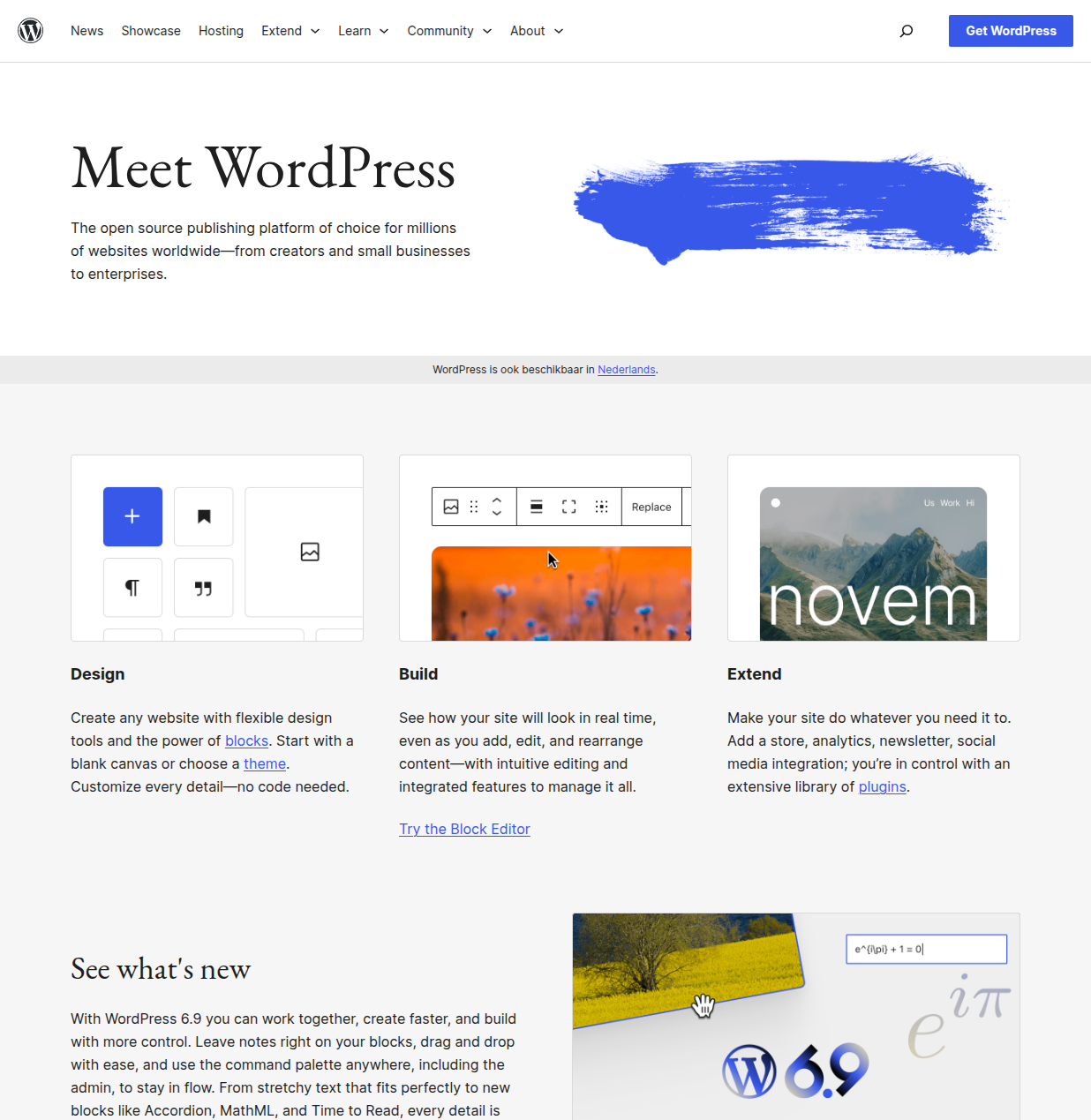
That screenshot above is the official WordPress.org website. This is where you can download the WordPress software for free and access the entire ecosystem of themes and plugins.
WordPress.org vs WordPress.com — The Important Difference
This is the #1 thing that confuses beginners, so let me clear it up right away.
There are two "versions" of WordPress:
- WordPress.org (self-hosted) — The free software you download and install on your own web hosting. You have full control over everything. This is what most people mean when they say "WordPress."
- WordPress.com (hosted) — A commercial service that hosts WordPress for you. It's easier to start with but comes with limitations and monthly fees for features you'd get for free with WordPress.org.
My recommendation: Go with WordPress.org (self-hosted). Yes, you need to buy hosting (starting at around $3/month), but you get complete freedom to customize your site however you want. I have a separate guide that goes deeper into WordPress.com vs WordPress.org if you want the full comparison.
What Can You Build with WordPress?
When people hear "WordPress," they often think "blog." And while WordPress started as a blogging platform, it can now be used to build virtually any type of website:
- Blogs and personal websites — WordPress's bread and butter
- Business websites — Company sites with contact forms, about pages, and service listings
- Online stores — With the WooCommerce plugin, you can sell physical and digital products
- Membership sites — Paid content, online courses, and community forums
- Portfolios — Showcase your work as a photographer, designer, or developer
- News and magazine sites — Multi-author publications with categories and editorial workflows
If you can imagine a website, you can probably build it with WordPress.
How WordPress Works — The Basics
WordPress runs on a web server (your hosting provider) and uses a database to store all your content. When someone visits your website, WordPress pulls the right content from the database and displays it using your chosen theme.
Here's a simplified version of how it works:
- You write content in the WordPress admin dashboard (also called "wp-admin")
- WordPress stores it in a database on your hosting server
- A visitor requests your page by typing your URL or clicking a link
- WordPress assembles the page using your content + your theme's design
- The visitor sees the finished page in their browser
You never need to touch code unless you want to. Everything is managed through a visual admin panel:
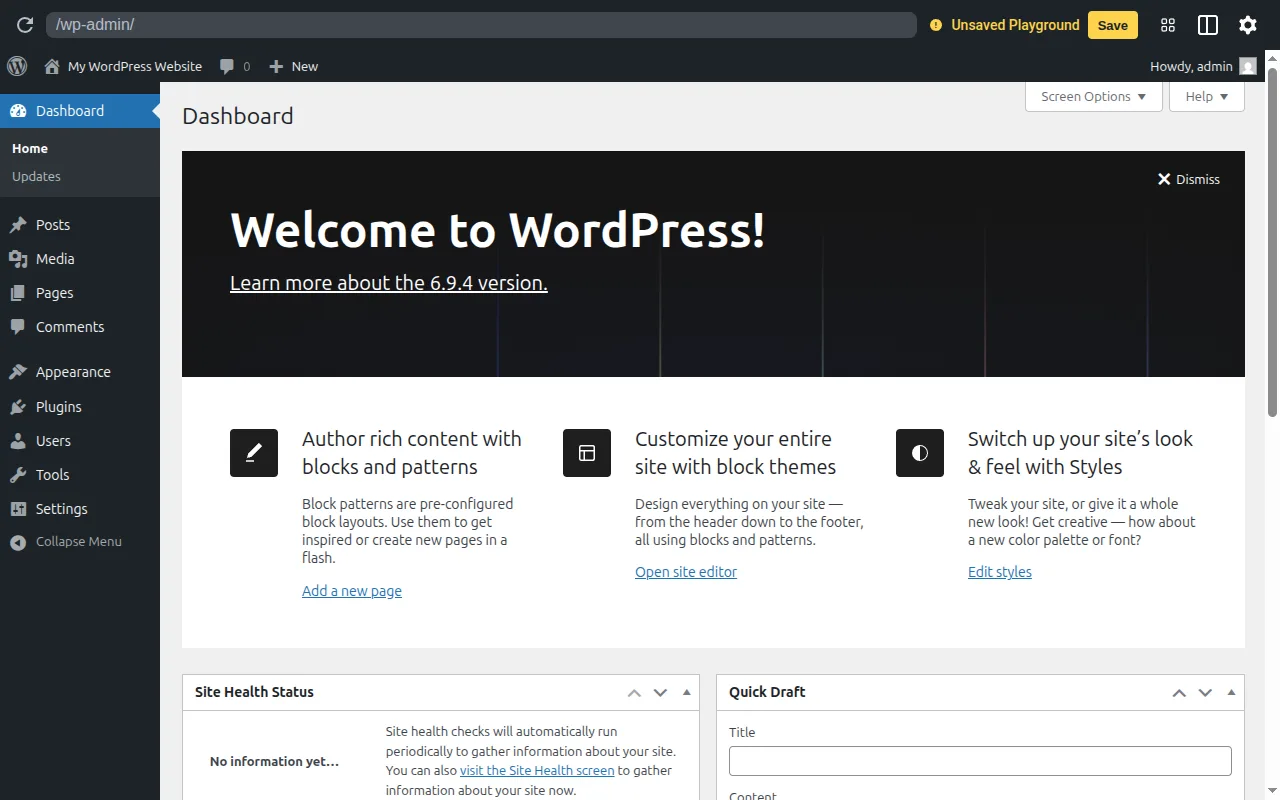
This is what the WordPress admin dashboard looks like. The left sidebar gives you access to everything: your posts, pages, media library, appearance settings, plugins, and more.
The WordPress Block Editor
When you create or edit a post or page in WordPress, you use the Block Editor (also called Gutenberg). It works like a visual builder where every piece of content — a paragraph, image, heading, button, or video — is a "block" that you can add, move, and customize.
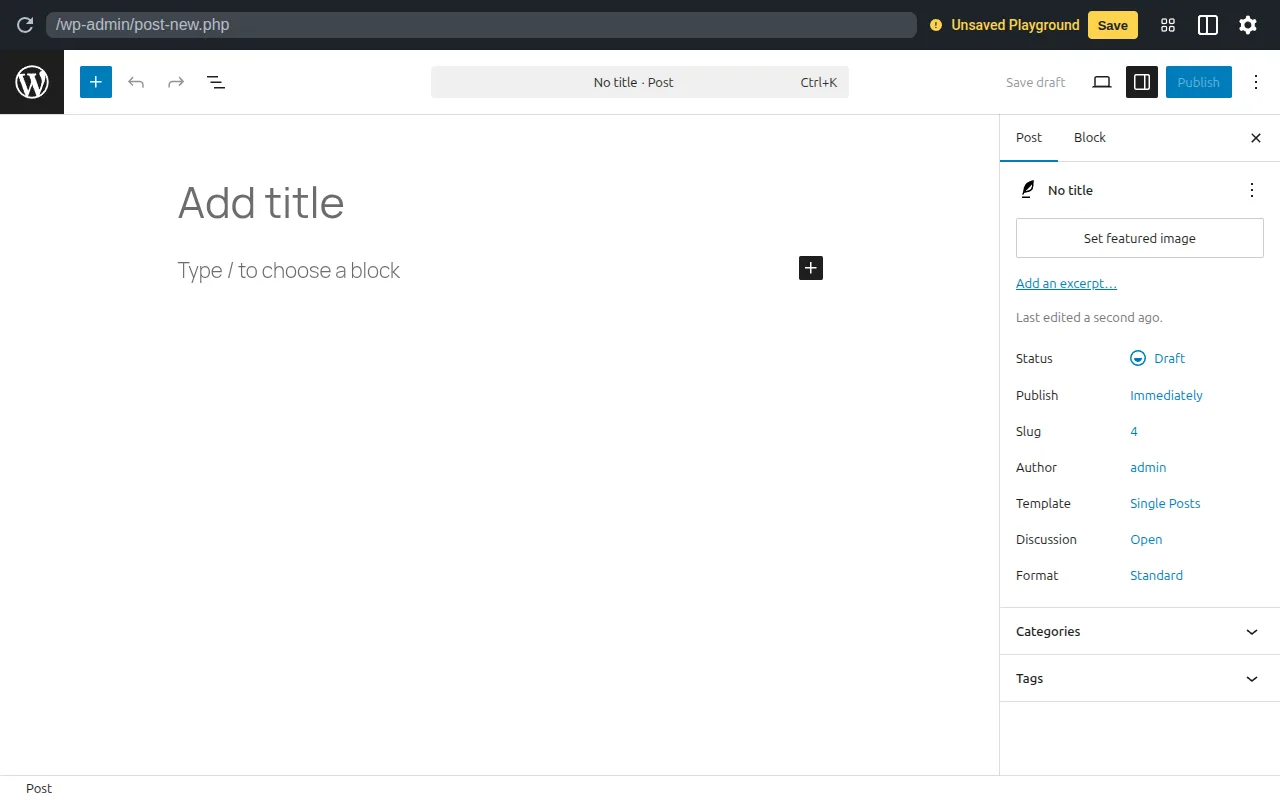
The block editor makes it easy to create professional-looking content without any design skills. You can drag and drop blocks, change their settings, and see exactly how your post will look before you publish it.
Themes — Change How Your Site Looks
One of the best things about WordPress is that you can completely change how your website looks by switching themes. A theme controls your site's design — colors, fonts, layout, everything.
The WordPress theme directory has over 14,000 free themes to choose from:
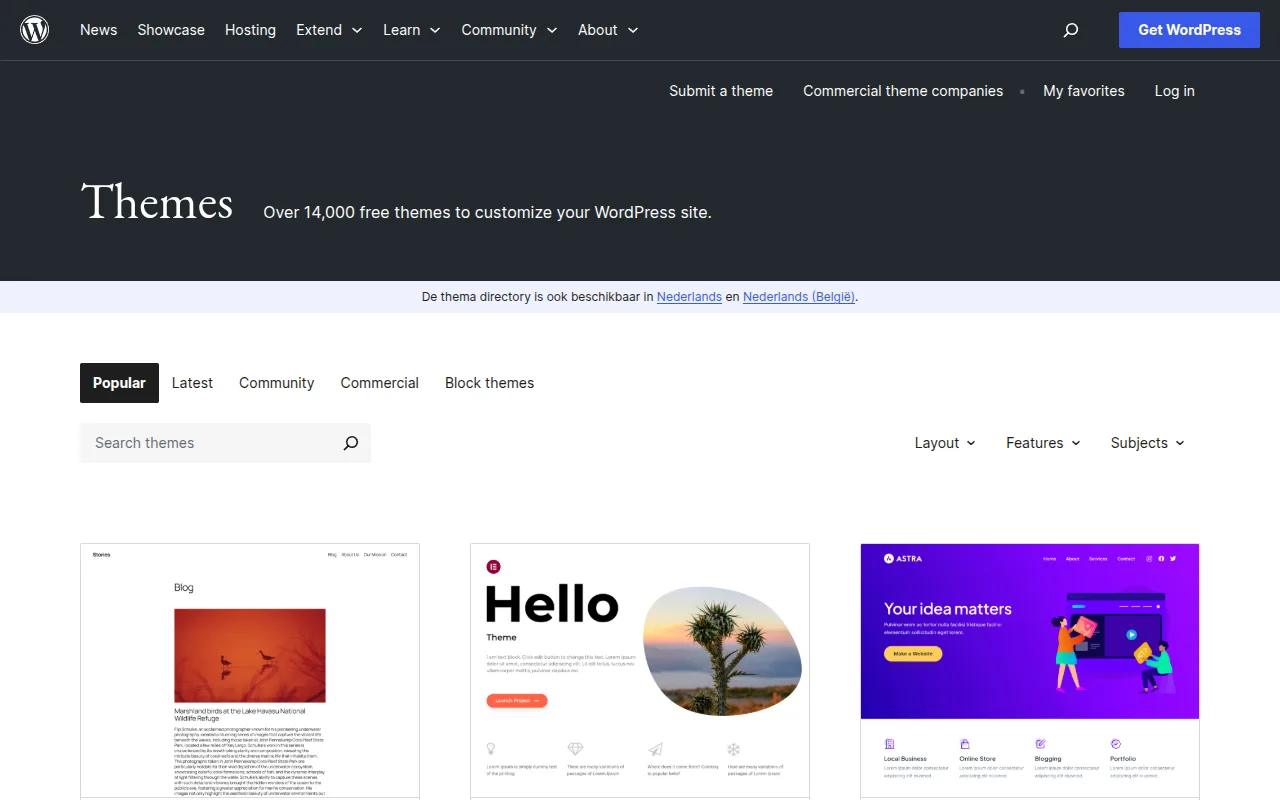
You can browse themes by category, popularity, or features. Many themes are free, and premium themes with more features typically cost $50-100 as a one-time purchase. I recommend starting with a popular free theme like Astra or the default Twenty Twenty-Five theme, and upgrading later if you need more features.
Plugins — Add Features to Your Site
If themes control how your site looks, plugins control what your site can do. Plugins are add-ons that extend WordPress with new features — and there are over 61,000 free plugins available.
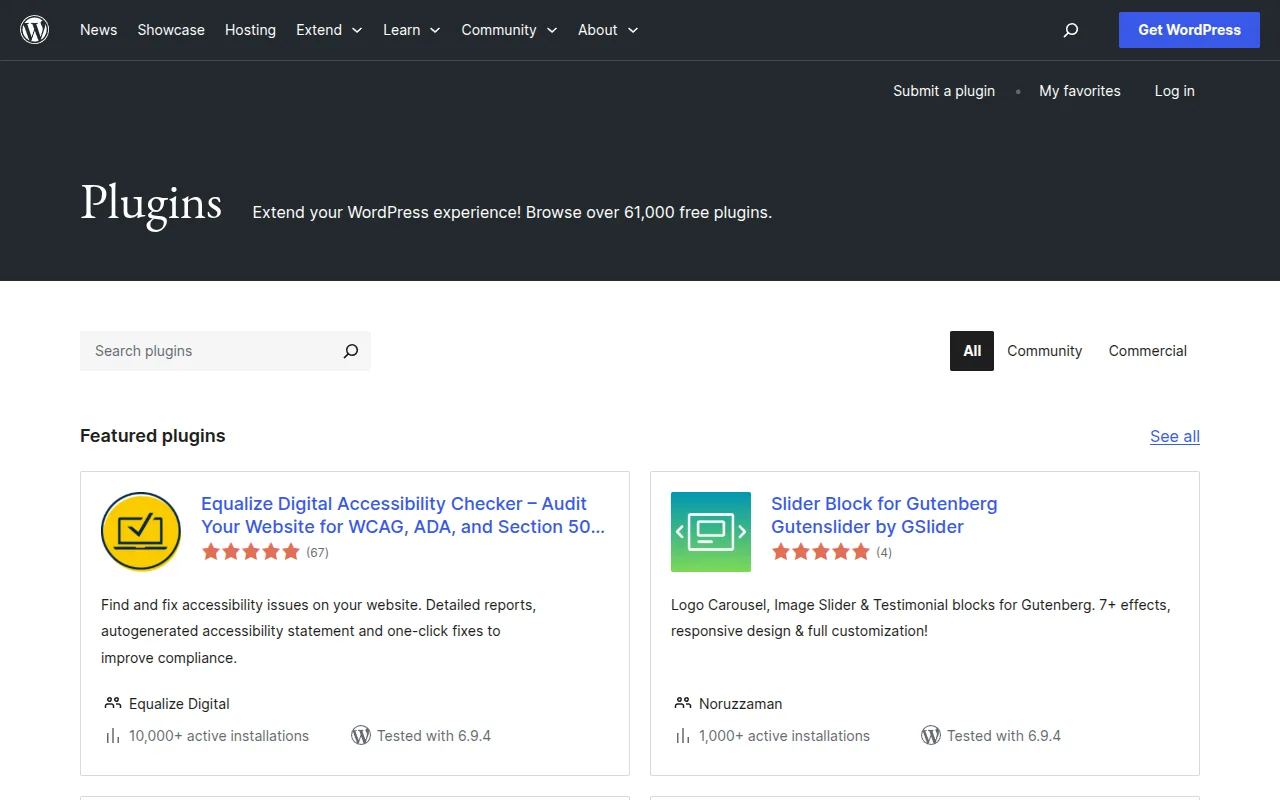
Here are some common examples of what plugins can add to your site:
- Yoast SEO — Helps you optimize your content for search engines
- WooCommerce — Turns your site into a full online store
- Contact Form 7 — Adds contact forms to your pages
- LiteSpeed Cache — Makes your site load faster
- Elementor — A drag-and-drop page builder for custom layouts
Installing a plugin takes about 30 seconds — you search for it in the WordPress admin, click "Install," and then "Activate." That's it. I cover the must-have plugins in my essential WordPress plugins guide.
Why I Recommend WordPress for Beginners
After 20 years of building websites, here's why I still recommend WordPress to every beginner I talk to:
- It's free. The WordPress software itself costs nothing. You only pay for hosting (a few dollars per month).
- No coding required. The block editor and themes let you build a professional site without touching a line of code.
- You own everything. Unlike Wix or Squarespace, your WordPress site is truly yours. You can move it, export it, and customize it however you want.
- Massive community. Millions of users, thousands of tutorials, and an active support community means you'll never get stuck without help.
- It grows with you. Start with a simple blog, add an online store later, integrate email marketing — WordPress scales from a hobby project to a full business.
- SEO-friendly out of the box. WordPress is built with clean code that search engines love. Add an SEO plugin and you're set.
Common Misconceptions About WordPress
Is WordPress only for blogs?
No. While it started as a blogging tool, WordPress now powers every type of website imaginable. E-commerce stores, corporate sites, portfolios, forums — you name it.
Is WordPress hard to learn?
Not at all. Most beginners can set up their first WordPress site in under an hour. The basics (creating posts, adding images, choosing a theme) are genuinely intuitive. The learning curve only steepens when you want advanced customizations.
Is WordPress secure?
WordPress itself is very secure — it's maintained by a dedicated security team. Most security issues come from outdated plugins or weak passwords. Keep everything updated and use strong passwords, and you'll be fine. I cover this in detail in my WordPress security guide.
Is WordPress really free?
The software is 100% free. But you'll need web hosting ($3-10/month) and a domain name (~$10/year). Some themes and plugins have premium versions, but you can build a fully functional site using only free tools.
How to Get Started with WordPress
Ready to build your first WordPress site? Here's the quick version:
- Choose a hosting provider — I compare the best options in my WordPress hosting guide
- Install WordPress — Most hosts offer one-click installation (I walk through this in my installation guide)
- Pick a theme — Browse the free theme directory and choose one that fits your style
- Add essential plugins — SEO, security, and performance basics
- Start creating content — Write your first post or page
Or if you want the full step-by-step walkthrough, check out my complete beginner's guide to WordPress. It covers everything from zero to a live website. You can also browse our WordPress tutorials for guided walkthroughs on installation, backups, SEO, and more.
Frequently Asked Questions
How much does WordPress cost?
The WordPress software is free. You'll need hosting ($3-10/month) and a domain name (~$10/year). Total first-year cost: roughly $50-130 depending on your hosting choice.
Can I make money with a WordPress site?
Absolutely. You can monetize through ads, affiliate marketing, selling products (with WooCommerce), offering services, creating online courses, or selling memberships. WordPress doesn't take any cut of your revenue.
Do I need to know how to code?
No. You can build a complete, professional website without writing a single line of code. The block editor, themes, and plugins handle everything visually.
What's the difference between WordPress and website builders like Wix?
WordPress gives you complete ownership and flexibility — you can customize anything and move your site anywhere. Website builders like Wix are easier to start with but lock you into their platform with limited customization. WordPress also has a much larger ecosystem of themes and plugins.
How long does it take to build a WordPress site?
A basic site can be up and running in under an hour. A more polished site with custom content, images, and optimized settings typically takes a weekend. A complex site with e-commerce, memberships, or custom features can take a few weeks.

Written by Marvin
Our team tests and reviews WordPress products to help beginners make confident choices.
Learn more about our team →You might also like
WordPress.com vs WordPress.org — What's the Difference?
Confused by WordPress.com and WordPress.org? I break down the key differences, pros and cons, pricing, and which one is right for you as a beginner.
postHow to Install WordPress — The Complete Step-by-Step Guide
I've installed WordPress hundreds of times over the past 20 years. Here's exactly how to do it — from one-click installers to manual setup, with troubleshooting tips for when things go wrong.
postHow to Choose a Domain Name for Your WordPress Site
Picking a domain name is one of the first decisions you'll make. I share practical tips for choosing the perfect domain, where to register it, and common mistakes to avoid.
postHow to Make a WordPress Website — Complete Beginner's Guide (2026)
Learn how to build a WordPress website from scratch in 2026. I walk through every step with screenshots — hosting, setup, themes, plugins, and your first content.