
WordPress.com vs WordPress.org — What's the Difference?
When you first start researching WordPress, you quickly run into a confusing problem: there are two websites — WordPress.org and WordPress.com — and it's not obvious what the difference is. Are they the same thing? Do you need both? Which one should you use?
I've been building websites for over 20 years, and this is one of the most common questions I get from beginners. Let me clear it up once and for all.
The Short Answer
Here's my quick recommendation before we dive into the details:
- Use WordPress.org if you want full control, flexibility, and the ability to grow your site into anything — blog, online store, membership site, portfolio.
- Use WordPress.com only if you want something extremely simple with zero technical setup, and you're okay with significant limitations.
For almost everyone reading this, WordPress.org is the right choice. It takes about 15 minutes to set up, costs just a few dollars a month for hosting, and gives you complete freedom. The rest of this guide explains exactly why — and covers the edge cases where WordPress.com might make sense.
What Is WordPress.org?
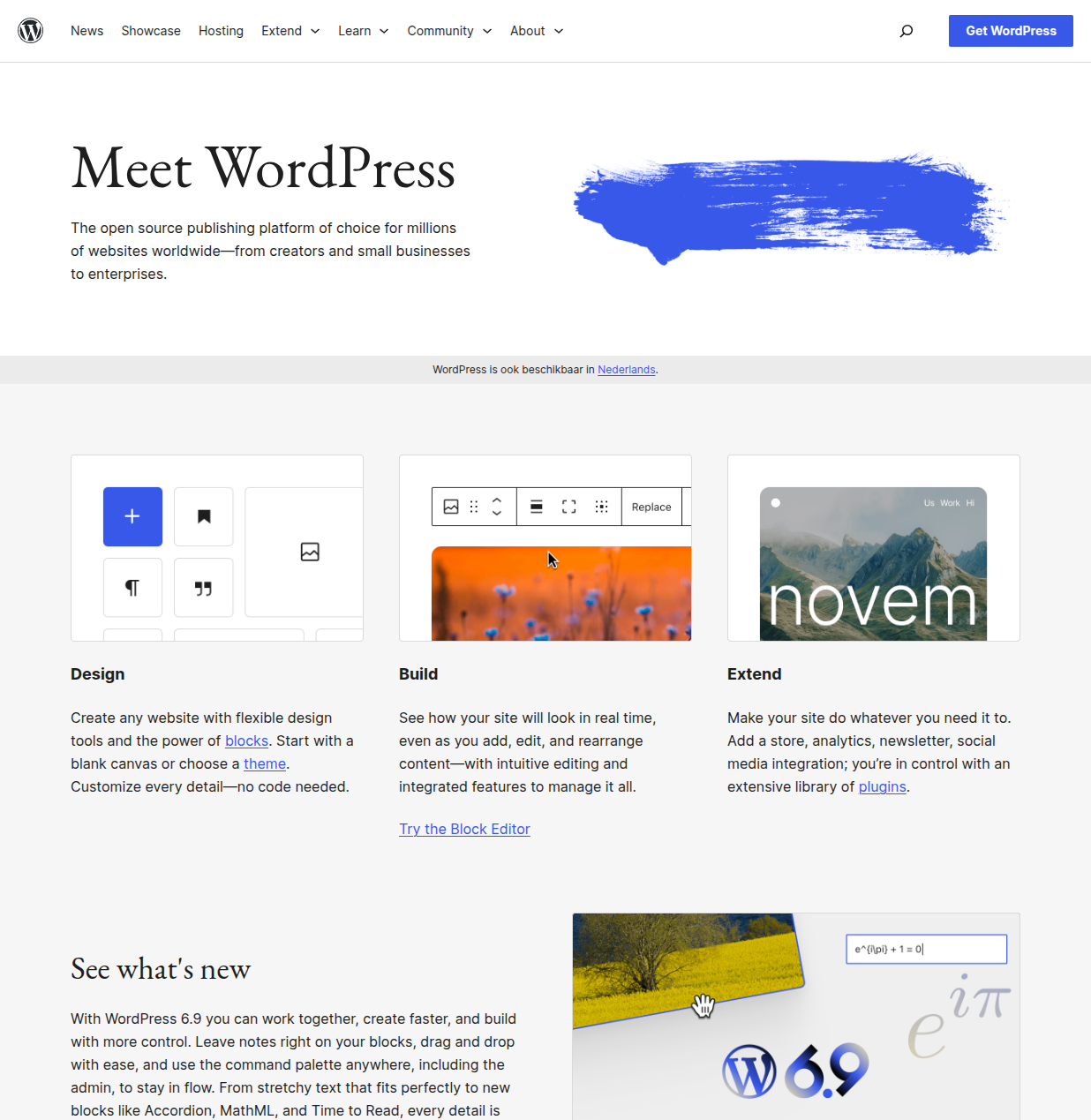
WordPress.org is the home of the free, open-source WordPress software. When most people say "WordPress," this is what they mean.
Here's how it works: you download the WordPress software (for free), install it on your own web hosting account, and you have a fully functional website that you own and control completely.
What you get with WordPress.org
- Free software — the CMS itself costs nothing, ever
- Full control — install any theme, any plugin, modify any code
- Access to 61,000+ plugins — including WooCommerce for e-commerce
- Access to 14,000+ themes — free and premium
- Complete SEO control — robots.txt, sitemaps, redirects, everything
- You own everything — your content, your data, your files
- Unlimited monetization — ads, affiliate links, stores, memberships
What it requires
- Web hosting — roughly $3-10/month depending on the provider (see my WordPress hosting guide)
- A domain name — about $10-15/year
- 15 minutes to install — most hosts offer one-click installation (see my step-by-step install guide)
That's it. There's no ongoing technical maintenance burden — you just keep WordPress and your plugins updated (which takes a few clicks every couple of weeks).
What Is WordPress.com?
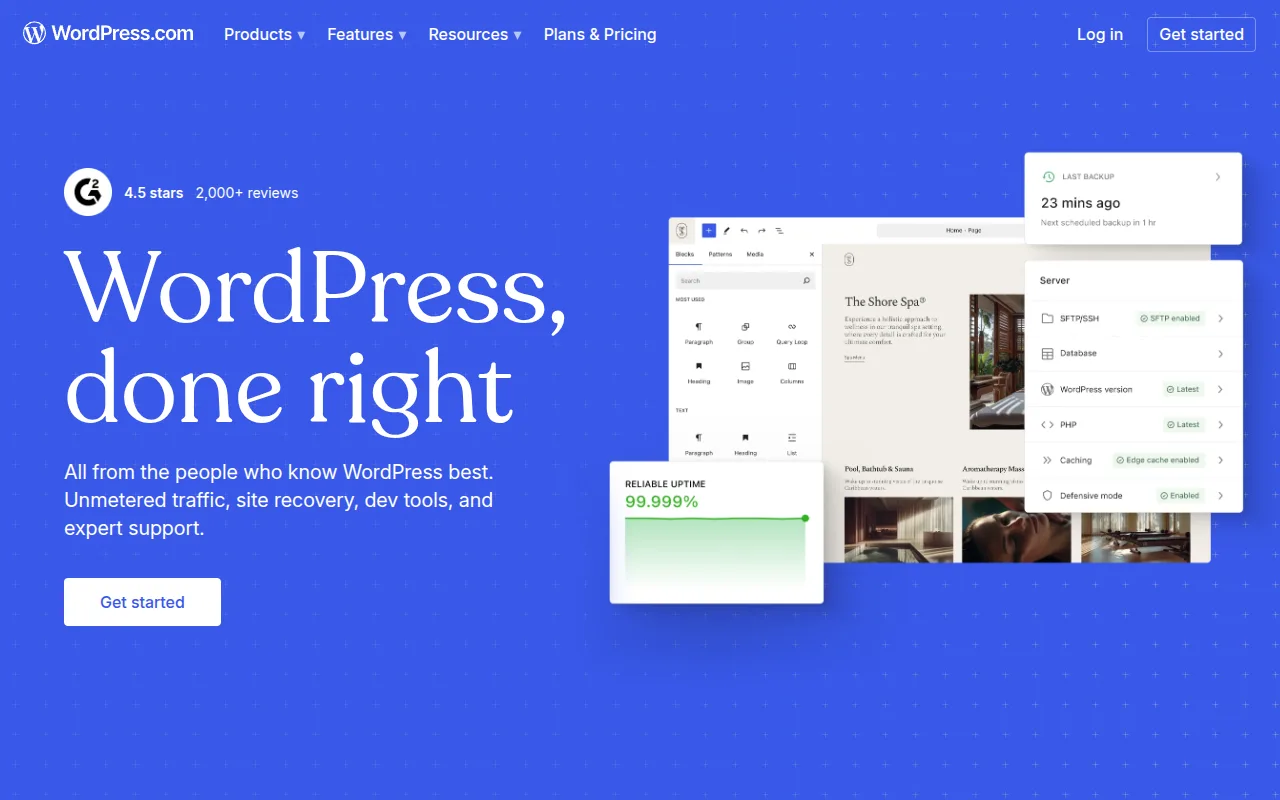
That screenshot above is how WordPress.com looks when visiting from the Netherlands — so you'll see the Dutch-language version of the site. The platform serves different regional versions, but the plans and features are the same globally.
WordPress.com is a commercial hosting service built by Automattic (the company founded by one of WordPress's original creators). It runs WordPress under the hood, but it's a managed, hosted product — meaning they handle the servers, and you work within their system.
What you get with WordPress.com
- Free tier available — limited, with WordPress.com branding and ads
- No server management — they handle hosting and updates
- Simplified interface — fewer settings to worry about
- Some themes available — limited selection compared to WordPress.org
What you don't get (unless you pay for top-tier plans)
- No custom plugins — on free and lower-tier paid plans, you can only use plugins WordPress.com has pre-approved
- Limited themes — you can't install arbitrary third-party themes on most plans
- No direct file access — you can't edit theme files or access your server
- WordPress.com ads on your site — on the free plan, they show ads you don't earn from
- Subdomain on free plan — your site will be yourname.wordpress.com, not yourname.com
- Limited monetization — you can't use Google AdSense on lower plans
Key Differences
Cost
WordPress.org: The software is free. You pay for hosting ($3-10/month) and a domain (~$10/year). Total first year: roughly $50-130.
WordPress.com: The free plan exists but is very limited. Paid plans range from $4/month (Starter) to $45/month (Business) — and you really need the Business plan ($25+/month) to get plugin access. At that price, you're paying more than self-hosted WordPress while getting less flexibility.
Customization
WordPress.org: Unlimited. Install any theme, any plugin, edit any file. If you can imagine it, you can build it.
WordPress.com: Very limited on lower plans. You're working within guardrails. On the Business plan and above you get more flexibility, but you're still not getting full server access.
Plugins and Themes
WordPress.org: Full access to the entire plugin and theme ecosystem — all 61,000+ plugins and 14,000+ themes, plus any premium marketplace options.
WordPress.com: On the free and Personal plan, you're limited to a small curated set. The Business plan unlocks plugin installation, but you're still in a managed environment.
SEO Control
WordPress.org: Complete control. You can install any SEO plugin (Yoast, Rank Math, etc.), edit your robots.txt, set up custom redirects, control your sitemaps, and configure everything at the server level.
WordPress.com: Basic SEO features are available, but you can't install advanced SEO plugins on lower plans and you have limited control over technical SEO settings.
Monetization
WordPress.org: No restrictions. Use Google AdSense, Mediavine, affiliate links, WooCommerce, paid memberships — anything you want. WordPress takes 0% of your revenue.
WordPress.com: The free plan actually shows WordPress.com's ads on your site (ads you don't earn from). You need to upgrade to a paid plan to run your own ads. Even then, certain monetization methods require the more expensive plans.
Ownership
WordPress.org: You own everything — your content, your files, your database. You can export everything and move to a different host in a few hours.
WordPress.com: Your content is technically yours, but it lives on their platform. If they change their terms, raise prices dramatically, or shut down a feature you rely on, you're dependent on their decisions.
Comparison Table
| Feature | WordPress.org | WordPress.com (Free) | WordPress.com (Business) |
|---|---|---|---|
| Monthly cost | $3-10 (hosting) | Free | ~$25/month |
| Custom domain | Yes | No (subdomain only) | Yes |
| Install any plugin | Yes (61,000+) | No | Yes |
| Install any theme | Yes (14,000+) | No | Yes |
| Full SEO control | Yes | Limited | Mostly |
| Run your own ads | Yes | No | Yes |
| WooCommerce / e-commerce | Yes | No | Yes |
| Server/file access | Yes | No | No |
| You own the hosting | Yes | No | No |
| WordPress.com branding | No | Yes | No |
Which One Should You Choose?
Use this quick decision framework:
Choose WordPress.org if:
- You want a professional website with your own domain name
- You plan to monetize through ads, affiliate marketing, or an online store
- You want access to the full plugin ecosystem (SEO tools, e-commerce, forms, etc.)
- You care about long-term flexibility and ownership
- You want the best possible SEO control
- Your budget is modest — self-hosted is actually cheaper for anything beyond the most basic use
Choose WordPress.com if:
- You just want a personal journal or hobby site with no monetization goals
- You genuinely want zero technical involvement and don't mind the limitations
- The free subdomain (yourname.wordpress.com) is acceptable to you
Honestly, I struggle to recommend WordPress.com's paid plans because at $25/month (Business plan), you could self-host WordPress on quality hosting for $5-10/month and get more flexibility. The only real argument for WordPress.com is the zero-maintenance aspect — but maintaining self-hosted WordPress is easier than most people expect.
How to Get Started with WordPress.org
If you've decided on WordPress.org (good choice), here's the quick path:
- Choose a hosting provider — I've done the research in my WordPress hosting comparison. For most beginners, a managed WordPress host or a solid shared host works perfectly.
- Register a domain name — Usually done through your hosting provider during signup.
- Install WordPress — Almost every host offers one-click WordPress installation. I walk through the entire process in my WordPress installation guide.
- Choose a theme and install essential plugins — Your site will be ready within an hour.
For the full walkthrough from zero to a live website, see my complete WordPress beginner's guide. And if you're still unsure about what WordPress even is at its core, start with What Is WordPress? — that covers the fundamentals.
Frequently Asked Questions
Is WordPress.com really free?
There is a free plan, but it's quite limited: your site will have a WordPress.com subdomain (yourname.wordpress.com), WordPress.com will show ads on your site, and you can't install plugins or use a custom theme. For most people with any real website goals, the free plan isn't practical.
Can I switch from WordPress.com to WordPress.org later?
Yes, you can export your content from WordPress.com and import it into a self-hosted WordPress.org installation. The process works reasonably well for posts and pages, though some settings and customizations won't transfer automatically. It's easier to start with WordPress.org from the beginning than to migrate later.
Are WordPress.com and WordPress.org the same software?
WordPress.com runs on the WordPress software, but it's a managed environment with restrictions. WordPress.org is the open-source software itself, which you can install and run with complete freedom. They share the same underlying code but offer very different experiences.
Does WordPress.com have WooCommerce?
WooCommerce is available on WordPress.com's higher-tier plans (Commerce plan), but you're paying a premium for it — around $45/month. With WordPress.org, you can install WooCommerce for free and only pay for hosting ($3-10/month). For anyone building an online store, WordPress.org is the obvious choice.
Is self-hosted WordPress hard to manage?
Not really. Updating WordPress, themes, and plugins takes about two minutes every few weeks — you just click "Update" in the admin dashboard. The main things that require attention are keeping software updated and having a backup solution in place (which you can automate with a free plugin). I cover the basics in my WordPress overview guide.

Written by Marvin
Our team tests and reviews WordPress products to help beginners make confident choices.
Learn more about our team →You might also like
What Is WordPress? A Beginner-Friendly Explanation
WordPress is the world's most popular website builder, powering over 40% of all websites. In this guide, I'll explain exactly what WordPress is, how it works, and why it's the best choice for beginners.
postHow to Install WordPress — The Complete Step-by-Step Guide
I've installed WordPress hundreds of times over the past 20 years. Here's exactly how to do it — from one-click installers to manual setup, with troubleshooting tips for when things go wrong.
postHow to Choose a Domain Name for Your WordPress Site
Picking a domain name is one of the first decisions you'll make. I share practical tips for choosing the perfect domain, where to register it, and common mistakes to avoid.
postHow to Make a WordPress Website — Complete Beginner's Guide (2026)
Learn how to build a WordPress website from scratch in 2026. I walk through every step with screenshots — hosting, setup, themes, plugins, and your first content.