
How to Set Up SSL/HTTPS on WordPress (Free & Easy)
Back in 2015, I had a client call me in a panic because his website suddenly had a big red "Not Secure" warning in the browser bar. He thought he'd been hacked. He hadn't — Google Chrome had just started flagging sites without SSL certificates, and his site was one of millions that got caught out. I spent 20 minutes setting up a free SSL certificate and another 10 fixing mixed content issues. Total cost: $0. His stress level before the call: approximately infinite.
The point of that story is this: SSL isn't optional anymore, and it hasn't been for years. Google uses HTTPS as a ranking factor (it's minor, but it's real). Chrome, Firefox, and Safari all show security warnings on non-HTTPS pages. And beyond SEO and browser warnings, SSL encrypts the data traveling between your visitors and your server — which means passwords, credit card numbers, and personal information can't be intercepted in transit. Every WordPress site needs SSL. Full stop.
The good news is that SSL is free in 2026. You have multiple ways to set it up, and none of them require technical expertise. In this guide, I'll walk you through three methods — from easiest to most technical — and then show you how to fix the mixed content issues that almost everyone runs into afterward.
What Is SSL and Why Every Site Needs It
SSL (Secure Sockets Layer) — technically its modern version is called TLS (Transport Layer Security), but everyone still says SSL — creates an encrypted connection between your visitor's browser and your web server. When SSL is active, your site URL changes from http:// to https://, and browsers show a padlock icon in the address bar. Without it, any data your visitors enter — login credentials, contact form messages, payment details — travels across the internet as plain text that anyone on the same network could theoretically intercept.
Beyond the security benefits, SSL directly impacts your site in three practical ways. First, Google confirmed that HTTPS is a ranking signal back in 2014, and it's become increasingly important since. You won't jump 10 positions just by adding SSL, but all else being equal, the HTTPS version of a page will outrank the HTTP version. Second, browsers actively warn visitors about non-HTTPS sites. Chrome shows "Not Secure" in the address bar, which tanks your credibility and conversion rate. Third, many modern WordPress features require HTTPS, including service workers, HTTP/2, and the latest APIs. Running without SSL in 2026 is like running a shop with the door wide open — technically you can do it, but why would you?
Method 1: Free SSL From Your Hosting Provider (Easiest)
This is the method I recommend for 90% of people because it's the fastest and requires zero technical knowledge. Almost every reputable hosting provider now includes free SSL certificates as part of their standard plans. They handle the installation, renewal, and configuration — you just need to flip a switch.
SiteGround
SiteGround includes free Let's Encrypt SSL on all plans and actually enables it automatically for new sites. If yours isn't active for some reason, log into your SiteGround dashboard, go to Websites > Site Tools > Security > SSL Manager. Select your domain from the dropdown, choose Let's Encrypt as the SSL type, and click Get. It activates within a few minutes. Then toggle the HTTPS Enforce option to make sure all traffic gets redirected from HTTP to HTTPS. SiteGround will automatically renew the certificate every 90 days — you never have to think about it again.
Hostinger
Hostinger also includes free SSL on all their hosting plans. From your Hostinger dashboard, go to Websites > Manage > Security > SSL. You'll see an option to install a free SSL certificate. Click Install SSL, wait a minute or two for it to activate, and you're done. Like SiteGround, Hostinger handles automatic renewal. If you're starting fresh and haven't picked a host yet, I compare the best options in my WordPress hosting guide.
Bluehost
Bluehost has a slightly more buried process, which is my one annoyance with them. Log into your Bluehost dashboard, click My Sites, then select Manage Site for the site you want to secure. Go to the Security tab and toggle the Free SSL Certificate switch to ON. It can take up to 24 hours to fully propagate, though in my experience it's usually done within an hour. If the toggle isn't appearing, contact Bluehost support — sometimes it needs to be enabled on their end first, especially on legacy plans.
Pro tip: After enabling SSL through your host, go to WordPress Dashboard > Settings > General and make sure both your "WordPress Address (URL)" and "Site Address (URL)" fields start with https:// instead of http://. This is a step that a surprising number of tutorials skip, and skipping it causes all sorts of redirect loops and mixed content headaches.
Method 2: Cloudflare Free SSL
If your host doesn't include free SSL, or if you want the additional performance and security benefits of a CDN, Cloudflare's free plan includes SSL. This is also a great option if you're already using Cloudflare for DNS or caching — which I recommend regardless, since their free tier is genuinely excellent.
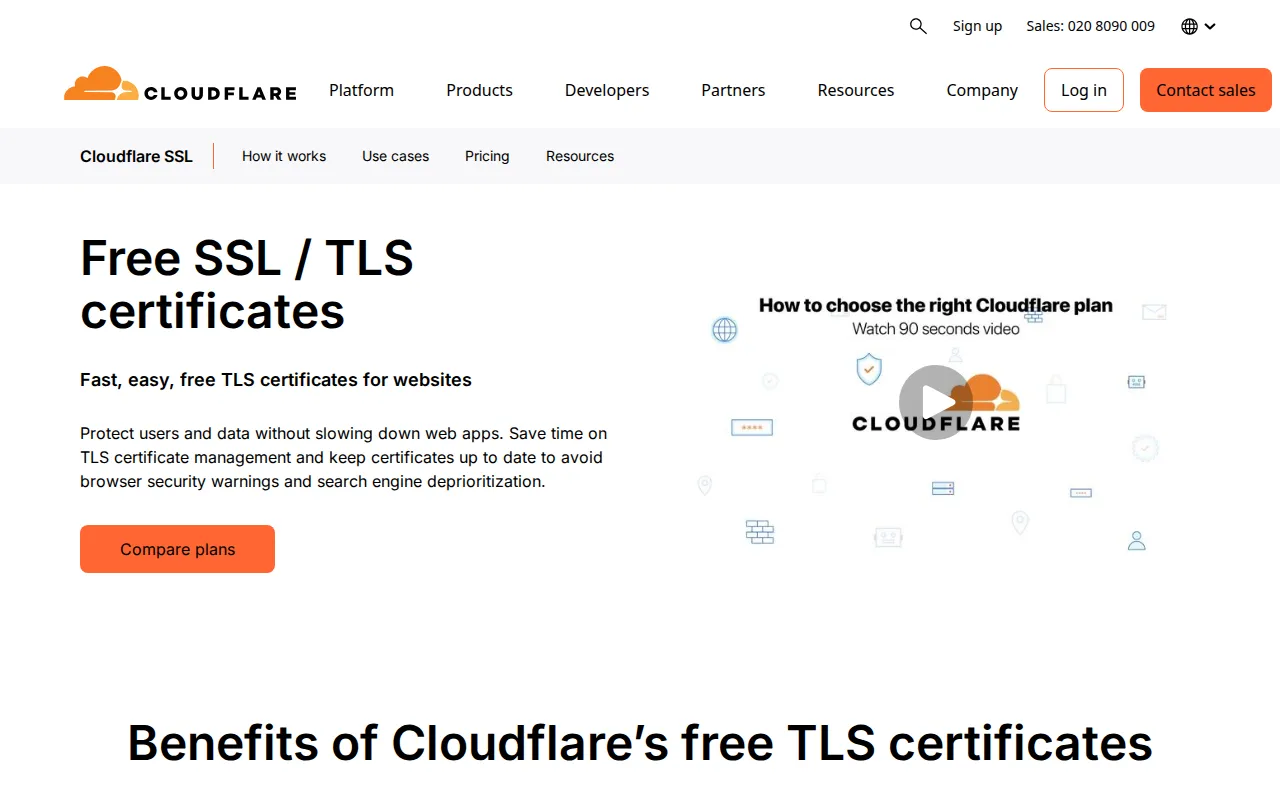
That's Cloudflare's SSL page — free TLS certificates with automatic renewal and zero configuration on your server. Their free plan also gives you a CDN, DDoS protection, and basic firewall rules. It's an absurd amount of value for $0.
Here's how to set it up. First, create a free Cloudflare account at cloudflare.com and add your domain. Cloudflare will scan your existing DNS records and ask you to update your domain's nameservers to point to Cloudflare's nameservers — this is how Cloudflare sits between your visitors and your server. Once your nameservers are updated (this can take a few hours to propagate), go to SSL/TLS in your Cloudflare dashboard and set the encryption mode to Full (Strict) if your origin server already has an SSL certificate, or Flexible if it doesn't. I strongly recommend Full (Strict) when possible, as Flexible mode means the connection between Cloudflare and your server is unencrypted — which is better than nothing but not ideal.
Then enable Always Use HTTPS under SSL/TLS > Edge Certificates to automatically redirect all HTTP requests to HTTPS. Finally, turn on Automatic HTTPS Rewrites to fix mixed content issues at the Cloudflare level. If you're setting up Cloudflare for the first time, I have a full walkthrough in my Cloudflare CDN setup guide.
Method 3: Let's Encrypt Manual Install (VPS Users)
If you're running WordPress on a VPS (DigitalOcean, Linode, Vultr, Hetzner) without a control panel, you'll need to install the SSL certificate yourself using Certbot — the official Let's Encrypt client. This is the most technical method, but it's still straightforward if you're comfortable with the command line.
Let's Encrypt is a nonprofit certificate authority that has issued free TLS certificates to over 700 million websites. It's the backbone of free SSL on the internet, and it's what most hosting providers use behind the scenes for their "free SSL" offerings.
SSH into your server and install Certbot. On Ubuntu/Debian, run: sudo apt update && sudo apt install certbot python3-certbot-nginx (replace nginx with apache if you're using Apache). Then run sudo certbot --nginx -d yourdomain.com -d www.yourdomain.com and follow the prompts. Certbot will automatically configure your web server to use the new certificate and set up a cron job for automatic renewal every 90 days. Test the renewal with sudo certbot renew --dry-run to make sure it works.
Important: If you're on a VPS and not comfortable with command-line server management, I'd recommend either using a control panel like RunCloud or Ploi (which handle SSL automatically), or switching to managed hosting where the provider handles this for you. There's no shame in letting experts handle server security — it's what they're paid to do.
Fixing Mixed Content After Enabling SSL
This is the part that trips up almost everyone, and it's the #1 reason people think their SSL "isn't working" after installation. Mixed content happens when your site loads over HTTPS but some resources — images, scripts, stylesheets — are still being loaded over HTTP. Browsers flag this as insecure, and you'll see a warning instead of a clean padlock.
The most common cause is hardcoded HTTP URLs in your content. Maybe you inserted images years ago when your site was still on HTTP, or a plugin is enqueuing scripts with http:// prefixes. The simplest fix is to install the Really Simple Security plugin (formerly Really Simple SSL).
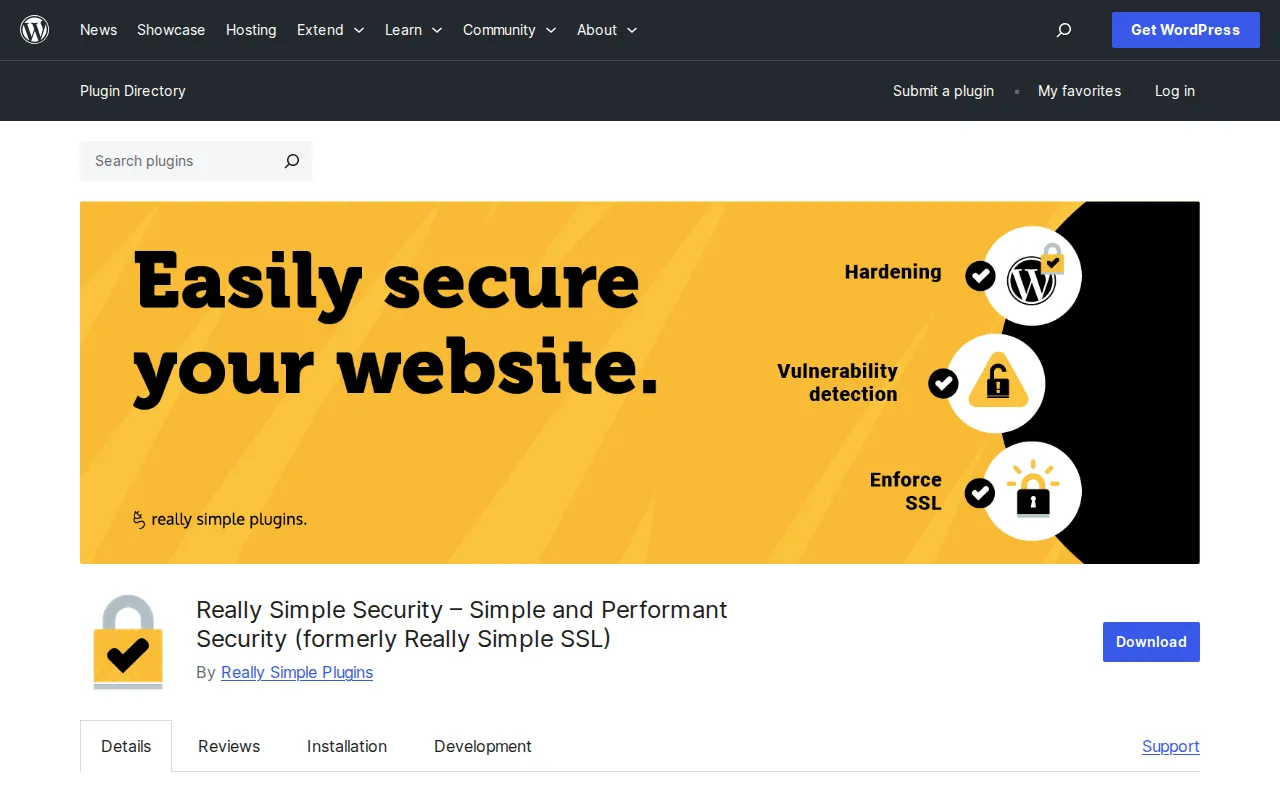
Really Simple Security has over 5 million active installations, and it's earned that popularity because it genuinely works. Install it, activate it, and it will automatically detect your SSL certificate, update your WordPress URLs, and fix mixed content issues by rewriting HTTP URLs to HTTPS on the fly. For most sites, this is all you need to do. One click, problem solved.
If you prefer not to add another plugin (which I respect — every plugin adds overhead), you can fix mixed content manually. The best approach is to use the Better Search Replace plugin to do a find-and-replace in your database: search for http://yourdomain.com and replace with https://yourdomain.com. Run a dry run first to see how many replacements it'll make, then execute it for real. After that, deactivate and delete Better Search Replace — it's a utility plugin you only need once. Also check your theme's settings and any hardcoded URLs in widgets, custom CSS, or header/footer scripts.
Warning: Before running any database find-and-replace, take a backup. I've seen people accidentally replace URLs in serialized data and break their entire site. Better Search Replace handles serialized data correctly, but backups are non-negotiable. Check my backup guide if you don't have a backup system in place.
Verifying Your SSL Is Working Correctly
After setting up SSL and fixing mixed content, you want to verify everything is actually working. Here's my three-step verification process that I run on every site.
Step 1: Check the padlock. Visit your site in Chrome (or any browser) and look at the address bar. You should see a padlock icon next to your URL. Click it — it should say "Connection is secure." If you see a warning triangle or "Not Secure" text, you still have mixed content issues. Open your browser's developer tools (F12), go to the Console tab, and look for mixed content warnings. They'll tell you exactly which resources are still loading over HTTP.
Step 2: Run an SSL Labs test. Go to SSL Labs and enter your domain. It runs a comprehensive test of your SSL configuration and gives you a grade from A+ to F. You want at least an A. If you get a B or lower, the report will tell you what needs fixing — usually it's about enabling HSTS or disabling outdated TLS versions. Most hosting providers score an A or A+ out of the box.
Step 3: Test the redirect. Type http://yourdomain.com (without the S) into your browser. It should automatically redirect to https://yourdomain.com. If it doesn't redirect, your HTTP-to-HTTPS redirect isn't configured. Your hosting provider's SSL settings usually have a toggle for this, or you can add a redirect rule to your .htaccess file. If you're using Cloudflare, enable "Always Use HTTPS" in the dashboard.
Once all three checks pass, you're done. Your site is serving over a secure encrypted connection, search engines will reward you for it, and your visitors won't see any scary warnings. The whole process — from enabling SSL to verifying it — should take about 10-15 minutes for most sites.
Frequently Asked Questions
Does SSL slow down my website?
No — in fact, SSL can make your site faster. HTTPS is required for HTTP/2, which is a major performance improvement over HTTP/1.1 thanks to multiplexing, header compression, and server push. The encryption overhead is negligible on modern hardware. I've benchmarked dozens of sites before and after enabling SSL, and the performance difference is either undetectable or slightly faster with HTTPS. This is a myth from the early 2000s that refuses to die.
Do I need to buy an SSL certificate?
No. Free SSL certificates from Let's Encrypt (which is what most hosts provide) are functionally identical to paid certificates for the vast majority of websites. Paid certificates (like those from DigiCert or Comodo) are only necessary if you need Organization Validation (OV) or Extended Validation (EV) certificates — which is relevant for banks and large enterprises, not WordPress blogs or small business sites. Save your money.
Will switching to HTTPS affect my SEO rankings?
Switching to HTTPS is a net positive for SEO. Google has confirmed HTTPS as a ranking signal, and sites without it are at a disadvantage. The key is to set up proper 301 redirects from HTTP to HTTPS so you don't lose link equity. If you use the methods in this guide, the redirects are handled automatically. I've migrated dozens of sites to HTTPS and never seen a negative impact on rankings — only neutral or slightly positive.
My host says SSL is included, but my site still shows "Not Secure" — what's wrong?
This almost always means the SSL certificate is installed on the server, but your WordPress site is still configured to use HTTP URLs. Go to Settings > General in your WordPress dashboard and make sure both URL fields start with https://. If they already do, you likely have mixed content issues — some resources (images, scripts, fonts) are still loading over HTTP. Install Really Simple Security to fix this automatically, or use Better Search Replace to update your database URLs as I described above. If the certificate genuinely isn't installed, contact your host's support team — they'll enable it in a few minutes.

Written by Marvin
Our team tests and reviews WordPress products to help beginners make confident choices.
Learn more about our team →You might also like
WordPress Security — The Complete Guide to Protecting Your Site
After 20 years of building WordPress sites, I've cleaned up more hacked sites than I care to remember. Most of those hacks were completely preventable. This is everything I know about keeping WordPress secure — no fear-mongering, just practical steps that actually work.
postBest WordPress Firewall Plugins in 2026 (Compared)
A web application firewall is your site's first line of defense against hackers, bots, and automated attacks. After testing dozens of firewall solutions over the years, I've narrowed it down to 5 that actually work. Here's how they compare — and which one I recommend for different situations.
postWordPress File Permissions — Security Best Practices Explained
Wrong file permissions are one of the most overlooked WordPress security holes. I've seen sites hacked because wp-config.php was world-readable. Here's exactly what every file and folder should be set to, and how to fix it.
postWordPress Login Security — How to Stop Brute Force Attacks
Your WordPress login page gets attacked dozens of times every day, whether you know it or not. I've been hardening login pages for over a decade, and these 8 measures will shut down brute force attacks completely.