
WordPress Login Security — How to Stop Brute Force Attacks
Here's something that will probably alarm you if you've never looked at your server logs: your WordPress login page is under attack right now. Not hypothetically, not "might be someday" — right now. Automated bots crawl the internet 24/7 looking for WordPress sites, and when they find one, they start hammering the login page with common username and password combinations. It's called a brute force attack, and it's the most common type of attack against WordPress sites by a massive margin. I've been building and securing WordPress sites since 2006, and I've watched these attacks evolve from a few dozen attempts per day to thousands of attempts per hour on popular sites.
The good news is that brute force attacks are also the easiest to stop. Unlike sophisticated zero-day exploits that require advanced security measures, brute force protection comes down to a handful of straightforward changes that any WordPress site owner can implement in under an hour. I'm going to walk you through the 8 most effective login security measures, ranked from "everyone should do this immediately" to "nice extra layer for advanced users." By the end of this guide, your login page will be essentially impenetrable to automated attacks. Let's also establish upfront that this is one piece of a larger security strategy — for the full picture, check out my complete WordPress security guide.
What Are Brute Force Attacks?
A brute force attack is exactly what it sounds like: an attacker (usually an automated bot, not an actual person) tries to guess your login credentials by systematically attempting thousands of username and password combinations. The bot visits your wp-login.php page and submits login forms over and over — "admin / password123", "admin / 123456", "admin / wordpress", "admin / letmein" — cycling through massive dictionaries of common passwords and known credential leaks. Modern brute force bots can try hundreds of combinations per minute, and they don't get tired or bored. If your password is weak or your username is predictable, it's not a question of if they'll get in — it's when.
What makes brute force attacks particularly dangerous for WordPress is that wp-login.php is always at the same URL by default, WordPress doesn't limit login attempts out of the box, and the default admin username during installation is literally "admin." It's like putting your front door at a publicly known address, removing the lock, and taping a note that says "the key is under the mat." Let's fix all of that.
8 Essential Login Security Measures
#1: Never Use "admin" as Your Username
This is the lowest-hanging fruit and the single most common mistake I see. When WordPress installs, it suggests "admin" as the default username, and a staggering number of site owners just accept it. Every brute force bot starts with "admin" as the username — it's the first thing they try. By using a different username, you immediately force the attacker to guess both your username AND your password, which exponentially increases the difficulty. If you already have "admin" as your username, create a new administrator account with a unique name, log in with the new account, and delete the old "admin" account (WordPress will ask you to transfer the posts to the new account — do that).
Pro tip: Don't use your domain name, your first name, or "administrator" either — bots try those too. Choose something that isn't publicly visible on your site. And while you're at it, go to Settings → General and make sure your admin username isn't displayed as the author name on blog posts. Set a separate display name under Users → Your Profile. Bots scrape author archives for valid usernames.
#2: Use Strong Passwords (and a Password Manager)
I know you've heard this a thousand times, but I'm going to say it again because weak passwords are still responsible for the majority of successful brute force attacks. "Strong" doesn't mean "your dog's name with a 1 at the end" — it means at least 16 characters, randomly generated, with upper and lowercase letters, numbers, and symbols. Something like kX9#mP2$vL5nQ8@w that no human would ever guess and no dictionary attack would ever contain. The only way to manage passwords like this is with a password manager — I use and recommend Bitwarden (free and open-source) or 1Password (paid but excellent).
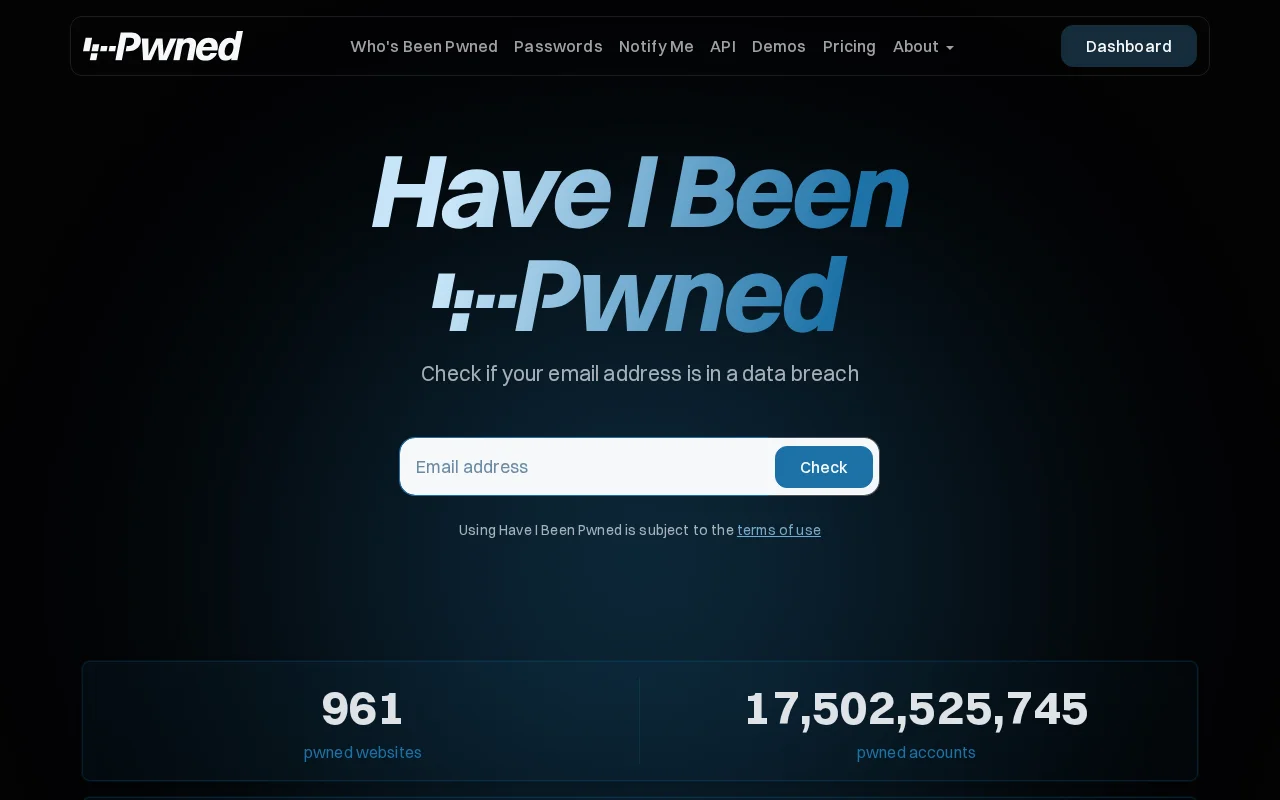
Here's something most people don't do but absolutely should: check whether your existing passwords have been exposed in data breaches. Head over to Have I Been Pwned and enter the email addresses associated with your WordPress accounts. If any show up in known breaches, change those passwords immediately — and not just on WordPress, but everywhere you used the same password. Credential stuffing attacks (where bots try email/password combinations leaked from other sites) are increasingly common, and they work disturbingly well because people reuse passwords across services.
#3: Enable Two-Factor Authentication (2FA)
Two-factor authentication is the single most effective measure against brute force attacks, full stop. Even if an attacker somehow guesses your password (or obtains it from a data breach), they can't log in without the second factor — typically a 6-digit code from an authenticator app on your phone. It transforms your login from "something you know" to "something you know + something you have," and it's the same technology that protects your bank account and email. I consider 2FA non-negotiable for any WordPress site that matters.
The best free plugin for WordPress 2FA is WP 2FA by Melapress. Install it from Plugins → Add New, activate it, and the setup wizard will walk you through generating a QR code that you scan with your authenticator app (I recommend Google Authenticator or Authy). Make sure you save the backup codes somewhere safe — if you lose your phone and don't have backup codes, you'll be locked out of your own site. Another solid option is the 2FA feature built into Wordfence, which you might already have installed as part of your security plugin setup. Whichever plugin you choose, enable 2FA for ALL administrator and editor accounts, not just your own.
#4: Limit Login Attempts
By default, WordPress allows unlimited login attempts. An attacker can try 10,000 passwords in a row, and WordPress will happily process every single one. This is, frankly, insane, and it's the first thing I change on every new WordPress installation. Limit Login Attempts Reloaded is the go-to plugin for this — it's been around for years, has over 2.5 million active installations, and does exactly what the name says. After a configured number of failed login attempts (I set it to 3), the plugin locks out that IP address for a specified duration (I use 20 minutes for the first lockout, 24 hours after repeated lockouts).
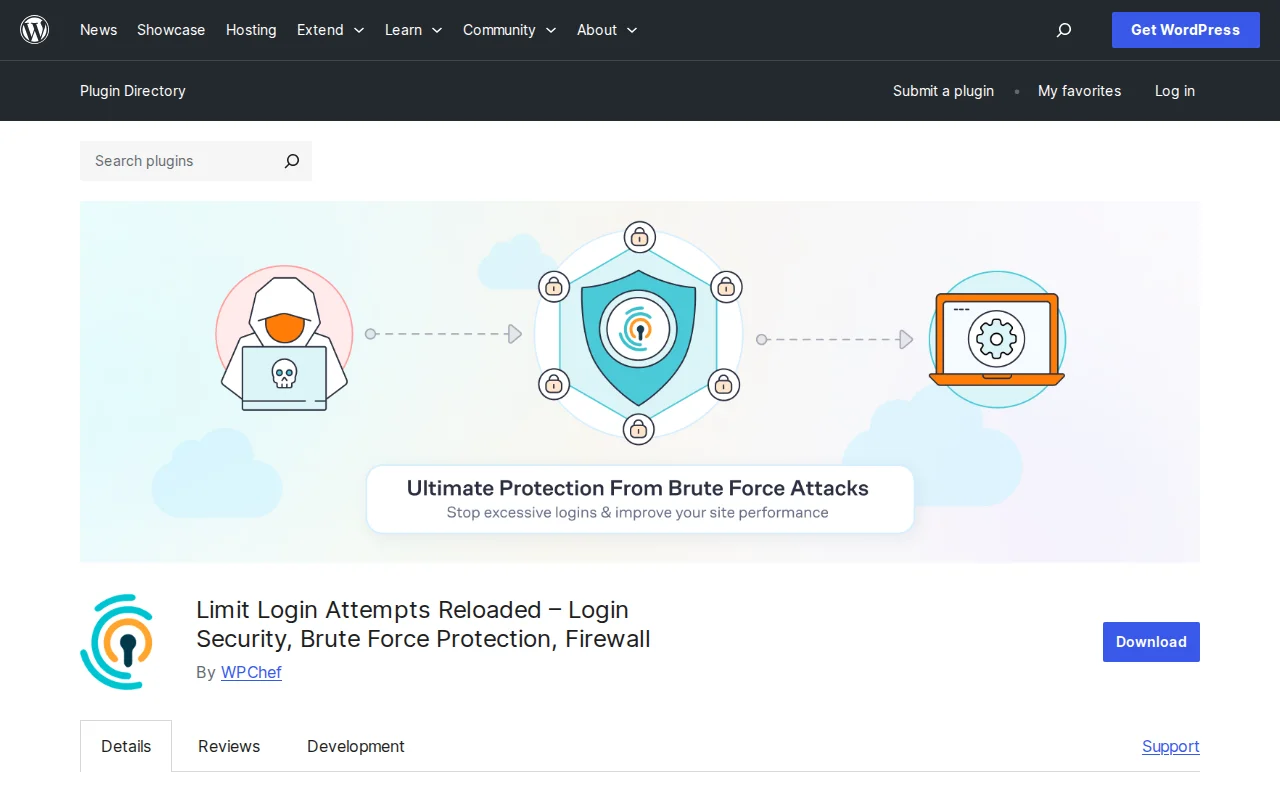
Here's how to set it up: install Limit Login Attempts Reloaded from Plugins → Add New, activate it, and go to Settings → Limit Login Attempts. Under the App Settings tab, set allowed retries to 3, normal lockout duration to 20 minutes, max lockouts to 3, and long lockout duration to 24 hours. Enable the email notification so you get alerted when lockouts occur — this tells you that attacks are being blocked. Under the Logs tab, you can see a history of all blocked attempts, which is both informative and slightly terrifying when you see how many bots are hitting your site. If your security plugin (like Wordfence or Sucuri) already includes login limiting, you don't need a separate plugin — just make sure the feature is enabled and configured.
#5: Add reCAPTCHA to Your Login Page
reCAPTCHA adds another layer that specifically targets automated bots. Google's reCAPTCHA v3 is invisible to legitimate users — it runs in the background and assigns a risk score based on user behavior. Bots fail this check almost universally because they don't exhibit human browsing patterns. When you combine reCAPTCHA with login attempt limiting, you've essentially created a two-layer defense: bots need to beat the CAPTCHA first, and even if some slip through, they get locked out after 3 failed attempts.
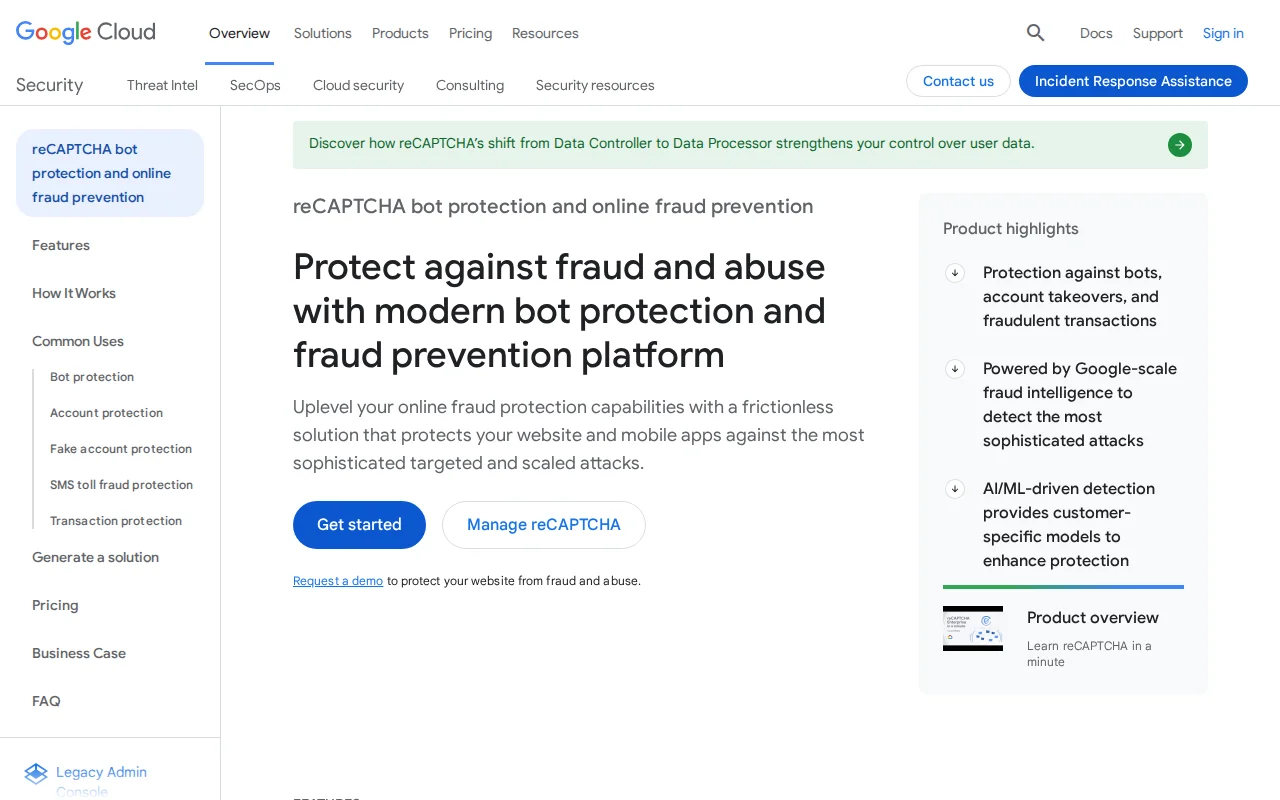
To add reCAPTCHA to your WordPress login page, you first need to register your site at Google's reCAPTCHA admin console. Choose reCAPTCHA v3, add your domain, and you'll receive a Site Key and Secret Key. Then install a plugin like Advanced Google reCAPTCHA (free) or use the reCAPTCHA feature built into Wordfence. Paste your keys into the plugin settings, enable it for the login page, registration page, and password reset page, and you're done. The entire process takes about 5 minutes, and the protection it provides against automated attacks is substantial. This is part of the security hardening that I recommend for every site.
#6: Change Your wp-login URL
Every WordPress site has its login page at /wp-login.php or /wp-admin/. Every brute force bot knows this. By changing the login URL to something custom — like /my-secret-login/ or /dashboard-access/ — you eliminate the vast majority of automated attacks because the bots simply can't find your login page. It's security through obscurity, which shouldn't be your only defense, but it's a remarkably effective one when layered with other measures.
The easiest way to do this is with the WPS Hide Login plugin. Install it, activate it, and go to Settings → WPS Hide Login. Enter your new login URL (make it something memorable to you but not easily guessable — avoid /login, /signin, or /admin). The plugin also lets you set a redirect URL for anyone who tries to access the default wp-login.php — I usually set this to a 404 page. Warning: Make sure you bookmark your new login URL before activating. If you forget it, you'll need to deactivate the plugin via FTP (rename the plugin folder in wp-content/plugins) to regain access. I've gotten more than a few emergency emails from site owners who forgot their custom login URL — don't be that person.
#7: Disable XML-RPC
XML-RPC is a WordPress feature that allows external applications to communicate with your site. It was originally designed for mobile apps and remote publishing tools, but it's been largely superseded by the REST API since WordPress 4.7. The problem is that XML-RPC includes a method called system.multicall that lets an attacker test hundreds of passwords in a single request — completely bypassing login attempt limiting. One HTTP request can contain 500 password attempts, and most login limiting plugins don't catch this because the attempts come through XML-RPC rather than the login form.
If you're not using the WordPress mobile app, Jetpack, or any other service that relies on XML-RPC (most modern plugins use the REST API instead), disable it. The easiest method is to add this filter to your theme's functions.php or a custom plugin: add_filter('xmlrpc_enabled', '__return_false');. Alternatively, most security plugins like Wordfence and Sucuri include a toggle to disable XML-RPC. You can also block it at the server level by adding this to your .htaccess file:
<Files xmlrpc.php>
  Order Deny,Allow
  Deny from all
</Files>
The .htaccess method is my preferred approach because it blocks the request at the server level before PHP even processes it, saving server resources. If you later need XML-RPC for a specific purpose, you can whitelist specific IP addresses within the block.
#8: IP Whitelist for wp-admin (Advanced Users)
This is the nuclear option for login security, and it's only practical if you have a static IP address (or a small number of known IPs). By restricting access to wp-admin and wp-login.php to specific IP addresses, you make it physically impossible for anyone else to even reach your login page. Add this to your .htaccess file in the wp-admin directory:
<Files wp-login.php>
  Order Deny,Allow
  Deny from all
  Allow from 123.456.789.0
  Allow from 98.765.432.1
</Files>
Replace the IP addresses with your actual IPs (Google "what is my IP" to find yours). You can add multiple Allow from lines for different locations or team members. Warning: If your ISP gives you a dynamic IP (which most residential connections do), this will lock you out every time your IP changes. This technique is best suited for businesses with static office IPs, or for sites managed through a VPN with a fixed exit IP. If you do get locked out, you'll need to edit the .htaccess file via FTP to regain access. For most site owners, measures #1 through #7 provide more than enough protection without the maintenance overhead of IP whitelisting.
Frequently Asked Questions
How do I know if my site is being brute-force attacked right now?
Install Limit Login Attempts Reloaded or check your existing security plugin's logs. Both Wordfence and Sucuri show failed login attempts in their dashboards. If you see dozens or hundreds of failed login attempts from different IP addresses, that's a brute force attack in progress. Don't panic — it just means bots are probing your site, which happens to literally every WordPress site on the internet. If you've implemented the measures in this guide, those attempts are being blocked effectively. The attacks only become a problem if they succeed.
Can brute force attacks slow down my website?
Yes, absolutely. Each login attempt generates a PHP request and a database query on your server. When bots are sending hundreds or thousands of attempts per hour, that's significant server load — especially on shared hosting where resources are limited. This is another reason why limiting login attempts and disabling XML-RPC are so important: they reduce the processing load from these attacks. If you're experiencing unexplained slow performance, check your security logs for excessive login attempts. A web application firewall (like Wordfence's or Cloudflare's) can block these requests before they even reach your server.
Is two-factor authentication enough by itself?
2FA alone provides excellent protection against unauthorized access — it's probably the single highest-impact measure on this list. But I still recommend implementing the other measures too, for two reasons. First, defense in depth: if one layer fails (maybe a future vulnerability bypasses 2FA), you have other layers still protecting you. Second, resource protection: even unsuccessful brute force attempts consume server resources. Limiting login attempts and adding reCAPTCHA stop the attacks from reaching the 2FA check, reducing unnecessary load on your server. Think of it like locking your door (2FA), hiding your address (custom login URL), and hiring a guard (login limiting) — each layer serves a different purpose.
What should I do if I'm already locked out of my WordPress site?
If a login limiting plugin locked you out (you exceeded the failed attempts), wait for the lockout period to expire (usually 20 minutes to 24 hours depending on settings). If you need access urgently, connect to your site via FTP/SFTP and navigate to wp-content/plugins. Rename the login-limiting plugin's folder (e.g., rename limit-login-attempts-reloaded to limit-login-attempts-reloaded-disabled). This deactivates the plugin and removes the lockout. Log in, rename the folder back, and adjust your settings if needed. If you've forgotten a custom login URL from WPS Hide Login, use the same FTP folder-renaming technique on that plugin. If you've been genuinely hacked and locked out, follow my malware removal guide for recovery steps.

Written by Marvin
Our team tests and reviews WordPress products to help beginners make confident choices.
Learn more about our team →You might also like
WordPress Security — The Complete Guide to Protecting Your Site
After 20 years of building WordPress sites, I've cleaned up more hacked sites than I care to remember. Most of those hacks were completely preventable. This is everything I know about keeping WordPress secure — no fear-mongering, just practical steps that actually work.
postWordPress File Permissions — Security Best Practices Explained
Wrong file permissions are one of the most overlooked WordPress security holes. I've seen sites hacked because wp-config.php was world-readable. Here's exactly what every file and folder should be set to, and how to fix it.
postHow to Remove Malware from WordPress (Emergency Step-by-Step Guide)
Your WordPress site got hacked — don't panic. I've cleaned malware from more sites than I can count over the past 20 years, and most infections can be fixed in an afternoon. Here's exactly what to do, step by step.
postBest WordPress Firewall Plugins in 2026 (Compared)
A web application firewall is your site's first line of defense against hackers, bots, and automated attacks. After testing dozens of firewall solutions over the years, I've narrowed it down to 5 that actually work. Here's how they compare — and which one I recommend for different situations.