
WordPress Security — The Complete Guide to Protecting Your Site
Let me start with a confession: in 2009, I had three WordPress sites hacked in a single weekend. All three were running outdated plugins, shared the same weak admin password, and were hosted on a bargain-basement shared host that apparently thought "server security" meant putting a padlock emoji in their marketing materials. It took me two full days to clean up the mess — removing backdoors, restoring databases, explaining to Google why my sites were temporarily serving pharmaceutical ads. That weekend cost me about $2,000 in lost affiliate revenue and roughly ten years off my life expectancy.
The thing is, every single one of those hacks was preventable. Not with expensive enterprise security tools or a dedicated DevOps team — just with basic hygiene that takes maybe 30 minutes to set up properly. After 20 years of building and maintaining WordPress sites, I've learned that WordPress security isn't complicated. It's just a checklist of sensible practices that most people skip because they assume "it won't happen to me." Spoiler: it will, eventually, if you don't take precautions.
This guide is everything I know about keeping WordPress secure. No fear-mongering, no upselling you on security products you don't need. Just the practical steps that actually prevent the vast majority of WordPress attacks. If you follow even half of what's in this article, you'll be more secure than 90% of WordPress sites on the internet.
WordPress Security Reality Check
Here's something the security plugin companies don't want you to know: WordPress core is actually very secure. It has a dedicated security team, receives regular patches, and undergoes constant auditing. The vast majority of WordPress hacks — we're talking north of 95% — come from three sources: outdated plugins and themes, weak passwords, and poor hosting environments. That's it. WordPress itself isn't the problem. The stuff people bolt onto WordPress, and the way they manage it, is the problem.
I've cleaned up probably 50+ hacked WordPress sites over the years, either for clients or fellow developers who called me in a panic. In almost every case, the root cause was one of those three things. Sometimes it was a premium theme from a sketchy marketplace that hadn't been updated in two years. Sometimes it was an admin account with the password "admin123" (yes, really, in 2024). And sometimes it was a shared hosting account with 47 other sites, one of which got compromised and provided a backdoor to all the others. The point is: you don't need to become a cybersecurity expert. You just need to stop making the mistakes that make you an easy target.
The Security Stack: What You Actually Need
I think of WordPress security as a stack — multiple layers that work together. No single layer is enough on its own, but together they make your site extremely difficult to compromise. Here's the stack I use on every site I build, and what each layer does.
SSL/HTTPS — Your Foundation
SSL encrypts the connection between your visitors and your server. Without it, passwords, form data, and personal information travel across the internet in plain text — which is exactly as dangerous as it sounds. Google also uses HTTPS as a ranking factor, and Chrome shows a "Not Secure" warning on sites without SSL. There's literally no reason not to have it in 2026, especially since it's free. I cover the complete setup process, including fixing mixed content issues, in my guide to setting up SSL on WordPress.
Firewall — Your First Line of Defense
A web application firewall (WAF) sits between your site and incoming traffic, filtering out malicious requests before they ever reach WordPress. This blocks the vast majority of automated attacks — SQL injection attempts, cross-site scripting, brute force login attacks, and all the other garbage that bots throw at WordPress sites 24/7. I've written a detailed breakdown of the best options in my WordPress firewall plugins comparison, but the short version is: Wordfence is excellent and free for most sites.
Login Protection
Your login page is the front door to your site, and bots hammer it constantly. You need strong passwords (obviously), two-factor authentication, and rate limiting on login attempts at minimum. Moving your login URL from the default /wp-admin/ adds another layer. I'll cover login hardening in detail in my WordPress login security guide — it's one of the highest-impact security improvements you can make in under 10 minutes.
Malware Scanning
Even with prevention measures in place, you need a way to detect if something slips through. A malware scanner checks your WordPress files against known clean versions and flags anything suspicious. Wordfence includes a solid free scanner, or you can use Sucuri's SiteCheck for a quick external scan. For the full walkthrough on what to do if you find malware, see my guide to removing malware from WordPress.
Backups — Your Safety Net
Backups aren't technically a security measure, but they're your nuclear option when everything else fails. If your site gets compromised beyond what you can clean up, a recent backup lets you restore to a known-good state in minutes instead of days. I cannot overstate how important this is. I've seen site owners lose months of work because they assumed their host was handling backups (most don't, or they keep them for only 24-48 hours). My WordPress backup guide covers both plugin-based and server-level backup strategies.
File Permissions
Correct file permissions prevent attackers from modifying your WordPress files even if they find a vulnerability to exploit. This is one of those things that takes five minutes to set up correctly and can prevent a minor vulnerability from becoming a full-blown compromise. Check my WordPress file permissions guide for the exact permission values you should use.
The WordPress Security Checklist
I keep this checklist pinned in my project management tool and run through it for every new site I launch. These 15 items cover the fundamentals — do all of them, and you've eliminated the attack surface that catches 95% of WordPress sites.
- Install an SSL certificate — free from your host or Let's Encrypt, takes 5 minutes, absolutely non-negotiable in 2026.
- Keep WordPress core updated — enable auto-updates for minor releases, and apply major updates within a week of release after checking compatibility.
- Keep all plugins updated — outdated plugins are the #1 attack vector; set a weekly reminder to check for updates if you don't enable auto-updates.
- Keep your theme updated — yes, themes get security patches too; this is easy to forget because theme updates can sometimes break customizations.
- Delete unused plugins and themes — deactivated plugins can still be exploited if they have vulnerabilities; delete anything you're not actively using.
- Use strong, unique passwords — minimum 16 characters, generated by a password manager; never reuse passwords across sites.
- Enable two-factor authentication — use an app-based TOTP method (Google Authenticator, Authy) rather than SMS, which can be intercepted.
- Limit login attempts — block IP addresses after 3-5 failed login attempts; Wordfence and Limit Login Attempts Reloaded both handle this well.
- Change the default admin username — "admin" is the first username every brute force bot tries; create a new administrator account with a unique name and delete the original.
- Install a web application firewall — Wordfence (free) for most sites, or a DNS-level WAF like Cloudflare or Sucuri for high-traffic sites.
- Set correct file permissions — directories at 755, files at 644, wp-config.php at 600 or 640.
- Disable file editing in the dashboard — add
define('DISALLOW_FILE_EDIT', true);to wp-config.php to prevent code editing via the admin panel. - Set up automated backups — daily database backups and weekly full-site backups stored off-server (cloud storage or separate server).
- Use a reputable hosting provider — good hosts include server-level firewalls, malware scanning, automatic updates, and proper isolation between accounts.
- Monitor your site regularly — set up uptime monitoring (UptimeRobot is free) and Google Search Console alerts so you know immediately if something goes wrong.
Pro tip: Print this checklist out and tape it next to your monitor. Seriously. I know it sounds old-school, but having it visible means you'll actually reference it. I keep a laminated copy at my desk and check it every time I launch a new site or take on a new client project.
Security Plugins Compared
There are dozens of WordPress security plugins, but three dominate the market for good reason. Here's how they stack up based on my experience using all three across multiple sites over several years.
| Feature | Wordfence | Sucuri | Solid Security (iThemes) |
|---|---|---|---|
| Firewall type | Application-level (endpoint) | Cloud-based (DNS-level) | Application-level |
| Free version | Yes — excellent | Yes — limited (scanner only) | Yes — decent |
| Premium price | $149/year | $229/year (firewall included) | $99/year |
| Malware scanner | Built-in, thorough | Remote scanner (free) + server-side (paid) | Basic file change detection |
| Brute force protection | Yes — excellent | Yes — via firewall | Yes — good |
| Two-factor auth | Yes (free) | No (use separate plugin) | Yes (free) |
| Performance impact | Moderate (runs on your server) | Minimal (cloud-based) | Light |
| Best for | Most WordPress sites | High-traffic sites, agencies | Budget-conscious users |
My honest recommendation: For most people reading this guide, Wordfence free is the right choice. It gives you a firewall, malware scanner, login security, and two-factor authentication at zero cost. The free version's firewall rules are delayed by 30 days compared to premium, but that's a perfectly acceptable trade-off for most sites. I run Wordfence free on my personal projects and Wordfence Premium on client sites where I want real-time threat intelligence.
If you're running a high-traffic site or managing multiple client sites, Sucuri's cloud-based firewall is worth considering because it filters traffic before it even reaches your server — which means your server resources aren't spent processing malicious requests. The downside is the price tag and the fact that their free version is essentially just a remote scanner without the firewall.
Solid Security (formerly iThemes Security) is fine, but honestly, I think Wordfence does everything it does and does it better. The only scenario where I'd pick Solid Security is if a client specifically requests it or if you need the Pro version's features like scheduled malware scanning on a tighter budget. For a deeper comparison of firewall-specific features, check out my firewall plugins guide.
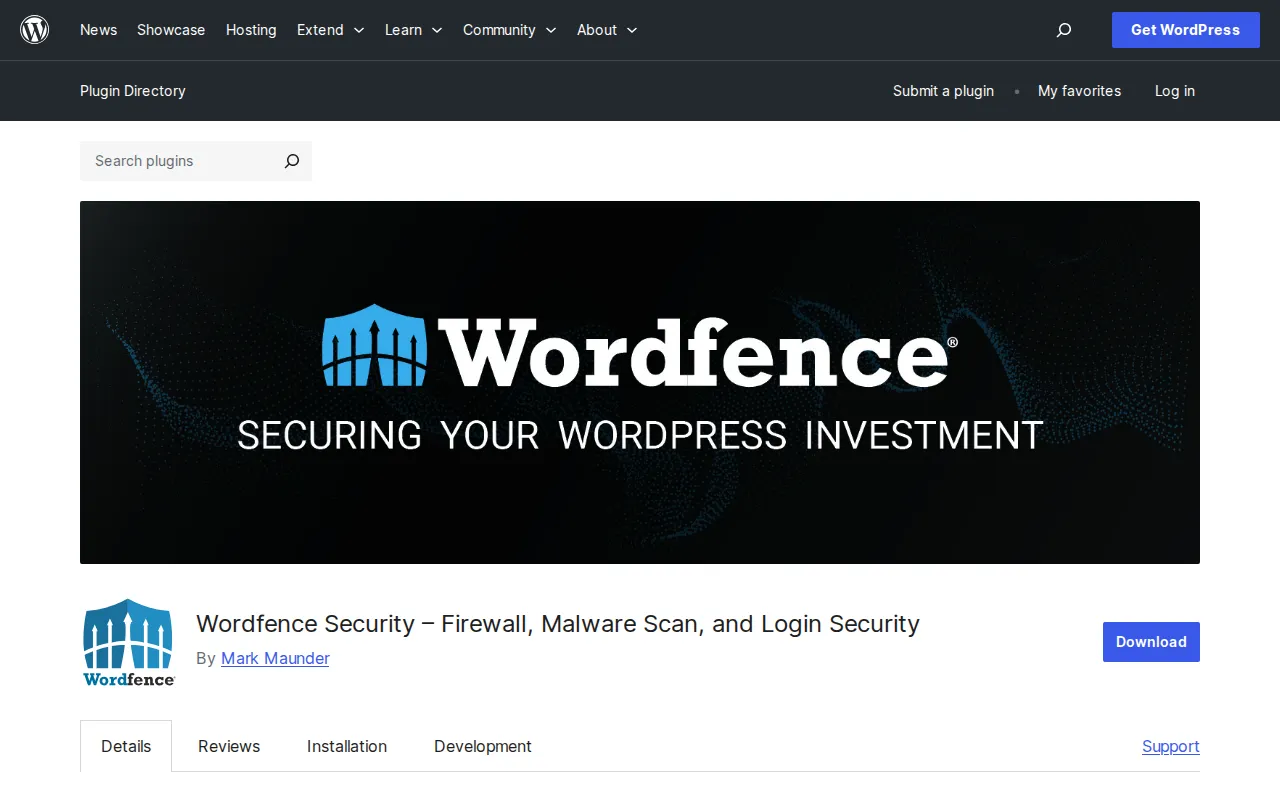
That's the Wordfence plugin page on WordPress.org — over 5 million active installations and a 4.7-star rating. It's the security plugin I recommend to virtually everyone, and for good reason. The free version alone covers about 90% of what most sites need.
Common Mistakes I See Over and Over
After two decades in the WordPress world, certain patterns keep repeating. Here are the mistakes I see most often — and I'll admit I've made a few of these myself early on.
Installing too many security plugins. This is counterproductive and causes more problems than it solves. Two firewalls will conflict with each other, cause false positives, and slow your site to a crawl. Pick one security suite — Wordfence or Sucuri — and stick with it. Don't layer three different security plugins thinking more is better. It's not.
Ignoring updates for weeks or months. I get it — updating plugins feels risky, especially if something broke the last time you updated. But running outdated plugins is far riskier than the occasional update hiccup. The solution isn't to avoid updates; it's to have a backup before you update, so you can roll back if something breaks. Take five minutes every week to update everything. It's the single most impactful security habit you can develop.
Using "admin" as a username. This one seems obvious, but I still encounter it on at least half the sites I audit. Every brute force bot in existence starts with "admin" as the username. Change it. Create a new administrator account with a unique name, log in with it, and delete the original "admin" account. Takes two minutes.
Not having backups. I cannot stress this enough. A backup is your insurance policy. Without it, a hack could mean losing everything — your content, your settings, your customizations. I've had clients come to me in tears because their site was hacked and they had no backup. Don't be that person. Set up automated backups today. Right now. Before you forget. For the full list of security plugins and tools I rely on, see our recommended toolkit.
Frequently Asked Questions
Is WordPress secure?
Yes, WordPress core is very secure. It has a dedicated security team and receives regular patches. The vast majority of hacks target outdated plugins, weak passwords, and poor hosting — not WordPress itself. If you keep everything updated, use strong passwords, and follow basic security practices, WordPress is as secure as any other platform. The reason WordPress gets a reputation for being "insecure" is simply because it powers 43% of the web, making it the biggest target.
Do I need a security plugin?
Strictly speaking, no — you could handle everything manually with server configuration, .htaccess rules, and careful monitoring. But practically, yes, a security plugin makes everything dramatically easier. Wordfence free gives you a firewall, malware scanner, login protection, and two-factor authentication in one package. Trying to replicate all of that manually would take hours of configuration and ongoing maintenance. For 99% of people, a good security plugin is the smart choice.
What should I do if my WordPress site gets hacked?
Don't panic — I know that's easy to say and hard to do, but panicking leads to mistakes. First, take your site offline or put it in maintenance mode to prevent further damage. Second, change all passwords immediately: WordPress admin, hosting account, FTP, database. Third, scan for malware using Wordfence or Sucuri SiteCheck. Fourth, restore from a clean backup if you have one. If you don't have a backup, you'll need to manually clean the infection — check my malware removal guide for step-by-step instructions. Finally, figure out how the hack happened and fix the vulnerability so it doesn't happen again.
How often should I update WordPress and plugins?
I check for updates at least once a week. For WordPress minor releases (like 6.4.1 to 6.4.2), I enable auto-updates because these are security patches. For major releases (like 6.4 to 6.5), I wait 3-5 days to see if any compatibility issues surface, then update after taking a backup. For plugins, I update weekly — always after confirming I have a fresh backup. The sweet spot is being prompt without being reckless.
Is free hosting secure enough for WordPress?
Honestly, no. Free hosting typically means shared resources with minimal security measures, no server-level firewalls, outdated PHP versions, and zero support when something goes wrong. You don't need expensive hosting — $3-5/month from a reputable provider like Hostinger or SiteGround gives you server-level security, free SSL, automatic backups, and proper account isolation. That's a tiny investment to protect your site. I wrote a full breakdown of what to look for in my hosting guide.

Written by Marvin
Our team tests and reviews WordPress products to help beginners make confident choices.
Learn more about our team →You might also like
WordPress Login Security — How to Stop Brute Force Attacks
Your WordPress login page gets attacked dozens of times every day, whether you know it or not. I've been hardening login pages for over a decade, and these 8 measures will shut down brute force attacks completely.
postBest WordPress Firewall Plugins in 2026 (Compared)
A web application firewall is your site's first line of defense against hackers, bots, and automated attacks. After testing dozens of firewall solutions over the years, I've narrowed it down to 5 that actually work. Here's how they compare — and which one I recommend for different situations.
postHow to Set Up SSL/HTTPS on WordPress (Free & Easy)
SSL used to be optional. It's not anymore — Google penalizes sites without it, and Chrome slaps a 'Not Secure' warning on every page. The good news? It's free and takes about 10 minutes. Here's exactly how to set it up, plus how to fix the mixed content issues that trip up almost everyone.
postWordPress File Permissions — Security Best Practices Explained
Wrong file permissions are one of the most overlooked WordPress security holes. I've seen sites hacked because wp-config.php was world-readable. Here's exactly what every file and folder should be set to, and how to fix it.