
How to Add SEO Keywords in WordPress (With & Without Plugins)
You’ve done your keyword research. You know what your audience is searching for. Now what? The gap between “I have keywords” and “my page ranks” comes down to where and how you place those keywords in WordPress.
In this guide, I’ll walk you through every place you should add SEO keywords in WordPress — first using the most popular SEO plugins, then without any plugin at all. Whether you’re a complete beginner or you’ve been blogging for years, this is the definitive reference.
What Are SEO Keywords & Why Do They Matter for WordPress?
SEO keywords are the words and phrases people type into Google (or any search engine) when looking for information. When your WordPress page contains the same keywords a searcher uses — placed naturally in the right locations — search engines are more likely to show your page in the results.
But it’s not just about sprinkling words around. Google’s algorithm evaluates search intent (what the user actually wants), content quality (whether your page satisfies that intent), and on-page signals (where keywords appear in your HTML). Getting all three right is what makes a page rank.
The good news: WordPress makes this straightforward. With or without a plugin, you have full control over every on-page SEO element that matters.
Where to Add SEO Keywords in WordPress
Before we get into the how, let’s map out the where. These are the eight places where keyword placement has the most impact:
1. Page & Post Title (H1 Tag)
Your page title is the single most important on-page SEO element. It’s what appears as the main heading on your page and tells both readers and search engines what the content is about.
Best practices:
- Include your primary keyword as close to the beginning as possible
- Keep it under 60 characters to avoid truncation in search results
- Make it compelling — this is your first impression
- Every page should have exactly one H1, and WordPress sets this automatically from your post title
Example: Instead of “My Thoughts on WordPress Optimization”, use “WordPress Speed Optimization: 12 Ways to Make Your Site Faster”.
2. SEO Title (Title Tag)
The SEO title (or title tag) is what appears in Google’s search results and browser tabs. It’s different from your H1 — though they’re often similar. The title tag is an HTML <title> element that lives in your page’s <head> section.
Without an SEO plugin, WordPress uses your post title as the title tag automatically. With a plugin like Yoast SEO or Rank Math, you can customize it independently — for example, adding your site name or tweaking the wording for better click-through rates.
Best practices:
- Keep it under 55–60 characters
- Include your primary keyword near the front
- Add a year (e.g., “2026 Guide”) for time-sensitive content to boost CTR
3. Meta Description
The meta description is the snippet of text that appears below your title in search results. While Google has confirmed it’s not a direct ranking factor, it massively impacts your click-through rate — and more clicks signal to Google that your result is relevant.
Best practices:
- Keep it between 150–160 characters
- Include your primary keyword naturally (Google bolds matching terms)
- Write it as a mini sales pitch — why should someone click?
- Include a call to action: “Learn how”, “Discover”, “Step-by-step guide”
4. URL Slug
The URL slug is the part of your web address after your domain name. Google uses it as a ranking signal, and users scan it to decide whether to click.
Best practices:
- Keep it short: 3–5 words maximum
- Include your primary keyword
- Use hyphens to separate words (not underscores)
- Remove stop words like “the”, “and”, “in”
- Never change a URL after publishing without setting up a 301 redirect
Example: zerotowp.com/add-seo-keywords-wordpress — not zerotowp.com/how-to-add-seo-keywords-in-your-wordpress-website-2026.
5. Headings (H2, H3, H4)
Subheadings structure your content for both readers and search engines. Google uses headings to understand the hierarchy and topics covered on your page.
Best practices:
- Use your primary keyword in at least one H2
- Use keyword variations and related terms in other H2s and H3s
- Write for humans first — headings should make sense as a table of contents
- Don’t force keywords into every heading. That’s keyword stuffing and Google will notice
6. Body Content (First 100 Words)
Google pays extra attention to the beginning of your content. Including your primary keyword in the first 100 words signals that your page is immediately relevant to the search query.
Best practices:
- Mention your primary keyword within the first 1–2 sentences
- Use it naturally — don’t contort your intro to jam it in
- Aim for a keyword density of about 0.5–1.5% throughout the full article (that’s roughly 5–15 mentions in a 1,000-word post)
- Use synonyms and related terms throughout — Google understands semantic relationships
7. Image Alt Text
Alt text describes an image for screen readers and search engines. Since Google can’t “see” images, alt text is how it understands what an image shows — and it’s a legitimate place to include keywords.
Best practices:
- Describe the image accurately first, keyword second
- Keep it under 125 characters
- Don’t start with “Image of” or “Photo of”
- Good: “Yoast SEO focus keyword analysis panel in WordPress editor”
- Bad: “seo keywords wordpress seo keywords plugin seo”
8. Categories & Tags
Categories and tags organize your content topically. While their direct SEO impact is debated, they help search engines understand your site’s structure and create additional indexed pages around your target topics.
Best practices:
- Use categories for broad topics (e.g., “WordPress SEO”)
- Use tags for specific keywords (e.g., “meta description”, “keyword research”)
- Don’t create a new tag for every post — reuse them to build topical clusters
- Keep category and tag names short and keyword-relevant
Method 1: Add SEO Keywords with a Plugin (Recommended)
An SEO plugin gives you a dedicated interface for setting your focus keyword, SEO title, and meta description right inside the WordPress editor. It also analyzes your content in real-time and tells you what to improve. Here’s how to do it with the three most popular options.
Using Yoast SEO
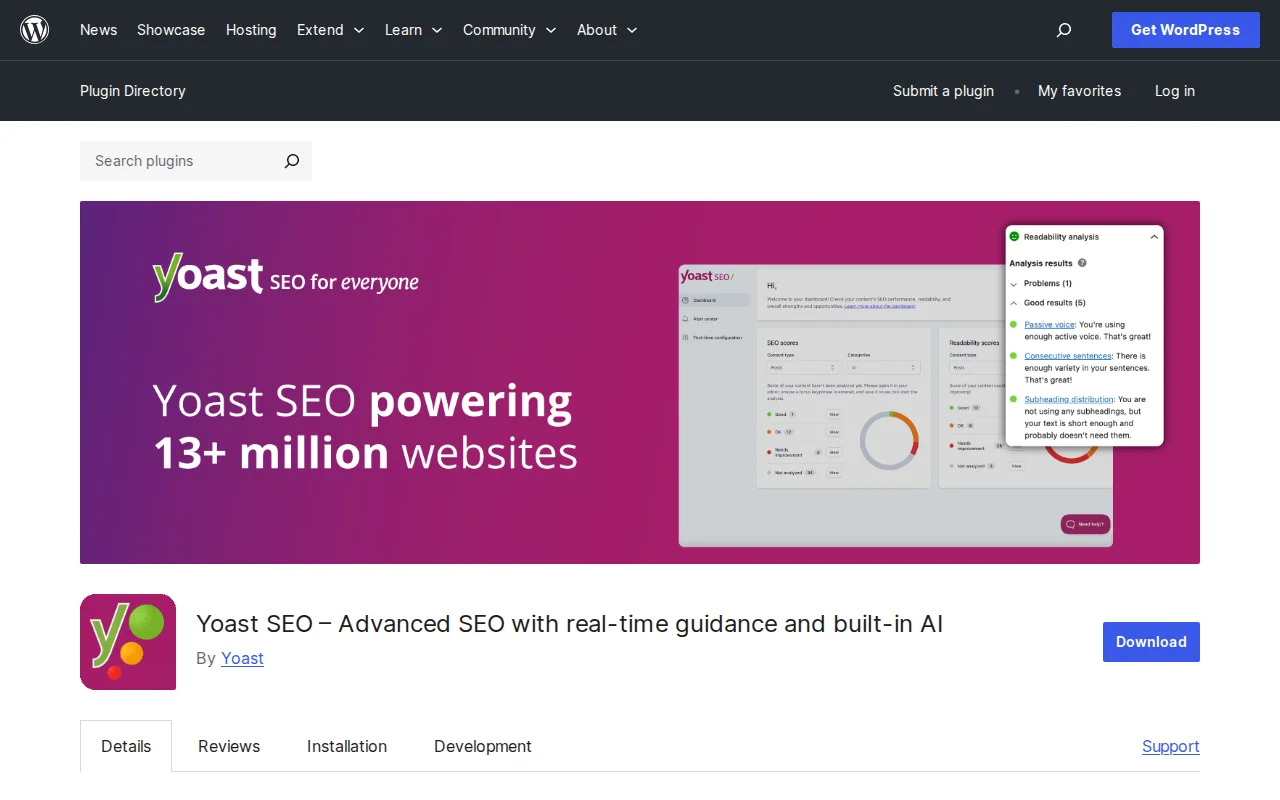
Yoast SEO is the most widely used WordPress SEO plugin with over 12 million active installations. Here’s how to add keywords with it:
- Install and activate Yoast SEO from Plugins → Add New
- Open any post or page in the WordPress editor
- Scroll down to the Yoast SEO meta box (or click the Yoast icon in the sidebar)
- Enter your focus keyphrase in the “Focus keyphrase” field
- Set your SEO title — Yoast shows a snippet preview of how it’ll look in Google
- Write your meta description — the progress bar turns green when it’s the right length
- Check the SEO analysis — Yoast gives you a traffic-light score (red/orange/green) with specific suggestions like “keyphrase not found in the introduction” or “internal links: no internal links found”
- Check the Readability analysis — sentence length, passive voice, paragraph length
Free limitation: Yoast’s free version only lets you set one focus keyphrase per post. Yoast Premium ($118.80/year per site) unlocks up to 5 focus keyphrases plus additional features like redirect management.
Using Rank Math
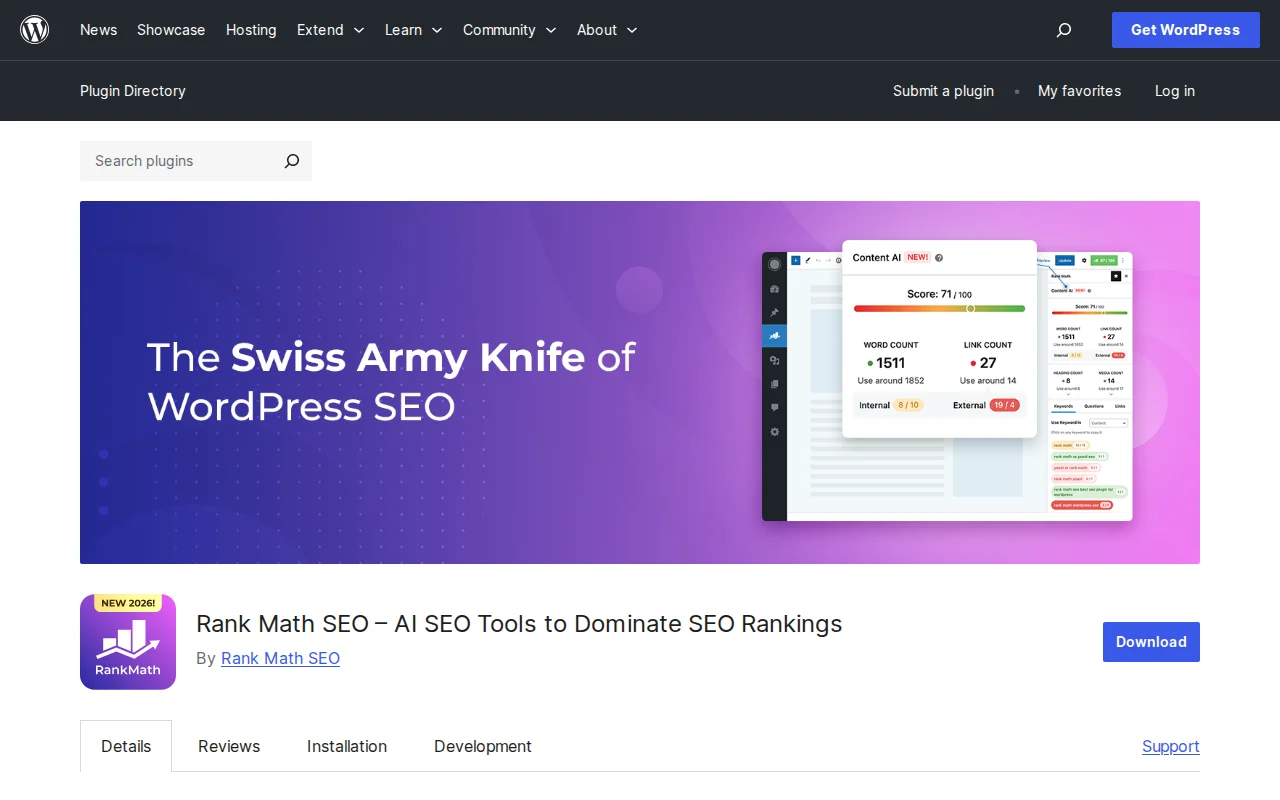
Rank Math has grown rapidly to become Yoast’s main competitor, largely because its free version is more generous. Here’s the process:
- Install and activate Rank Math from Plugins → Add New
- Run the setup wizard — Rank Math walks you through initial configuration
- Open any post or page in the editor
- Click the Rank Math icon in the top toolbar or sidebar
- Enter your focus keyword — Rank Math’s free version lets you add up to 5 focus keywords per post (a major advantage over Yoast)
- Set your SEO title and meta description using the snippet editor
- Review the SEO score — Rank Math gives you a score out of 100 with actionable checklist items
- Bonus: Rank Math automatically adds schema markup to your posts based on the content type
Free tier highlight: 5 focus keywords, built-in schema markup, keyword rank tracking integration, and Google Search Console connection — all free. Rank Math Pro ($69/year) adds advanced analytics and more schema types.
Using All in One SEO (AIOSEO)
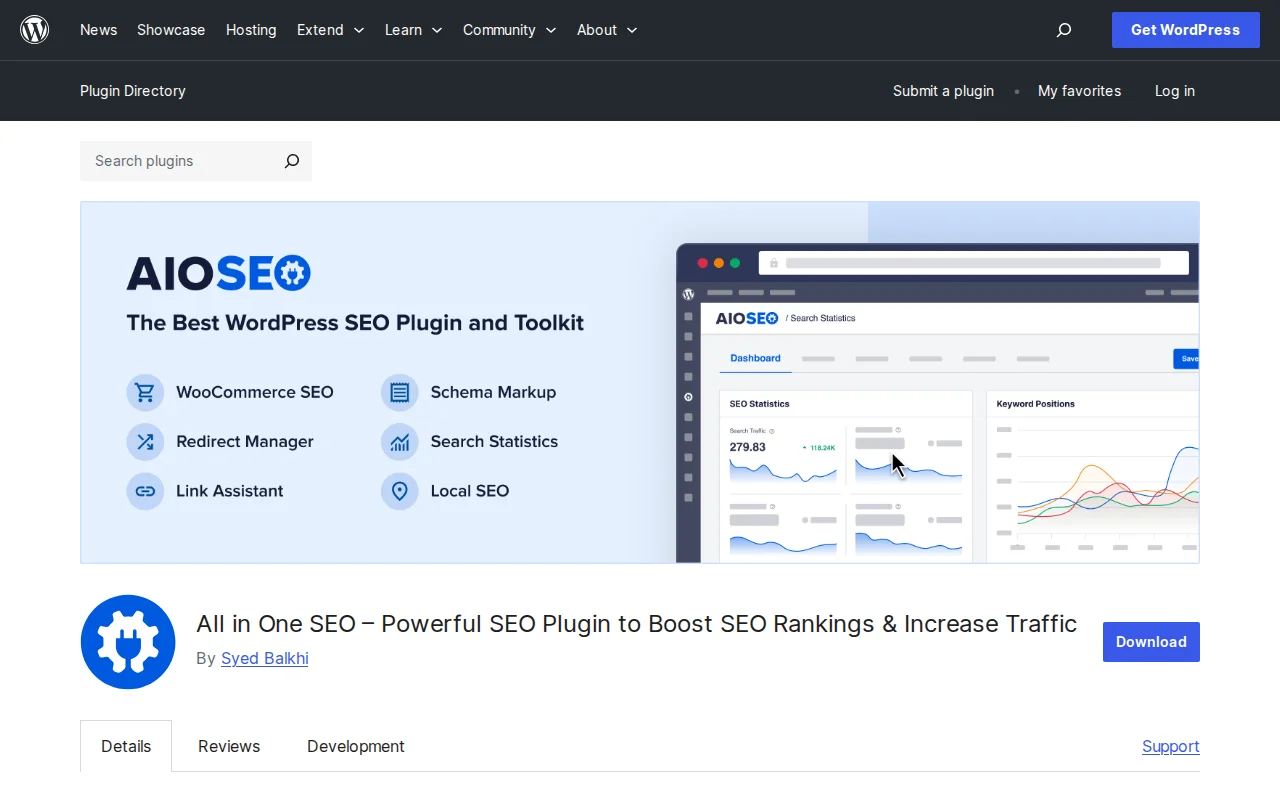
All in One SEO (AIOSEO) is one of the oldest WordPress SEO plugins with over 3 million active installations. The workflow is similar:
- Install and activate AIOSEO from Plugins → Add New
- Open any post or page in the editor
- Scroll to the AIOSEO Settings section below the editor
- Enter your focus keyphrase in the “Focus Keyphrase” field
- Customize the Post Title and Meta Description in the snippet preview
- Review the TruSEO score — AIOSEO provides a detailed checklist covering title, readability, content, and technical SEO
Free limitation: Like Yoast, AIOSEO’s free version limits you to one focus keyphrase. AIOSEO Pro ($49.60/year) unlocks unlimited keyphrases and additional features like local SEO and WooCommerce SEO.
Method 2: Add SEO Keywords Without a Plugin
Don’t want another plugin? You can still optimize for keywords — it just requires more manual work and some comfort with code.
Editing the Title Tag Directly
WordPress generates your title tag automatically using add_theme_support('title-tag'). Most modern themes already include this. To customize it, add a filter in your theme’s functions.php or a custom plugin:
add_filter('document_title_parts', function($title) {
    if (is_singular('post')) {
        $title['title'] = get_post_meta(get_the_ID(), 'custom_seo_title', true) ?: $title['title'];
    }
    return $title;
});
Then add a custom field called custom_seo_title to any post. This approach works but is fragile — you lose the visual preview and analysis that plugins provide.
Adding Meta Description Without a Plugin
WordPress doesn’t output a meta description by default. You can add one manually with this snippet in functions.php:
add_action('wp_head', function() {
    if (is_singular()) {
        $description = get_post_meta(get_the_ID(), 'custom_meta_description', true);
        if ($description) {
            echo '<meta name="description" content="' . esc_attr($description) . '">' . "\n";
        }
    }
});
Add a custom field called custom_meta_description to each post. Again, this works but doesn’t give you character count feedback or snippet previews.
Using the WordPress Block Editor for Headings & Content
The Gutenberg block editor gives you full control over your heading structure without any plugin. Use the Heading block to create H2s, H3s, and H4s with your keyword variations. The key is building a clear hierarchy:
- H1: Your post title (set automatically)
- H2: Main sections (include primary keyword in at least one)
- H3: Subsections (use keyword variations and related terms)
- H4: Sub-subsections (use sparingly, for deep-dive content)
You can also add alt text to images directly in the block editor by clicking on any image block and filling in the “Alt text” field in the sidebar.
How to Research the Right Keywords for Your WordPress Site
Adding keywords is only useful if you’re adding the right keywords. Here’s how to find them.
Free Keyword Research Tools
- Google Keyword Planner — Free with a Google Ads account. Shows search volume ranges and competition levels. Best for initial research.
- Google Search Console — Shows which keywords your site already ranks for. Invaluable for finding quick-win optimization opportunities.
- Ubersuggest — Neil Patel’s tool. Free tier shows keyword suggestions, search volume, and difficulty scores.
- AnswerThePublic — Visualizes questions people ask around a keyword. Great for finding H2/H3 topics and FAQ content.
- Google’s “People Also Ask” — Free and always up to date. Search your keyword on Google and mine the related questions.
Understanding Search Intent
Not all keywords are created equal. Before targeting a keyword, understand what the searcher actually wants:
- Informational: “How to add SEO keywords in WordPress” — the searcher wants to learn. Write a tutorial or guide.
- Navigational: “Yoast SEO settings” — the searcher wants a specific page. Usually not worth targeting unless you own that brand.
- Commercial: “Best WordPress SEO plugin” — the searcher is comparing options. Write a comparison or review.
- Transactional: “Buy Rank Math Pro” — the searcher is ready to purchase. Write a review with pricing details.
Always check the actual Google results for your target keyword. If the top 10 results are all tutorials, write a tutorial. If they’re all product pages, a tutorial won’t rank.
Long-Tail vs. Short-Tail Keywords
A short-tail keyword like “WordPress SEO” has massive search volume but brutal competition. A long-tail keyword like “how to add SEO keywords in WordPress without plugins” has less volume but is much easier to rank for — and the searcher’s intent is crystal clear.
My recommendation for beginners: Focus on long-tail keywords with 100–500 monthly searches and a keyword difficulty under 20. You’ll rank faster, get targeted traffic, and build authority that eventually helps you rank for the bigger terms. This is exactly how I approach content on ZeroToWP.
Common Mistakes When Adding Keywords in WordPress
I’ve seen these mistakes hundreds of times. Avoid them:
- Keyword stuffing: Repeating your keyword unnaturally (“WordPress SEO keywords are the best WordPress SEO keywords for WordPress SEO”). Google penalizes this. Write naturally.
- Keyword cannibalization: Targeting the same keyword on multiple pages. Google doesn’t know which one to rank, so neither does well. Each keyword should have one dedicated page.
- Using the meta keywords tag: This HTML tag (
<meta name="keywords">) has been completely ignored by Google since 2009. Don’t waste time on it. - Changing URLs after publishing: If you forgot to add your keyword to the permalink and your post is already indexed, either leave it alone or set up a proper 301 redirect. A broken URL loses all your existing rankings and backlinks.
- Ignoring search intent: Targeting a keyword without checking what Google actually shows for it. If the top results are shopping pages and you write a tutorial, you won’t rank.
- Over-optimizing images: Every alt text being your exact keyword looks spammy. Describe each image accurately and include keywords only where they genuinely describe the image.
Frequently Asked Questions
Do I need a plugin to add SEO keywords in WordPress?
No, you can add keywords manually through your post titles, headings, content, URL slugs, and even custom code for meta descriptions. However, an SEO plugin like Yoast SEO or Rank Math makes the process dramatically easier by providing a visual interface, real-time analysis, and automated technical SEO. For most people, using a plugin is the better approach.
How many keywords should I use per page?
Focus on one primary keyword and 2–3 closely related variations per page. For example, if your primary keyword is “how to add SEO keywords in WordPress,” your variations might be “WordPress SEO keywords” and “add keywords in WordPress without plugins.” Don’t try to target unrelated keywords on the same page.
What’s the difference between SEO title and page title in WordPress?
The page title (H1) is the heading visitors see on your actual page. The SEO title (title tag) is what appears in Google search results and browser tabs. Without an SEO plugin, they’re the same. With a plugin, you can set them independently — useful for keeping your H1 readable while making your title tag more keyword-optimized.
Are meta keywords still important for SEO?
No. The <meta name="keywords"> tag has been completely ignored by Google since 2009. Bing also confirmed they don’t use it. Don’t waste time adding meta keywords — focus on your title tag, meta description, headings, and content instead.
Can I add keywords to my WordPress homepage?
Yes. If your homepage is a static page, optimize it like any other page — set the title, meta description, headings, and content around your primary keyword. If it’s a blog listing page, use an SEO plugin to set the homepage’s SEO title and meta description in the plugin’s global settings.
How do I know which keywords to target?
Start with Google’s free tools: Google Search Console (shows what you already rank for), Google Keyword Planner (shows search volumes), and People Also Ask boxes in Google search results. For beginners, target long-tail keywords with 100–500 monthly searches and low competition — they’re easier to rank for and bring more targeted traffic.
Does WordPress automatically optimize for SEO?
WordPress provides a solid foundation — clean URLs, heading structure, image alt text fields, and semantic HTML. But it doesn’t automatically add meta descriptions, optimize your title tags, generate XML sitemaps (until version 5.5+), or analyze your keyword usage. An SEO plugin fills these gaps. For a complete guide, check our WordPress SEO hub.

Written by Marvin Kweyu
Our team tests and reviews WordPress products to help beginners make confident choices.
Learn more about our team →You might also like
Yoast vs Rank Math in 2026 — Which SEO Plugin Should You Actually Use?
A no-nonsense, head-to-head comparison of Yoast SEO and Rank Math from someone who has used both for years. Feature table, pricing breakdown, and a clear recommendation so you can stop second-guessing and start optimizing.
postBest WordPress AI Internal Link Plugins in 2026 — 5 Smart Options Compared
I checked the current WordPress AI internal linking landscape and narrowed it to 5 realistic options: Link Whisper, Rank Math, LinkBoss, AI Internal Links, and Squirrly SEO.
postWordPress Slug SEO: How to Write Perfect URL Slugs for Rankings
Learn how to optimize your WordPress URL slugs for SEO. Best practices for slug length, keywords, structure, and how to safely change existing slugs without losing rankings.
postWhat Is the SEO Title in WordPress & How to Change It
Learn what the SEO title is in WordPress, where to find it, and how to change it with and without plugins. Includes tips for writing click-worthy title tags.