
What Is the SEO Title in WordPress & How to Change It
If you’ve ever installed an SEO plugin in WordPress, you’ve seen a field called “SEO Title.” But what is it, exactly? How is it different from your page title? And where do you even find it if you’re not using a plugin?
This guide covers everything: what the SEO title is, where it lives in WordPress, how to change it step by step, and how to write titles that actually get clicks in Google.
SEO Title vs. Page Title: What’s the Difference?
This is the #1 source of confusion for WordPress beginners. They look and sound similar, but they serve different purposes:
Page Title (H1): The heading visitors see at the top of your page. WordPress wraps it in <h1> HTML tags. It’s for people who are already on your site.
SEO Title (Title Tag): The title that appears in Google search results and in your browser tab. It lives in the <title> HTML element inside your page’s <head> section. It’s for people who haven’t visited your site yet and are deciding whether to click.
Example:
- Page Title (H1): “How to Speed Up Your WordPress Site”
- SEO Title (Title Tag): “How to Speed Up WordPress: 15 Proven Tips (2026 Guide) | ZeroToWP”
By default, WordPress uses your page title as the title tag. They’re identical unless you override it. An SEO plugin lets you set them independently — keeping your H1 clean and readable while making your title tag more optimized for search and click-through rates.
Where Is the SEO Title in WordPress?
With Yoast SEO
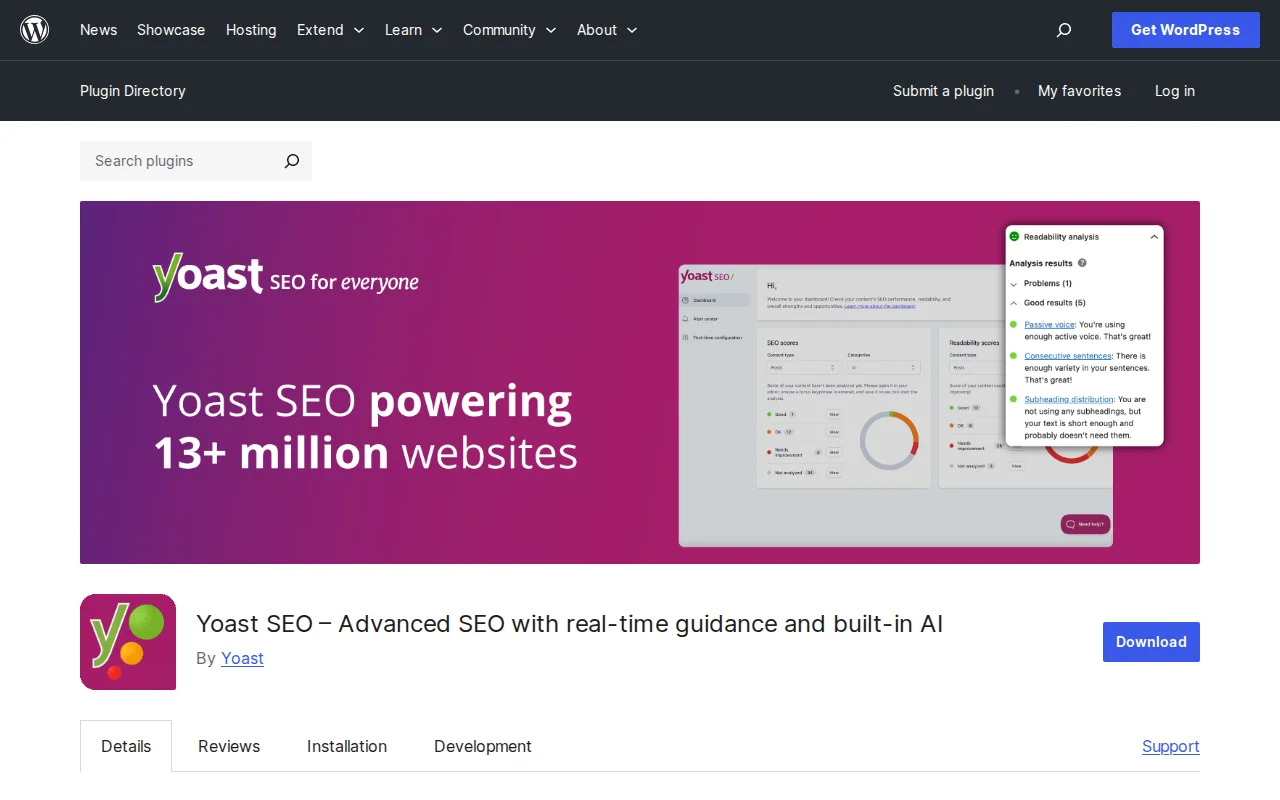
If you use Yoast SEO, the SEO title is in the Yoast SEO meta box below the editor (or in the sidebar panel):
- Open any post or page in the editor
- Scroll down to the “Yoast SEO” section
- Click “Edit snippet” to expand the snippet preview
- The “SEO title” field is the first field — edit it directly
- The live preview shows exactly how it’ll appear in Google
By default, Yoast uses a template like %%title%% %%sep%% %%sitename%% which auto-fills your page title and site name. You can override this per page.
With Rank Math
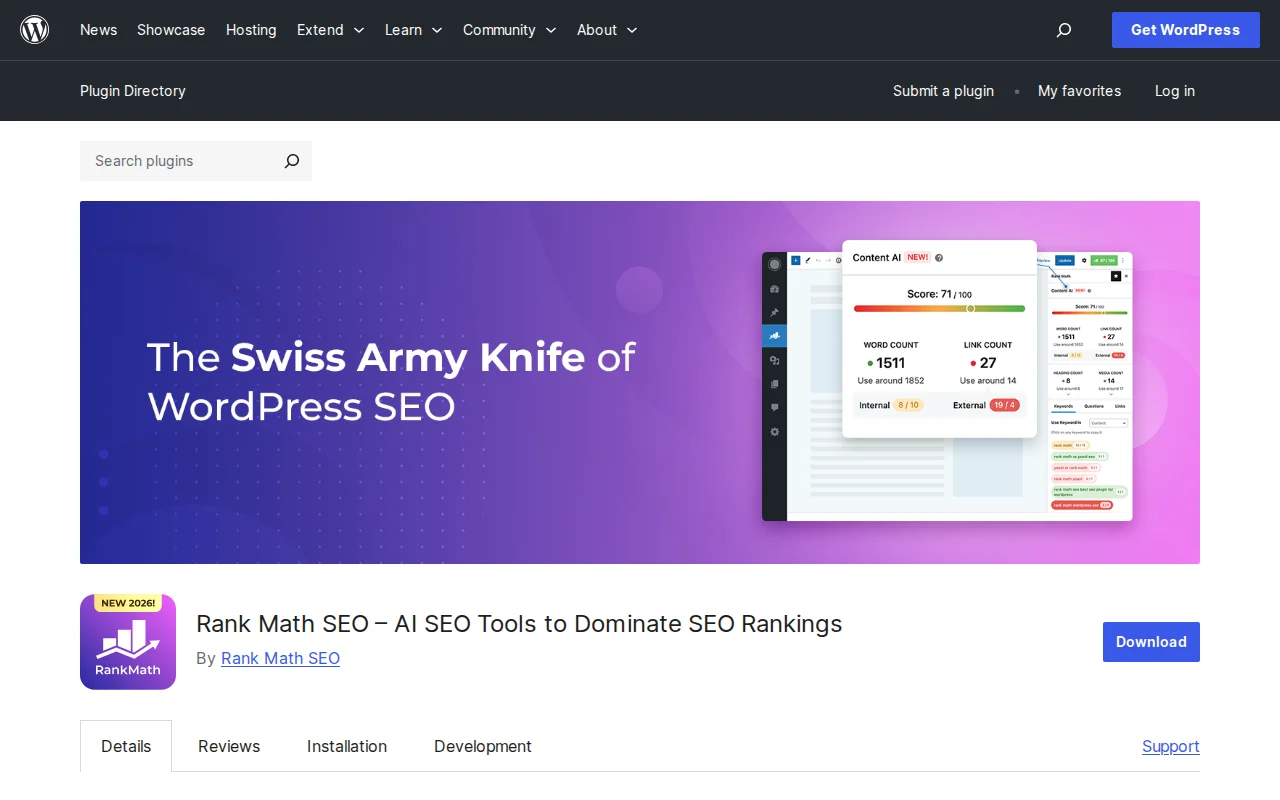
In Rank Math:
- Open your post or page
- Click the Rank Math icon in the top toolbar
- Click “Edit Snippet”
- The “Title” field is your SEO title
- Rank Math shows a character counter and live Google preview
Rank Math uses variables like %title% and %sitename% for dynamic generation, with per-post override support.
With AIOSEO
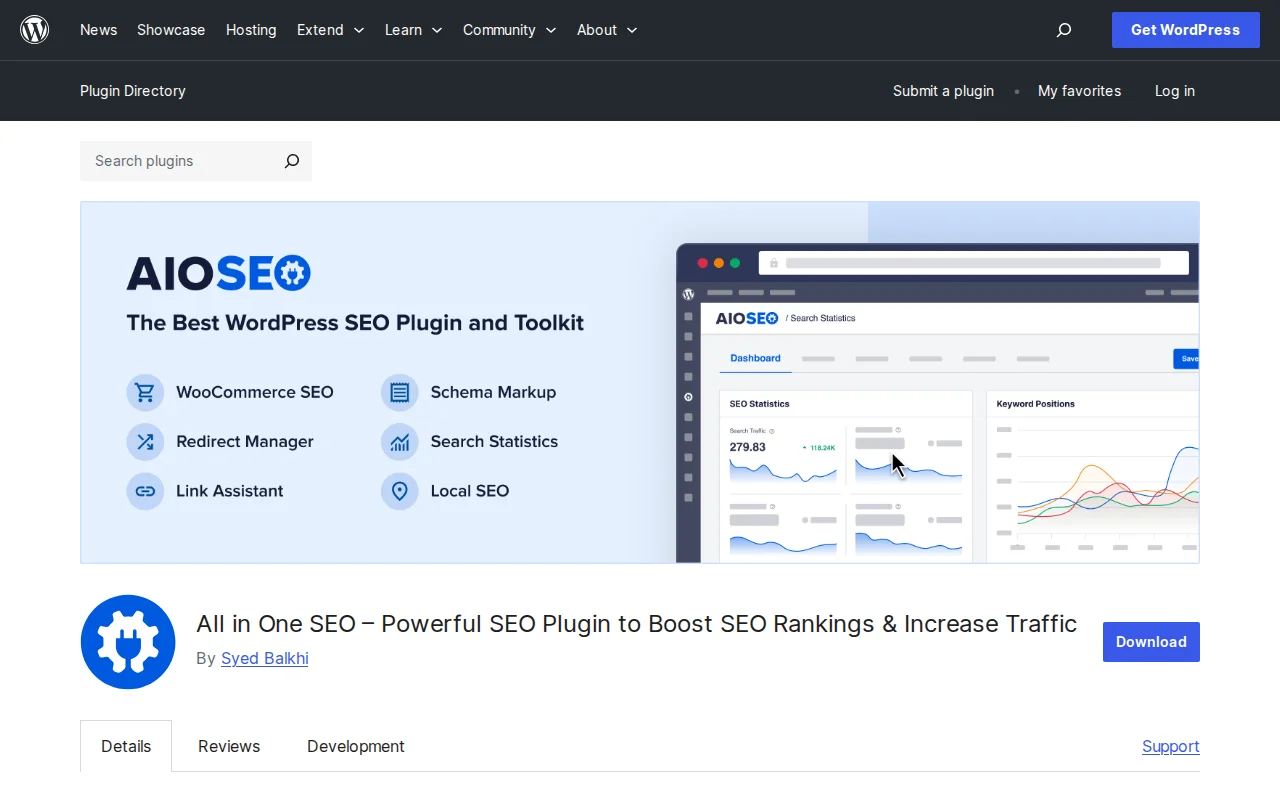
In All in One SEO:
- Open your post or page
- Scroll to the “AIOSEO Settings” section below the editor
- The “Post Title” field at the top is your SEO title
- AIOSEO shows a character count and snippet preview
Without a Plugin
If you’re not using an SEO plugin, WordPress generates the title tag automatically from your page title. To see it:
- Visit any page on your site
- Right-click → “View Page Source”
- Find the
<title>tag near the top of the HTML
It’ll look something like: <title>Your Page Title – Your Site Name</title>. Without a plugin, you can’t change the SEO title independently of the page title without writing custom code.
How to Change the SEO Title in WordPress
Here’s the step-by-step process (using any SEO plugin):
Step 1: Open Your Page or Post
Navigate to Posts → All Posts (or Pages → All Pages) and click the post you want to edit.
Step 2: Scroll to Your SEO Plugin Settings
Find the SEO meta box below the editor. In Yoast it’s labeled “Yoast SEO,” in Rank Math it’s in the sidebar, and in AIOSEO it’s “AIOSEO Settings.”
Step 3: Edit the SEO Title Field
Click into the title field and type your custom SEO title. Delete or modify the template variables if you want full manual control.
Step 4: Preview in the Snippet Preview
All three plugins show a live Google snippet preview. Check that your title isn’t cut off (stays under 60 characters), reads naturally, and includes your target keyword.
Step 5: Update/Publish the Page
Click “Update” (or “Publish” for new posts). Your new SEO title is now live. Google will pick it up on the next crawl — typically within a few days, though it can sometimes rewrite your title if it thinks its version better matches the search query.
How to Write an SEO Title That Gets Clicks
Setting the SEO title is easy. Writing one that performs takes more thought. Here are five rules I follow:
Include Your Primary Keyword Near the Beginning
Google gives slightly more weight to words at the start of the title, and users scan left to right. “WordPress Speed Optimization: 15 Tips” beats “15 Tips for Optimizing Your WordPress Speed.” For more on keyword placement, see our guide on adding SEO keywords in WordPress.
Keep It Under 60 Characters
Google truncates titles longer than ~60 characters (600 pixels wide, to be precise). A cut-off title looks unprofessional and loses information. Count characters in your SEO plugin’s snippet preview — the bar turns red when you’re over the limit.
Add Power Words
Words like “Ultimate,” “Complete,” “Free,” “Proven,” “Step-by-Step,” and “Best” trigger curiosity and boost click-through rates. Use them sparingly and honestly — don’t promise “ultimate” if your guide is 300 words.
Include the Current Year for Freshness
Adding “(2026)” or “2026 Guide” signals to searchers that your content is current. Google’s search results show a preference for fresh content, and users are more likely to click a result that looks recently updated.
Match Search Intent
If someone searches “how to change SEO title in WordPress,” they want a tutorial — not a sales page. Your title should immediately communicate that they’ll find what they’re looking for. Check the actual Google results for your keyword and match the format of the top-ranking pages.
How to Change SEO Title Without a Plugin
For developers or minimalists who don’t want an SEO plugin, you can control the title tag with a filter in your child theme’s functions.php:
add_filter('pre_get_document_title', function() {
    if (is_singular()) {
        $custom_title = get_post_meta(get_the_ID(), 'custom_seo_title', true);
        if ($custom_title) {
            return $custom_title;
        }
    }
    return '';
});
Then add a custom field called custom_seo_title to any post. When the field has a value, WordPress uses it as the title tag. When it’s empty, the default title takes over.
Important: Make sure your theme includes add_theme_support('title-tag') in its functions.php. Most modern themes do, but if yours hardcodes <title> in header.php, this filter won’t work.
This approach works but you lose snippet previews, character counting, and the other analysis features that make SEO plugins worth using. I’d only recommend it for developers building lightweight, plugin-free projects.
Common SEO Title Mistakes in WordPress
- Too long: Titles over 60 characters get truncated with “...” in search results. You lose your most persuasive words and look sloppy. Always check the character count.
- No keyword: If your target keyword isn’t in the title tag, you’re leaving the strongest on-page signal on the table. Include it, preferably near the front.
- Duplicate titles: Every page on your site should have a unique SEO title. Duplicate titles confuse Google about which page to rank. Check Google Search Console → Pages for “Duplicate title tags” warnings.
- Keyword stuffing: “WordPress SEO Title — SEO Title WordPress — Change SEO Title” looks spammy and hurts CTR. Use your keyword once, naturally.
- Forgetting to set it: If you never customize the SEO title, WordPress falls back to your page title + site name. That’s fine for some pages, but for important content, a hand-crafted SEO title almost always performs better.
- Ignoring Google’s rewriting: Since 2021, Google sometimes rewrites your title tag in search results. If this happens, it usually means your title didn’t match the search intent well enough. Check Search Console to see what Google actually displays.
Frequently Asked Questions
Is the SEO title the same as the H1 tag?
No. The SEO title (title tag) appears in Google search results and browser tabs. The H1 tag is the visible heading on your page. By default they’re identical in WordPress, but an SEO plugin lets you set them independently. Your H1 can be conversational while your title tag is keyword-optimized.
What happens if I don’t set an SEO title?
WordPress automatically uses your page title followed by your site name (e.g., “My Post Title – My Site Name”). This is fine for many pages, but you miss the opportunity to optimize for click-through rates and keyword placement. For important content, always set a custom SEO title.
How long should my WordPress SEO title be?
Keep it under 60 characters (or more precisely, under 600 pixels wide). Google truncates anything longer. Your SEO plugin’s snippet preview shows exactly where the cutoff falls. Shorter, punchier titles tend to perform better anyway.
Can I use different SEO titles for the same page?
No — each page has one title tag. However, Google may display a different title in search results if it determines your title doesn’t match a particular query well. You can’t control this directly, but writing clear, intent-matching titles reduces the chance of Google rewriting yours.
Does changing the SEO title affect my URL?
No. The SEO title and the URL slug are completely independent. Changing your SEO title has zero effect on your permalink. You can safely update your title tag any time without worrying about broken links or lost rankings from URL changes.
Which SEO plugin is best for managing titles?
Rank Math offers the most features in its free tier, including 5 focus keywords per post and built-in schema markup. Yoast SEO is the most widely used and beginner-friendly. AIOSEO is solid for its TruSEO score system. All three handle SEO titles excellently — pick whichever interface you prefer. For a full comparison, see our guide to improving WordPress SEO.

Written by Marvin Kweyu
Our team tests and reviews WordPress products to help beginners make confident choices.
Learn more about our team →You might also like
WordPress Slug SEO: How to Write Perfect URL Slugs for Rankings
Learn how to optimize your WordPress URL slugs for SEO. Best practices for slug length, keywords, structure, and how to safely change existing slugs without losing rankings.
postHow to Add SEO Keywords in WordPress (With & Without Plugins)
Learn how to add SEO keywords to your WordPress site with and without plugins. Step-by-step tutorial covering titles, meta descriptions, headings, content, images, and more.
postHow to Improve WordPress SEO: 15 Tips That Actually Work
Your WordPress site is live but traffic is flat. After 20 years of building and optimizing WordPress sites, here are the 15 things I do on every single project to get Google traffic flowing.
postWordPress SEO Checklist — 20 Steps to Rank Higher on Google in 2026
A concise, actionable WordPress SEO checklist covering setup, on-page optimization, technical SEO, and content strategy. Follow these 20 steps to give your WordPress site the best possible chance of ranking on Google.