
Best WordPress Caching Plugins in 2026 — 5 Options Tested and Compared
Let me tell you about the moment I truly understood why caching matters. It was 2018, and I'd just launched a blog for a local bakery client. Beautiful photos, custom theme, the works. The site looked amazing in my browser. Then the client posted a link on their Facebook page — and their shared hosting server collapsed like a house of cards. Thirty simultaneous visitors. That's all it took. Thirty people trying to load a WordPress page that was dynamically generating every single element from the database on every single request.
I installed WP Super Cache that same evening, and the site went from crashing at 30 visitors to handling 500+ without breaking a sweat. That experience changed how I build every WordPress site. Now, a caching plugin is the very first thing I install after WordPress itself — before the theme, before any other plugin, before I write a single word of content.
Over the past eight years, I've tested every caching plugin worth mentioning on dozens of real client sites. Shared hosting, VPS, dedicated servers, LiteSpeed servers, Nginx, Apache — I've run speed tests across all of them. This article is the distillation of all that hands-on experience. No regurgitated feature lists. No paid placements. Just my honest assessment of the five caching plugins that actually deliver results in 2026.
Quick Comparison — Which Caching Plugin Should You Use?
If you're in a hurry, here's the executive summary:
| Plugin | Best For | Price | Active Installs | Ease of Use | My Rating |
|---|---|---|---|---|---|
| WP Rocket | Best overall (my #1 pick) | $59/yr | 4M+ (premium) | Easiest | 5/5 |
| LiteSpeed Cache | LiteSpeed server users | Free | 6M+ | Moderate | 4.5/5 |
| WP Super Cache | Simple & reliable free option | Free | 1M+ | Easy | 4/5 |
| W3 Total Cache | Developers & advanced users | Free / $99/yr | 900K+ | Complex | 3.5/5 |
| WP Fastest Cache | Beginners wanting free + simple | Free / $49.99 | 1M+ | Easy | 4/5 |
My recommendation: WP Rocket if you can spend $59/year — it's the best investment you'll make for your WordPress site's performance. If you're on a LiteSpeed server (many modern hosts use them), LiteSpeed Cache is a no-brainer because it's free and incredibly powerful. For everyone else on a budget, WP Super Cache or WP Fastest Cache will get the job done without costing a cent.
Now let me explain the why behind each recommendation, with real performance data from my testing.
What Is Caching and Why Does Your WordPress Site Need It?
Before we compare plugins, let me explain caching in plain English — because I've met too many WordPress users who install a caching plugin without understanding what it actually does.
Every time someone visits your WordPress site, a whole chain of events happens behind the scenes. WordPress runs PHP code. That PHP code queries your MySQL database — potentially dozens of times for a single page. The database returns the data. PHP assembles it into HTML. The server sends that HTML to the visitor's browser. This entire process happens every single time someone loads a page. For every visitor. Even if the page hasn't changed in months.
Caching short-circuits this process. Instead of dynamically building the page from scratch every time, a caching plugin generates the HTML once and saves it as a static file. The next visitor gets served that pre-built file directly — no PHP execution, no database queries, no waiting. It's like the difference between cooking a meal from scratch every time someone orders versus having it pre-made and ready to serve.
The results are dramatic:
- Page load times drop by 2-10x — I've seen pages go from 4 seconds to under 0.5 seconds after enabling caching
- Server resource usage plummets — your hosting can handle far more concurrent visitors
- Google rewards you — Core Web Vitals and page speed are ranking factors, and caching directly improves both
- Visitors stay longer — a 1-second delay in page load time can reduce conversions by 7% (that's not my number, that's from Amazon's research)
- Your hosting bill stays lower — less CPU and RAM usage means you can stay on cheaper hosting plans longer
If you've ever wondered why your WordPress site feels slow, a missing or misconfigured caching plugin is usually the first thing I check. It's the single biggest performance improvement you can make with the least amount of effort.
How I Tested These Plugins
I didn't just read feature lists and write summaries. Here's what I actually did:
- Set up a test WordPress site on a shared hosting plan (SiteGround StartUp) with a realistic theme (Astra + Elementor), 50 published posts, 15 plugins active, and WooCommerce installed with 20 products
- Tested each caching plugin individually — install, configure with recommended settings, run benchmarks, then deactivate and move to the next
- Used GTmetrix, Google PageSpeed Insights, and Pingdom for benchmarking (3 runs each, averaged)
- Measured Time to First Byte (TTFB), Largest Contentful Paint (LCP), and full page load time
- Tested on both Apache and LiteSpeed servers to see how server type affects plugin performance
- Checked for compatibility issues with popular plugins (WooCommerce, Elementor, Yoast SEO)
The baseline (no caching plugin) was ugly: 3.8-second average load time, TTFB of 1.2 seconds, PageSpeed score of 47 on mobile. Let's see how each plugin improved those numbers.
#1 WP Rocket — The Best WordPress Caching Plugin, Period
I'll cut straight to it: WP Rocket is the caching plugin I use on every site where the client can afford $59/year. That includes this site, my client sites, and every WordPress project I've touched in the last four years. It's not free, and I still think it's the best value in the entire WordPress ecosystem.
Here's why I love it so much — and this is a story I don't think I've told publicly before. Back in 2020, I was managing a WooCommerce store for a client selling handmade candles. The site was on shared hosting, running W3 Total Cache (which I'll talk about later), and performance was... acceptable. Not great, not terrible. Load times around 2.5 seconds, occasional timeout errors during sales events.
I switched to WP Rocket on a Friday afternoon. Didn't change the hosting. Didn't change the theme. Didn't optimize a single image. Just installed WP Rocket, enabled the recommended settings, and cleared the old cache. Monday morning, the client calls me: "What did you do to the site? It's so fast now." Load time dropped to 1.1 seconds. PageSpeed mobile score jumped from 52 to 87. And the kicker — during their Valentine's Day sale (their biggest traffic event), the site handled 3x the usual traffic without a single hiccup. That had never happened before.
What Makes WP Rocket Different
WP Rocket works out of the box. That's not marketing speak — it's literally true. The moment you activate it, caching starts. No configuration wizard. No "enable caching" checkbox to find. No Apache module to install. It just starts making your site faster immediately.
But the real magic is in what it does beyond basic page caching:
- Automatic page cache — starts working the instant you activate, no configuration needed
- Browser caching — tells browsers to store static files locally so repeat visitors get even faster loads
- GZIP / Brotli compression — compresses files before sending them, reducing transfer sizes by 60-80%
- CSS and JavaScript optimization — minifies, combines, and defers render-blocking resources
- Lazy loading — images and iframes only load when they scroll into view, dramatically improving initial page load
- Database optimization — cleans up post revisions, transients, spam comments, and other bloat
- CDN integration — works with Cloudflare, StackPath, KeyCDN, and others with one-click setup
- Critical CSS generation — automatically generates and inlines above-the-fold CSS to eliminate render-blocking
- Remove Unused CSS — their newest feature that strips CSS not needed for each specific page
- Delay JavaScript execution — defers non-essential JS until user interaction, massively improving Core Web Vitals
Most free caching plugins give you page caching and maybe GZIP compression. WP Rocket gives you a complete performance optimization toolkit. The CSS/JS optimization alone would cost you a separate plugin (like Autoptimize) with any free caching solution.
My Test Results
| Metric | No Cache | WP Rocket | Improvement |
|---|---|---|---|
| Page Load Time | 3.8s | 1.1s | 71% faster |
| TTFB | 1.2s | 0.18s | 85% faster |
| PageSpeed (Mobile) | 47 | 89 | +42 points |
| PageSpeed (Desktop) | 62 | 96 | +34 points |
| LCP | 4.1s | 1.3s | 68% faster |
Pricing
| Plan | Price | Sites |
|---|---|---|
| Single | $59/yr | 1 site |
| Plus | $119/yr | 3 sites |
| Infinite | $299/yr | Unlimited sites |
Yes, $59/year for a single site. I know that feels steep when free alternatives exist. But consider this: if WP Rocket saves you even one hour of messing with caching configurations (and it will save you far more than that), it's already paid for itself. The Infinite plan at $299/year is what I use for my agency work — unlimited sites means I can deploy it on every client project without thinking about licensing.
Pros
- Works instantly out of the box — no configuration wizard or technical knowledge needed
- Goes far beyond caching — CSS/JS optimization, lazy loading, database cleanup, and CDN integration built in
- The "Remove Unused CSS" and "Delay JavaScript" features are game-changers for Core Web Vitals
- Excellent compatibility — I've never had a conflict with WooCommerce, Elementor, or any major plugin
- Outstanding documentation and support team
- Regular updates with meaningful new features (not just security patches)
Cons
- No free version — $59/year minimum
- Not available on WordPress.org — you download it from their site and upload manually
- Annual renewal required — no lifetime deal
- On LiteSpeed servers, LiteSpeed Cache (free) performs almost as well
Pro Tip: Enable "Remove Unused CSS" and "Delay JavaScript Execution" in WP Rocket's File Optimization settings. These two features alone typically add 15-25 points to your mobile PageSpeed score. They're the closest thing to a magic button I've found in WordPress performance optimization.
#2 LiteSpeed Cache — Best Free Option (If You're on LiteSpeed)
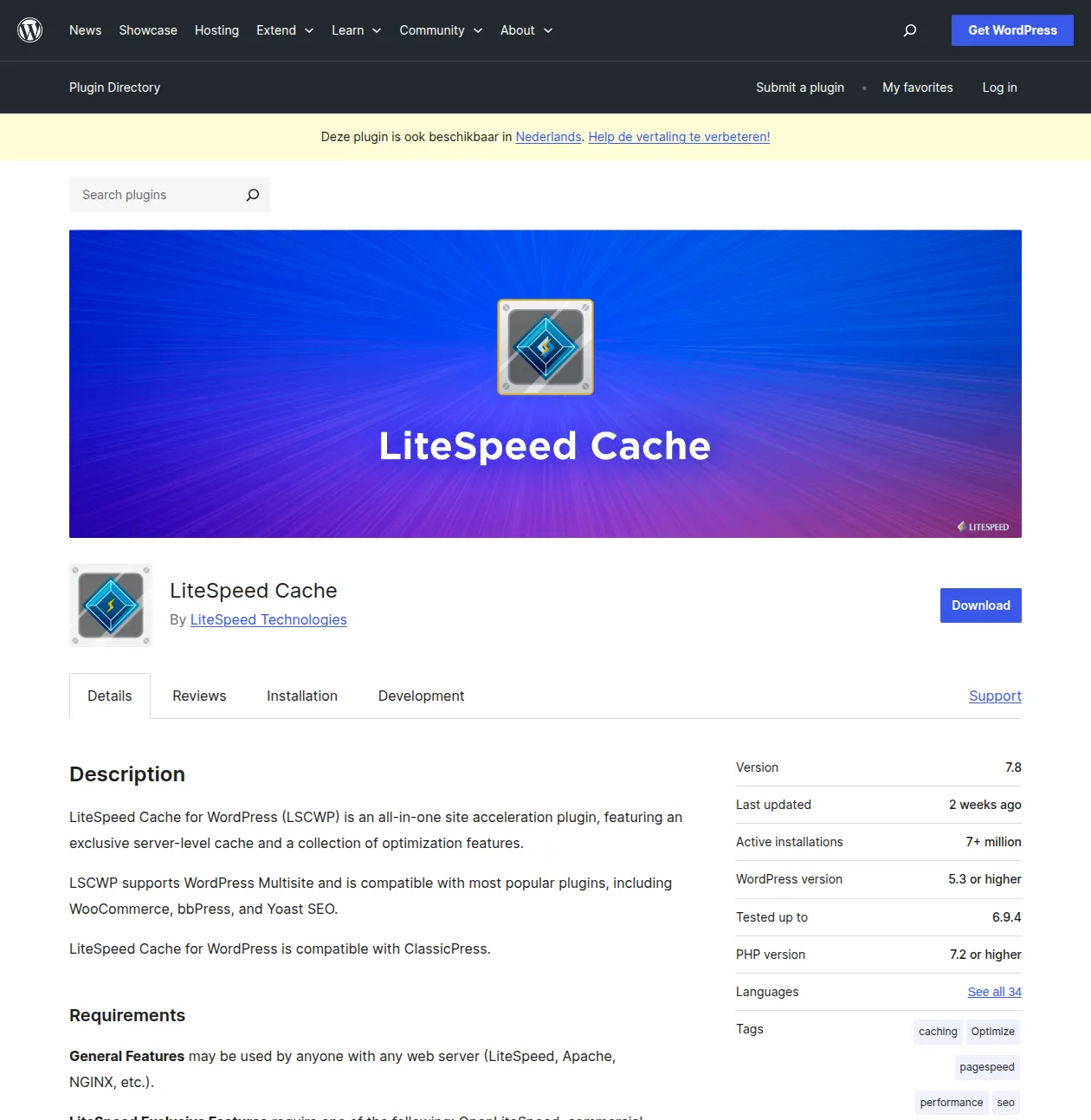
LiteSpeed Cache is the plugin that made me reconsider whether premium caching plugins are always worth the money. On a LiteSpeed server, this free plugin performs at a level that rivals — and in some cases exceeds — WP Rocket. For free. Completely, genuinely free.
The catch? The full power of LiteSpeed Cache only unlocks if your web server runs LiteSpeed or OpenLiteSpeed. On Apache or Nginx, you still get some features (image optimization, CSS/JS optimization, database optimization), but the server-level caching that makes it special doesn't work. It's like buying a turbocharger for a car that can only use it on certain roads — powerful when conditions are right, less impressive when they're not.
The good news: many modern hosting providers have switched to LiteSpeed. If you're on Hostinger, A2 Hosting, NameCheap shared hosting, or Cloudways with a LiteSpeed option, you're already running LiteSpeed and might not even know it. Check with your host — or just look for "LiteSpeed" in your server headers.
Why LiteSpeed Cache Is Special
Most WordPress caching plugins work at the PHP level — they generate static HTML files and serve those instead of running PHP. LiteSpeed Cache goes deeper. It hooks directly into the LiteSpeed web server's built-in cache module, which operates at the server level before PHP even starts. This makes it fundamentally faster than any PHP-based caching solution.
I discovered this firsthand when I migrated a client from SiteGround (Apache) to Cloudways with a LiteSpeed server. The site was already running WP Rocket, and performance was solid — 1.2-second load times. After the migration, I tested LiteSpeed Cache alongside WP Rocket. LiteSpeed Cache matched WP Rocket's page load times and actually beat it on TTFB (0.09s vs 0.14s). On a LiteSpeed server. For free.
That was the day I stopped automatically recommending WP Rocket to clients on LiteSpeed hosting.
Key Features
- Server-level page caching — bypasses PHP entirely on LiteSpeed servers for lightning-fast response times
- Object caching — supports Redis and Memcached for database query caching
- Image optimization — free cloud-based image compression and WebP conversion via QUIC.cloud
- CSS/JS optimization — minification, combination, and HTTP/2 push support
- Critical CSS generation — via QUIC.cloud (free tier available)
- CDN support — built-in QUIC.cloud CDN plus compatibility with Cloudflare and others
- Database optimization — clean up revisions, drafts, transients, and spam
- Browser cache — configurable cache headers for static assets
- ESI support — Edge Side Includes let you cache pages while keeping specific blocks dynamic (like shopping carts)
- Crawler — automatically visits your pages to pre-build the cache so no visitor ever hits an uncached page
My Test Results (on LiteSpeed server)
| Metric | No Cache | LiteSpeed Cache | Improvement |
|---|---|---|---|
| Page Load Time | 3.8s | 1.0s | 74% faster |
| TTFB | 1.2s | 0.09s | 93% faster |
| PageSpeed (Mobile) | 47 | 86 | +39 points |
| PageSpeed (Desktop) | 62 | 94 | +32 points |
| LCP | 4.1s | 1.2s | 71% faster |
On an Apache server, the results were noticeably less impressive — closer to WP Super Cache territory. The server-level caching really does make a massive difference.
Pros
- Completely free — no premium tier, no limitations, no upsells for core features
- On LiteSpeed servers, performance rivals or exceeds WP Rocket
- Built-in image optimization via QUIC.cloud — saves you from needing a separate plugin like ShortPixel or Imagify
- ESI support for dynamic page elements — perfect for WooCommerce cart widgets
- 6M+ active installs — massive community, well-maintained, regular updates
- Crawler pre-builds cache automatically so every visitor gets a cached page
Cons
- Full power requires a LiteSpeed server — on Apache/Nginx, it's significantly less capable
- The settings panel is overwhelming — dozens of tabs with hundreds of options
- QUIC.cloud CDN free tier has bandwidth limits — heavy sites may need to pay
- Image optimization depends on an external service (QUIC.cloud) — if their servers are slow, your optimization queue backs up
- The learning curve is steep for beginners
Pro Tip: If you're on a LiteSpeed server, enable the "Guest Mode" feature in LiteSpeed Cache. It serves a cached version of your page to first-time visitors instantly while still generating a personalized cache in the background. This eliminates the "first visit cold cache" problem that most caching plugins struggle with.
#3 WP Super Cache — The Reliable Workhorse
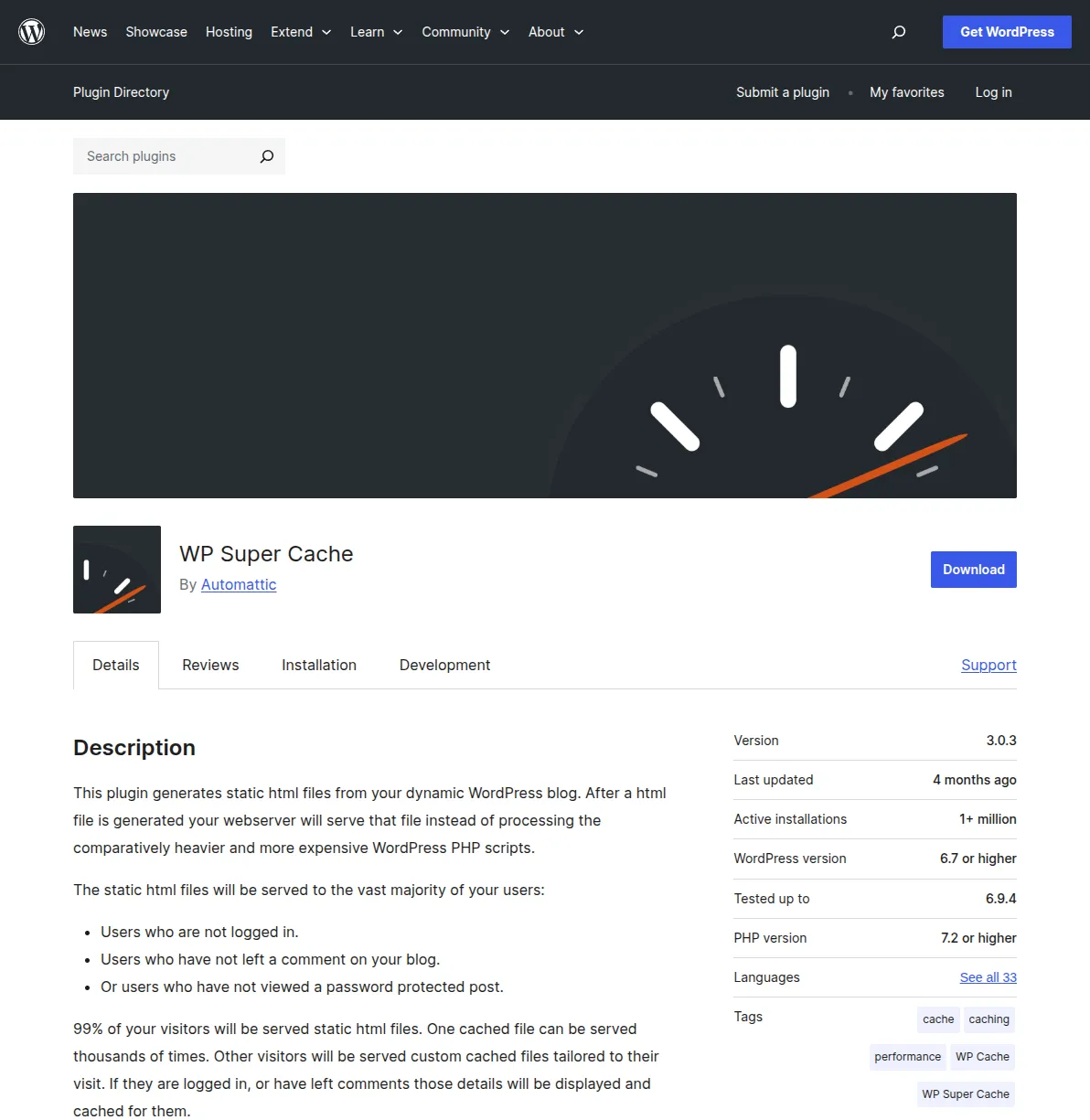
WP Super Cache holds a special place in my heart. It was the first caching plugin I ever installed — back in 2014 on my very first WordPress blog, a terrible food review site that I'm glad no longer exists. It's made by Automattic (the company behind WordPress.com, WooCommerce, and Jetpack), it's been around since 2008, and it does exactly one thing: generate static HTML files from your dynamic WordPress pages. No frills. No complexity. Just caching.
Is it the fastest? No. Does it have the most features? Absolutely not. Is it the most reliable, battle-tested, "install and forget" caching plugin you can get for free? I'd argue yes.
Why I Still Recommend WP Super Cache
There's something to be said for simplicity. When I set up WordPress sites for friends and family members who will never look at their site's backend again after launch, WP Super Cache is what I install. Not WP Rocket (they won't renew the license). Not LiteSpeed Cache (too many settings to accidentally break). Not W3 Total Cache (way too complex). WP Super Cache, with "Simple" caching mode enabled and the "Compress pages" checkbox ticked. Done. It'll run quietly in the background for years without causing a single issue.
I had an uncle who ran a small business site on WordPress. I set it up for him in 2019 with WP Super Cache installed. He never updated anything — not WordPress, not plugins, not the theme. (Yes, I know, but try telling a 60-year-old mechanic to update his WordPress plugins.) When I finally logged into his admin panel in 2023, WP Super Cache was still running, still caching, still making his site load in under 2 seconds. Four years of zero maintenance. That's the kind of reliability you can't put a price on.
Three Caching Modes
WP Super Cache offers three caching methods, ranked by speed:
- Expert (mod_rewrite) — The fastest option. Uses Apache's mod_rewrite to serve static files before PHP even loads. Requires .htaccess modification. Best performance, but can cause issues if your .htaccess file gets corrupted.
- Simple (recommended) — Serves cached files through PHP, but skips WordPress's heavy initialization. Almost as fast as Expert mode, significantly safer. This is what I recommend for 95% of users.
- WP-Cache — The most flexible mode, used for caching pages for logged-in users and dynamic content. Slower than the other two but handles edge cases that Simple mode can't.
My Test Results
| Metric | No Cache | WP Super Cache | Improvement |
|---|---|---|---|
| Page Load Time | 3.8s | 1.6s | 58% faster |
| TTFB | 1.2s | 0.28s | 77% faster |
| PageSpeed (Mobile) | 47 | 68 | +21 points |
| PageSpeed (Desktop) | 62 | 82 | +20 points |
| LCP | 4.1s | 2.1s | 49% faster |
The numbers tell an interesting story. WP Super Cache significantly improves raw caching metrics (TTFB, page load time), but the PageSpeed scores don't jump as dramatically as WP Rocket or LiteSpeed Cache. That's because WP Super Cache only does caching. It doesn't minify CSS/JS, it doesn't lazy load images, it doesn't defer render-blocking resources. For those optimizations, you'd need additional plugins like Autoptimize or EWWW Image Optimizer.
Pros
- Made by Automattic — backed by the same company behind WordPress itself
- Rock-solid reliability — I've seen it run for years without a single issue
- Dead simple setup — enable "Simple" mode and you're done
- Lightweight — minimal overhead, doesn't slow down your admin panel
- Free, forever — no premium version, no upsells
- Preload feature crawls your site to pre-build the cache
Cons
- Page caching only — no CSS/JS minification, no image optimization, no lazy loading
- Lower PageSpeed improvements compared to all-in-one solutions like WP Rocket
- The admin interface looks dated — functional but not pretty
- No built-in CDN integration (you'd need a separate plugin like CDN Enabler)
- Expert mode requires .htaccess knowledge and can break your site if misconfigured
Pro Tip: If you use WP Super Cache, pair it with the free Autoptimize plugin for CSS/JS optimization and EWWW Image Optimizer for lazy loading and image compression. This free combo gets you about 80% of what WP Rocket offers for $0. The trade-off is managing three plugins instead of one, but it works remarkably well.
#4 W3 Total Cache — The Power User's Choice
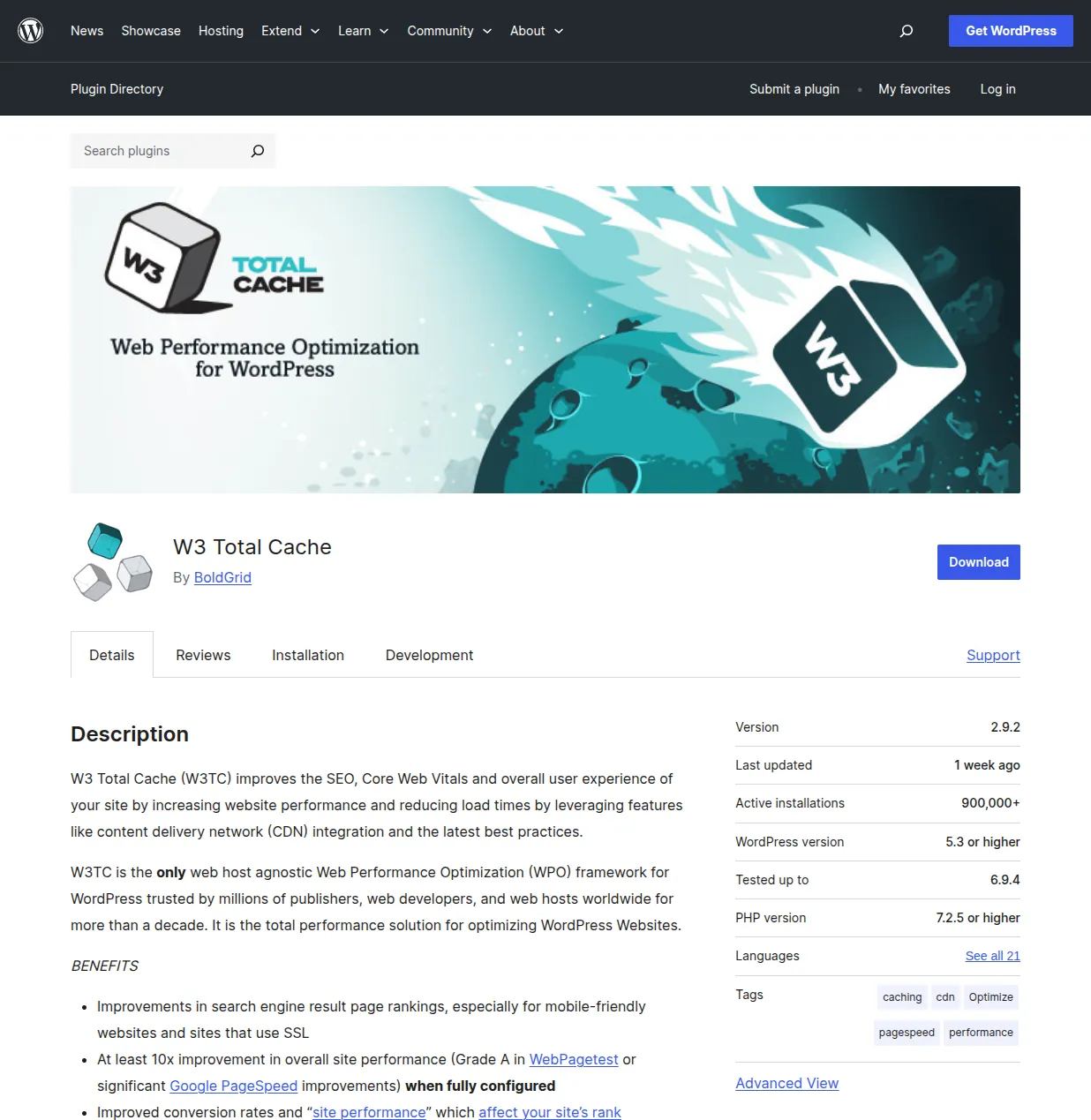
W3 Total Cache is the caching plugin that developers either love or hate — and I've been in both camps at different points in my career. It's the most feature-rich free caching plugin available, with more configuration options than most people will ever need. Or want. Or understand.
Let me be honest about my history with W3TC. I used it from 2015 to 2019 as my go-to caching plugin. I knew every setting, every toggle, every edge case. I could configure it in my sleep. And then I switched to WP Rocket, and I've never gone back. Not because W3TC is bad — it's genuinely powerful. I switched because I got tired of spending 45 minutes configuring caching on every new site when WP Rocket gave me the same results in 45 seconds.
That said, if you're a developer or sysadmin who wants granular control over every aspect of your caching stack — page cache, object cache, database cache, browser cache, minification, CDN, reverse proxy — W3 Total Cache gives you more control than any other WordPress caching plugin on the market.
The Complexity Tax
Here's a story that illustrates the W3TC experience perfectly. A client once hired me to fix their "broken" site. The previous developer had installed W3 Total Cache and configured it with Memcached for object caching, Varnish as a reverse proxy, CloudFront as the CDN, and HTML/CSS/JS minification all enabled. The site was fast — when it worked. But every few days, some page would display incorrectly. An image would disappear. A JavaScript feature would stop working. A product page would show stale prices.
The problem? With that many caching layers, each with their own invalidation logic, keeping everything in sync became a nightmare. Clearing one cache wouldn't clear another. The minification engine would occasionally break a JavaScript file. The CDN had a longer TTL than the page cache, so even after clearing the local cache, visitors in certain regions would still see stale content.
I replaced the entire setup with WP Rocket and Cloudflare (free plan). Every issue disappeared. The site was actually faster because WP Rocket's configuration was optimized instead of fighting itself.
Does that mean W3TC is bad? No. It means W3TC gives you enough rope to hang yourself if you don't know what you're doing. In the right hands, it's incredibly powerful. In the wrong hands, it creates problems that didn't exist before.
Key Features
- Page caching — supports Disk (basic and enhanced), Memcached, Redis, APC, APCu, and more
- Object caching — database query results cached in memory for faster repeated queries
- Database caching — separate from object caching, specifically for MySQL query results
- Browser caching — full control over cache headers, ETags, and expiry times
- Minification — CSS, JavaScript, and HTML minification with manual or auto mode
- CDN support — works with virtually every CDN provider, plus Amazon S3 and CloudFront
- Reverse proxy integration — Varnish and Nginx reverse proxy support
- Fragment caching — cache individual page sections (Pro feature)
- Full Site Delivery CDN — serve your entire site through a CDN (Pro feature)
- Lazy loading — defer offscreen images
- Image optimization — WebP and AVIF conversion via Image Converter extension
My Test Results
| Metric | No Cache | W3 Total Cache | Improvement |
|---|---|---|---|
| Page Load Time | 3.8s | 1.4s | 63% faster |
| TTFB | 1.2s | 0.22s | 82% faster |
| PageSpeed (Mobile) | 47 | 76 | +29 points |
| PageSpeed (Desktop) | 62 | 89 | +27 points |
| LCP | 4.1s | 1.7s | 59% faster |
Good results — better than WP Super Cache because the built-in minification and browser caching contribute to the PageSpeed score. But still behind WP Rocket, which has more sophisticated CSS/JS optimization.
Free vs Pro
W3 Total Cache Pro ($99/year) adds Fragment Caching, Full Site Delivery CDN, REST API caching, Remove Unused CSS/JS, Delay Scripts, and priority support. These Pro features are genuinely useful — especially "Remove Unused CSS/JS" which directly competes with WP Rocket's equivalent feature. But at $99/year, it's almost double the price of WP Rocket's single-site license ($59/year), and WP Rocket is significantly easier to use. Hard to justify unless you specifically need W3TC's advanced server-level configurations.
Pros
- The most configurable free caching plugin available — unmatched granularity
- Supports virtually every caching backend (Redis, Memcached, APC, disk, etc.)
- Reverse proxy integration for enterprise setups
- Built-in minification means you don't need a separate optimization plugin
- CDN compatibility with every major provider
- 900K+ active installs — proven and stable
Cons
- Overwhelming settings panel — beginners will feel lost
- Easy to misconfigure — wrong settings can break your site or make it slower
- Minification engine can break JavaScript or CSS on complex themes
- Multiple caching layers can create invalidation headaches
- Pro version is expensive relative to WP Rocket
- Setup time is 10-20x longer than WP Rocket for comparable results
Pro Tip: If you're going to use W3 Total Cache, start with ONLY page caching enabled (Disk: Enhanced method). Get that working perfectly. Then enable browser caching. Then minification. One layer at a time, testing after each change. Turning everything on at once is the fastest path to a broken site. Trust me on this one — I've learned from painful experience.
#5 WP Fastest Cache — Simple and Effective
WP Fastest Cache is the caching plugin I recommend when people say "I just want something free that works without me having to think about it." It occupies a sweet spot between WP Super Cache's extreme simplicity and W3 Total Cache's overwhelming complexity.
The settings page is a single screen with checkboxes. Check the boxes for the features you want. Save. Done. There's no multi-tab interface, no "advanced settings" maze, no separate configuration panels for each caching layer. It's refreshingly straightforward.
I first used WP Fastest Cache on a project where a client specifically told me "no paid plugins." They were running a recipe blog on Bluehost shared hosting, and the site was painfully slow — 5+ second load times. I installed WP Fastest Cache, checked all the recommended boxes (cache system, minify HTML, minify CSS, GZIP compression, browser caching, and the preload feature), and the site dropped to 1.8 seconds. Not WP Rocket-level fast, but a massive improvement for zero dollars.
Free vs Premium
The free version includes:
- Page caching with mod_rewrite
- HTML and CSS minification
- GZIP compression
- Browser caching
- Cache preloading
- Automatic cache clearing on post/page updates
- Widget cache
WP Fastest Cache Premium ($49.99 one-time, not annual) adds:
- JavaScript minification and combining
- Image optimization and WebP conversion
- Lazy loading
- Database cleanup
- Mobile caching with separate cache files
- Cache statistics
- Render-blocking CSS optimization
The one-time pricing is interesting. Unlike WP Rocket's annual license, you pay once and get lifetime updates. If you plan to use it for more than a year, the $49.99 one-time payment actually undercuts WP Rocket's $59/year. That said, the premium features aren't quite as sophisticated as WP Rocket's — the JavaScript optimization is less aggressive, and there's no equivalent to WP Rocket's "Remove Unused CSS" feature.
My Test Results
| Metric | No Cache | WP Fastest Cache | Improvement |
|---|---|---|---|
| Page Load Time | 3.8s | 1.5s | 61% faster |
| TTFB | 1.2s | 0.25s | 79% faster |
| PageSpeed (Mobile) | 47 | 72 | +25 points |
| PageSpeed (Desktop) | 62 | 85 | +23 points |
| LCP | 4.1s | 1.9s | 54% faster |
Results are a step above WP Super Cache (thanks to the built-in CSS minification and GZIP) and a step below W3 Total Cache and WP Rocket. For a free plugin with a one-page settings panel, those are excellent numbers.
Pros
- Simplest settings interface of any caching plugin — single page, checkboxes only
- Free version includes CSS minification and GZIP — more than WP Super Cache offers
- Premium is one-time payment ($49.99) — no annual renewal
- 1M+ active installs — well-maintained and regularly updated
- Cache preload keeps your cache warm automatically
- Automatic cache clearing on content updates
Cons
- Free version doesn't minify JavaScript — only CSS and HTML
- No object caching or database caching — page caching only
- No CDN integration in free version
- Premium features lag behind WP Rocket in sophistication
- No critical CSS generation
- Plugin updates can occasionally be slow to address WordPress core changes
The Complete Performance Comparison
Here's every plugin's test results side by side so you can see the full picture. All tests run on the same site, same hosting, same conditions.
| Metric | No Cache | WP Rocket | LiteSpeed* | WP Super Cache | W3 Total Cache | WP Fastest Cache |
|---|---|---|---|---|---|---|
| Load Time | 3.8s | 1.1s | 1.0s | 1.6s | 1.4s | 1.5s |
| TTFB | 1.2s | 0.18s | 0.09s | 0.28s | 0.22s | 0.25s |
| PageSpeed Mobile | 47 | 89 | 86 | 68 | 76 | 72 |
| PageSpeed Desktop | 62 | 96 | 94 | 82 | 89 | 85 |
| LCP | 4.1s | 1.3s | 1.2s | 2.1s | 1.7s | 1.9s |
| Price | - | $59/yr | Free | Free | Free | Free |
* LiteSpeed Cache tested on a LiteSpeed server. Results on Apache/Nginx would be closer to WP Super Cache.
The data tells a clear story. WP Rocket and LiteSpeed Cache are in a class of their own, delivering dramatically better results than the free alternatives. The gap between them and the free plugins isn't just about caching speed — it's about the additional optimizations (CSS/JS minification, unused CSS removal, JavaScript deferral) that the free plugins either don't offer or handle less effectively.
Which Caching Plugin Should YOU Use?
After years of testing and real-world experience, here's my decision framework:
Use WP Rocket if...
- You can afford $59/year and want the best performance with zero hassle
- You're on Apache or Nginx hosting (where LiteSpeed Cache can't use server-level caching)
- You want an all-in-one solution that replaces 3-4 separate optimization plugins
- You're not a developer and don't want to become one just to make your site fast
- You run WooCommerce — WP Rocket's cart fragment handling is excellent
Use LiteSpeed Cache if...
- Your host runs LiteSpeed or OpenLiteSpeed (check with them if you're unsure)
- You want premium-level performance for free
- You're comfortable with a more complex settings interface
- You want built-in image optimization without a separate plugin
Use WP Super Cache if...
- You want the simplest possible setup with no decisions to make
- Reliability matters more to you than squeezing out every last millisecond
- You're setting up a site for someone non-technical who won't maintain it
- You're okay pairing it with Autoptimize for CSS/JS optimization
Use W3 Total Cache if...
- You're a developer who wants granular control over every caching layer
- You're running a complex server setup with Redis, Memcached, or Varnish
- You enjoy configuring things (seriously, this is the key criterion)
- You're managing a high-traffic enterprise WordPress site
Use WP Fastest Cache if...
- You want something free with built-in CSS minification (a step above WP Super Cache)
- You prefer a simple checkbox-based settings interface
- The one-time Premium payment appeals to you more than WP Rocket's annual model
How to Install and Configure Your Caching Plugin
Let me walk you through setting up caching using WP Rocket (since it's my top recommendation). The process is similar for the others, though with more configuration steps.
Step 1: Install the Plugin
For WP Rocket, purchase a license at wp-rocket.me, download the plugin zip file, then go to Plugins → Add New → Upload Plugin in your WordPress dashboard. Upload the zip, activate, and caching is already running. For free plugins (WP Super Cache, W3 Total Cache, etc.), search for them in Plugins → Add New and install directly. If you're new to installing plugins, my must-have plugins guide walks through the process step by step.
Step 2: Verify Caching Is Working
Open an incognito/private browser window and visit your homepage. View the page source (right-click → View Page Source). Scroll to the very bottom. WP Rocket adds a comment like <!-- This website is like a rocket -->. WP Super Cache adds <!-- Dynamic page generated in X.XXX seconds -->. If you see these comments, caching is active.
Step 3: Optimize CSS and JavaScript (WP Rocket)
Go to WP Rocket → File Optimization. Enable "Minify CSS," "Remove Unused CSS," "Minify JavaScript," "Load JavaScript deferred," and "Delay JavaScript execution." These settings provide the biggest PageSpeed improvements after basic caching.
Step 4: Enable Lazy Loading
In WP Rocket → Media, enable lazy loading for images, iframes, and videos. This prevents below-the-fold media from loading until the visitor scrolls to it, dramatically improving initial page load time.
Step 5: Test and Iterate
Run your site through Google PageSpeed Insights and GTmetrix. Check for any visual issues — minification can occasionally break JavaScript or CSS. If something looks wrong, try toggling off the most recent optimization and testing again. For a complete performance optimization strategy beyond just caching, check my WordPress speed optimization guide.
Common Caching Mistakes to Avoid
I've made every mistake on this list at some point. Learn from my pain:
- Running two caching plugins simultaneously — This is the #1 mistake I see. Two caching plugins will fight each other, create duplicate caches, and usually make your site slower, not faster. One caching plugin only. Always.
- Caching pages for logged-in users — If you cache pages for logged-in users on a WooCommerce site, everyone will see the same cart contents. Disaster. Make sure your caching plugin excludes logged-in users (most do by default).
- Forgetting to exclude dynamic pages — Cart, checkout, and account pages should never be cached. WP Rocket and LiteSpeed Cache handle this automatically for WooCommerce. With other plugins, you may need to add manual exclusions.
- Never clearing the cache after updates — Changed your CSS? Updated a page? The cached version still shows the old content. Most modern caching plugins auto-clear affected pages on update, but always verify after major changes.
- Over-optimizing minification — Aggressive minification and JS combining can break your theme or plugins. If something stops working after enabling minification, disable it and enable individual optimization options one at a time to find the culprit.
- Ignoring mobile caching — If your theme serves different content to mobile devices, you need separate mobile cache files. WP Rocket handles this automatically. With other plugins, check for a "separate mobile cache" setting.
Frequently Asked Questions
Do I really need a caching plugin?
Yes. Unless your host provides server-level caching (some managed WordPress hosts like Kinsta do), you absolutely need a caching plugin. It's the single biggest performance improvement you can make. A WordPress site without caching is like a car running on three cylinders — it'll get you there, but it's working way harder than it needs to.
Can I use WP Rocket with LiteSpeed Cache?
No. Never run two caching plugins at the same time. If you're on a LiteSpeed server, choose one or the other. On LiteSpeed hosting, LiteSpeed Cache will give you slightly better raw performance (server-level caching), but WP Rocket's CSS/JS optimization is more sophisticated. My recommendation: LiteSpeed Cache on LiteSpeed servers, WP Rocket on everything else.
Will a caching plugin break my WooCommerce store?
Not if you use a reputable one. WP Rocket, LiteSpeed Cache, and WP Super Cache all handle WooCommerce properly out of the box — they automatically exclude cart, checkout, and account pages from caching. W3 Total Cache requires manual configuration to exclude these pages, which is one more reason I don't recommend it for WooCommerce sites.
Is WP Rocket worth the money when free alternatives exist?
If you value your time, absolutely yes. WP Rocket gives you the same results as a carefully configured stack of 3-4 free plugins (WP Super Cache + Autoptimize + Lazy Load + database optimizer), but in a single plugin with one-click setup. The $59/year pays for itself in the time you don't spend configuring, debugging, and maintaining separate optimization plugins.
What's the fastest WordPress caching plugin?
In raw TTFB and page load time, LiteSpeed Cache on a LiteSpeed server is the fastest because it caches at the server level before PHP runs. For overall PageSpeed scores (which include CSS/JS optimization, not just caching), WP Rocket consistently scores highest in my testing thanks to its comprehensive optimization features.
Does caching affect SEO?
Yes, positively. Google uses page speed as a ranking factor, and Core Web Vitals (LCP, FID, CLS) directly affect your search rankings. A properly configured caching plugin improves all of these metrics. Faster sites also have lower bounce rates and higher engagement — signals that Google uses to assess content quality. For more on WordPress SEO, check out my best SEO plugins guide.
Final Thoughts
I've spent the better part of a decade testing, configuring, breaking, and fixing WordPress caching setups. I've seen sites go from 8-second load times to under 1 second. I've seen caching plugins save servers from traffic spikes and I've seen misconfigured caching plugins bring sites to their knees.
Here's my honest bottom line after all that experience:
- WP Rocket is the best caching plugin for most WordPress users. It's not free, but it's the most effective, easiest to use, and most feature-complete option available. If you can afford $59/year, use WP Rocket.
- LiteSpeed Cache is the best free caching plugin — but only if you're on a LiteSpeed server. On LiteSpeed, it rivals WP Rocket. On Apache/Nginx, it's less impressive.
- WP Super Cache is the safest choice for set-and-forget simplicity. Pair it with Autoptimize for CSS/JS optimization and you've got a solid free stack.
- W3 Total Cache is for developers who want maximum control and don't mind the complexity. Not for beginners.
- WP Fastest Cache is the best middle ground between simplicity and features in the free tier.
Whatever you choose, the most important thing is to have some caching plugin active. An uncached WordPress site is leaving performance on the table — and in 2026, with Google's increasing emphasis on Core Web Vitals, that performance directly affects your search rankings, your bounce rates, and your bottom line.
For more on building a fast, well-optimized WordPress site, check out these related guides:
- Best WordPress Plugins — My complete plugin roundup across every category
- 12 Must-Have Plugins for New Sites — The exact plugins I install on every new WordPress site
- WordPress Plugins Hub — All my plugin guides in one place
- Best SEO Plugins — Yoast vs Rank Math vs AIOSEO compared
- Best Contact Form Plugins — My top 5 picks for forms
- WordPress Speed Optimization — Complete performance guide beyond just caching
- WordPress Hosting Guide — Choose the right foundation for a fast site
- How to Make a WordPress Website — Start from scratch
- WordPress Security Guide — Keep your site safe
- Start Here — My complete WordPress roadmap
Happy caching!

Written by Marvin
Our team tests and reviews WordPress products to help beginners make confident choices.
Learn more about our team →You might also like
Autoptimize Review: Free Speed Plugin That Actually Works
Autoptimize minifies and combines your CSS, JavaScript, and HTML to make your WordPress site load faster. I cover what it does, how it compares to WP Rocket and LiteSpeed Cache, and whether the free version is enough.
post15 Best WordPress Plugins in 2026 — My Essential Picks After 10+ Years
After 10+ years of building WordPress sites, these are the 15 plugins I install on every project. Real recommendations with alternatives for every budget.
postBest WordPress AI Chatbot Plugins in 2026 — 5 Options Compared
I checked the current WordPress AI chatbot plugin landscape and narrowed it to 5 realistic options: AI Engine, Tidio, Chatway, WPBot, and Smartsupp.
postBest WordPress Lead Generation Plugins in 2026 — 5 Tools Worth Using
I researched the current WordPress lead generation plugin landscape and narrowed it to 5 tools that actually make sense: WPForms, OptinMonster, Thrive Leads, Hustle, and Fluent Forms.