
12 Must-Have Plugins After Installing WordPress — My Exact Setup
I've been building websites for over 20 years. The first decade was all PHP and hand-coded HTML — the wild west of web development. Then WordPress came along and changed everything. I've been building WordPress sites for over 10 years now, and in that time, I've developed some pretty strong opinions about which plugins actually matter and which ones are just dead weight.
This article is my exact plugin setup. The 12 plugins I install on every single new WordPress site — personal blogs, client projects, ecommerce stores, you name it. No more, no less. Each one earns its place.
Why I Keep This List to Exactly 12 Plugins
I used to install 30+ plugins on every new site. I had plugins for social sharing, plugins for related posts, plugins for custom fonts, plugins for table of contents, plugins for image sliders — you get the idea. Then I spent a weekend cleaning up a client's WordPress installation that had 52 active plugins and took 14 seconds to load. That was my wake-up call.
That weekend changed how I think about plugins entirely. I sat there deactivating plugins one by one, testing load times after each one. Some plugins added 2-3 seconds by themselves. Others conflicted with each other in bizarre ways — two security plugins fighting over the same .htaccess rules, three caching plugins stepping on each other's toes. It was a mess.
Here's the truth about WordPress plugins that most "best plugins" listicles won't tell you:
- Every plugin adds weight. More PHP to execute, more database queries, more CSS and JavaScript to load. Even "lightweight" plugins add up.
- Plugins can conflict. Two plugins that work perfectly alone can break your site when installed together. The more plugins you have, the more potential conflicts.
- Every plugin is a security risk. Each plugin is code written by someone else running on your server. A vulnerability in any single plugin can compromise your entire site.
- Plugins need maintenance. Every plugin needs regular updates. Skip an update, and you're running code with known vulnerabilities.
So now I have a strict rule: 12 plugins, no more, no less. Every one earns its place by solving a real, specific problem that WordPress can't handle on its own. If a new plugin wants in, an existing one has to go. It's survival of the fittest, plugin edition.
For a broader overview of the plugin landscape, check out my guide to the best WordPress plugins — it covers 15 plugins across every category with alternatives for each. This article is more focused: it's my personal day-one setup.
How to Install a Plugin (30-Second Refresher)
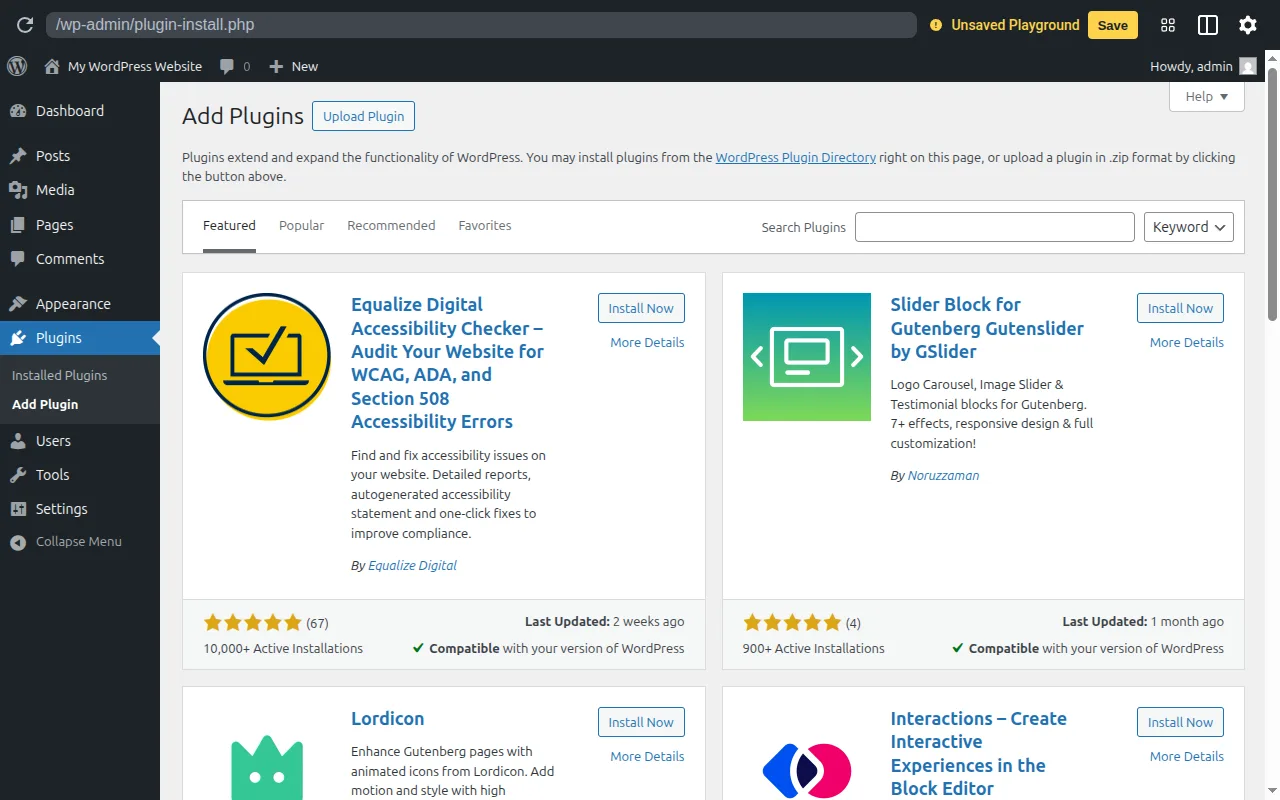
If you've never installed a WordPress plugin before, here's the quick version:
- From your WordPress dashboard, go to Plugins → Add New
- Type the plugin name in the search box
- Click Install Now on the correct plugin
- Click Activate
That's it. The whole process takes about 30 seconds per plugin. If you need a more detailed walkthrough — including how to install premium plugins from .zip files — check out my WordPress installation guide.
Now let's get into the list.
The 12 Plugins I Install on Every New WordPress Site
Here's the overview before we dive into each one:
| # | Plugin | Purpose | Price | Active Installs |
|---|---|---|---|---|
| 1 | Yoast SEO | Search engine optimization | Free / $99/yr | 10M+ |
| 2 | Wordfence Security | Firewall & malware protection | Free / $119/yr | 5M+ |
| 3 | UpdraftPlus | Automated backups | Free / $70/yr | 3M+ |
| 4 | WPForms Lite | Contact forms | Free / $49.50/yr | 6M+ |
| 5 | LiteSpeed Cache | Caching & performance | Free | 7M+ |
| 6 | WP Mail SMTP | Fix email delivery | Free / $49/yr | 4M+ |
| 7 | Redirection | URL redirect management | Free | 2M+ |
| 8 | ShortPixel | Image compression | Free / $3.99/mo | 300K+ |
| 9 | Akismet Anti-Spam | Comment spam protection | Free / $8.33/mo | 5M+ |
| 10 | MonsterInsights | Google Analytics integration | Free / $99.60/yr | 3M+ |
| 11 | All-in-One WP Migration | Site export & migration | Free / $69 once | 5M+ |
| 12 | Broken Link Checker | Find dead links | Free | 700K+ |
Now let me walk you through each one — what it does, why I use it, and when you might not need it.
1. Yoast SEO — Because Google Won't Find You Otherwise
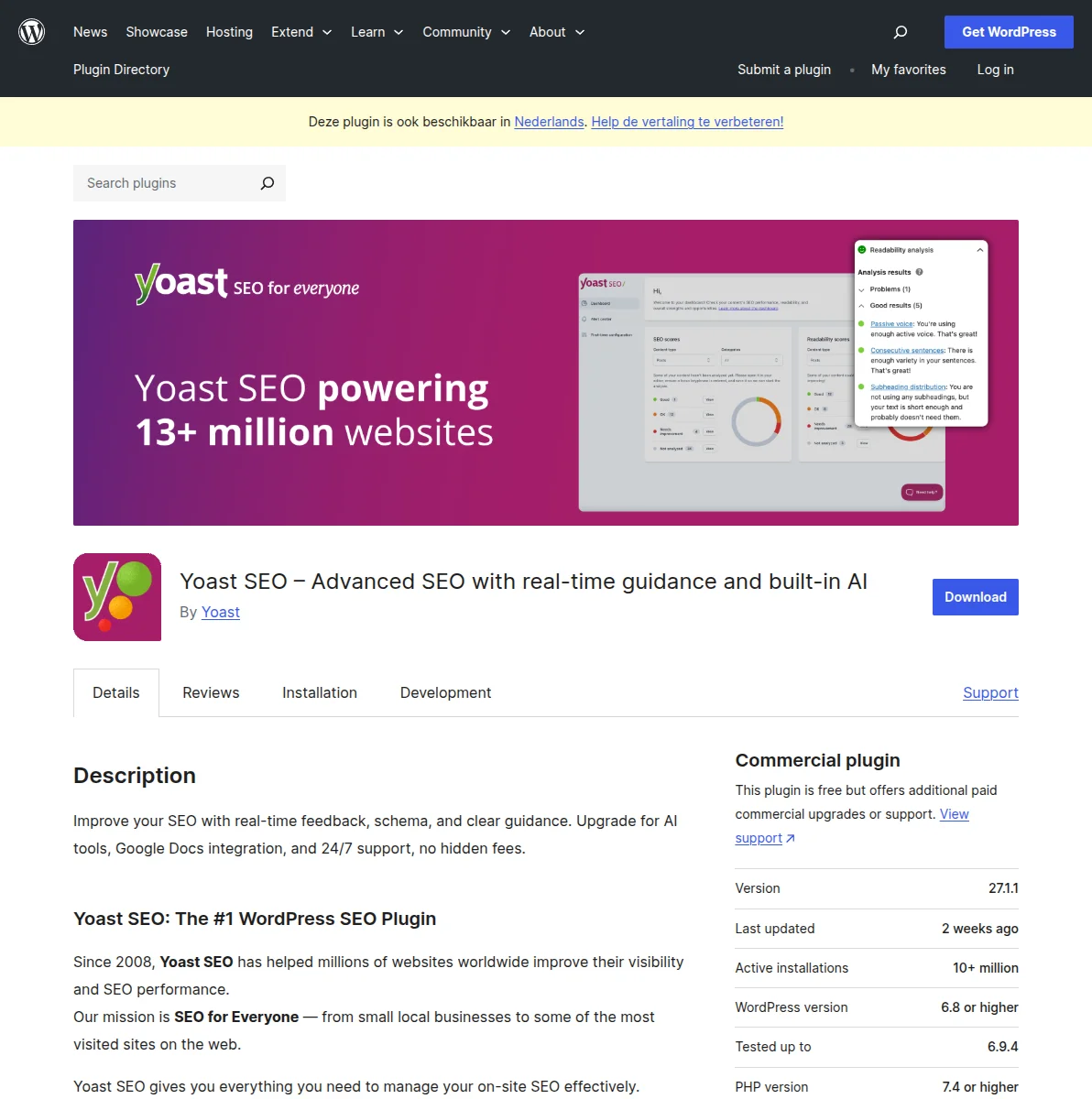
The first plugin I install, every single time. No exceptions. Without an SEO plugin, your WordPress site is basically invisible to search engines. Sure, Google will eventually crawl your site, but without proper meta tags, sitemaps, schema markup, and canonical URLs, you're leaving traffic on the table — a lot of traffic.
I've been using Yoast SEO since 2014, and it's never let me down. I've tried Rank Math, I've tried All in One SEO — they're both decent — but Yoast's track record of stability and its massive user base mean that any bug gets found and fixed quickly. When you're managing client sites, boring reliability beats flashy features every time.
What Yoast handles for you:
- Automatic XML sitemap generation — search engines need this to discover your pages
- Custom meta titles and descriptions for every post and page
- Schema markup (breadcrumbs, article schema, FAQ schema) that helps you stand out in search results
- Content readability analysis that catches overly complex sentences and paragraph walls
Pricing: The free version covers everything most sites need. Yoast Premium ($99/year) adds redirect management, internal linking suggestions, and multiple focus keywords per post — worth it for serious content sites.
Active installs: 10 million+
If you need to add custom PHP snippets to your site — Google Analytics code, custom functions, or tracking pixels — check out my guide to the best code snippet plugins. They let you add code safely without editing theme files, and your snippets survive theme updates.
Pro Tip: Don't obsess over the green dots in Yoast's content analysis. I've seen people rewrite perfectly good articles just to turn every circle green. Focus on writing genuinely helpful content first, then optimize. A well-written article with an orange Yoast score will outrank a keyword-stuffed article with a green score every single time.
When you DON'T need it: If you're already using Rank Math or All in One SEO, don't switch. They all do the same fundamental job. The worst thing you can do is run two SEO plugins at once — that will cause duplicate meta tags and conflicting sitemaps. Pick one and stick with it.
For a deep dive into WordPress SEO strategy, check out my complete SEO guide. And if you want to compare options, I've got a best SEO plugins roundup coming soon.
2. Wordfence Security — Your Site's Bodyguard
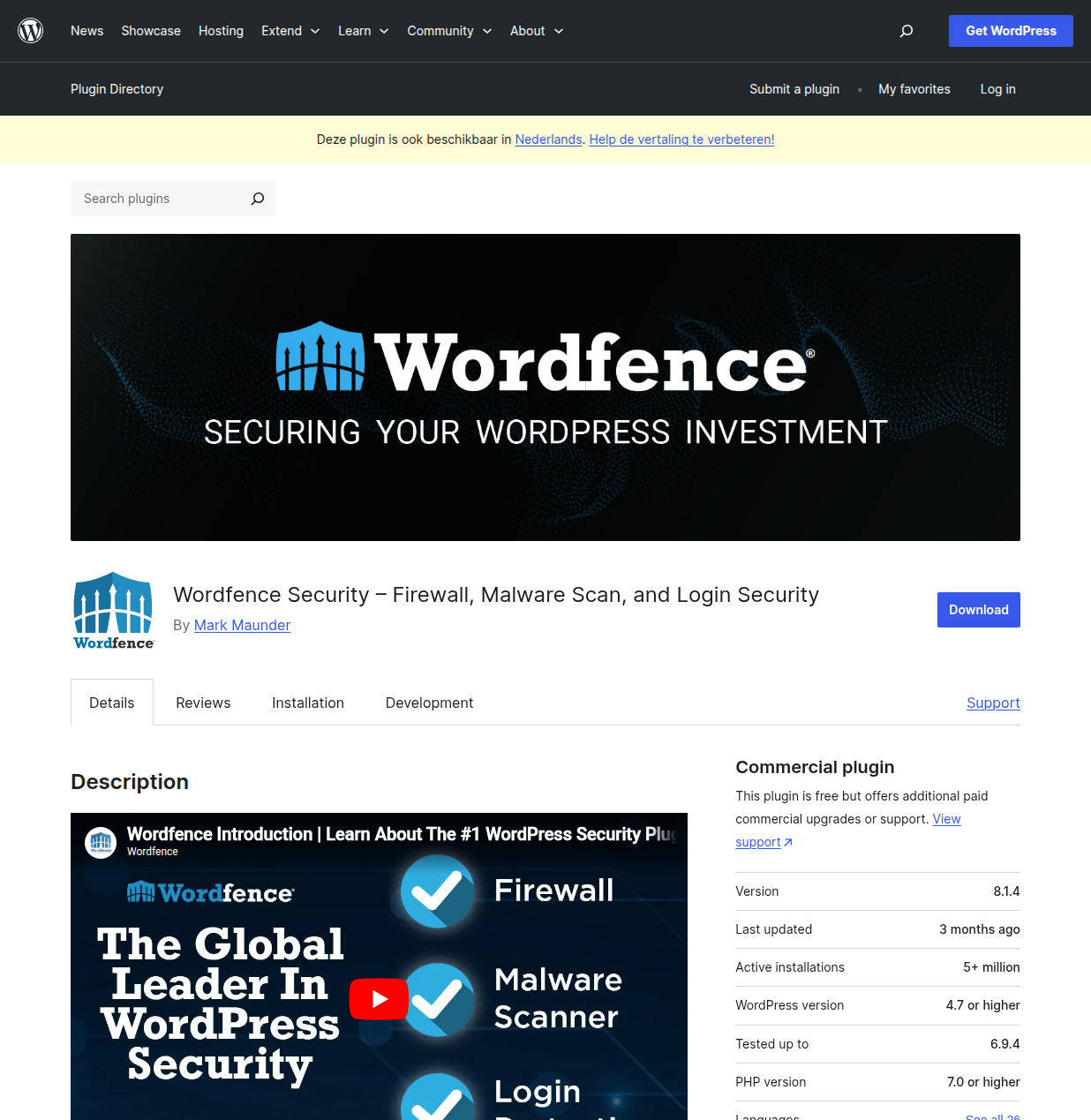
WordPress is the number one target for hackers on the entire internet. Not because it's insecure — it isn't — but because it powers over 43% of all websites. That's a massive attack surface, and bad actors know it. You need a security plugin from day one, not day thirty.
I've been using Wordfence for about 8 years now, and it's caught more brute-force attacks, malicious file injections, and suspicious login attempts than I care to count. Last month alone, across the sites I manage, Wordfence blocked over 12,000 malicious requests. That's not a typo — twelve thousand.
What Wordfence gives you:
- Web Application Firewall (WAF) — blocks malicious traffic before it reaches your site
- Malware scanner — checks core files, themes, and plugins against known threats
- Two-factor authentication (2FA) — adds a second layer of login protection
- Login attempt limiting — automatically blocks IPs after too many failed logins
Pricing: Free version is excellent — it includes the full firewall (with a 30-day rule delay vs. Premium), malware scanning, 2FA, and brute force protection. Wordfence Premium ($119/year) adds real-time firewall rules, real-time IP blocklists, and country blocking.
Active installs: 5 million+
Pro Tip: Enable two-factor authentication immediately after installing Wordfence. It takes 30 seconds — just scan a QR code with your authenticator app — and it blocks 99% of brute force attacks. I don't care how strong your password is. If you're not using 2FA in 2026, you're asking for trouble.
When you DON'T need it: If your hosting provider includes a robust server-level WAF (some managed WordPress hosts like Kinsta and WP Engine do), you might not need a plugin-level firewall. But I'd still install Wordfence for the malware scanning and 2FA — those features don't overlap with server-level security.
For more on hardening your WordPress site, read my WordPress security guide.
3. UpdraftPlus — Because Disasters Happen
I learned the importance of backups the hard way in 2011 when a hosting provider lost all my data during a server migration. I had no backup. I lost everything — three websites, years of content, client work, all gone. I sat at my desk staring at a blank hosting account, feeling like the ground had opened up beneath me.
That day, I made a rule I've never broken since: every site gets automated backups before anything else gets configured. UpdraftPlus is how I enforce that rule.
What UpdraftPlus does:
- Scheduled automatic backups — set it and forget it (I do weekly full + daily database)
- Backs up to Google Drive, Dropbox, Amazon S3, OneDrive, and more
- One-click restore — tested and reliable, I've used it dozens of times
- Separate database and file backups so you can restore just what you need
Pricing: Free version backs up to a single cloud storage provider with scheduled backups. UpdraftPlus Premium ($70/year) adds incremental backups, migration tools, and multiple storage destinations.
Active installs: 3 million+
Pro Tip: Set up weekly backups to Google Drive on day one. It's free (Google gives you 15GB) and it takes 2 minutes to configure. Here's the key: never store backups only on your server. If your server dies, your backups die with it. Always use remote storage — Google Drive, Dropbox, anything off-server.
When you DON'T need it: If your hosting provider offers automatic daily backups with one-click restore (Kinsta, WP Engine, and SiteGround all do), you could skip a backup plugin. But I still install UpdraftPlus as a second layer. Hosting backups fail sometimes. Belt and suspenders, always.
4. WPForms Lite — A Contact Form That Actually Works
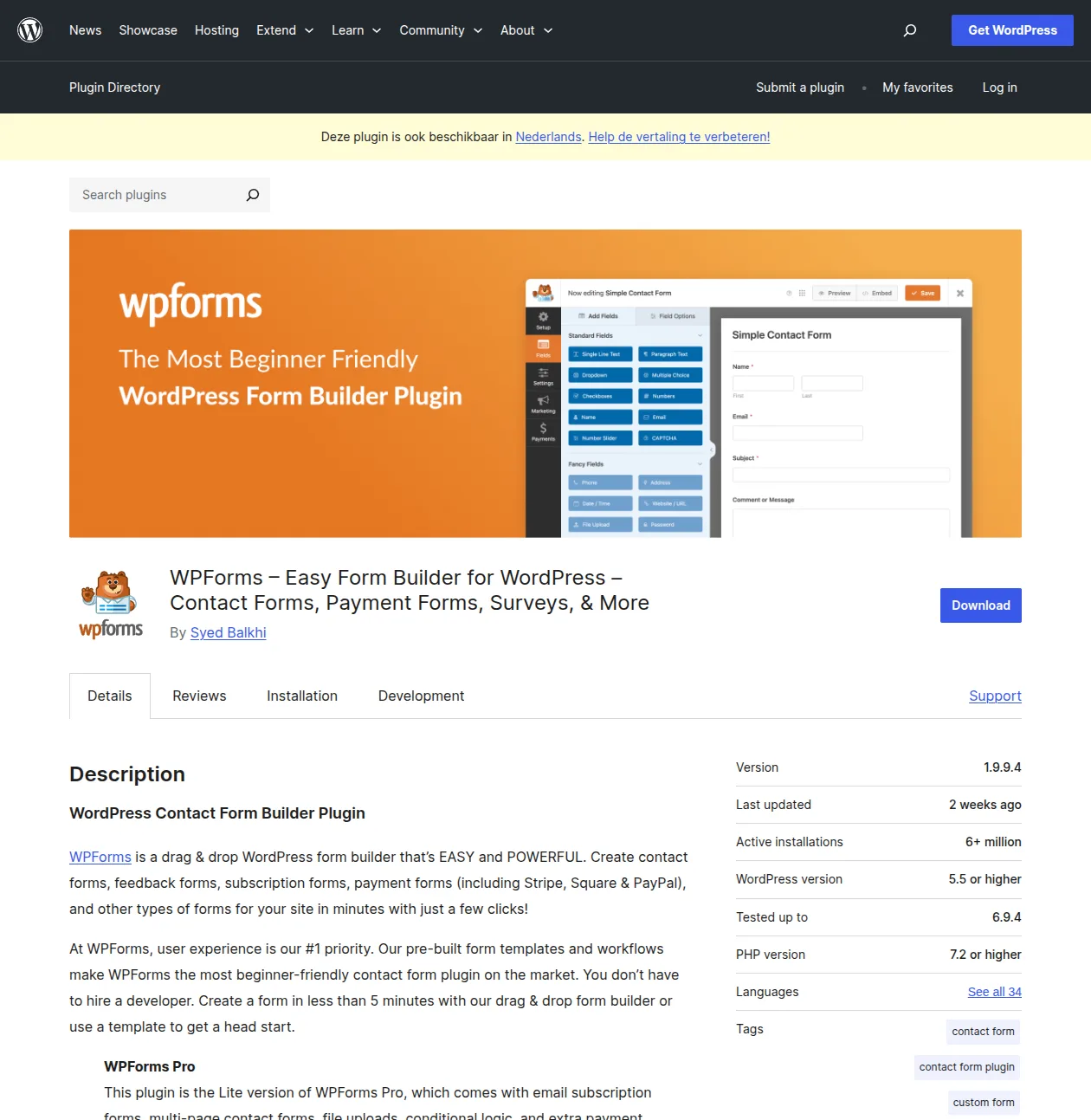
Every website needs a contact form. Even if you think nobody will use it, you'd be surprised. I've gotten client inquiries, partnership offers, and bug reports through contact forms on sites I assumed nobody was reading. A contact form tells visitors "there's a real person behind this site" — and that matters.
WPForms makes it embarrassingly easy. I'm talking drag-and-drop-a-few-fields-click-publish-done easy. My least tech-savvy clients can create forms without calling me, and that alone makes it worth recommending over the alternatives.
What WPForms gives you:
- Drag-and-drop form builder — no code, no shortcode fiddling
- Pre-built templates for contact forms, feedback forms, subscription forms
- Built-in spam protection (honeypot + reCAPTCHA)
- Mobile-responsive forms that look good on every device
Pricing: WPForms Lite is free and covers basic contact forms. WPForms Pro (from $49.50/year) adds conditional logic, payment integrations, multi-page forms, and 1,800+ templates.
Active installs: 6 million+
Pro Tip: Don't use Contact Form 7 unless you enjoy configuring form settings by hand. I spent years with CF7, and while it works fine, WPForms just removed so much friction from my workflow. Life's too short to debug form markup when you could be drag-and-dropping.
When you DON'T need it: If you're already using a page builder like Elementor Pro that includes a built-in form builder, you might not need a separate form plugin. But WPForms Lite is so lightweight that I install it even alongside page builders — it's just more reliable for forms specifically.
5. LiteSpeed Cache — Make Your Site Actually Fast
Speed isn't optional anymore. Google has been using page speed as a ranking factor since 2018, and the Core Web Vitals update made it even more important. Meanwhile, research consistently shows that visitors leave after about 3 seconds of waiting. If your site is slow, you're losing both rankings and visitors.
LiteSpeed Cache is the single most impactful performance plugin I've ever used. On one client's site — a content-heavy blog with hundreds of posts — we went from a 4.8-second load time to 1.6 seconds just by installing and configuring LiteSpeed Cache. That's a 67% improvement from a single free plugin.
What LiteSpeed Cache handles:
- Full page caching at the server level (much faster than PHP-based caching)
- CSS and JavaScript minification and combination
- Image lazy loading — images only load when visitors scroll to them
- Database optimization — cleans up post revisions, transients, and other bloat
Pricing: Completely free. No premium tier. No upsells.
Active installs: 7 million+
Important: LiteSpeed Cache's server-level caching only works on LiteSpeed web servers. Many popular hosts use LiteSpeed — Hostinger, some SiteGround plans, and A2 Hosting, among others. If your host uses Apache or Nginx, use WP Super Cache instead. You'll still get page caching, just not the server-level integration. Not sure what server your host uses? Ask their support team.
When you DON'T need it: If your host provides a built-in caching solution (like SiteGround's SG Optimizer or Kinsta's server-level caching), you might not need a separate caching plugin. In fact, running two caching solutions simultaneously can cause conflicts. Check with your host first.
For a complete guide to speeding up your WordPress site, read my WordPress speed optimization guide.
6. WP Mail SMTP — Fix WordPress Email
Here's something most WordPress tutorials don't tell you: WordPress email is broken out of the box. Seriously. WordPress uses PHP's built-in mail() function to send emails, and many hosting providers either block it, limit it, or configure it in a way that causes your emails to land in spam folders.
This means your contact form submissions might vanish into thin air. Your password reset emails might never arrive. Your WooCommerce order confirmations might end up in spam. I've had frantic client calls at 10 PM because "nobody's getting our order emails" — and the fix was always the same: install WP Mail SMTP.
What WP Mail SMTP does:
- Routes WordPress emails through a proper SMTP server instead of PHP mail
- Supports Gmail, Outlook, SendGrid, Mailgun, Amazon SES, and more
- Dramatically improves email deliverability — emails actually arrive, and in the inbox, not spam
- Email logging so you can verify emails are being sent (Pro version)
Pricing: Free version works with Gmail, Outlook, and other free SMTP services. WP Mail SMTP Pro ($49/year) adds email logging, open/click tracking, and additional mailer services.
Active installs: 4 million+
Pro Tip: For the simplest free setup, use the "Other SMTP" option with your hosting provider's email server. For better deliverability, create a free SendGrid account (100 emails/day free) or use Gmail SMTP. Either way, configure this before your site goes live — don't wait until someone complains their password reset email never arrived.
When you DON'T need it: Honestly? You almost always need it. The only exception is if your hosting provider has already configured reliable email delivery at the server level (rare) or if you're using a managed WordPress host that handles email for you (also rare). And once your transactional emails are sorted, you'll want to think about building an email list — see my best email marketing plugins guide for that.
7. Redirection — Manage Your URL Changes
The moment you change a URL, delete a page, or restructure your site navigation, you create a broken link. A visitor clicks an old link, lands on a 404 page, and bounces. Google follows an old URL, finds nothing, and starts devaluing that page. It happens silently, and the damage compounds over time.
Redirection catches those 404 errors and lets you set up proper 301 redirects — telling both visitors and search engines "this page has moved permanently to a new location." It's essential for SEO, and it's one of those plugins you don't appreciate until you need it desperately.
What Redirection provides:
- Easy 301, 302, and 307 redirect management through a clean interface
- Automatic 404 error logging — see exactly which URLs are generating errors
- Regex support for advanced redirect patterns (e.g., redirect an entire URL structure)
- Import/export functionality for bulk redirect management
Pricing: Completely free. Open source.
Active installs: 2 million+
Pro Tip: Install Redirection before you start publishing content. This way, it's already monitoring for 404 errors from day one. You'll thank me six months from now when you change your permalink structure or merge two categories and need to redirect a dozen URLs.
When you DON'T need it: If you're using Yoast SEO Premium, it includes a built-in redirect manager. In that case, you can skip Redirection to keep your plugin count lean. But if you're on Yoast Free (like most people), Redirection fills that gap perfectly.
8. ShortPixel Image Optimizer — Smaller Images, Faster Site
Images are usually the number one reason WordPress sites load slowly. I've audited sites where a single uncompressed hero image was 4MB — bigger than the rest of the page combined. Your visitors don't need a print-quality 4000x3000 pixel image. They need something that looks good on screen and loads fast.
ShortPixel compresses your images automatically when you upload them to WordPress. It reduces file sizes by 50-80% with no visible quality loss — seriously, put the before and after side by side, and I challenge you to see the difference. It also converts images to WebP and AVIF formats, which are significantly smaller than JPEG and PNG.
What ShortPixel handles:
- Automatic compression on upload — lossy, glossy, or lossless modes
- WebP and AVIF conversion for modern browsers
- Bulk optimization of your existing media library
- PDF compression (often overlooked but useful for sites with downloadable PDFs)
Pricing: 100 free images per month (each thumbnail counts as a separate image). Paid plans start at $3.99/month for 5,000 images. One-time credit packages are also available.
Active installs: 300,000+
Pro Tip: After installing ShortPixel, run it on your existing media library too. Go to Media → Bulk ShortPixel and let it optimize everything. On a typical site with a few hundred images, this can save 60-80% on file sizes and noticeably improve page load times across your entire site.
When you DON'T need it: If you're using LiteSpeed Cache with QUIC.cloud's image optimization, or if your hosting provider offers built-in image optimization (Cloudflare's Polish feature, for example), you might already have image compression covered. Don't run two image optimization tools — they'll try to compress already-compressed images and waste processing cycles.
9. Akismet Anti-Spam — Block the Comment Flood
Akismet comes pre-installed on every new WordPress site, and there's a good reason for that. Without spam protection, you'll start getting spam comments within days of Google indexing your site. And it's not a trickle — I've seen sites get hundreds of spam comments per day once they have any search engine visibility at all.
These aren't just annoying — spam comments often contain links to malware, phishing sites, and worse. Letting them through puts your visitors at risk and can get your site flagged by Google's Safe Browsing. Akismet catches these automatically by checking every comment against its global spam database, which learns from millions of WordPress sites.
What Akismet provides:
- Automatic spam comment filtering — over 99.99% accuracy in my experience
- Global spam database fed by millions of WordPress sites
- Spam statistics and history so you can see what's being caught
- Works automatically — no configuration needed beyond entering your API key
Pricing: Free for personal sites (honor system — you set your own price, including $0). Commercial sites need a paid plan starting at $8.33/month.
Active installs: 5 million+
Pro Tip: Activate Akismet immediately, even before you publish your first post. Spam bots find new WordPress installations surprisingly quickly — often within hours. Don't wait until your comment moderation queue has 500 spam messages to decide you need protection.
When you DON'T need it: If you've disabled comments entirely on your site (some business sites and landing pages do this), you don't need Akismet. Also, if you're using WPForms for all user interactions and have no comment functionality, you can skip it. But for any site with an active comment section, Akismet is non-negotiable.
10. MonsterInsights — Google Analytics Without the Headache
You need to know who's visiting your site, what they're reading, where they're coming from, and what they're doing. Without analytics data, you're flying blind — making content decisions based on gut feelings instead of actual data. Google Analytics is the industry standard for website analytics, but connecting it to WordPress properly used to require editing theme files or messing with code.
MonsterInsights puts Google Analytics data right in your WordPress dashboard. No code editing, no theme file modifications, no pasting tracking snippets. Connect your Google account, and you're done.
What MonsterInsights offers:
- One-click Google Analytics connection — no tracking code to manually paste
- Dashboard widget showing key metrics (sessions, pageviews, bounce rate, top pages)
- Automatic tracking of outbound links, file downloads, and affiliate links
- Survives theme changes — your tracking doesn't break when you switch themes
Pricing: Free version covers basic analytics. MonsterInsights Pro ($99.60/year) adds ecommerce tracking, form conversion tracking, custom dimensions, and popular posts features.
Active installs: 3 million+
Pro Tip: Don't install Google Analytics manually by editing your theme's header.php file. I've seen this advice everywhere, and it's bad advice. When you update or change your theme, your tracking code disappears. Use MonsterInsights (or any analytics plugin) — it's cleaner, more reliable, and survives theme changes.
When you DON'T need it: If you're philosophically opposed to Google Analytics (privacy concerns are valid), consider a privacy-focused alternative like Plausible or Fathom Analytics — they have their own WordPress plugins. Or if your hosting dashboard provides sufficient traffic data for your needs, you might be able to skip a dedicated analytics plugin.
11. All-in-One WP Migration — Your Emergency Escape Plan
This plugin has saved me more times than I can count. Moving a WordPress site from one host to another used to involve exporting databases, editing wp-config.php files, manually transferring files via FTP, and praying that the database prefix and URLs would work on the new server. It was a multi-hour process that went wrong at least 50% of the time.
All-in-One WP Migration turns that nightmare into a two-click process: export on the old host, import on the new one. It packages your entire site — database, media files, plugins, themes, everything — into a single file. I've migrated dozens of sites with this plugin, and it works every single time.
What All-in-One WP Migration includes:
- One-click site export — creates a single downloadable file with everything
- One-click import on the new host — handles database, files, and URL replacement
- Automatic find-and-replace for URLs during migration (handles domain changes)
- Works with any hosting provider — no server-level access required
Pricing: Free up to 512MB (sufficient for most new sites). The Unlimited extension ($69 one-time payment) removes the size limit.
Active installs: 5 million+
Pro Tip: Export your site right after you finish your initial setup — plugins configured, theme chosen, basic pages created. Store that export file somewhere safe (Google Drive, Dropbox, an external hard drive). If anything goes catastrophically wrong, you can restore your fully-configured site in about 5 minutes. Think of it as a "golden image" of your WordPress installation.
When you DON'T need it: If you never plan to migrate hosts and your backup plugin (UpdraftPlus) handles restores adequately, you could technically skip this one. But at zero performance cost when inactive, I keep it installed as an insurance policy. You never know when you'll need to move hosts in a hurry — I've had clients whose hosts went down with zero warning.
12. Broken Link Checker — Find Dead Links Before Google Does
Over time, every website accumulates broken links. External sites you linked to change their URLs, delete pages, or go offline entirely. Internal links break when you restructure your content or change slugs. Each broken link is a small cut — individually minor, but collectively they bleed your SEO authority and make your site look neglected.
Broken Link Checker automatically scans all your posts, pages, and comments for links that no longer work. It finds 404 errors, server timeouts, and redirected URLs, then shows you exactly which post contains the broken link so you can fix it.
What Broken Link Checker does:
- Scans all internal and external links across your entire site
- Detects 404 errors, server errors, and redirect chains
- Shows you the exact post and the exact anchor text for each broken link
- Lets you edit or unlink broken URLs directly from the plugin's dashboard
Pricing: Completely free.
Active installs: 700,000+
Warning: Broken Link Checker is resource-heavy when it's actively scanning. On a site with hundreds of posts and thousands of links, a full scan can temporarily slow down your server. My approach: activate it, let it run a full scan, fix the broken links it finds, then deactivate it until next month. I run it once a month as a maintenance task, not as an always-on monitor.
When you DON'T need it: If your site only has a handful of posts with few external links, manually checking your links occasionally might be sufficient. Also, premium SEO tools like Ahrefs and Semrush include broken link detection in their site audit features — if you're already paying for one of those, you can use that instead.
My Plugin Installation Order
The order you install and configure plugins matters more than you'd think. Here's exactly how I set up a new WordPress site, and why I do it in this specific sequence:
- Yoast SEO — Configure basic SEO settings, set up sitemaps, choose title formats. I want SEO right from the first published page.
- Wordfence Security — Enable the firewall, set up 2FA, configure login protection. Security before anything public-facing goes live.
- WP Mail SMTP — Fix email delivery immediately. I don't want to discover a month later that my contact form hasn't been working.
- UpdraftPlus — Set up the first backup schedule. Now if anything goes wrong with the remaining setup, I can restore.
- Akismet Anti-Spam — Activate spam protection before publishing any content.
- LiteSpeed Cache — Configure caching and performance optimization. The site is now fast.
- WPForms Lite — Create the contact form. With WP Mail SMTP already configured, form submissions will actually arrive.
- ShortPixel — Optimize any existing images and set up automatic compression for future uploads.
- Redirection — Ready to catch 404 errors and manage URL redirects from day one.
- MonsterInsights — Connect Google Analytics. I want data collection running before the site launches.
- All-in-One WP Migration — Export my initial "golden image" backup of the fully configured site.
- Broken Link Checker — Run the first scan, fix anything that turns up, then deactivate until the monthly check.
This entire process takes about 45 minutes. After that, your WordPress site is secure, fast, SEO-ready, and backed up. You can start creating content with confidence, knowing the foundation is solid.
If you're building your first WordPress site from scratch, my step-by-step guide to making a WordPress website walks through the full process — including where plugin setup fits into the bigger picture.
Plugins I Intentionally DON'T Install
What I don't install is just as important as what I do. Here are the plugins I see recommended constantly that I've deliberately left off my list — and why.
Jetpack — This is the one that's going to be controversial. Jetpack is made by Automattic (the WordPress.com folks), and it offers stats, security, backups, CDN, social sharing, and about 30 other features. The problem? It's a massive, bloated plugin that tries to do everything and, in my experience, does most things at a B-minus level. I'd rather use specialized plugins that each do one thing at an A-plus level. Every time I've audited a slow WordPress site, Jetpack was in the plugin list.
"All-in-one" security/speed/SEO plugins — Same philosophy as Jetpack. If a single plugin claims to handle your SEO, security, caching, and backups, be suspicious. These jack-of-all-trades plugins are masters of none. When something goes wrong (and it will), debugging is a nightmare because you can't isolate the problem. Use focused, specialized plugins.
Social sharing button plugins — I see these on every "must-have plugins" list, and I disagree. Most modern WordPress themes include lightweight social sharing buttons. If yours doesn't, a few lines of HTML can add share links without the performance overhead of a dedicated plugin. Social sharing plugins often load heavy JavaScript and CSS files — and tracking scripts — on every page. Not worth the weight.
Image slider plugins — Sliders look impressive in demos but hurt your site in practice. They slow down page load times significantly (loading multiple large images), they tank conversion rates (studies consistently show static hero images outperform sliders), and they're a mobile UX nightmare. If you need an image carousel, your theme probably has one built in. Don't install a separate plugin for it.
"Coming soon" and maintenance mode plugins — Your hosting provider almost certainly has a maintenance mode feature built into their control panel. Hostinger, SiteGround, and most others do. No need to install a plugin for something you'll use once and then leave cluttering your plugin list.
Frequently Asked Questions
Can I install all 12 plugins at once?
Yes, you can install all 12 at once — WordPress handles bulk installations fine. But I strongly recommend configuring them one at a time in the order I listed above. Each plugin has settings that need attention, and rushing through configuration is how things get misconfigured. Take the 45 minutes to do it properly. Your future self will be grateful.
Will 12 plugins slow down my site?
Not these 12. They're all well-coded, actively maintained, and essential. In fact, several of them (LiteSpeed Cache, ShortPixel) actually make your site faster. The "plugins slow down WordPress" warning applies to poorly coded plugins, outdated plugins, and plugin bloat from installing 30+ plugins for features you don't need. Twelve carefully chosen, essential plugins will not cause performance issues on any decent hosting plan.
Do I really need all 12 of these for a blog?
Yes, and here's why: a blog needs SEO (Yoast) to be found, security (Wordfence) to stay safe, backups (UpdraftPlus) to not lose content, speed (LiteSpeed Cache + ShortPixel) to rank well, working email (WP Mail SMTP) for reader contact, a contact form (WPForms), analytics (MonsterInsights) to know what's working, spam protection (Akismet) for comments, redirect management (Redirection) for changing URLs, a migration tool (All-in-One WP Migration) for emergencies, and link checking (Broken Link Checker) for maintenance. Every one of these serves a blog specifically.
What about premium versions? Should I upgrade?
Start with the free versions — they're genuinely sufficient for most new sites. Upgrade when (and only when) you hit a specific limitation that the premium version solves. For example: upgrade Yoast when you need multiple focus keywords and internal linking suggestions for a content-heavy site. Upgrade WPForms when you need conditional logic or payment forms. Don't upgrade "just in case" — let your actual needs drive the decision.
How often should I update my plugins?
Check for updates weekly. Most updates are minor bug fixes and security patches — install those promptly. For major version updates (like going from 5.x to 6.x), wait 2-3 days for any critical bugs to surface, then update. Always have a current backup before updating. If you want less manual work, enable auto-updates for trusted plugins (all 12 on this list qualify) in your WordPress Plugins page — there's a toggle for each plugin.
What if two plugins conflict with each other?
Plugin conflicts happen, and they can manifest as white screens, broken layouts, PHP errors, or features silently not working. Here's my debugging process: deactivate all plugins except the one you suspect, then reactivate them one by one, testing your site after each activation. The moment the problem reappears, you've found your culprit.
I had a particularly memorable conflict a few years ago where a caching plugin and a security plugin were both trying to modify .htaccess rules simultaneously. The site would randomly serve blank pages to about 10% of visitors. It took me three hours of methodical deactivation-reactivation to narrow it down. The fix was simple — adjusting a single setting — but finding it required patience and a systematic approach.
If you can't resolve a conflict, reach out to both plugin developers' support teams. In my experience, well-maintained plugins (like the 12 on this list) have responsive support teams that take compatibility issues seriously.
Final Thoughts
There's a reason I've refined this list down to exactly 12 plugins over 10+ years of WordPress development. Each one solves a genuine problem, none of them overlap, and together they give you a WordPress site that's secure, fast, SEO-optimized, backed up, and ready for whatever you want to build.
Don't overcomplicate it. Install these 12, configure them properly, and then focus on what actually matters — creating great content for your visitors. The best plugin setup in the world means nothing if your site has nothing worth reading.
If you're just getting started with WordPress, here's where to go next:
- Start Here — My complete WordPress roadmap for beginners
- WordPress Tutorials — Step-by-step setup guides for every skill level
- How to Make a WordPress Website — Step-by-step from zero to published
- WordPress Hosting Guide — Choose the right foundation for your site
- Best WordPress Plugins — My full plugin roundup with alternatives for every category
- WordPress Plugins Hub — All my plugin guides in one place
- Recommended Tools — Browse our complete toolkit of recommended plugins and services
Happy building!

Written by Marvin
Our team tests and reviews WordPress products to help beginners make confident choices.
Learn more about our team →You might also like
Best WordPress AI Chatbot Plugins in 2026 — 5 Options Compared
I checked the current WordPress AI chatbot plugin landscape and narrowed it to 5 realistic options: AI Engine, Tidio, Chatway, WPBot, and Smartsupp.
postWooPayments Review: WooCommerce's Built-In Payment Plugin
WooPayments lets you accept credit cards, Apple Pay, Google Pay, and more directly from your WordPress dashboard — no separate Stripe account needed. Here's what it does well, where it falls short, and when you should use the direct Stripe plugin instead.
postAutoptimize Review: Free Speed Plugin That Actually Works
Autoptimize minifies and combines your CSS, JavaScript, and HTML to make your WordPress site load faster. I cover what it does, how it compares to WP Rocket and LiteSpeed Cache, and whether the free version is enough.
postFile Manager Plugin Review: Convenient but Handle With Care
WP File Manager puts FTP-style file access right in your WordPress dashboard. I explain what it does, who should use it, and why you need to be careful about security before installing it.