
File Manager Plugin Review: Convenient but Handle With Care
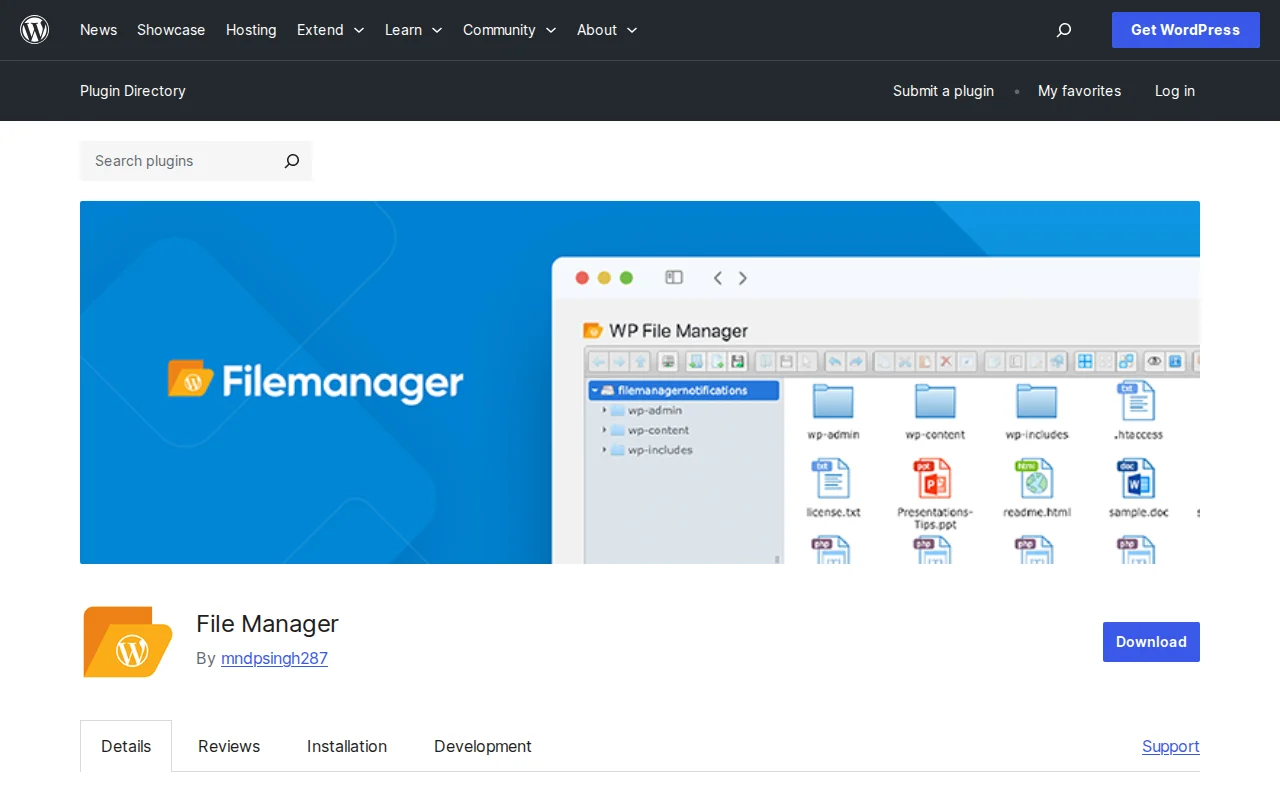
There's a moment every WordPress beginner hits: you need to edit a file — maybe a configuration file, a broken theme template, or a plugin file that needs a small tweak — and you realize you have no idea how to access it. FTP clients like FileZilla exist, but they come with a learning curve and credentials you may not have ready. That's the gap WP File Manager fills.
I've used this plugin on my own sites and seen it used on client sites. It's genuinely useful in the right situation. But I'd be doing you a disservice if I didn't lead with the security reality: this plugin has a documented history of critical vulnerabilities, including one that allowed unauthenticated remote code execution and affected over 700,000 sites in 2020. That doesn't mean you shouldn't use it — but it means you should go in with your eyes open.
What Is WP File Manager?
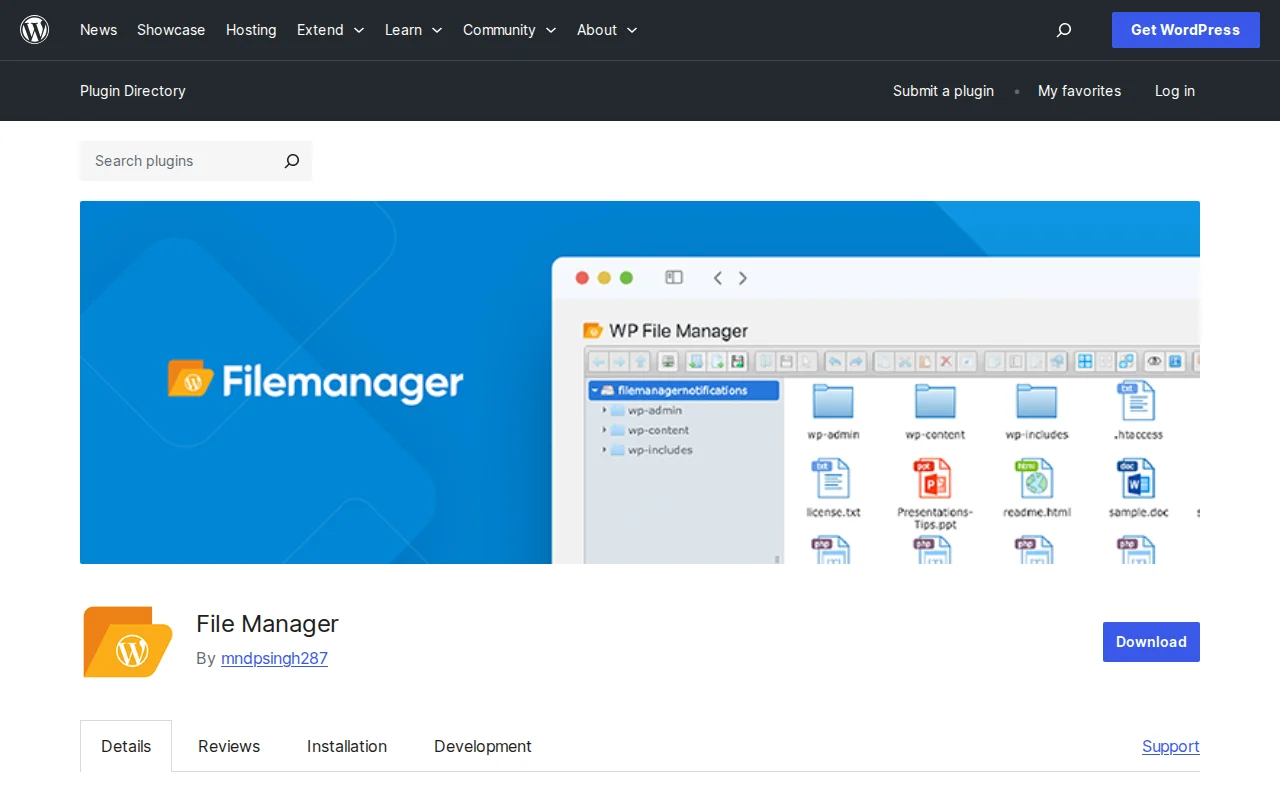
WP File Manager (plugin slug: wp-file-manager) is a WordPress plugin that gives you a full file manager interface directly inside your WordPress admin dashboard. Think of it as a browser-based version of your hosting control panel's file manager, but accessible from WordPress itself without needing to log into cPanel or configure an FTP client.
The plugin is built on the elFinder open-source file manager library — the same library that powers file managers in many hosting control panels. It has 700,000+ active installs and a 4.7/5 rating from over 1,400 reviews on WordPress.org as of 2026.
Key Features
Browse, Upload, Edit, and Delete Files
The core feature is a full file browser covering your entire WordPress installation. You can navigate folders, upload files via drag-and-drop, create new files and folders, rename items, move files between directories, and delete what you don't need — all without leaving the WordPress admin.
Built-In Code Editor
Double-click any PHP, CSS, JS, or HTML file and it opens in a code editor with syntax highlighting. This is genuinely useful for small, targeted edits like adjusting a theme's functions.php or tweaking a plugin's configuration. It's not a replacement for a proper IDE, but for quick fixes it beats downloading, editing, and re-uploading.
Archive Support
You can create zip archives directly from the file manager, compress folders for download, and extract zip files you've uploaded. This is handy for bulk uploads — upload a zip, extract in place, done — without needing shell access.
No FTP Required
This is the main selling point. If you're on shared hosting without easy SSH access, or you're managing a client site and don't have FTP credentials handy, WP File Manager gives you a workable alternative. For tasks like uploading a manually downloaded plugin or editing a config file, it's genuinely convenient.
Multi-File Operations
Select multiple files at once for bulk copy, move, delete, or compress operations. Drag and drop works across folders. The interface is responsive enough to use on tablets too.
Free vs. Pro
| Feature | Free | Pro (File Manager Pro) |
|---|---|---|
| Full file browser & operations | Yes | Yes |
| Built-in code editor | Yes | Yes |
| Archive (zip/extract) | Yes | Yes |
| Drag-and-drop upload | Yes | Yes |
| Role-based folder access | No | Yes |
| Private folders per user | No | Yes |
| Frontend shortcode access | No | Yes |
| Cloud storage (Google Drive, Dropbox, S3) | No | Yes |
| File type restrictions | No | Yes |
| Email notifications | No | Yes |
The free version covers everything a solo WordPress administrator needs. The Pro version at filemanagerpro.io adds value mainly if you're managing a multi-user site and need to control which users can access which folders.
The Security Problem You Need to Know About
I won't bury this. In September 2020, a critical vulnerability (CVE-2020-25213) in versions 6.0–6.8 of WP File Manager allowed completely unauthenticated attackers to upload files and execute arbitrary code. No login required. Over 700,000 sites were exposed, and the vulnerability was actively exploited in the wild within days of discovery. Attackers used it to install backdoors, deface sites, and steal data.
The vulnerability was patched in version 6.9, released the same day it went public. But it remains one of the most significant WordPress plugin vulnerabilities in recent memory, and it's worth understanding why it happened: the plugin included the elFinder library with a file (connector.minimal.php.dist) that was renamed to .php during installation, making it directly executable without any access control.
More recently, version 7.2.1 was flagged by Wordfence for sensitive information exposure via backup filenames. This is a lower severity issue, but it shows that the security posture of this plugin warrants ongoing attention.
Practical takeaways:
- Always keep WP File Manager updated. Version 8.0.2 (current as of 2026) has no known critical vulnerabilities.
- Use a security plugin like Wordfence or Solid Security to monitor for suspicious file changes.
- If you don't actively need it day-to-day, consider deactivating (not just closing the browser tab — actually deactivating) the plugin when you're not using it.
- On high-traffic or e-commerce sites where a breach would be catastrophic, weigh whether the convenience is worth the exposure.
Pros and Cons
Pros
- Eliminates the need for FTP or cPanel access for common file tasks
- Clean, intuitive interface — very little learning curve
- Built-in code editor with syntax highlighting
- Archive support (zip/extract) without shell access
- Free version covers everything most admins need
- 700,000+ installs and 4.7/5 rating — well-maintained plugin
Cons
- History of critical security vulnerabilities — the 2020 RCE was severe
- Any plugin with filesystem access is an attractive target for attackers
- Not suitable for sites where multiple non-admin users need controlled file access (use Pro for that)
- A misclick in the file manager can break your site just as effectively as a bad SSH command
- No version control — if you overwrite something, it's gone unless you have a backup
Who Should Use WP File Manager?
Good fit: Solo WordPress admins on shared hosting who occasionally need to edit files, upload manually downloaded plugins, or fix a theme file without setting up FTP. If you're managing a personal site or a handful of client sites and you trust yourself not to accidentally delete critical files, it's a legitimate convenience tool.
Not a good fit: High-traffic sites, WooCommerce stores processing real transactions, sites with sensitive user data, or any site where you have a reliable FTP workflow already in place. Also avoid if you're not disciplined about keeping plugins updated — a stale version of this plugin is a meaningful security liability.
Alternatives
FTP Clients (FileZilla, Cyberduck)
FileZilla is free, mature, and the gold standard for FTP access. The initial setup takes 10–15 minutes, but once configured you have direct access to all your files without running any additional software on your server. For sites where security is a priority, this is the safer approach — there's no attack surface on the WordPress side.
cPanel File Manager
If your host provides cPanel, you already have a fully-featured file manager at yourdomain.com/cpanel (or similar). It requires no plugin, runs outside WordPress, and is maintained by your hosting provider. I'd generally prefer this over WP File Manager for anything beyond quick edits.
WordPress Theme/Plugin Editors
WordPress has built-in theme and plugin file editors under Appearance → Theme File Editor and Plugins → Plugin File Editor. They're limited to theme and plugin files only, but for editing a functions.php or reviewing a plugin's code, they work fine without needing a third-party plugin.
SSH / WP-CLI
If your host supports SSH access, WP-CLI gives you powerful command-line control over WordPress — plugin management, database operations, file operations, and much more. Steeper learning curve, but the right tool for power users.
Frequently Asked Questions
Is WP File Manager safe to use in 2026?
The current version (8.0.2) has no known critical vulnerabilities. The dangerous 2020 RCE vulnerability was patched long ago. That said, any plugin with direct filesystem access carries inherent risk. Keep it updated, pair it with a security plugin, and consider deactivating it when not actively in use.
Does WP File Manager replace FTP?
For many everyday tasks — uploading files, editing configs, managing archives — yes, it's a practical FTP alternative. But it doesn't give you the speed or reliability of a dedicated FTP client for large file transfers, and it adds server-side risk that FTP doesn't. For occasional tasks it's fine; for heavy file management, use a proper FTP client.
Is the free version enough?
For a single-admin WordPress site, yes. The free version gives you everything you need: full file browsing, drag-and-drop uploads, code editing, and archive management. The Pro version is only worth it if you need role-based folder access for multiple users or cloud storage integration.
What's the best alternative to WP File Manager?
For most sites, your hosting control panel's built-in file manager (cPanel, DirectAdmin, etc.) is the best no-plugin alternative. For heavy use, FileZilla is the FTP client I'd recommend. If you want another WordPress plugin option, Advanced File Manager is a solid alternative with a similar feature set.
My Verdict
WP File Manager is a well-made plugin that solves a real problem: it makes file management accessible to WordPress users who don't have FTP set up. For a personal site or low-stakes project, it's a reasonable tool to have in your toolkit. For anything where security matters — and that's most sites — go in with clear eyes about its vulnerability history, keep it updated religiously, and seriously consider whether your hosting control panel's file manager wouldn't serve you just as well without the added attack surface.
If you're building out your WordPress toolkit, also check out my guides on the best WordPress security plugins and must-have WordPress plugins to make sure your site is covered on all fronts.
Sources: WordPress.org — WP File Manager · Wordfence — File Manager 7.2.1 Vulnerability · Palo Alto Unit 42 — CVE-2020-25213

Written by Marvin
Our team tests and reviews WordPress products to help beginners make confident choices.
Learn more about our team →You might also like
Best WordPress AI Chatbot Plugins in 2026 — 5 Options Compared
I checked the current WordPress AI chatbot plugin landscape and narrowed it to 5 realistic options: AI Engine, Tidio, Chatway, WPBot, and Smartsupp.
postWooPayments Review: WooCommerce's Built-In Payment Plugin
WooPayments lets you accept credit cards, Apple Pay, Google Pay, and more directly from your WordPress dashboard — no separate Stripe account needed. Here's what it does well, where it falls short, and when you should use the direct Stripe plugin instead.
postAutoptimize Review: Free Speed Plugin That Actually Works
Autoptimize minifies and combines your CSS, JavaScript, and HTML to make your WordPress site load faster. I cover what it does, how it compares to WP Rocket and LiteSpeed Cache, and whether the free version is enough.
postBest WordPress Monetization Plugins to Earn From Your Site
There are dozens of ways to make money with WordPress, but you need the right tools. I cover 6 monetization plugins I actually use and trust — for affiliate links, ads, digital products, and payments.