
How to Connect WordPress to Claude AI With the MCP Connector (2026 Guide)
If you use WordPress, this might be one of the biggest workflow upgrades you'll see this year.
Instead of opening your WordPress dashboard and spending the next 30 minutes clicking through posts, pages, plugins, and settings — you can now open Claude and say: "Show me my latest posts, compare my site to a competitor, and create a report I can send to a client."
And it actually does it.
WordPress now has an official Claude connector built on the Model Context Protocol (MCP) — and I think most people are seriously underestimating how big this is. This is the beginning of a completely different way to work with your website.
If you want a broader view of where Claude fits in the AI coding-agent landscape, ZeroToAIAgents has a strong Claude Code review plus an AI coding agent statistics guide that puts the current adoption and workflow trends into context.
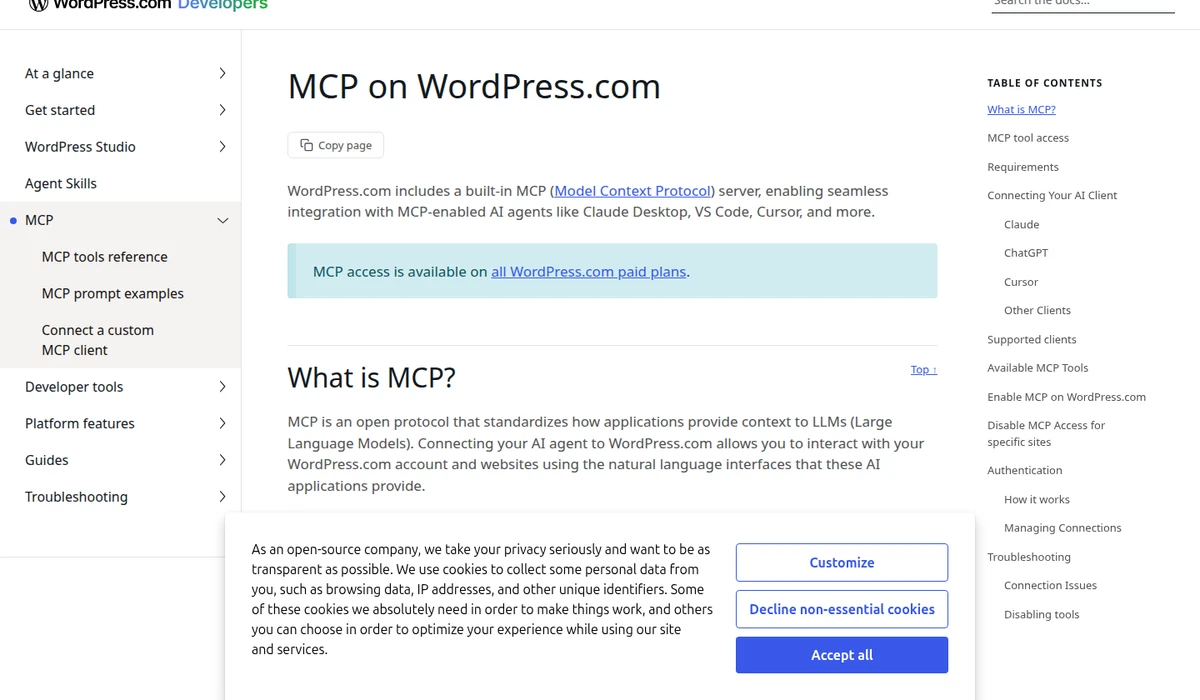
What Is the WordPress MCP Connector?
MCP (Model Context Protocol) is a standard that lets AI tools like Claude directly interact with external services. Think of it as a bridge between your WordPress site and Claude.
Once connected, you can:
- Ask questions about your site in plain English
- Generate landing pages, forms, and content
- Create SEO reports and accessibility audits
- Compare your site to competitors
- Manage content across multiple WordPress sites
No code. No plugins to configure. Just a conversation.
How to Set It Up (3 Simple Steps)
The setup is easier than most people expect. You don't need to be technical — this takes about 5 minutes.
Step 1: Install Claude Desktop
Download Claude Desktop for Mac or Windows. Install it and sign in with your Anthropic account.
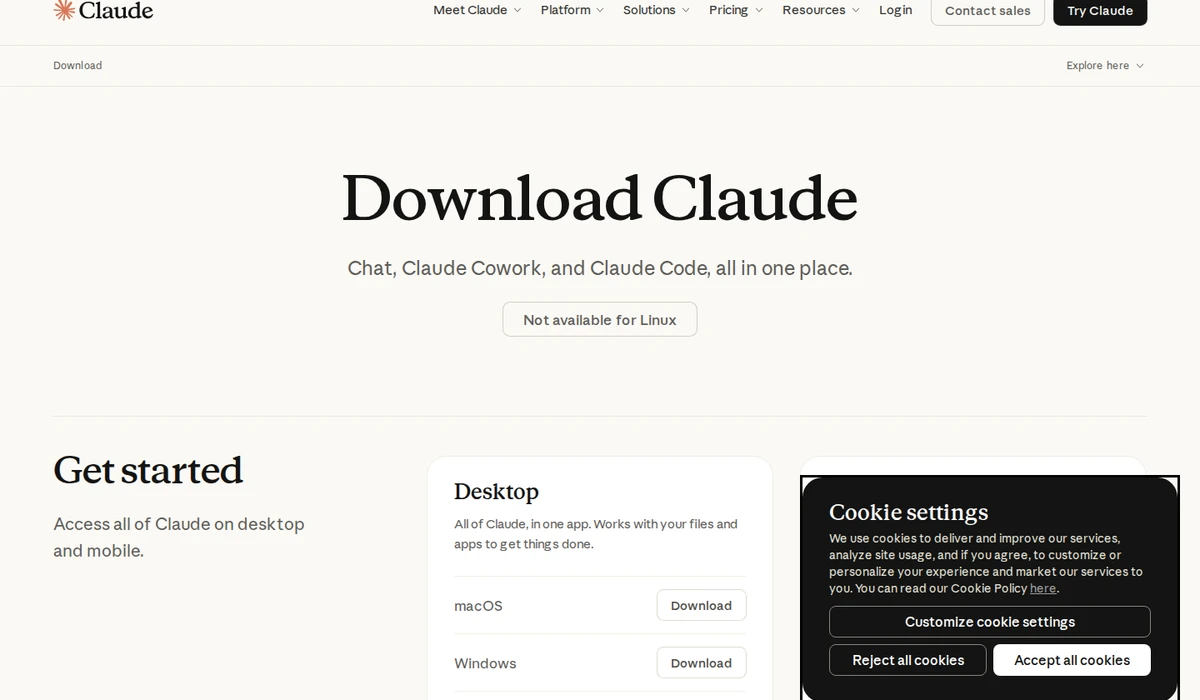
Claude has a free plan that's enough to test this out. If you end up using it heavily, you may want to upgrade to Pro or Max later.
Step 2: Enable MCP on WordPress.com
Log in to your WordPress.com account and open your profile. On the left side, you'll see an option called MCP. Click it and enable MCP tool access.
That's the switch that allows WordPress to talk to Claude.
Note: This currently works with WordPress.com hosted sites. If you're running self-hosted WordPress, you'll need a plugin that supports MCP — check the WordPress MCP documentation for updates. For a full technical walkthrough of connecting Claude Desktop (or any MCP client) to WordPress through the official adapter, see my complete MCP setup guide for AI agents and WordPress.
Step 3: Connect in Claude
Open Claude Desktop, go to Settings → Connectors, browse the available connectors, search for WordPress.com, and click Connect. Approve the connection — and you're done.
Your WordPress site is now linked to Claude. You can start interacting with your website in simple English.
5 Practical Ways to Use It Right Now
Here's where it gets interesting. These are real use cases you can try today.
1. Ask Questions About Your Site
This sounds basic, but it's genuinely useful. You can say things like:
- "What content was published this week?"
- "Show me all draft posts"
- "What changes were made to the site in the last 30 days?"
If you manage multiple sites or work with clients, this saves real time. Instead of clicking through the dashboard trying to find what changed, you just ask.
2. SEO Competitor Analysis
This is where things get strategic. You can ask Claude to compare your site to a competitor and suggest an SEO plan:
"Compare my site to [competitor URL] and identify content gaps I should fill."
Claude will analyze your existing content, compare it to the competitor, and suggest topics you're missing. Whether you're a freelancer, agency owner, or small business — that's incredibly valuable insight you'd normally pay for.
Want to take your WordPress SEO even further? Combine this with a solid SEO plugin and you've got a powerful workflow.
3. Generate Landing Pages
Instead of starting from scratch with a page builder, you can say:
"Create a landing page for my spring sale with a hero section, three product features, testimonials, and a call to action."
Claude generates a complete page — not just rough copy, but an actual structured page you can publish. This is especially useful if you're starting a new blog and need pages fast.
4. Build Forms and CTAs
Need a contact form? A newsletter signup? A promotional banner across multiple sites?
"Create a contact form with name, email, and message fields."
Claude doesn't just write the copy — it wires the form into your site's existing systems. And if you manage multiple WordPress sites, you can coordinate promotions across all of them from a single conversation.
This is also where the distinction between a simple AI assistant and a real coding agent starts to matter. If you're comparing those approaches in more depth, the Claude Code review on ZeroToAIAgents is worth reading after this tutorial.
5. Generate Client Reports
If you build or manage WordPress sites for clients, this might be the most valuable use case. You can ask Claude to:
- Create an SEO performance report as a PDF
- Run an accessibility audit with actionable fixes
- Summarize all site activity (changes, new content, who did what)
The hard part of client reporting has never been getting the data — it's turning data into something clear and professional. Claude handles that formatting for you, complete with charts and structured sections.
What's Coming Next
Right now, the connector is mostly about reading and generating — asking questions, creating content, and building reports. But what's coming is even more interesting.
The next phase will let you directly edit your site through Claude. Update pages, change settings, manage plugins — all through conversation.
Once that becomes normal, WordPress stops being a dashboard you click through. It becomes a conversation you have.
Who Is This For?
This connector is especially useful if you:
- Manage multiple WordPress sites — coordinate content and campaigns from one place
- Work with clients — generate professional reports without the manual formatting
- Create content regularly — speed up page and post creation
- Want better SEO insights — get AI-powered competitor analysis without expensive tools
- Are a beginner — interact with WordPress without learning the dashboard first
If you're still getting started with WordPress, check out our complete guide to building a WordPress website — the MCP connector makes the whole process even smoother.
Bottom Line
The WordPress MCP connector isn't replacing WordPress. It's making WordPress easier to use.
Even in this early version, the practical value is real — from quick site check-ins to full SEO reports. And once direct editing arrives, this becomes a completely new way to manage your website.
It takes 5 minutes to set up. There's nothing technical involved. And it gives you a completely new interface for working with your site.
If you use WordPress, this is absolutely worth trying.

Written by Marvin
Our team tests and reviews WordPress products to help beginners make confident choices.
Learn more about our team →You might also like
How to Use OpenClaw with WordPress — 5 Powerful Use Cases (2026)
OpenClaw is the most popular open-source AI agent on GitHub — and it can manage your entire WordPress site. Here are 5 real use cases that save hours of work every week.
postHow to Connect AI Agents to WordPress: Complete MCP Setup Guide (2026)
A practical walkthrough of connecting Claude Desktop (or any MCP client) to WordPress using the official WordPress MCP Adapter, with real config, auth, and security notes.
postHow to Set Up Email for Your WordPress Site (Stop Emails Going to Spam)
Your WordPress emails are probably going to spam right now. I've fixed this on hundreds of sites, and it takes about 10 minutes. Here's exactly how to set up SMTP so your contact forms, password resets, and notifications actually reach the inbox.
postHow to Start a Blog with WordPress (Complete 2026 Guide)
Starting a blog has never been easier or more rewarding. I've launched over a dozen blogs since 2006, and I'll walk you through the exact 7-step process to go from zero to your first published post — plus how to get your first 1,000 visitors and actually make money from your blog.