
How to Use OpenClaw with WordPress — 5 Powerful Use Cases (2026)
I've been testing OpenClaw on my WordPress sites for the past few weeks. After letting it generate 50+ knowledge base pages, optimize my SEO across the board, and write WooCommerce product descriptions from product images alone — I'm convinced this isn't just another AI tool. It's a genuine productivity multiplier.
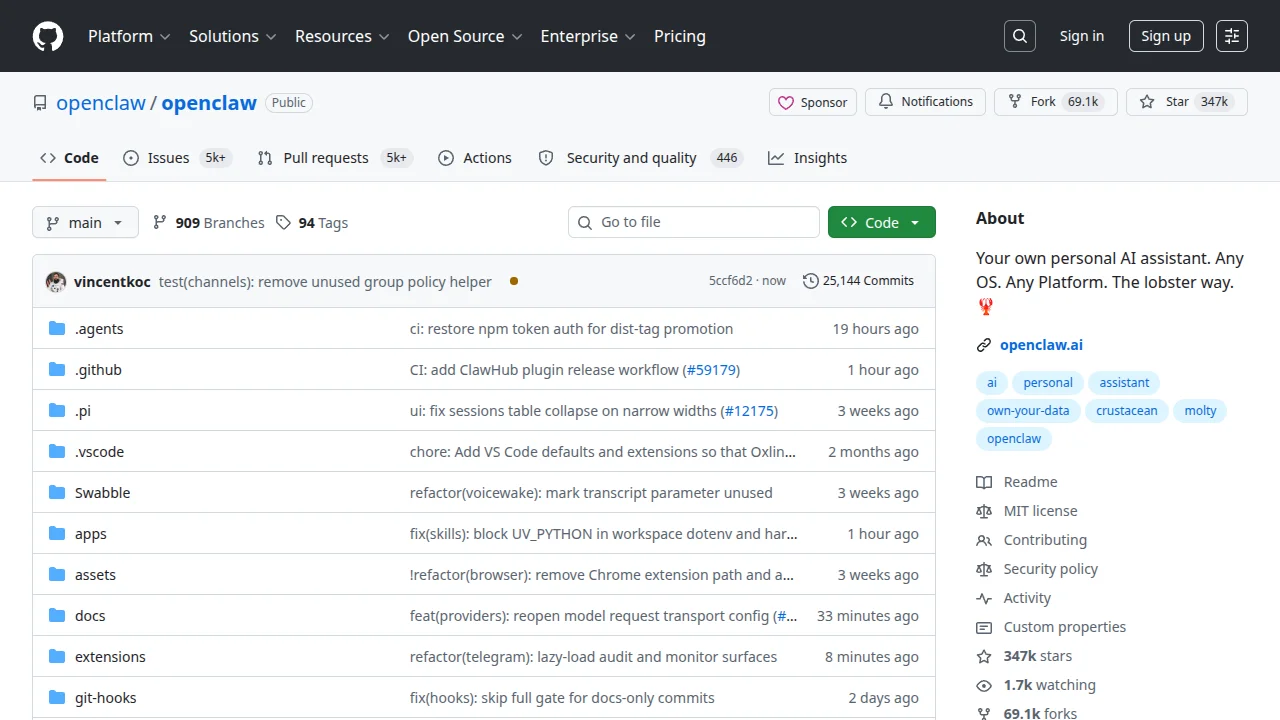
If you haven't heard of it yet: OpenClaw is an open-source AI agent with 347,000+ stars on GitHub, making it the most popular personal AI agent project in the world. Unlike ChatGPT where you ask questions and get answers, OpenClaw actually does things. It logs into your WordPress site and executes tasks autonomously — while you chat with it on Telegram.
If you're comparing agent-style tools more broadly, ZeroToAIAgents has useful context in its Claude Code review, Cursor review, and the newer AI coding agent statistics guide.
In this guide, I'll skip the generic setup walkthrough (there are plenty of those) and focus on what actually matters: 5 real WordPress use cases where OpenClaw saves hours of tedious work. I'll show you exactly what prompts to use, what to expect, and where to watch out.
If you're looking for a lighter option that doesn't require a VPS, check out my guide on connecting WordPress to Claude AI via MCP — it's simpler but less powerful. For a deeper technical setup that wires Claude Desktop (or any MCP client) directly into WordPress via the official adapter, see my WordPress MCP setup guide.
What Is OpenClaw?
OpenClaw is a free, open-source AI agent that runs on your own hardware — either a VPS or your personal computer. Think of it as a digital assistant that doesn't just answer questions but actually takes action. It can browse the web, read and write files, execute commands, and interact with any service that has an API — including WordPress.
Here's what sets it apart from other AI tools:
- Always-on — runs 24/7 on a VPS, executing scheduled tasks even when you're asleep
- Chat-based — you communicate via Telegram, WhatsApp, Discord, or 20+ other messaging apps
- Model-agnostic — works with Claude, GPT-4o, Gemini, DeepSeek, or local models
- Extensible — thousands of community-built Skills for everything from WordPress management to email automation
- Private — runs on your own infrastructure, your data never leaves your server
Here's how it compares to other AI options for WordPress:
| Feature | ChatGPT | Claude MCP | OpenClaw |
|---|---|---|---|
| Answers questions | Yes | Yes | Yes |
| Executes tasks on your site | No | Limited | Yes |
| Runs 24/7 autonomously | No | No | Yes |
| Scheduled tasks (cron) | No | No | Yes |
| Open source | No | No | Yes (MIT) |
| Typical monthly cost | $20/month | $20/month | ~$10–35/month |
Quick Setup Overview
I'm not going to walk you through every click — Hostinger's setup guide does that well. Here's the gist:
1. Get a VPS
OpenClaw needs a server that's always on. You can run it on your own computer, but then it only works when your machine is running — and it has access to all your files, which I'm not comfortable with for security reasons.
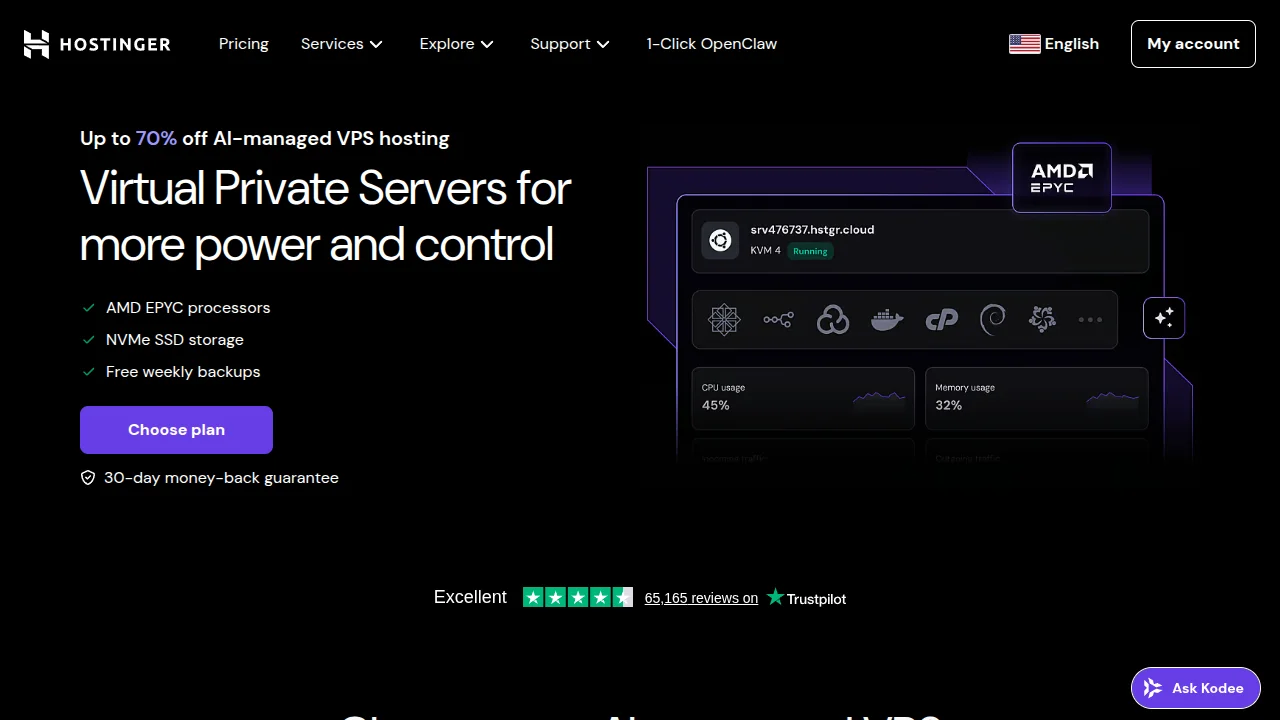
A VPS (Virtual Private Server) solves both problems. It runs 24/7 and keeps OpenClaw sandboxed away from your personal files. Hostinger has a one-click OpenClaw deployment template that makes setup trivial — their KVM 1 plan ($3–5/month) is more than enough for what we're doing.
2. Get an API Key
OpenClaw needs an AI model to think with. I use Anthropic's Claude API — start with $5 in credits, though I'd recommend $40+ so you get higher rate limits (250,000 tokens/minute vs. 30,000). You can always configure OpenClaw to use cheaper models for simple tasks to keep costs down.
3. Connect a Messaging App
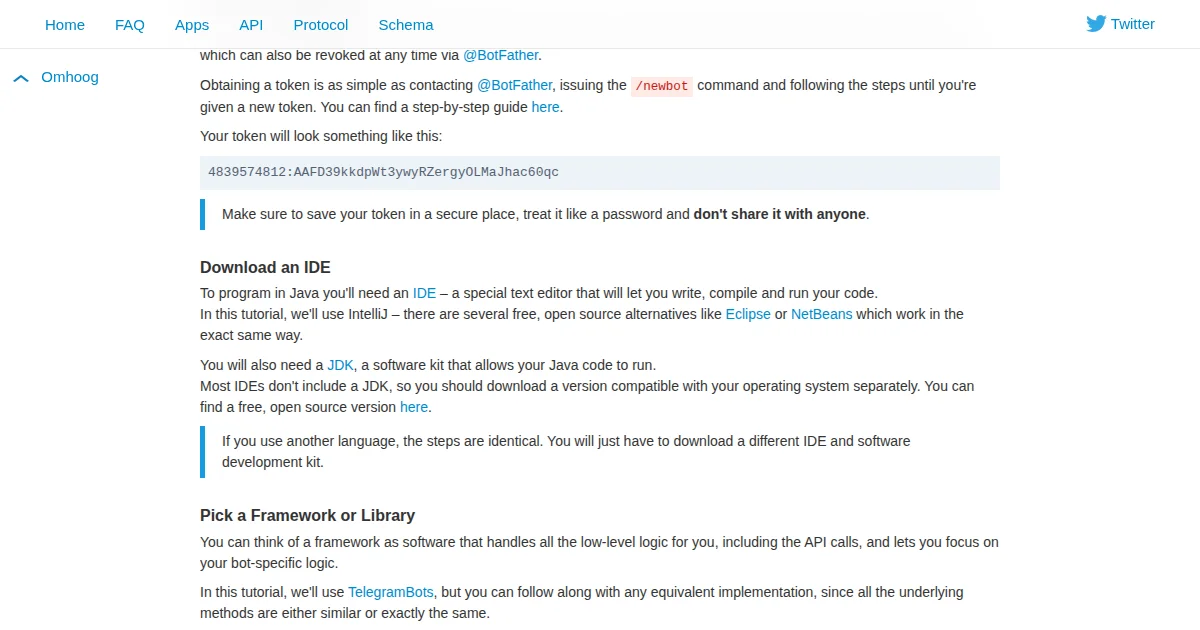
Telegram is the most straightforward option. You create a bot through Telegram's BotFather — just send the /newbot command, pick a name, and you get a token. Paste that token into OpenClaw, and you're chatting with your agent within minutes.
4. Install WordPress Skills
OpenClaw uses Skills — plugins that extend what it can do. For WordPress, you'll want the WordPress agent skills. Just tell OpenClaw in your chat:
"Install the WordPress skills from the official Skills registry."
OpenClaw will clone the repository, configure the skills, and confirm when they're ready. This gives it specialized WordPress capabilities beyond the standard REST API — things like WP-CLI access, plugin management, and theme operations.
5. Connect WordPress
This is the part that matters for us. Go to your WordPress dashboard → Users → Profile → scroll down to Application Passwords. Type a name (e.g., "OpenClaw"), click Add Application Password, and copy the generated password. Then tell OpenClaw your site URL plus the application password. It connects in seconds.
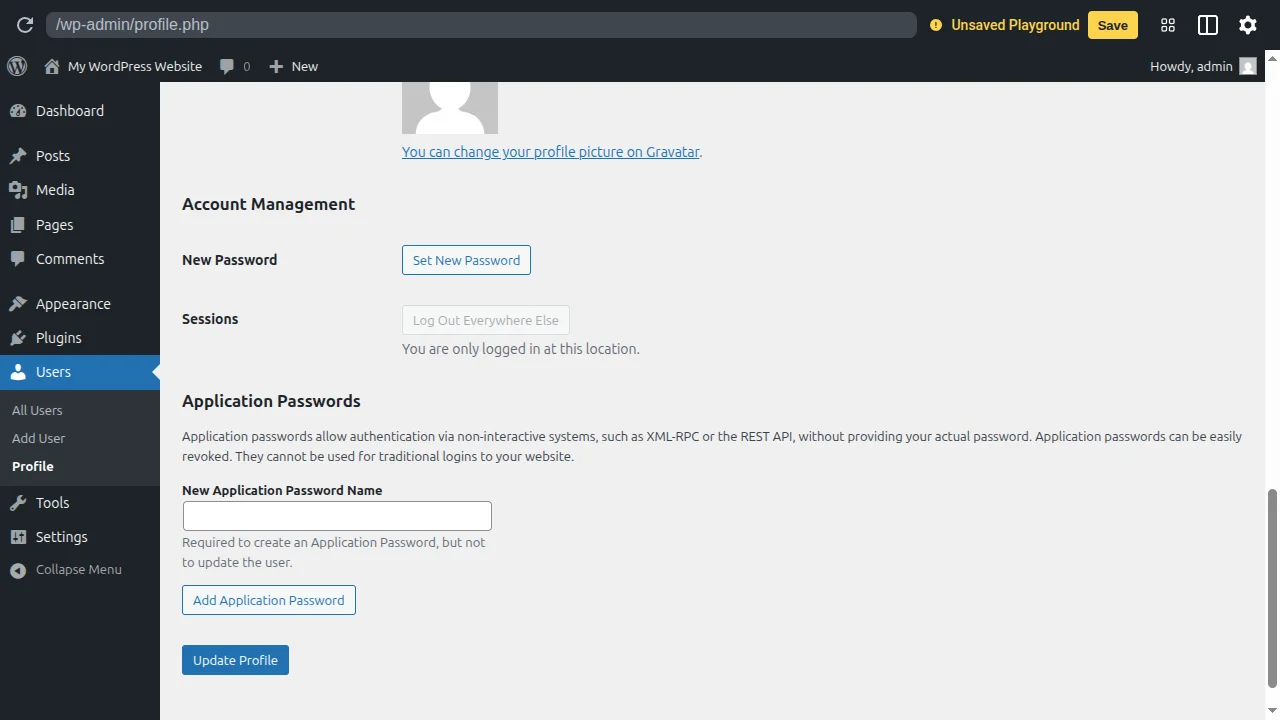
Security tip: Never share your main WordPress password. Application Passwords can be revoked at any time without affecting your actual login. I always revoke them when I'm done with a session. More on security below.
Now let's get to the good stuff — what can OpenClaw actually do with your WordPress site?
Use Case 1: Bulk Content Creation
This is where OpenClaw first blew my mind. I had a knowledge base section on one of my sites that had been sitting half-empty for months. I knew I needed the content, but manually writing 50 individual entries about WordPress terminology? I kept putting it off.
With OpenClaw, I generated 52 knowledge base pages in about 40 minutes. Each page matched my existing content style because OpenClaw first analyzed my existing entries before creating new ones.
Here's a prompt that works well:
"Look at my knowledge base page about affiliate marketing at [URL]. I want to add 2 entries per letter of the alphabet covering WordPress, web design, and AI topics. Match the existing writing style and length. Publish each as a new page."
OpenClaw will:
- Analyze your existing content style and formatting
- Generate entries that match your site's voice
- Publish directly to WordPress with proper formatting
- Add featured images, categories, and tags
The cost? For 52 pages using a mix of Sonnet and Opus, I spent roughly $2–4 in API credits. It would have taken me days to write all of this manually.
Important E-E-A-T note: Always review AI-generated content before it goes live. I recommend telling OpenClaw to save everything as drafts first, then batch-reviewing before publishing. AI is a first-draft machine — not a publish-and-forget tool. Add your own experiences and verify any factual claims.
Use Case 2: SEO Optimization at Scale
This one's practical. You have 50+ posts but haven't properly optimized them — no focus keywords, missing meta descriptions, no internal links between related posts, missing featured images on some.
Doing this manually means opening every single post, analyzing the content, picking a keyword, writing a meta description, finding related posts to link to. For 50 posts, that's easily a full day of work.
OpenClaw can do it in one session. Here's the prompt I use:
"Optimize all my knowledge base pages for SEO. Each page needs: a focus keyword set in Yoast SEO, a featured image, at least one external link in the content body, and an internal link to a related page on my site. Give me a before/after report when you're done."
What happened on my site:
- Every page got a relevant focus keyword
- Featured images were generated and assigned
- External links to authoritative sources were added naturally in the content
- Pages went from "needs improvement" to green in the SEO plugin
The before/after report is key — it gives you a clear overview of what changed so you can spot-check the work. I found that OpenClaw occasionally picks suboptimal keywords, so I manually adjusted about 10% of them. Still saved me hours.
If you want to learn more about WordPress SEO fundamentals, my WordPress SEO guide covers the strategy side in depth.
Use Case 3: WooCommerce Product Descriptions
If you run a WooCommerce store, you know the pain. Every product needs a unique short description and a compelling long description. If you have 20+ products with placeholder text or thin descriptions, it's killing your conversions.
Here's what makes this use case special: OpenClaw can analyze your product images — both the featured image and the gallery — and generate descriptions based on what it sees.
"Give all products in my store a long and short description based on the featured image and gallery images. The goal is to make more sales — focus on benefits, not just features. Update each product directly."
On a test store with 23 products, OpenClaw:
- Analyzed each product's images to understand what it was
- Wrote unique short descriptions (2–3 sentences, benefit-focused)
- Wrote detailed long descriptions (features, use cases, materials)
- Updated all 23 products in 22 minutes
- Total cost: roughly $0.20–0.45 in API credits
Caution: Always review product descriptions for accuracy. AI can misidentify product details from images — I caught it calling a navy sweater "black" and describing a cotton blend as "100% organic cotton." Quick review, quick fix.
Use Case 4: Local SEO Page Generation
This one's specifically for web agencies and local businesses. You rank for "web design agency Amsterdam" but you're missing traffic from people searching for "web design agency Rotterdam", "web design agency Utrecht", and so on.
Creating location-specific landing pages for 10–15 cities is tedious but effective. OpenClaw can take your main city page as a template and generate localized variations in minutes.
"Make the homepage more focused on Amsterdam — include it in the H1. Then create 12 separate pages for the biggest cities in the Netherlands. Copy the homepage structure but replace Amsterdam with each city. Use clean URLs: /web-design-rotterdam, /web-design-utrecht, etc."
OpenClaw created 12 city pages in under 2 minutes. Each one had the city name in the H1, adjusted references throughout the content, and a clean URL structure.
SEO warning: Google's Helpful Content guidelines penalize thin, templated city pages. Use OpenClaw's output as a starting point, then add unique local content to each page — local testimonials, case studies, photos, neighborhood-specific references. A page that just swaps "Amsterdam" for "Rotterdam" won't rank well and could hurt your overall site quality.
Use Case 5: Full Site Audit & Auto-Fix
This might be the most impressive use case. Instead of giving OpenClaw a specific task, you ask it to analyze your entire website and tell you what's wrong.
"Analyze my website at [URL]. What are all the things I should do to optimize it for search engines and AI search results? Be straightforward. Don't hold anything back."
When I ran this on a test site, OpenClaw came back with a detailed audit:
- Homepage title too generic — rewrote it with targeted keywords
- Homepage content thin — expanded the intro paragraph
- About page missing entity information — added structured about content
- No llms.txt file — created one so AI search engines can understand the site (I didn't even know this was a thing until OpenClaw flagged it)
- Missing schema markup — added person schema, website schema, and video schema on tutorial pages
- No blog activity visible — flagged content freshness as an issue
After I reviewed and approved the changes, OpenClaw executed all fixes in one session. A full-site SEO audit that would take a consultant hours happened in minutes.
Critical: Always review proposed changes before approving. OpenClaw can break things if it misunderstands your site structure. I once had it overwrite a custom homepage layout because it interpreted "improve the homepage" too literally. Review first, approve second.
For broader WordPress security hardening beyond what OpenClaw handles, see my complete WordPress security guide.
Bonus: Automate Comment Moderation
This one isn't flashy, but it saves time every single day. If your site gets any traffic, you're dealing with comments — and at least half of them are spam. Manually approving legitimate comments and trashing spam is one of those tasks that takes 5 minutes but drains your energy.
OpenClaw handles this through the WordPress REST API's comment endpoint (/wp-json/wp/v2/comments). You can set up rules or just tell it what to do:
"Check all pending comments on my site. Approve comments that are genuine and relevant. Trash any comment that contains external links, is obviously spam, or is off-topic. Give me a summary when you're done."
You can even set this up as a scheduled cron job — have OpenClaw check for new comments every morning and handle them before you've had your coffee. It's one of those low-effort automations that compounds over time.
How OpenClaw Communicates with WordPress
Under the hood, OpenClaw talks to your WordPress site through the WordPress REST API. Understanding this helps you troubleshoot issues and write better prompts.
Here's what happens when OpenClaw updates a blog post:
- GET request to
/wp-json/wp/v2/posts— fetches the current content - AI processing — the language model analyzes the content and generates improvements
- Before/after comparison — OpenClaw shows you what changed (if you ask for it)
- PUT request — saves the updated content back to WordPress
The same pattern applies to other content types:
| Content Type | REST API Endpoint | What OpenClaw Can Do |
|---|---|---|
| Posts | /wp-json/wp/v2/posts | Create, update, delete, change status |
| Pages | /wp-json/wp/v2/pages | Create landing pages, update content |
| Comments | /wp-json/wp/v2/comments | Approve, trash, reply, bulk moderate |
| Users | /wp-json/wp/v2/users | Create accounts, change roles |
| Media | /wp-json/wp/v2/media | Upload images, set featured images |
| WooCommerce Products | /wp-json/wc/v3/products | Update descriptions, prices, inventory |
This means anything the REST API exposes, OpenClaw can interact with. And with WordPress Skills from the community — like WooClaw-Lite for WooCommerce — you get even deeper integration beyond what the standard API offers.
What Does It Actually Cost?
OpenClaw itself is free — it's MIT-licensed open source. Your costs come from two things: the VPS and the AI model API credits.
| Expense | Monthly Cost | Notes |
|---|---|---|
| VPS (Hostinger KVM 1) | $3–5 | More than enough for OpenClaw |
| API credits (moderate use) | $5–30 | Depends on model + usage |
| Total | $10–35 | For most WordPress users |
Save Money with Model Routing
Here's a trick that can cut your API costs by 50–80%: configure OpenClaw to use cheaper models for simple tasks and only escalate to expensive models for complex analysis.
You can tell OpenClaw directly:
"For daily tasks like comment moderation, content drafts, and simple edits, use Sonnet 4.6. Only use Opus 4.6 for complex analysis, full site audits, and tasks that require deep reasoning."
| Task Type | Recommended Model | Approx. Cost Per Task |
|---|---|---|
| Content generation | Sonnet 4.6 | ~$0.01 |
| SEO audit | Opus 4.6 | ~$0.10 |
| Product descriptions | Sonnet 4.6 | ~$0.005 |
| Site-wide analysis | Opus 4.6 | ~$0.15 |
| Comment moderation | Haiku 4.5 | ~$0.001 |
Security: Keep Your WordPress Site Safe
Let's be real: you're giving an AI agent write access to your WordPress site. That's powerful, but it demands respect. OpenClaw has had real security issues — including CVE-2026-25253, a WebSocket hijacking vulnerability that was patched in early 2026, and researchers finding 341 malicious Skills on ClawHub.
Follow this checklist:
- Use Application Passwords, never your main login. Generate a dedicated Application Password in WordPress and revoke it when you're done.
- Create a dedicated WordPress user. Give it an Editor role (not Administrator) when possible. This limits what OpenClaw can do if something goes wrong.
- Revoke access when not in use. If you're not actively running OpenClaw tasks, revoke the Application Password. You can generate a new one in seconds.
- Enable loop protection. Tell OpenClaw to stop after 3 failed attempts on any task. This prevents runaway API costs if it gets stuck in a retry loop.
- Keep OpenClaw updated. Security patches matter. The CVE-2026-25253 fix landed in v2026.1.29 — if you're running anything older, update immediately.
- Don't expose your VPS gateway to the public internet. Keep it behind a firewall and only accessible via your messaging app.
- Only install Skills from trusted sources. Stick to the official Skills registry and check reviews before installing community Skills.
- Review all changes before publishing. For content tasks, save as draft first. For site-wide changes, ask for a report before approving execution.
For more on securing your WordPress installation, check my guide on the best WordPress security plugins.
OpenClaw vs. Claude MCP — Which One?
I've written about both — here's my honest take on when to use which.
| Claude MCP | OpenClaw | |
|---|---|---|
| Best for | Quick queries, reports, one-off tasks | Ongoing automation, scheduled tasks |
| Runs 24/7 | No (only when Claude is open) | Yes (VPS) |
| Setup difficulty | Easy (5 minutes) | Moderate (30 minutes) |
| Monthly cost | ~$20 (Claude Pro) | ~$10–35 (VPS + API) |
| Autonomous tasks | No | Yes (cron, webhooks) |
| Open source | No | Yes |
My recommendation: If you just want to ask your site questions and generate occasional reports, the Claude MCP connector is simpler and faster to set up. If you want an always-on assistant that handles recurring tasks autonomously — content creation, SEO monitoring, comment moderation, scheduled reports — OpenClaw is the way to go.
If you're still weighing editor-based agents versus autonomous task-runners, the side-by-side coverage on ZeroToAIAgents is helpful — especially the Claude Code review, the Cursor review, and the AI coding agent statistics page.
You can also use both. I use Claude MCP for quick ad-hoc queries and OpenClaw for anything that requires ongoing automation.
Frequently Asked Questions
Is OpenClaw free?
The software is 100% free and open source (MIT license). You pay for VPS hosting (~$3–5/month) and AI API credits (~$5–30/month depending on usage and model choice).
Can OpenClaw break my WordPress site?
It has write access, so yes — it can make unwanted changes. That's why you should always review changes before publishing, use Application Passwords you can revoke, and create a dedicated user with limited permissions. If something does go wrong, your hosting provider's daily backups can restore your site.
Which AI model should I use with OpenClaw?
Sonnet 4.6 for most daily tasks — it's fast, capable, and affordable. Opus 4.6 for complex analysis like full site audits. Configure model routing to automatically use the right model for each task type.
Does OpenClaw work with WooCommerce?
Yes. It connects via the WordPress REST API, which includes WooCommerce endpoints. There's also a community Skill called WooClaw-Lite that adds deeper WooCommerce integration for order management, inventory tracking, and customer communication.
Is OpenClaw safe to use?
With proper setup — dedicated user, Application Passwords, loop protection, updated version — yes. Don't expose the gateway publicly, don't install untrusted Skills, and always review changes before approving them. See the security section above for the full checklist.
How is OpenClaw different from ChatGPT?
ChatGPT is a conversation tool — you ask, it answers. OpenClaw is an agent — you give it a task, and it executes it autonomously. It can log into your WordPress site, create content, modify settings, run scheduled tasks, and report back to you via Telegram or WhatsApp.

Written by Marvin
Our team tests and reviews WordPress products to help beginners make confident choices.
Learn more about our team →You might also like
How to Connect AI Agents to WordPress: Complete MCP Setup Guide (2026)
A practical walkthrough of connecting Claude Desktop (or any MCP client) to WordPress using the official WordPress MCP Adapter, with real config, auth, and security notes.
postHow to Set Up Email for Your WordPress Site (Stop Emails Going to Spam)
Your WordPress emails are probably going to spam right now. I've fixed this on hundreds of sites, and it takes about 10 minutes. Here's exactly how to set up SMTP so your contact forms, password resets, and notifications actually reach the inbox.
postHow to Start a Blog with WordPress (Complete 2026 Guide)
Starting a blog has never been easier or more rewarding. I've launched over a dozen blogs since 2006, and I'll walk you through the exact 7-step process to go from zero to your first published post — plus how to get your first 1,000 visitors and actually make money from your blog.
postWooCommerce AI Automation: How to Run Your Store With AI in 2026
A practical guide to WooCommerce AI automation in 2026: the real tools, the working AI agent setups, and the parts of your store you should never hand over to a bot.