
How to Set Up Email for Your WordPress Site (Stop Emails Going to Spam)
Let me tell you something that took me way too long to figure out when I started building WordPress sites back in 2006: WordPress email is broken by default. Not "kind of broken" or "occasionally unreliable" — genuinely, fundamentally broken. Out of the box, WordPress uses PHP's built-in mail() function to send emails, and on most hosting providers, those emails either land in the spam folder, get silently dropped, or never leave the server at all.
I learned this the hard way when a client called me furious because they'd been missing contact form submissions for weeks. Their potential customers were filling out forms, clicking submit, getting a "thank you" message — and the emails were vanishing into thin air. Password reset emails? Gone. WooCommerce order confirmations? Spam folder. New user registration notifications? Never delivered. The site looked like it was working perfectly, but behind the scenes, it was hemorrhaging leads and frustrating visitors.
The good news is that fixing this takes about 10 minutes. You need an SMTP plugin and a free email sending service, and once you've set them up, your emails will be authenticated, trusted by email providers, and consistently delivered to the inbox. I've done this on hundreds of WordPress sites, and I'm going to walk you through the exact process right now.
Why WordPress Emails Go to Spam (The Real Problem)
Here's the technical explanation in plain English: when WordPress sends an email using PHP mail(), it's essentially sending an unsigned, unauthenticated message from your web server. Think of it like mailing a letter with no return address — the post office (Gmail, Outlook, Yahoo) has no way to verify that it's actually coming from your domain. So they either dump it in spam or reject it outright. This is by far the most common WordPress setup mistake I see beginners make, because nobody tells you about it during installation.
SMTP (Simple Mail Transfer Protocol) solves this by routing your WordPress emails through a proper email service that authenticates every message. Instead of your web server pretending to be an email server, your emails get sent through a dedicated provider like Brevo, SendLayer, or Gmail's SMTP servers — services that have established reputations with inbox providers. It's the difference between shouting into the void and handing a stamped, addressed letter to a trusted courier. The inbox providers see the authentication (SPF, DKIM, and DMARC records) and think "okay, this is legitimate" instead of "this looks like spam, trash it."
Method 1: WP Mail SMTP + Brevo (My Recommended Setup)
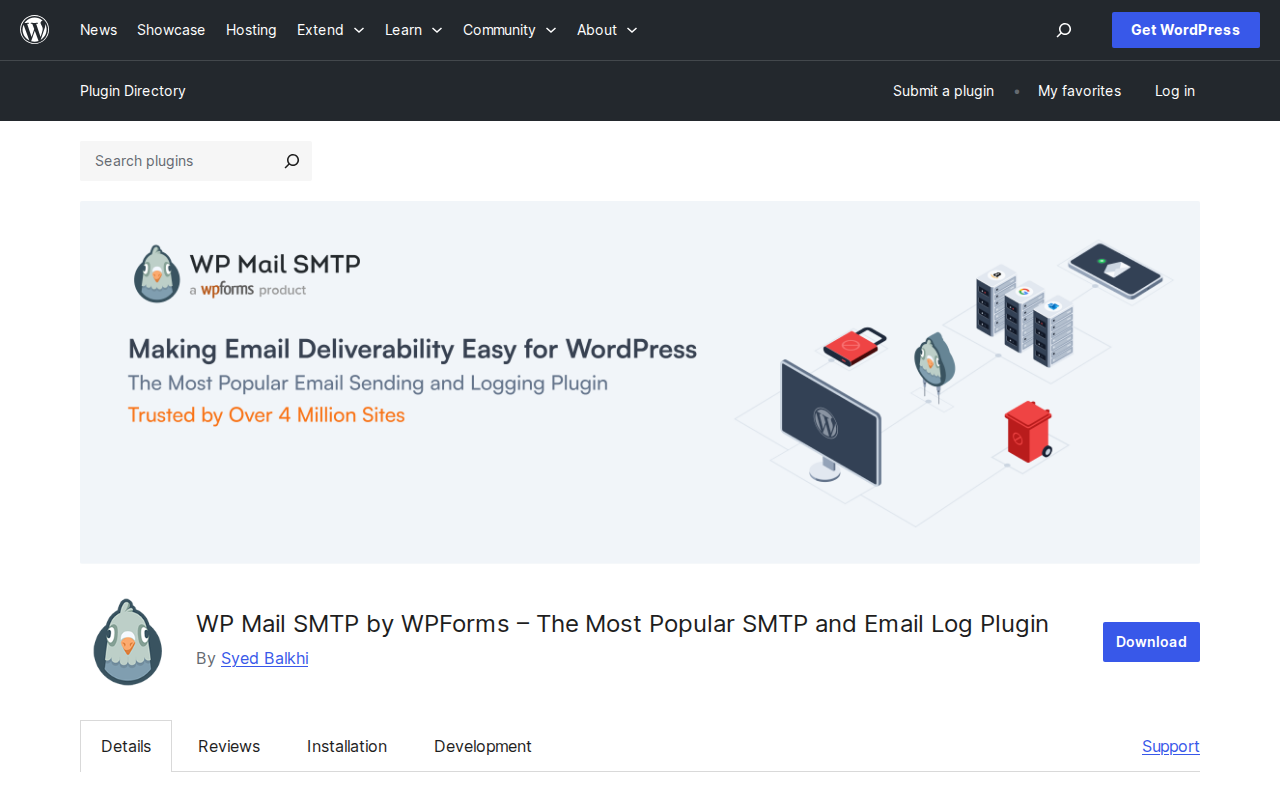
I've tested every major SMTP plugin and email service combination over the years, and for most WordPress sites, the winning combo is WP Mail SMTP paired with Brevo (formerly Sendinblue). WP Mail SMTP has over 4 million active installations and a 4.8-star rating for a reason — it's the most battle-tested option available. Brevo gives you 300 free emails per day, which is more than enough for any blog or small business site. Here's exactly how to set it up.
Step 1: Install WP Mail SMTP
From your WordPress dashboard, go to Plugins → Add New and search for "WP Mail SMTP". It's the one by WPForms with millions of installs — you can't miss it. Click Install Now, then Activate. The plugin will immediately launch a setup wizard, but I'm going to walk you through the manual setup because I think it's important to understand what each setting does. You can skip the wizard by clicking the "Go back to the Dashboard" link at the bottom.
Step 2: Create a Free Brevo Account
Head over to Brevo.com and sign up for a free account. You don't need a credit card — the free tier gives you 300 emails per day, which handles contact form submissions, password resets, WooCommerce order emails, and comment notifications with plenty of headroom. During signup, Brevo will ask you to verify your email address and provide some basic information about your business. Complete those steps to get to your dashboard.
Step 3: Get Your Brevo API Key
Once you're in the Brevo dashboard, navigate to the top-right menu and click on SMTP & API (or go to Settings → Keys → API Keys). Click the Generate a new API key button. Give it a name like "WordPress Site" so you can identify it later. Copy this API key immediately — Brevo only shows it once. If you lose it, you'll need to generate a new one. I always paste mine into a temporary note before doing anything else.
Pro tip: While you're in Brevo, go to Settings → Senders & IPs → Senders and add the email address you want WordPress to send from (like info@yourdomain.com or hello@yourdomain.com). This needs to match what you'll configure in WP Mail SMTP.
Step 4: Configure WP Mail SMTP
Back in WordPress, go to WP Mail SMTP → Settings. Here's exactly what to enter:
- From Email: Enter the email address you added as a sender in Brevo (e.g., info@yourdomain.com)
- Force From Email: Check this box — it ensures ALL WordPress emails use this address, even if a plugin tries to override it
- From Name: Enter your site name or your name (e.g., "ZeroToWP" or "Marvin")
- Force From Name: Check this box too
- Mailer: Select Brevo (formerly Sendinblue)
- API Key: Paste the API key you copied from Brevo
Click Save Settings. That's the configuration done — seriously, that's all there is to it. No port numbers, no encryption settings, no hostname configuration. The API-based approach bypasses all of that complexity, which is exactly why I recommend it over the "Other SMTP" option.
Step 5: Send a Test Email
Go to WP Mail SMTP → Email Test. Enter your personal email address and click Send Test. Within 30 seconds, you should receive a test email. Check your inbox first, then check your spam folder just to make sure. If it landed in your inbox — congratulations, your WordPress email is fixed. If it hit spam, you likely need to set up SPF and DKIM records (more on that in a moment).
Warning: If the test email fails entirely, double-check that you pasted the full API key (they're long) and that you verified the sender email in Brevo. These are the two most common mistakes I see.
Method 2: FluentSMTP (The 100% Free Alternative)
If you're the kind of person who avoids plugins with premium upsells — and honestly, I respect that — then FluentSMTP is your answer. It's built by the same team behind FluentCRM and Fluent Forms, it's completely free with no pro version or paid tiers, and it supports all the same email services that WP Mail SMTP does. I've used it on several client sites where budget was a concern, and it works beautifully.
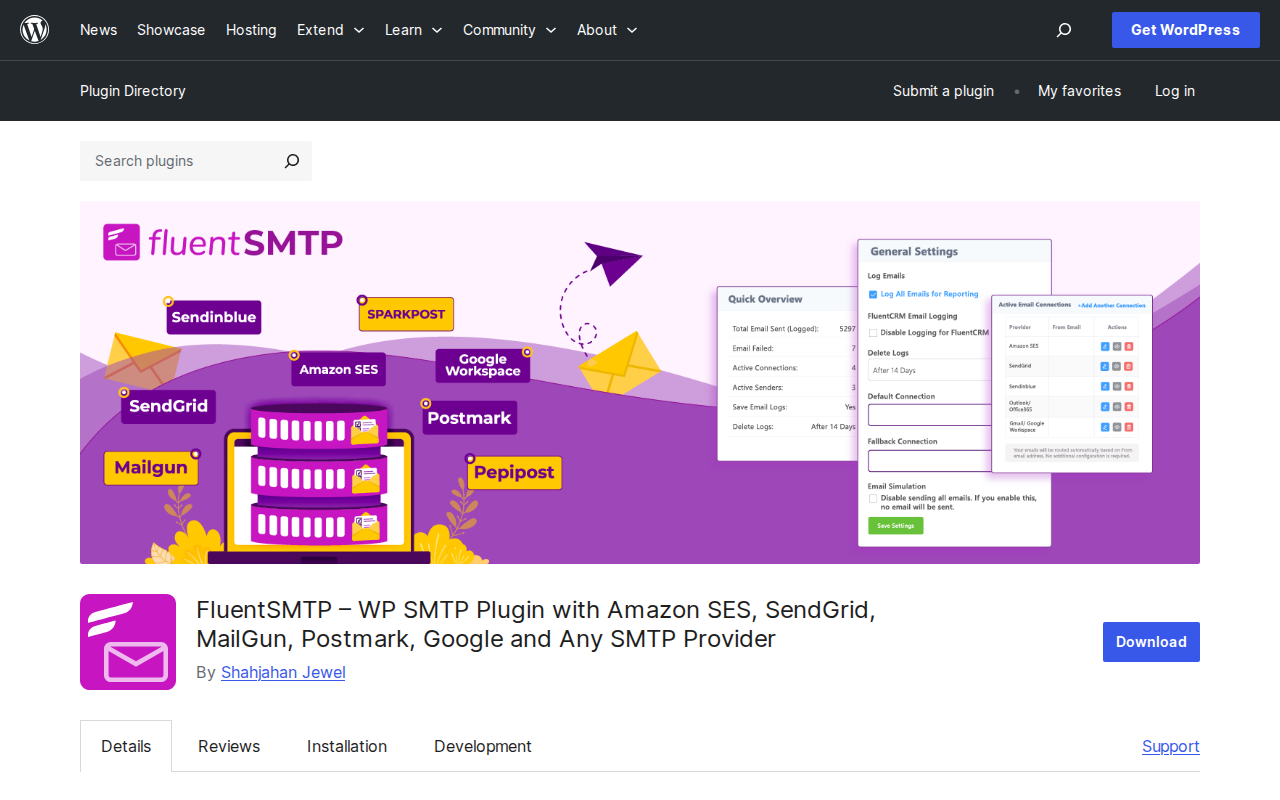
The setup process is nearly identical to what I described above. Install FluentSMTP from Plugins → Add New, activate it, and you'll see a new FluentSMTP menu item in your dashboard. Choose your connection type (Brevo, SendGrid, Amazon SES, Gmail, or generic SMTP), enter your API credentials, and save. FluentSMTP also has a built-in email logging feature in the free version, which WP Mail SMTP reserves for their paid tier — so you get email logs out of the box without paying a cent.
The one downside? FluentSMTP has a smaller user base (around 50,000+ active installs vs. WP Mail SMTP's 4+ million), which means fewer tutorials and community support threads. But for a straightforward SMTP setup, it works just as well. Honestly, if I were starting a new site today on a tight budget, I'd seriously consider FluentSMTP over WP Mail SMTP purely because the email logging is free.
Which SMTP Service Should You Choose?
The plugin is just the bridge — the real work is done by the email sending service. Here's my honest breakdown of the best options based on what I've used across dozens of WordPress sites:
| Service | Free Tier | Best For | My Take |
|---|---|---|---|
| Brevo | 300 emails/day | Most WordPress sites | My #1 pick. Generous free tier, dead simple API setup, reliable deliverability. |
| SendLayer | 200 emails (trial) | WP Mail SMTP users | Made by the same team as WP Mail SMTP. Great integration, but limited free trial. |
| Gmail SMTP | 500 emails/day | Personal blogs | Uses your Google account. The OAuth setup is more involved, but works well for small sites. |
| Amazon SES | 62,000/month (with EC2) | High-volume sites | Incredibly cheap at scale ($0.10/1,000 emails), but setup requires AWS knowledge. |
For 90% of WordPress sites — blogs, small business sites, portfolios, even small WooCommerce stores — Brevo's free tier is more than enough. You'd need to send more than 300 emails in a single day before hitting the limit, and most WordPress sites send fewer than 50 emails per day (contact forms, notifications, password resets, etc.). If you're running a high-traffic WooCommerce store sending hundreds of order confirmations daily, then look at Amazon SES or upgrade to Brevo's paid plans. For everything else, start with the free tier and upgrade only when you actually need to.
Test Your Emails (Don't Skip This)
After setup, always verify that your emails are properly authenticated. Here's my quick testing checklist that I run on every WordPress site I configure:
- Send a test email through WP Mail SMTP or FluentSMTP's built-in test feature. Confirm it arrives in your inbox (not spam).
- Submit your own contact form. If you're using a contact form plugin, fill it out and confirm you receive the notification email.
- Trigger a password reset. Go to the WordPress login page, click "Lost your password?", and check that the reset email arrives.
- Check your SPF and DKIM records. Send a test email to mail-tester.com and aim for a score of 9 or 10 out of 10. If your score is low, you'll need to add DNS records for your domain — Brevo's documentation walks you through this step by step.
Pro tip: If you're using Brevo, they'll prompt you to verify your domain by adding a DNS record. Do this. It takes 5 minutes in your domain registrar or hosting control panel, and it's the single biggest factor in whether your emails land in the inbox or spam. Without domain verification, your emails will show "sent via brevo.com" instead of your own domain, which looks unprofessional and triggers spam filters.
Frequently Asked Questions
Do I need an SMTP plugin if my hosting provider already sends emails?
Yes, absolutely. Even if your hosting provider's PHP mail() function technically works, the emails aren't authenticated. They'll have a much higher chance of landing in spam compared to properly configured SMTP emails. I've seen this on every major host — Bluehost, SiteGround, Hostinger — none of them configure authenticated email sending out of the box. An SMTP plugin is one of the first plugins I install on every new WordPress site.
Will this work with WooCommerce order emails?
Yes. WP Mail SMTP and FluentSMTP intercept all emails sent by WordPress, including WooCommerce order confirmations, shipping notifications, and customer account emails. Once you've configured SMTP, every email from your site goes through your chosen provider — no extra WooCommerce-specific setup needed. If you're running an online store, this is especially critical because failed order emails directly cost you money and customer trust.
What if I'm sending more than 300 emails per day?
If your site consistently sends more than 300 emails daily, you've outgrown Brevo's free tier. At that point, I'd recommend either upgrading to Brevo's Starter plan (around $9/month for 5,000 emails) or switching to Amazon SES if you're comfortable with AWS. For most blogs, business sites, and even small WooCommerce shops, you'll never come close to 300/day — but it's worth monitoring your usage through Brevo's dashboard to see where you stand.
Can I use my Gmail account as the SMTP provider?
You can, but I don't recommend it for business sites. Gmail SMTP works great for personal blogs, but the OAuth2 setup process is more involved (you need to create a Google Cloud project and configure credentials), and if your Gmail account gets suspended for any reason, your entire WordPress email flow breaks. For anything beyond a personal hobby blog, use a dedicated transactional email service like Brevo. It's free, it's designed for this purpose, and it doesn't tie your site's email to your personal Google account. If you're building your site from scratch, check out my complete WordPress setup guide for more foundational tips like this.

Written by Marvin
Our team tests and reviews WordPress products to help beginners make confident choices.
Learn more about our team →You might also like
How to Use OpenClaw with WordPress — 5 Powerful Use Cases (2026)
OpenClaw is the most popular open-source AI agent on GitHub — and it can manage your entire WordPress site. Here are 5 real use cases that save hours of work every week.
postHow to Start a Blog with WordPress (Complete 2026 Guide)
Starting a blog has never been easier or more rewarding. I've launched over a dozen blogs since 2006, and I'll walk you through the exact 7-step process to go from zero to your first published post — plus how to get your first 1,000 visitors and actually make money from your blog.
postWooCommerce AI Automation: How to Run Your Store With AI in 2026
A practical guide to WooCommerce AI automation in 2026: the real tools, the working AI agent setups, and the parts of your store you should never hand over to a bot.
postWordPress 7.0: Everything You Need to Know About the 2026 Release
WordPress 7.0 is the biggest release in years — real-time collaboration, the Abilities API for AI, and expanded Block Bindings. Here is the confirmed timeline, the feature list, and exactly how to prepare your site.