
Block Editor
Quick Definition
The Block Editor is the default WordPress content editor since version 5.0. It uses a modular block-based system where every element — paragraphs, images, headings, buttons — is an individual, moveable block.
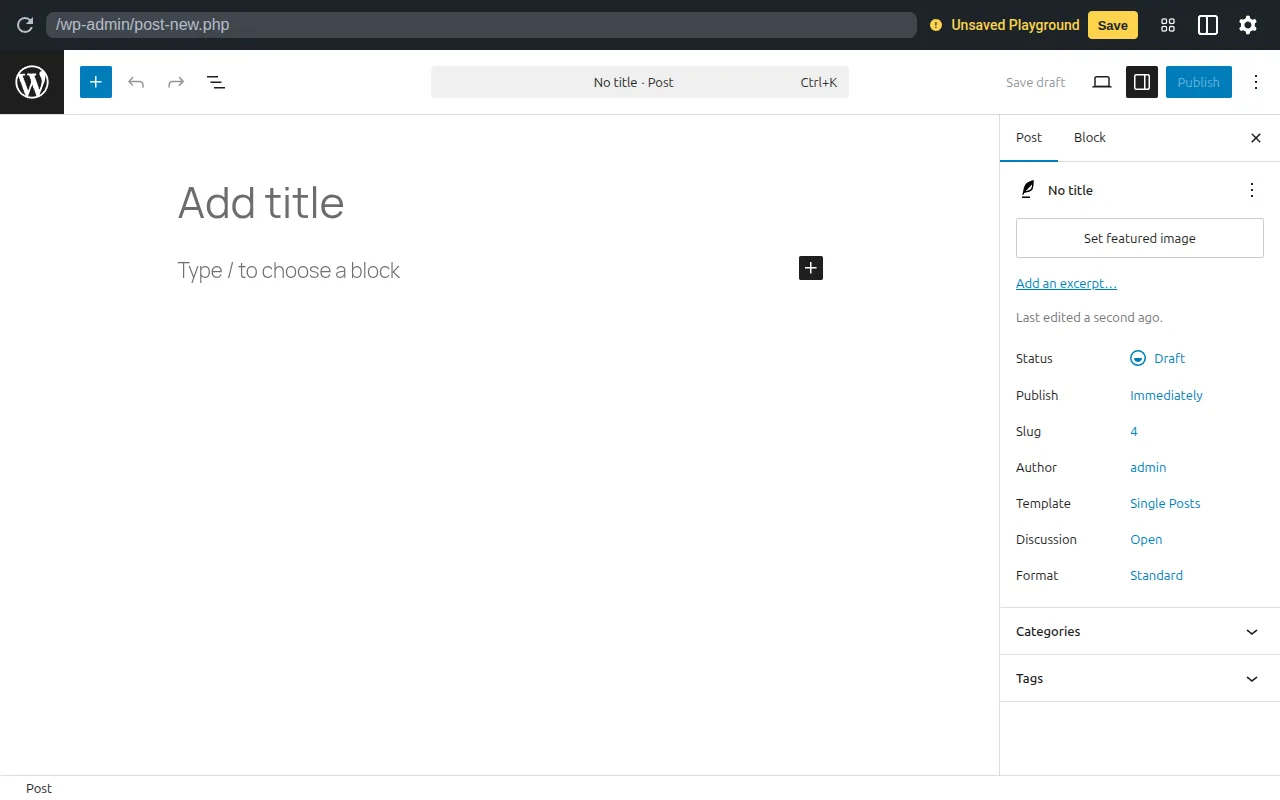
What Is the Block Editor?
The Block Editor is the default content editing interface in WordPress, introduced in version 5.0 (December 2018). It was developed under the codename Gutenberg and replaced the Classic Editor that WordPress had used since its early days.
The core concept: every piece of content is a block. A paragraph is a block. An image is a block. A heading, a list, a video embed, a table, a button — all blocks. You stack and arrange these blocks to build your content, much like building with LEGO.
The Block Editor workspace has three main areas:
- Top Toolbar — publishing controls, undo/redo, Block Inserter, Command Palette (
Cmd+K) - Content Area — where you write and arrange blocks
- Settings Sidebar — post/page settings and individual block settings
The Block Editor in Practice
You open the Block Editor by going to Posts → Add New or Pages → Add New in your dashboard. To add content, click the + Block Inserter button (top left) or type / in an empty block to search for block types.
The inserter offers three categories:
- Blocks — individual content elements (90+ built-in: Paragraph, Image, Heading, List, Quote, Table, Columns, Buttons, Gallery, Embed, and many more)
- Patterns — pre-designed block combinations you can insert with one click (hero sections, call-to-action layouts, testimonials)
- Media — images from your Media Library or the free Openverse library
The editor has two modes: Visual Editor (default, what-you-see-is-what-you-get) and Code Editor (raw HTML). Toggle between them from the three-dot options menu.
Power user tip: press Cmd+K (Mac) or Ctrl+K (Windows) to open the Command Palette — a quick-search tool for navigating, inserting blocks, and running editor commands.
Why It Matters
The Block Editor eliminated the need for page builder plugins for most layouts. Beginners can create visually rich content without code, while developers get a standardized system to build custom blocks. It's the foundation of modern WordPress. Learn to use it in our beginner's guide and blog post writing tutorial.
Sources: WordPress Developer Resources: Block Editor Handbook, WordPress.org: WordPress Block Editor