
How to Migrate WordPress to a New Host — 3 Methods (Without Losing Anything)
I've migrated over 50 WordPress sites between hosts. The first time, I was absolutely terrified I'd lose everything. I spent three hours manually copying files via FTP, exported the database through phpMyAdmin, imported it on the new server, painstakingly fixed URLs in the database by hand... and the site was broken. White screen of death. Nothing but a blank page staring back at me at 2 AM on a Sunday night.
I eventually fixed it — turned out I'd missed a serialized URL in the options table — but those three hours of panic taught me something important: there are much easier ways to do this. And in 2026, you really don't need to suffer through the manual approach unless you have a specific reason to.
In this guide, I'll show you three methods for migrating WordPress to a new host, ordered from easiest to most control. Whether you're moving a small blog or a large WooCommerce store, one of these methods will work for you. I'll also cover the pre-migration checklist that I wish someone had given me before my first migration, and the post-migration steps that most guides skip entirely.
Here's the quick overview:
- Method 1: All-in-One WP Migration — Easiest. One-click export and import. Best for sites under 256MB (or any size with the paid extension).
- Method 2: Duplicator — More control. Creates an installer package you run on the new server. Great for mid-sized sites.
- Method 3: Manual FTP + phpMyAdmin — Full control. For developers, large sites, or when plugins fail.
Let's start with the step that most people skip — and that causes 90% of migration disasters.
Before You Migrate — The Pre-Migration Checklist
I cannot stress this enough: do not start migrating until you've gone through this checklist. I learned every single one of these the hard way. One time, a client's site went down for 18 hours because they'd canceled their old hosting before the DNS had fully propagated. Another time, I migrated a site only to discover the new host was running PHP 7.4 while the site required PHP 8.1 — every page threw fatal errors.
Here's the checklist I run through before every migration:
1. Make a Full Backup (Files + Database)
Before you touch anything, create a complete backup of your site. Not just the database — the entire wp-content folder, your wp-config.php, your .htaccess file, everything. Even if the migration method you're using creates its own backup, make a separate one. I use UpdraftPlus for this, but you can also download everything via FTP and export the database through phpMyAdmin. Store this backup somewhere safe — your local computer, Google Drive, Dropbox. Not on the server you're about to migrate from.
2. Note Your Current PHP Version
Log into your current host's control panel and check which PHP version your site is running. Some hosts default to different PHP versions, and if your new host runs a different version, plugins and themes can break. You can also check by installing the "Display PHP Version" plugin or adding phpinfo(); to a temporary file. Write this number down — you'll need to match it on your new host.
3. Check Disk Space on the New Host
Log into your new hosting account and verify how much storage you have. Then check your current site's total size — the easiest way is through your hosting control panel's file manager or by asking your current host's support. I once tried migrating a 3GB WooCommerce store to a hosting plan with 2GB of storage. The migration "completed" but silently dropped half the product images.
4. Keep Your Old Hosting Account Active
Do not cancel your old hosting until the migration is fully verified and DNS has propagated. DNS propagation can take up to 48 hours (sometimes longer), and during that time, some visitors will still be hitting your old server. If you cancel too early, those visitors see nothing. I keep old hosting active for at least one full week after migration.
5. Document Custom Server Configurations
Check for custom redirects in your .htaccess file, scheduled cron jobs, custom php.ini settings, or server-level caching rules. These won't transfer automatically with any migration method, and forgetting about a critical redirect can tank your SEO overnight. Open your .htaccess file and copy its contents somewhere safe. Check your hosting panel for any cron jobs you've set up.
6. Plan for Email Migration Separately
If you're using email accounts tied to your domain on your current host (like info@yourdomain.com), those won't migrate with your WordPress site. You'll need to recreate those email accounts on your new host, or switch to a dedicated email service like Google Workspace or Zoho Mail. I've had clients lose important emails because they didn't realize email and website hosting were separate things.
7. Lower Your DNS TTL
At least 24 hours before migration, log into your domain registrar (or wherever your DNS is managed) and lower the TTL (Time To Live) on your A record to 300 seconds (5 minutes). This tells DNS servers worldwide to check for updates more frequently. When you eventually point your domain to the new host, the change will propagate much faster. The default TTL is often 86400 seconds (24 hours) — with that setting, some visitors might not see the new site for an entire day.
Method 1: Using All-in-One WP Migration (Easiest)
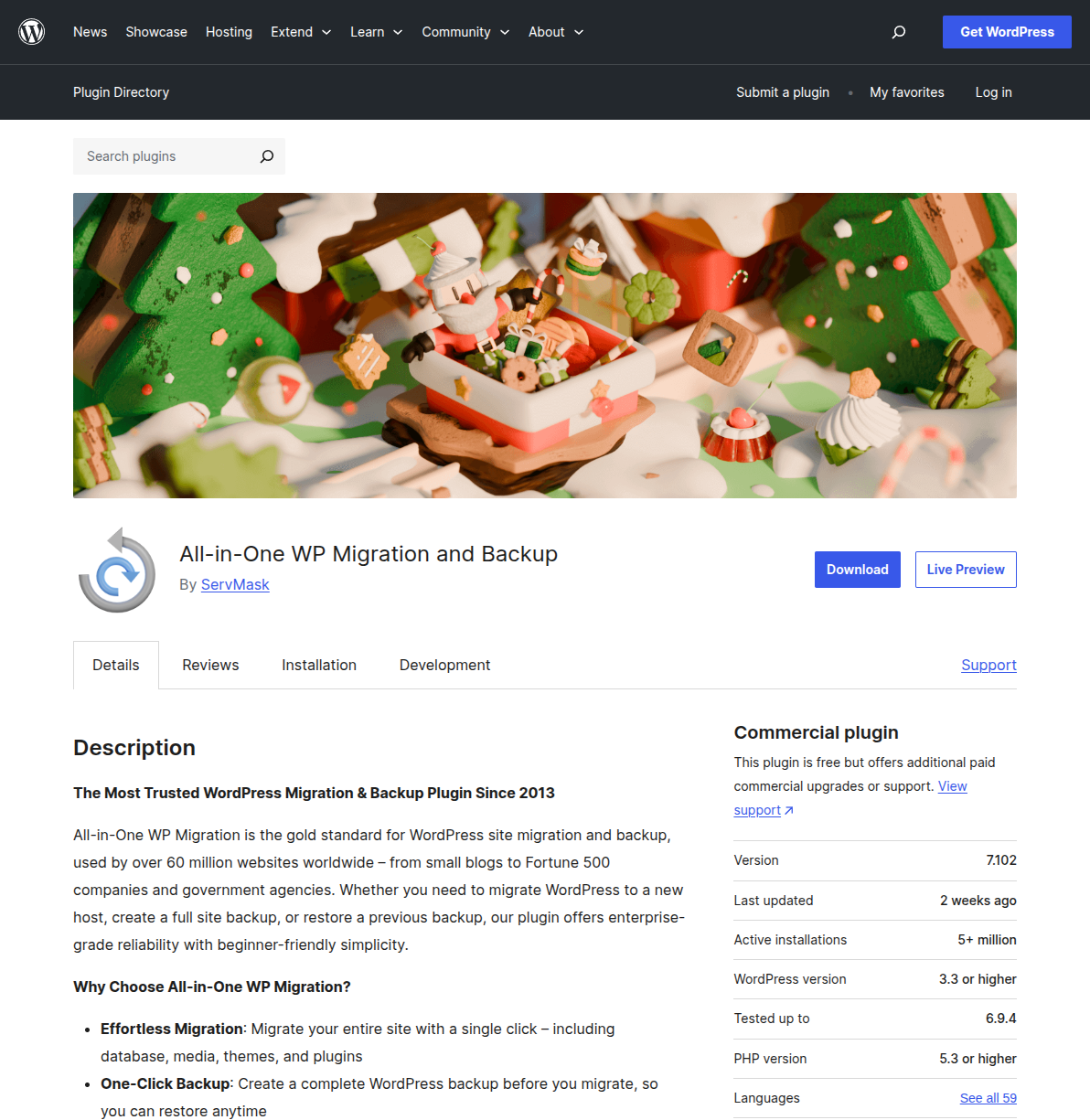
All-in-One WP Migration is the plugin I recommend to anyone who's migrating WordPress for the first time. It has over 5 million active installations, it's been around since 2013, and it works with virtually every hosting provider. I've used it for probably 30 of my 50+ migrations, and it's failed on me exactly twice — both times because of the file size limit, which I'll explain below.
The entire process takes about 15 minutes for a typical site. Here's exactly how to do it.
Step 1: Install the Plugin on Your Old Site
Log into the WordPress dashboard on your current (old) site. Go to Plugins → Add New. Search for "All-in-One WP Migration". Click Install Now, then Activate.
Step 2: Export Your Site
In your WordPress dashboard, go to All-in-One WP Migration → Export. You'll see a big green button that says "Export To". Click it and select File. The plugin will start packaging your entire site — database, media files, themes, plugins, everything — into a single .wpress file.
For a typical blog with a few hundred posts and some images, this takes 2-5 minutes. For larger sites with lots of media, it can take 15-20 minutes. Don't close the browser tab while it's working.
Step 3: Download the Export File
Once the export is complete, you'll see a big green button to download the .wpress file. Click it and save the file to your computer. Note the file size — this matters for the import step.
Step 4: Install WordPress on Your New Host
Log into your new hosting account and install a fresh copy of WordPress. Most hosts have a one-click WordPress installer (Softaculous, Fantastico, or a built-in tool). You don't need to configure anything — just get a basic WordPress install running. The migration will overwrite everything anyway.
Step 5: Install All-in-One WP Migration on the New Site
Log into the WordPress dashboard on your new site (the fresh install). Go to Plugins → Add New, search for "All-in-One WP Migration", install it, and activate it. Same as before.
Step 6: Import Your Site
Go to All-in-One WP Migration → Import. You'll see a drag-and-drop area. Either drag your .wpress file onto it, or click the "Import From" button and select File, then browse to the .wpress file you downloaded earlier.
The upload and import process will start. Depending on your file size and internet speed, this can take anywhere from 2 minutes to 30 minutes.
Step 7: Confirm the Overwrite
Once the upload completes, you'll see a warning that says the import will overwrite your existing database, media, plugins, and themes. Click "Proceed" to confirm. This is expected — you're replacing the fresh install with your actual site.
Step 8: Re-Save Your Permalinks
After the import finishes, go to Settings → Permalinks. You don't need to change anything — just click "Save Changes". This regenerates your .htaccess file and makes sure all your URLs work correctly. Skip this step and you'll get 404 errors on every page except the homepage.
Step 9: Log In with Your Old Credentials
Important: after the import, you need to log in with your credentials from the old site, not the ones you set up on the fresh install. The import replaced everything, including user accounts.
Limitations You Need to Know
The free version of All-in-One WP Migration has an import size limit of approximately 256MB. The exact limit depends on your server's upload_max_filesize and post_max_size settings, but for most shared hosting, you'll hit a wall around 256MB.
If your site is larger than that, you have two options:
- Buy the Unlimited Extension — It costs $69 per site (one-time payment) and removes the file size limit entirely. If you're migrating a single large site, this is the simplest solution.
- Increase your server's upload limits — You can modify
php.ini,.htaccess, orwp-config.phpto increase the upload limit. This is free but requires some technical knowledge, and not all hosts allow it.
Also note that All-in-One WP Migration does not migrate mu-plugins (must-use plugins) or custom modifications to wp-config.php. If you've added custom constants or configurations to either of those, you'll need to copy them manually.
For most people migrating a blog, portfolio, or small business site, All-in-One WP Migration is all you need. If you want more control or your site is larger, read on.
Method 2: Using Duplicator (More Control)
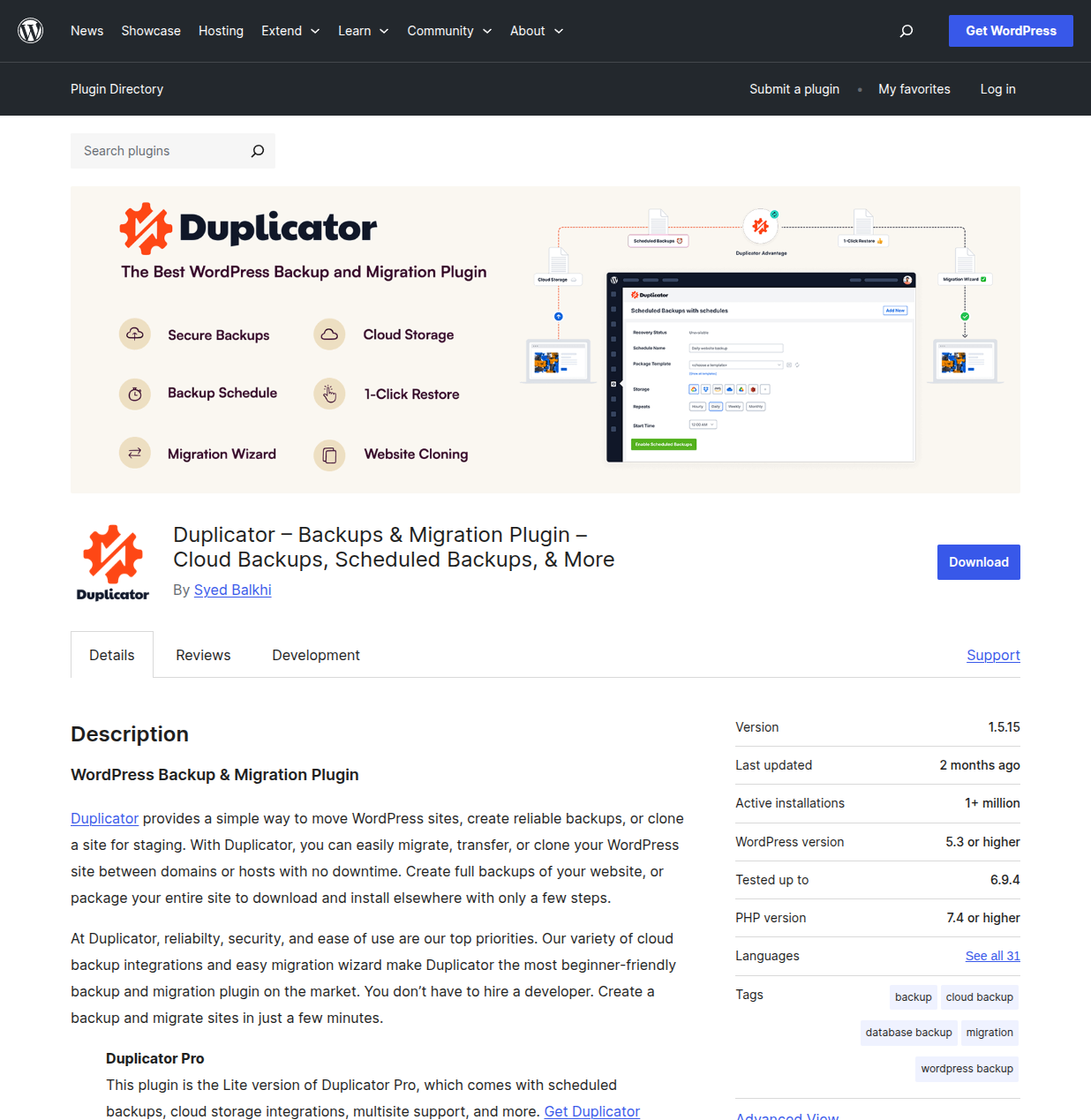
Duplicator takes a different approach from All-in-One WP Migration. Instead of a simple export/import flow, Duplicator creates an installer package — an archive file containing your entire site plus a PHP installer script. You upload both files to your new host and run the installer, which handles the database creation, file extraction, and URL replacement for you.
I prefer Duplicator for mid-sized sites (200MB-1GB) and for situations where I want more control over what gets migrated. The scan feature is particularly useful — it warns you about potential issues before you even start the migration.
Step 1: Install Duplicator on Your Old Site
Log into your WordPress dashboard on the site you want to migrate. Go to Plugins → Add New, search for "Duplicator", and install and activate the plugin by Snap Creek (now by Syed Balkhi / Starter Template LLC).
Step 2: Create a New Package
Go to Duplicator → Packages in your WordPress dashboard. Click the "Create New" button in the top right. You'll see a setup screen with three tabs: Storage, Archive, and Installer.
For most migrations, the defaults are fine. Click "Next" to run the scan.
Step 3: Review the Scan Results
Duplicator scans your site for potential issues. It checks file sizes, name lengths, database size, and server configurations. Pay attention to any warnings — common ones include:
- Large Files — Files over 3MB are flagged. This is usually fine (large images, backups), but it helps you know what's taking up space.
- Name Checks — Files or folders with special characters or very long names can cause issues during extraction.
- Size Check — If your total site is very large, Duplicator warns you that the free version may struggle.
If everything shows green (or yellow with acceptable warnings), click "Build".
Step 4: Download the Package
Once the build completes (this can take 2-10 minutes depending on site size), you'll see two files to download:
- Installer (
installer.php) — The PHP script that handles the migration on the new host. - Archive (
*_archive.zip) — Your entire site packaged into a ZIP file.
Download both files to your computer. You need both — the installer without the archive is useless, and vice versa.
Step 5: Create a Database on Your New Host
This is the step that trips up most beginners. Before you can run the Duplicator installer, you need an empty database on your new host. Here's how:
- Log into your new host's control panel (cPanel, Plesk, or whatever they provide).
- Find "MySQL Databases" or "Database Manager".
- Create a new database — give it any name you want (e.g.,
wp_newsite). - Create a new database user with a strong password.
- Add the user to the database with All Privileges.
- Write down the database name, username, and password. You'll need these in the installer.
If your host uses cPanel, the full database name is usually prefixed with your cPanel username, like cpaneluser_wp_newsite. Make sure you note the full name.
Step 6: Upload Both Files to Your New Host
Connect to your new host via FTP (using FileZilla or your host's file manager) and upload both installer.php and the archive ZIP file to the root web directory. This is usually public_html, www, or htdocs depending on your host.
Make sure there's no existing WordPress installation in the way. If you installed WordPress earlier for testing, delete all the WordPress files first — Duplicator will create everything it needs.
Step 7: Run the Installer
Open your browser and navigate to yourdomain.com/installer.php (or if DNS hasn't pointed yet, use the temporary URL your host provides, or the server's IP address followed by /installer.php).
The Duplicator installer wizard will load. It has four steps:
- Deploy — Accept the terms and verify the archive was found. Click Next.
- Install — Enter the database credentials you created in Step 5. Click "Test Database" to verify the connection works. Then click Next to run the installation.
- Update — Duplicator shows you the old and new URLs and paths. Verify they're correct. It automatically handles the search-and-replace in the database.
- Test — The installer provides links to test your site. Click through and verify everything works.
Step 8: Delete the Installer Files (Critical!)
After verifying your site works, you must delete installer.php and the archive ZIP from your server. Leaving the installer accessible is a serious security risk — anyone who finds it could potentially overwrite your site or access your database credentials. Duplicator will remind you about this with a warning banner in your WordPress dashboard.
Duplicator Limitations
The free version of Duplicator handles sites up to approximately 500MB reliably. Beyond that, you may run into timeout issues or memory limits on shared hosting. Duplicator Pro (starting at $49.50/year) handles larger sites with multi-threaded processing, supports cloud storage destinations, and adds scheduled backup functionality.
The free version also doesn't support WordPress multisite migrations — you'll need Pro for that.
Method 3: Manual Migration via FTP + phpMyAdmin (Full Control)
This is the method I started with, and while it's the most involved, it's also the most reliable when everything else fails. If your site is over 1GB, if you're dealing with a complex multisite setup, or if both plugin methods are timing out, manual migration will always work.
I'll be honest: this method takes longer and requires some comfort with FTP clients, database tools, and file permissions. But once you've done it once or twice, it becomes second nature. Here's the full process.
Step 1: Download Your Files via FTP
Connect to your old host using an FTP client like FileZilla. Navigate to your WordPress root directory (usually public_html). Download the entire wp-content folder — this contains your themes, plugins, uploads (images), and any other custom content. Also download wp-config.php and .htaccess.
The wp-content folder is often the largest part of a WordPress site, so this download can take a while. For a site with a few GB of images, expect 30-60 minutes or more depending on your internet speed and the server's connection.
Step 2: Export the Database
Log into phpMyAdmin on your old host (you can usually access it through cPanel or your hosting control panel). Select your WordPress database from the left sidebar, then click the "Export" tab.
For most cases, the "Quick" export method with "SQL" format is fine. Click "Go" and save the .sql file to your computer.
If you have SSH access and prefer the command line, you can also use mysqldump:
mysqldump -u username -p database_name > backup.sql
This is actually faster and more reliable than phpMyAdmin for large databases.
Step 3: Install Fresh WordPress on the New Host
On your new host, install a fresh copy of WordPress using their one-click installer or by downloading WordPress from wordpress.org and uploading it manually. Complete the basic setup — this creates the database tables and a working wp-config.php.
Step 4: Import the Database
Log into phpMyAdmin on your new host. Select the database that was created during the WordPress installation. Go to the "Import" tab. Click "Choose File", select the .sql file you exported from the old host, and click "Go".
If your SQL file is very large (over 50MB), phpMyAdmin might time out. In that case, you can either increase the import limits in your hosting settings, split the SQL file into smaller chunks, or use the command line:
mysql -u username -p database_name < backup.sql
Step 5: Upload wp-content to the New Host
Connect to your new host via FTP. Navigate to the WordPress root directory. Delete the existing wp-content folder (the one from the fresh install) and upload the wp-content folder from your old site in its place.
This is the most time-consuming step. Be patient and make sure the upload completes fully — a partially uploaded wp-content folder will result in broken images, missing plugins, or theme errors.
Step 6: Update wp-config.php
Open the wp-config.php file on your new host (via FTP or file manager). Update the database credentials to match the new host:
DB_NAME— Your new database nameDB_USER— Your new database usernameDB_PASSWORD— Your new database passwordDB_HOST— Usuallylocalhost, but some hosts use a different value (check your hosting documentation)
If you had any custom constants in your old wp-config.php (custom memory limits, debug settings, multisite configurations), copy those over too.
Step 7: Search and Replace URLs in the Database
If your domain is staying the same, you can skip this step. But if you're changing domains (or even switching from HTTP to HTTPS), you need to update every URL in the database. WordPress stores absolute URLs throughout the database — in post content, option values, widget settings, and more.
The safest way to do this is with WP-CLI:
wp search-replace 'https://oldsite.com' 'https://newsite.com' --all-tables
If you don't have WP-CLI access, install the Better Search Replace plugin on your new site. Go to Tools → Better Search Replace, enter the old URL and new URL, select all tables, and run the replacement. Always do a dry run first to see how many replacements will be made.
Important: Do not try to do this with a simple SQL query. WordPress uses serialized data in many fields, and a naive find-and-replace will corrupt serialized strings, breaking widgets, theme settings, and plugin configurations. WP-CLI and Better Search Replace both handle serialized data correctly.
Step 8: Fix File Permissions
After uploading files via FTP, permissions sometimes get set incorrectly. The standard WordPress permissions are:
- Folders: 755 (owner can read/write/execute, group and others can read/execute)
- Files: 644 (owner can read/write, group and others can read only)
- wp-config.php: 600 or 640 (more restrictive for security)
You can fix permissions via SSH with these commands:
find /path/to/wordpress -type d -exec chmod 755 {} \;
find /path/to/wordpress -type f -exec chmod 644 {} \;
Step 9: Test Everything
Load your site and verify that pages display correctly, images load, and the admin dashboard works. If anything looks broken, check the troubleshooting section below.
When to Use Manual Migration
- Sites larger than 1GB where plugin-based migrations struggle with timeouts
- When you want to clean up during migration — skip old revisions, spam comments, or unused plugins
- When you have SSH access and are comfortable with the command line
- When plugin methods fail — this method doesn't depend on PHP memory limits or execution time the same way
- Complex server configurations that need manual attention anyway
After Migration — Post-Migration Checklist
Regardless of which method you used, run through every item on this list before you call the migration done. I once migrated a client's site, told them it was ready, and then got a call two hours later because their contact form wasn't sending emails. The site looked perfect — but the email configuration was tied to the old server. Don't make my mistake.
1. Flush All Caches
If you're using a caching plugin (WP Super Cache, W3 Total Cache, LiteSpeed Cache), go to its settings and clear all caches. Also clear any server-side caching your new host provides. Cached content from the old site can cause confusing display issues.
2. Test Every Page Type
Don't just check the homepage. Click through at least:
- A blog post
- A page
- A category archive
- A tag archive
- The search results page
- Any custom post types (products, portfolios, etc.)
3. Check Images
Browse through several posts and pages and verify that images are loading. If images appear broken, right-click one and inspect the URL — it might still be pointing to the old server. If so, you need to run a search-and-replace on the database (see Method 3, Step 7).
4. Re-Save Permalinks
Go to Settings → Permalinks and click "Save Changes" without modifying anything. This regenerates your .htaccess rewrite rules. If you're getting 404 errors on posts but the homepage works, this is almost certainly the fix.
5. Test Contact Forms
Send a test message through every contact form on your site. Email delivery is one of the most common things that breaks during migration, especially if you were relying on your old host's mail server. If emails aren't coming through, install and configure the WP Mail SMTP plugin to route email through a reliable SMTP service like Gmail, SendGrid, or Mailgun.
6. Check SSL Certificate
Make sure your site loads with HTTPS on the new host. If your new host offers free SSL through Let's Encrypt (most do in 2026), you may need to activate it in your hosting control panel. If you see "Not Secure" in the browser address bar, the SSL certificate isn't installed or isn't working. Most hosts can set this up for you in minutes.
7. Update DNS
If you haven't already, point your domain to the new host. This usually means updating the A record to your new server's IP address, or changing nameservers to your new host's nameservers. Your new host's documentation or support team will give you the exact values. If you set your TTL to 300 earlier (as recommended in the pre-migration checklist), the change should propagate within an hour for most visitors.
8. Don't Cancel Old Hosting Yet
Wait at least 48 hours after updating DNS before canceling your old hosting. DNS propagation varies by ISP and location — some visitors may still be hitting the old server for a day or two. I personally wait a full week before canceling, just to be safe. The cost of a few extra days of hosting is nothing compared to the risk of downtime.
9. Run a Broken Link Check
Install the Broken Link Checker plugin temporarily, or use an online tool like Screaming Frog or Dr. Link Check, to scan your site for broken links. Migration can sometimes break internal links, especially if URL structures changed.
10. Check Google Search Console
Log into Google Search Console and verify your site. Check for any new crawl errors, indexing issues, or security warnings. If you changed hosts but kept the same domain, your SEO rankings should remain stable — but it's worth monitoring for a few weeks.
Common Migration Problems and Fixes
Even with careful preparation, things sometimes go wrong. Here are the issues I've encountered most frequently across 50+ migrations, and how to fix each one.
White Screen of Death After Import
The dreaded WSOD. This usually means PHP ran out of memory during the import process. Fix it by increasing the PHP memory limit. Add this line to your wp-config.php:
define('WP_MEMORY_LIMIT', '256M');
You may also need to increase the limit in your php.ini file (memory_limit = 256M) or contact your host to increase it. If the WSOD persists, enable debug mode by adding define('WP_DEBUG', true); to wp-config.php — this will show you the actual error message.
Images Are Broken
If images aren't loading after migration, it's usually one of two things:
- File permissions — The
wp-content/uploadsdirectory needs to be readable (755 for folders, 644 for files). - Old URLs in the database — Image URLs might still reference the old domain. Run a search-and-replace to update them. Use WP-CLI or the Better Search Replace plugin.
"Error Establishing a Database Connection"
This means WordPress can't connect to your database. Check these values in wp-config.php:
DB_NAME— Is this the correct database name on the new host?DB_USER— Is this user assigned to this database?DB_PASSWORD— Is the password correct (watch for special characters that might need escaping)?DB_HOST— Is itlocalhost, or does your host use something else like127.0.0.1or a specific hostname?
I've also seen this error when the database user exists but hasn't been granted privileges on the database. Go back to cPanel's MySQL Databases section and verify the user is assigned to the database with All Privileges.
Site Loads but Looks Broken (No CSS/Styling)
If your site loads but looks like plain text without any styling, try these fixes in order:
- Re-save permalinks — Go to Settings → Permalinks → Save Changes.
- Check .htaccess — Make sure the file exists in your WordPress root directory and contains the standard WordPress rewrite rules.
- Check for HTTPS/HTTP mismatch — If your site is set to HTTPS in the database but your new host doesn't have SSL configured yet, browsers will block the CSS files. Either set up SSL first or temporarily change
siteurlandhomein the database to use HTTP.
Mixed Content Warnings (HTTP/HTTPS)
If your browser shows a "Not Secure" warning even though you have SSL installed, your site likely has mixed content — some resources (images, scripts, stylesheets) are being loaded over HTTP instead of HTTPS. Run a search-and-replace on the database to change all http://yourdomain.com references to https://yourdomain.com.
Emails Stopped Working
WordPress relies on PHP's mail() function by default, which depends on your server's mail configuration. When you switch hosts, the mail server changes too. The fix: install WP Mail SMTP and configure it to send email through a dedicated SMTP provider. This is actually best practice regardless of migration — PHP mail is unreliable on most hosts anyway.
Redirects Not Working
If you had custom redirects in your .htaccess file on the old host, they won't automatically appear on the new host. Check your old .htaccess backup (you did back it up during pre-migration, right?) and copy any custom redirect rules to the new .htaccess file, placing them before the WordPress rewrite rules.
Scheduled Posts and Cron Jobs Not Running
WordPress uses a pseudo-cron system (wp-cron) that triggers on page visits. If your new host has a different server configuration, scheduled tasks might stop working. Check if DISABLE_WP_CRON is set to true in wp-config.php — if so, you'll need to set up a real server cron job on the new host to trigger wp-cron.php.
Which Method Should You Use?
Here's my honest recommendation based on migrating 50+ sites:
| Scenario | Recommended Method | Why |
|---|---|---|
| Small blog or portfolio (under 256MB) | All-in-One WP Migration | Fastest and simplest. Done in 15 minutes. |
| Medium site (256MB-1GB) | Duplicator or All-in-One WP Migration (with paid extension) | Duplicator's free version handles up to ~500MB. AIO with the Unlimited extension handles any size. |
| Large site or WooCommerce store (over 1GB) | Manual FTP + phpMyAdmin or Duplicator Pro | Plugin-based methods often time out on large sites. Manual gives you full control. |
| First-time migrator, nervous about breaking things | All-in-One WP Migration | Lowest learning curve. Almost impossible to mess up. |
| Developer comfortable with command line | Manual (with WP-CLI) | Fastest method once you know it. Full control over every step. |
No matter which method you choose, the pre-migration and post-migration checklists are non-negotiable. Those steps prevent 90% of migration disasters.
Frequently Asked Questions
How long does a WordPress migration take?
For a small site using All-in-One WP Migration, the actual migration process takes 15-30 minutes. With Duplicator, expect 20-45 minutes including the installer wizard. Manual migration can take 1-3 hours depending on your site size and internet speed. Add time for the pre-migration checklist (30 minutes), post-migration testing (30 minutes), and DNS propagation (up to 48 hours, though usually faster). So plan for a few hours of active work plus a day or two of monitoring.
Can I migrate WordPress for free?
Yes. All three methods in this guide are free for most sites. All-in-One WP Migration's free version works for sites under ~256MB. Duplicator's free version works for sites under ~500MB. The manual FTP method is always free. You only need to pay if your site exceeds these limits and you want the convenience of a plugin. Many hosting providers also offer free migration assistance when you sign up — SiteGround, Cloudways, and most managed WordPress hosts will migrate your site for you at no cost.
Will I lose SEO rankings when switching hosts?
Not if you do it correctly. As long as your domain stays the same, your URLs don't change, and you don't have extended downtime, Google won't even notice the switch. The key factors: keep the old host running until DNS propagates, make sure all redirects are preserved, and verify in Google Search Console that there are no new crawl errors. I've migrated dozens of sites between hosts without any ranking impact.
If you are changing domains during the migration (which I'd generally advise against doing at the same time as a host change), that's a different situation entirely. You'll need to set up 301 redirects from every old URL to the corresponding new URL and submit a change of address in Google Search Console.
Should I change my domain during migration?
If you can avoid it, don't. Changing hosts and changing domains at the same time doubles the complexity and doubles the things that can go wrong. Migrate to the new host first, verify everything works, and then change your domain as a separate project if needed. That said, if you absolutely must do both at once, Method 3 (manual) gives you the most control over the URL replacement process.
My host offers free migration — should I use it?
Yes, if it's available. Many quality hosting providers like SiteGround, Kinsta, and Cloudways offer free migration as part of their onboarding. They handle the technical work, and if something goes wrong, they fix it. The only reason to DIY is if your host doesn't offer migration, if you want to learn the process, or if you have very specific requirements that automated migration tools can't handle.
Can I migrate a WordPress.com site to a self-hosted WordPress.org site?
Yes, but the process is different from host-to-host migration. WordPress.com has a built-in export tool (Tools → Export) that creates an XML file with your posts, pages, and comments. You import that XML file into your self-hosted WordPress using the WordPress Importer plugin. Media files, themes, and plugins need to be handled separately. This is a one-way migration — the plugins described in this guide won't work for WordPress.com-hosted sites unless you're on a WordPress.com Business or eCommerce plan.
Final Thoughts
Migrating WordPress doesn't have to be terrifying. The first time I did it, I nearly had a panic attack. By my tenth migration, it was routine. By my fiftieth, I could do it while watching TV.
The secret isn't technical skill — it's preparation. Follow the pre-migration checklist, pick the method that matches your site and comfort level, and verify everything with the post-migration checklist. If something goes wrong, the troubleshooting section above covers virtually every issue I've encountered.
And remember: always keep your old hosting active until you're 100% certain the migration succeeded. That one rule alone would have saved me from every migration disaster I've ever experienced.
If you're looking for a new host to migrate to, check out our guide on how to choose WordPress hosting or our roundup of the best cheap WordPress hosting options. And if you'd rather let someone else handle the technical side entirely, managed WordPress hosting providers will migrate your site for free and handle all the server management going forward.
Good luck with your migration. You've got this.

Written by Marvin
Our team tests and reviews WordPress products to help beginners make confident choices.
Learn more about our team →You might also like
Managed WordPress Hosting in 2026 — Is It Worth the Extra Cost?
A no-fluff comparison of the 5 best managed WordPress hosting providers in 2026 — Kinsta, WP Engine, Cloudways, Flywheel, and SiteGround — with real pricing, performance data, and honest advice on whether you actually need it.
postBest Cheap WordPress Hosting — Quality on a Budget
The best budget WordPress hosting options that don't sacrifice performance. Real pricing, honest trade-offs, and a clear recommendation for each budget level.
postBluehost vs SiteGround — Which Is Better for WordPress?
A detailed head-to-head comparison of Bluehost and SiteGround covering performance, pricing, support, and features to help you pick the right WordPress host.
postHow to Choose the Right WordPress Hosting in 2026
I've tested every major WordPress host over the past decade. Here are my honest picks for 2026, with real performance data, pricing breakdowns, and recommendations for every budget.