
Managed WordPress Hosting in 2026 — Is It Worth the Extra Cost?
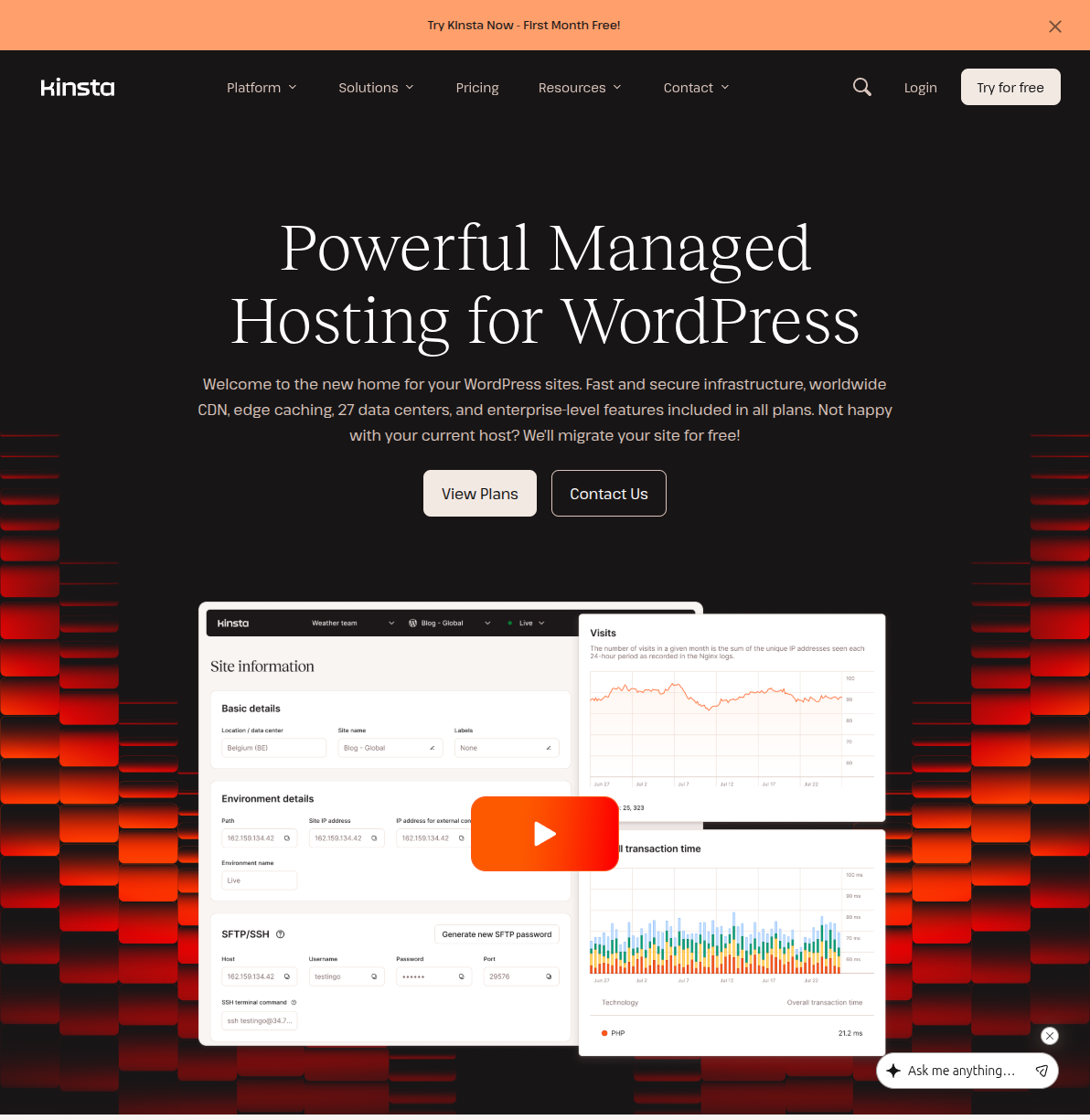
Last year, I moved a client's WooCommerce store from a $4/month shared hosting plan to Kinsta. The site had been crawling — product pages took 4.2 seconds to load, the checkout kept timing out during flash sales, and we'd already dealt with two malware infections in six months. After the migration, pages loaded in 1.1 seconds. Checkout held steady during a Black Friday rush. Zero security incidents since.
The catch? Kinsta costs $35 a month. That's roughly nine times what the old shared plan cost. And that raises the question I hear from WordPress site owners more than any other: is managed hosting actually worth the extra money?
The honest answer is: it depends entirely on what you're building and where you are in your journey. I've used managed hosting for client projects where it paid for itself within the first month. I've also talked people out of buying it when a $5 shared plan was genuinely all they needed. This guide covers both scenarios — and everything in between.
Quick Comparison: The 5 Best Managed WordPress Hosts in 2026
Before we dive deep, here's how the top five providers stack up at a glance. I'll break each one down in detail further in the article.
| Provider | Starting Price | Renewal Price | CDN | Staging | Free Migration | Daily Backups | Data Centers | My Rating |
|---|---|---|---|---|---|---|---|---|
| Kinsta | $35/mo | $35/mo | Yes (Cloudflare) | Yes | Yes (unlimited) | Yes (auto) | 37+ | 9.2/10 |
| WP Engine | $20/mo | $30/mo | Yes (Global Edge) | Yes | Yes (automated) | Yes (auto) | 20+ | 8.8/10 |
| Cloudways | $14/mo | $14/mo | Add-on ($4.99/mo) | Yes | Yes (free plugin) | Yes (auto) | 65+ | 8.5/10 |
| Flywheel | $15/mo | $15/mo | Yes (Fastly) | Yes | Yes (unlimited) | Yes (nightly) | 20+ | 8.3/10 |
| SiteGround GoGeek | $7.99/mo | $39.99/mo | Yes (own CDN) | Yes | Yes (1 free) | Yes (auto) | 6 | 8.0/10 |
A note on SiteGround's pricing: that $7.99/mo intro rate is a promotional price for the first billing cycle. Renewal jumps to $39.99/mo, which makes it more expensive than Kinsta on a month-to-month basis. I'll dig into the pricing reality for each host below — because the asterisks hide a lot.
What Managed WordPress Hosting Actually Is (And Isn't)
The term "managed hosting" gets thrown around loosely, so let me be precise. Managed WordPress hosting means a hosting environment that's specifically built and optimized for WordPress, where the hosting company handles the server-level maintenance that you'd otherwise have to deal with yourself.
Here's what that typically includes:
- Automatic WordPress core updates — the host applies security patches and minor version updates without you having to click a button
- Daily automated backups — stored off-server so you can restore even if the server itself dies
- Server-level caching — purpose-built caching layers (not just a plugin) that make WordPress faster at the infrastructure level
- Security monitoring and malware scanning — active threat detection, firewalls, and DDoS protection baked into the platform
- Staging environments — one-click copies of your live site where you can test changes safely before pushing them live
- CDN integration — a content delivery network that serves your static files from servers close to your visitors
- WordPress-specific support — support agents who actually know WordPress, not just generic server technicians reading from scripts
Managed Hosting vs Shared Hosting
On shared hosting — like a basic cheap WordPress hosting plan — you're sharing a server with hundreds or even thousands of other websites. If someone else's site gets hit with a traffic spike or a brute-force attack, your site's performance can suffer. The hosting company provides a server and leaves most of the WordPress maintenance to you.
Managed hosting flips that model. You're typically on isolated infrastructure (containers or dedicated resources), and the host actively manages the WordPress environment on your behalf. It's the difference between renting an apartment in a massive complex (shared hosting) and hiring a property management company to handle everything for your standalone rental (managed hosting).
Managed Hosting vs VPS Hosting
A VPS (Virtual Private Server) gives you dedicated resources and root access, but you're responsible for everything: server configuration, security hardening, software updates, monitoring, and troubleshooting. It's the most flexible option, but it demands real sysadmin skills.
Managed hosting handles the server layer for you. Some managed hosts (like Cloudways) are essentially managed VPS platforms — they give you cloud server resources but wrap them in a management layer so you don't need to know how to configure Nginx or tune MySQL.
Managed Hosting vs Dedicated Hosting
Dedicated hosting gives you an entire physical server. It's expensive ($100-500+/month) and usually overkill unless you're running a massive operation. Most managed WordPress hosts use cloud infrastructure that can scale dynamically — giving you the performance benefits of dedicated hardware without the inflexibility and cost.
Who Actually Needs Managed WordPress Hosting
Here's where I want to be genuinely honest, because the hosting industry has a financial incentive to upsell everyone into premium plans.
You probably DO need managed hosting if:
- Your site gets more than 25,000 monthly visitors and performance matters (e-commerce, lead generation, SaaS)
- You run a WooCommerce store with more than a few dozen products — database-heavy sites punish shared hosting
- Your site is a core part of your business revenue, and downtime directly costs you money
- You've already dealt with security breaches on shared hosting and can't afford them
- You manage multiple client sites and need staging, collaboration, and reliable infrastructure
- You don't have the technical skills (or time) to manage server-level tasks yourself
You probably DON'T need managed hosting if:
- You run a personal blog or hobby site with under 5,000 monthly visitors
- You're just starting out and haven't validated your idea yet — spend the $30/month on content or tools instead
- You're comfortable with basic WordPress maintenance and your current host isn't causing problems
- Your site is mostly static content (a portfolio, a simple brochure site) with no dynamic functionality
I maintain a couple of personal projects on budget shared hosting and they run perfectly fine. Not every WordPress site needs the overhead of managed infrastructure. But the moment your site starts earning money or serving a real audience, the calculus shifts — hard.
The 5 Best Managed WordPress Hosting Providers Compared
I've used all five of these hosts in some capacity — either for my own projects, client work, or extended testing. Here's the breakdown.
1. Kinsta — Best Overall Managed WordPress Host
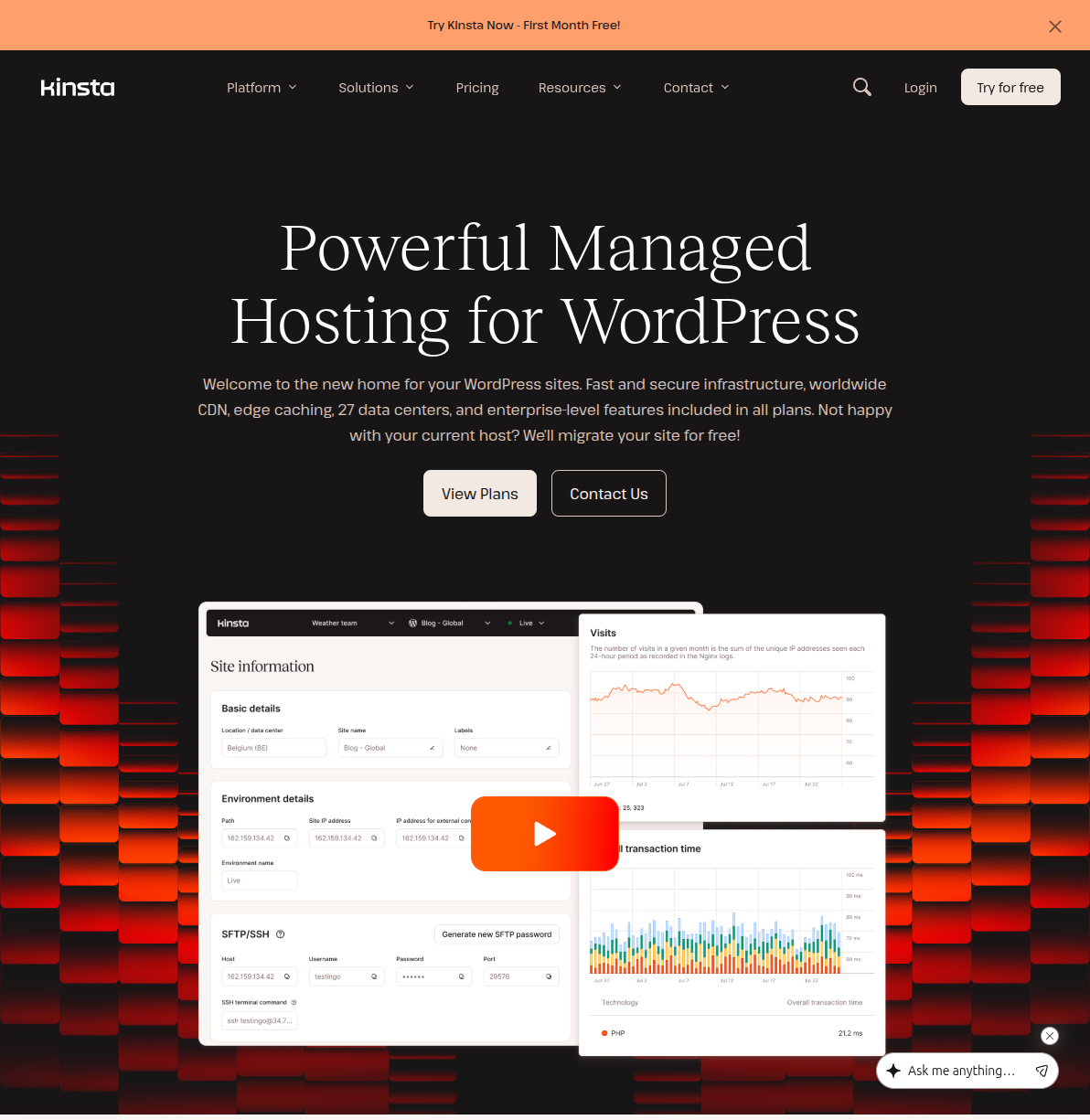
Kinsta is the host I keep coming back to for serious projects. They run entirely on Google Cloud Platform's premium tier network, which means your site gets the same infrastructure that powers Google Search and YouTube. That's not marketing fluff — it translates to real performance differences.
Their custom dashboard, MyKinsta, is the best hosting control panel I've used. It's clean, fast, and built specifically for WordPress management. You can spin up staging environments, manage redirects, view analytics, clear caches, and access phpMyAdmin — all without touching cPanel or Plesk. The first time I used it, I remember thinking "this is what a hosting dashboard should feel like."
What I like about Kinsta:
- Consistent performance. In my testing, Kinsta sites consistently hit TTFB (Time to First Byte) numbers between 200-350ms, regardless of the data center. That's fast for managed hosting.
- 37+ data center locations. You can place your site in the data center closest to your audience — crucial for international sites.
- Free Cloudflare integration. Enterprise-level Cloudflare is included on all plans, with DDoS protection, HTTP/3, and edge caching.
- Unlimited free migrations. Their migration team will move your sites over from any host, and they handle it carefully. I've had them migrate a messy multisite installation without a single hiccup.
- DevKinsta for local development. Their free local development tool works with Docker and integrates seamlessly with the live platform.
What I don't like:
- The price. The Starter plan ($35/mo) only gives you one WordPress install with 25,000 visits/month. If you run multiple sites, costs climb quickly — the Business 1 plan (3 sites, 50K visits) is $115/mo.
- Visitor-based pricing. Kinsta counts visits, not bandwidth. If your site gets a sudden traffic surge (say, from a viral social media post), you could face overage charges.
- No email hosting. You'll need a separate email service (Google Workspace, Zoho, etc.).
Best for: High-traffic sites, WooCommerce stores, agencies managing premium client sites, and anyone who values top-tier performance and doesn't mind paying for it.
Pricing: Starts at $35/mo (Starter). No introductory pricing games — the price you see is the price you pay at renewal. Annual billing saves you roughly two months.
2. WP Engine — The Original Managed WordPress Host
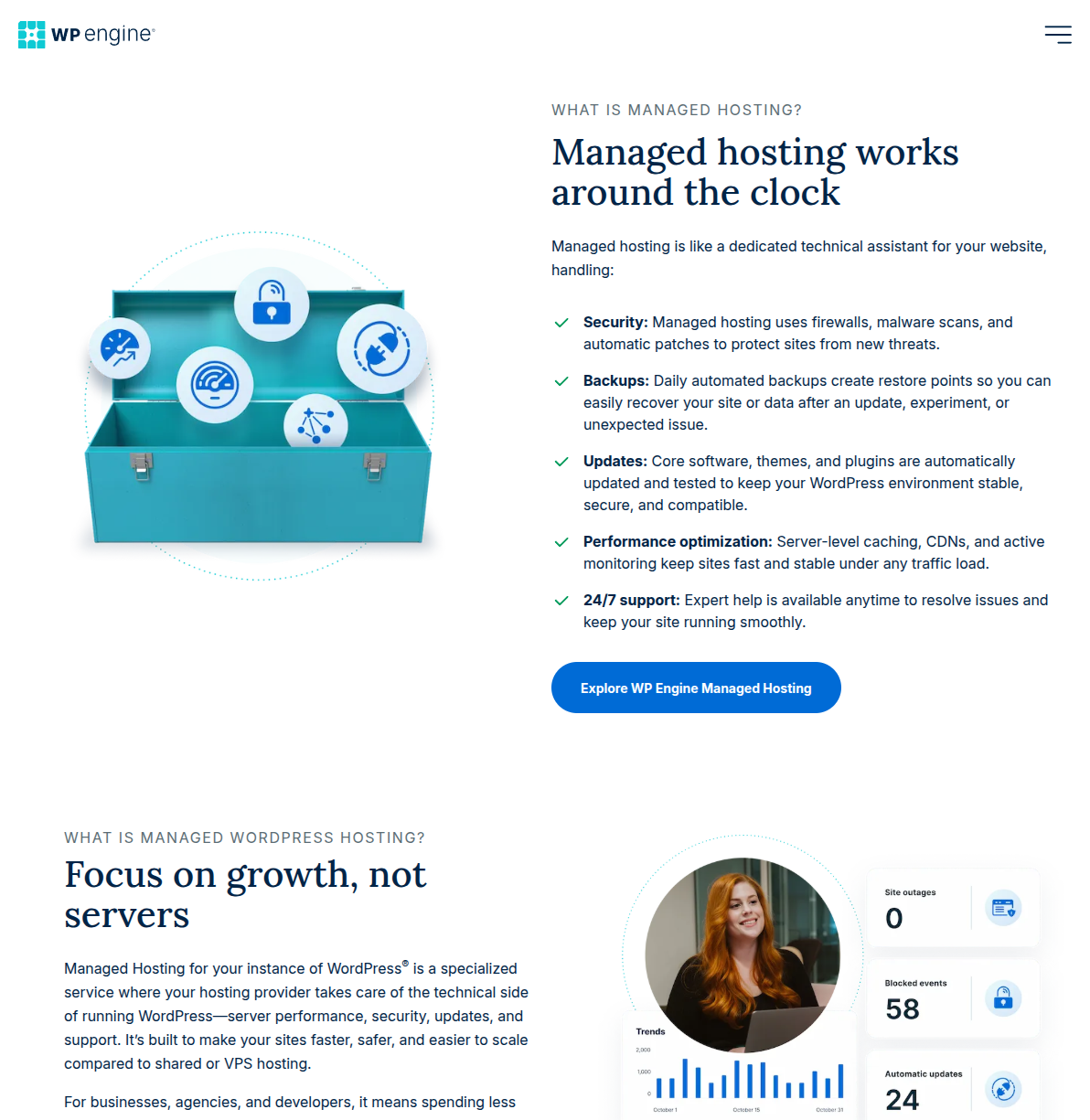
WP Engine essentially invented the managed WordPress hosting category back in 2010, and they've been the industry standard ever since. They're now part of a larger family of WordPress brands — they own Flywheel, Advanced Custom Fields (ACF), Local (the development tool), StudioPress/Genesis, and more. That ecosystem is both a strength and a potential concern.
I've had sites on WP Engine since 2019, and my experience has been consistently solid. When I migrated a membership site from a mid-tier shared host, the improvement was immediate — member login times dropped, the admin dashboard became snappier, and I stopped getting the dreaded "white screen of death" during peak hours.
What I like about WP Engine:
- Smart Plugin Manager. This is a genuine differentiator. WP Engine can automatically update your plugins, take a visual regression screenshot before and after, and roll back if something breaks. It saved me from a broken WooCommerce update last year.
- Genesis framework and StudioPress themes. Included free with all plans. Genesis is a lightweight, well-coded theme framework that's popular with serious WordPress developers.
- Staging + dev environments. Every plan includes a staging environment and a development environment, giving you three copies of your site to work with.
- Strong enterprise presence. If you're building for a business that needs SLA guarantees, compliance features, and enterprise support, WP Engine has the track record and infrastructure.
What I don't like:
- Renewal pricing. The Startup plan starts at $20/mo but renews at $30/mo. The Growth plan (used to be called "Professional") starts at $40/mo and renews at $58/mo. This isn't unique to WP Engine, but it's worth factoring into your long-term costs.
- Plugin restrictions. WP Engine blocks certain plugins that conflict with their infrastructure — mostly caching and backup plugins, since they handle those at the server level. This is technically a good thing, but it can be annoying if you're attached to specific plugins.
- The Matt Mullenweg situation. The public feud between WP Engine and WordPress co-founder Matt Mullenweg in late 2024 created real uncertainty. WP Engine was briefly banned from WordPress.org. The legal situation has largely resolved, but it's something to be aware of.
Best for: Businesses and agencies that want an established, enterprise-ready managed host with a deep WordPress ecosystem. The Smart Plugin Manager alone justifies the cost for sites with lots of plugins.
Pricing: Startup plan starts at $20/mo (renews at $30/mo). Includes 1 site, 25K visits/mo. The Growth plan at $40/mo (renews at $58/mo) bumps you to 10 sites and 100K visits/mo.
3. Cloudways — Best Managed Cloud Hosting (Most Flexible)
Cloudways occupies a unique middle ground. It's not traditional managed WordPress hosting in the Kinsta/WP Engine sense — it's a managed cloud platform. You pick your underlying cloud provider (DigitalOcean, Vultr, AWS, or Google Cloud), and Cloudways layers a management interface on top. You get the raw power of cloud infrastructure with a user-friendly dashboard that handles server management.
I started using Cloudways in 2021 for a portfolio of niche content sites where I needed good performance but couldn't justify $35/month per site. Running three sites on a $28/month DigitalOcean server through Cloudways ended up being significantly cheaper than any traditional managed host — and the performance was excellent.
DigitalOcean acquired Cloudways in 2022, which brought more stability and resources to the platform. The integration has been smooth, and pricing has stayed competitive.
What I like about Cloudways:
- Flexible pricing. You pay based on the server resources you actually use, starting at around $14/mo for a DigitalOcean server. No per-site pricing — you can run multiple WordPress installs on one server.
- No visitor limits. Unlike Kinsta and WP Engine, Cloudways doesn't count visits. Your pricing is based on server resources (CPU, RAM, storage, bandwidth), which is more predictable.
- Server-level control. You can SSH into your server, adjust PHP settings, install custom software, and do things that traditional managed hosts lock down. Great for developers who want managed convenience without giving up control.
- 65+ data centers worldwide. Because you're choosing from DigitalOcean, Vultr, AWS, and GCP data centers, you have more location options than any other managed host.
- Pay-as-you-go billing. No annual commitments required. You can spin up a server, test it for a few days, and tear it down if it doesn't work out. You're billed hourly.
What I don't like:
- CDN costs extra. Cloudways' CDN add-on starts at $4.99/mo. On Kinsta and WP Engine, CDN is included.
- No built-in email. Like Kinsta, you'll need a separate email service.
- Steeper learning curve. If you've never managed a server before, Cloudways can feel overwhelming compared to Kinsta's one-click simplicity. It's not hard, but there are more decisions to make.
- No built-in staging on lowest tier. You need the Premium plan or add-on for staging environments on some configurations.
Best for: Developers, agencies running multiple sites on a budget, and anyone who wants cloud-level performance without cloud-level complexity. If you're comfortable with a bit more technical control, Cloudways gives you the best value per dollar.
Pricing: Starts at ~$14/mo for a DigitalOcean 1GB server. A 2GB server (what I'd recommend for most WordPress sites) runs about $28/mo. AWS and GCP options start higher (~$38/mo+).
4. Flywheel — Best for Designers and Agencies
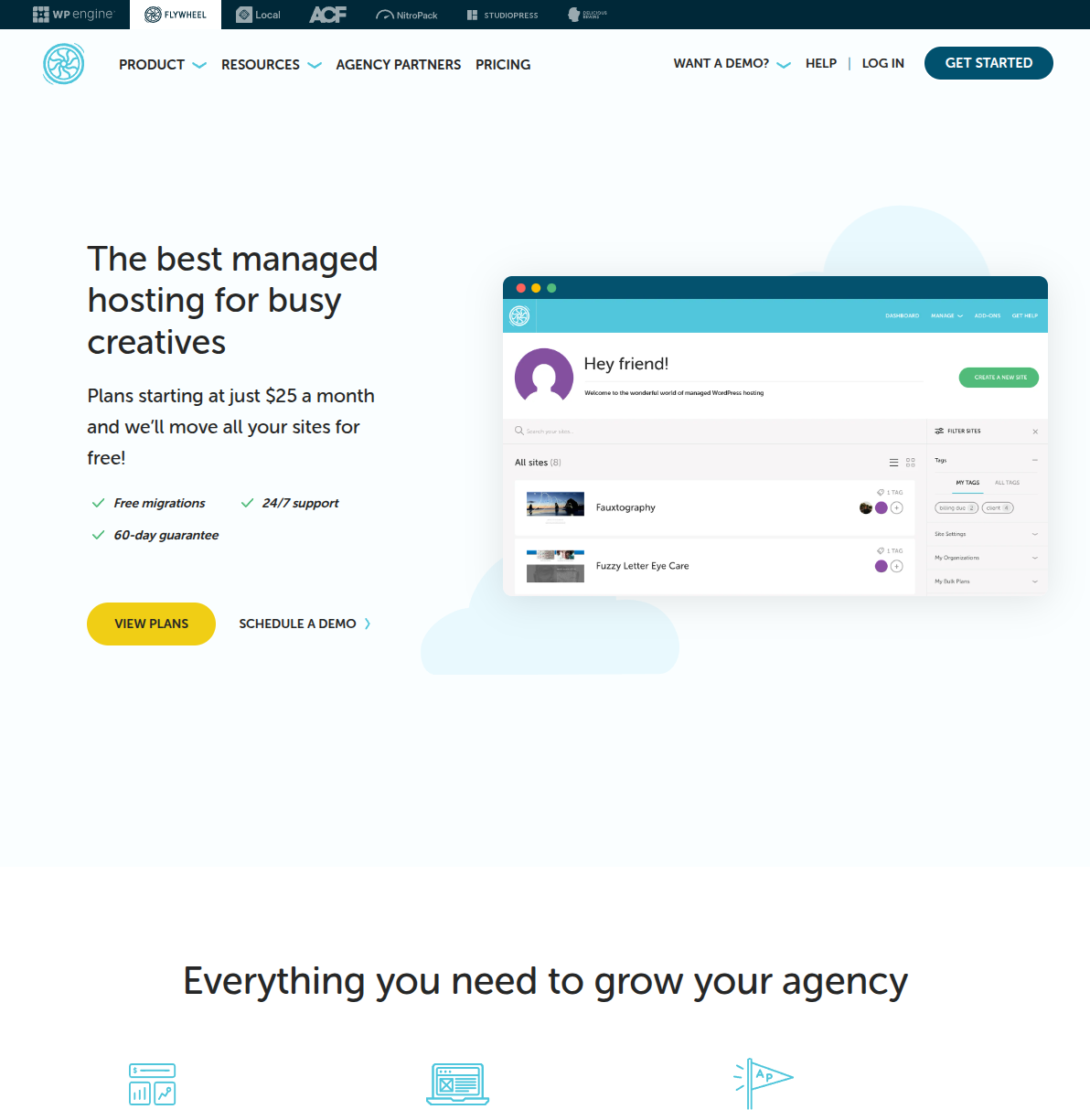
Flywheel was purpose-built for designers and agencies, and it shows. Everything about the platform — from the beautifully designed dashboard to the client billing transfer feature — is designed for people who build WordPress sites for a living. WP Engine acquired Flywheel in 2019, but they've kept it running as a separate brand with its own identity and pricing.
I used Flywheel for about a year when I was building WordPress sites for local businesses. The ability to build a site on a free demo environment, then transfer the billing directly to the client when the site went live, was a game-changer for my workflow. No more awkward conversations about who pays for hosting during the development phase.
What I like about Flywheel:
- Client billing transfer. Build on your account, then seamlessly hand the hosting bill to the client. No migration needed — the site stays exactly where it is.
- Gorgeous dashboard. This might sound superficial, but when you're managing 15-20 client sites, dashboard usability matters. Flywheel's interface is the most pleasant to work with.
- Free demo sites. You can spin up unlimited demo sites for development at no cost. They're fully functional WordPress installs — just not publicly accessible until you upgrade to a paid plan.
- Collaborators. Add team members, freelancers, or clients to specific sites with role-based permissions. It's genuine multi-user management, not just sharing a login.
- Local by Flywheel integration. Local (their free local development tool) syncs directly with your Flywheel account for push/pull between your machine and the live server.
What I don't like:
- WP Engine ownership questions. Since WP Engine owns Flywheel, there's always the question of how long Flywheel will remain a separate product. WP Engine has been consolidating some backend systems.
- Limited plan options. The entry plan ($15/mo for a single site) gives you only 5,000 monthly visitors and 5GB storage. That's tight for anything beyond a small brochure site.
- Performance is good, not great. In my testing, TTFB numbers were typically in the 300-500ms range — solid, but noticeably behind Kinsta.
- Fewer advanced features. Compared to Kinsta or WP Engine, Flywheel offers fewer developer-oriented features (no Redis, limited SSH access, no WP-CLI on lower plans).
Best for: Freelancers and agencies who build WordPress sites for clients. The billing transfer and collaborator features make it the best agency workflow platform. Less ideal for developers who want granular server control.
Pricing: Starts at $15/mo (Tiny plan: 1 site, 5K visits, 5GB storage). The Starter plan at $25/mo (1 site, 25K visits, 10GB) is the sweet spot for most single-site users. Agency plans start at $96/mo for up to 10 sites.
5. SiteGround GoGeek — Best Budget "Managed-ish" Option
I'm including SiteGround with a caveat: SiteGround isn't a pure managed WordPress host in the same category as Kinsta or WP Engine. However, their GoGeek plan includes several managed features that bridge the gap — staging environments, priority support, ultrafast PHP, and on-demand backup copies.
I've written a detailed SiteGround review and compared them head-to-head with Bluehost in my Bluehost vs SiteGround comparison, so I won't repeat everything here. The key point is this: if you want managed-style features without managed-style pricing, SiteGround's GoGeek plan is the closest thing that exists.
What I like about SiteGround's managed tier:
- Intro pricing is unbeatable. $7.99/mo for staging, priority support, and advanced caching is genuinely impressive.
- In-house caching (SuperCacher). SiteGround's three-level caching system (static, dynamic, Memcached) performs well above what you'd expect from a shared hosting environment.
- WordPress-specific support. SiteGround's support team genuinely understands WordPress. They've helped me debug plugin conflicts and optimize database queries — tasks that most shared hosts would refuse.
- Custom SG Optimizer plugin. Their proprietary performance plugin handles caching, image optimization, and front-end optimization in one package.
What I don't like:
- Renewal pricing is brutal. That $7.99/mo intro rate jumps to $39.99/mo at renewal. On a monthly basis, renewed SiteGround GoGeek costs more than Kinsta's Starter plan. Let that sink in.
- Still shared infrastructure. Despite the managed features, you're still on shared servers. Performance is less predictable than true managed hosts with isolated containers.
- Limited to 6 data centers. Compared to Kinsta's 37+ or Cloudways' 65+, SiteGround's data center options are limited.
- Storage limits. GoGeek gives you 40GB, which sounds generous until you factor in backups, staging copies, and media files.
Best for: WordPress site owners who want managed-style features at shared hosting prices — at least for the first billing cycle. It's a good stepping stone if you're outgrowing basic shared hosting but aren't ready for a $35/mo commitment.
Pricing: GoGeek starts at $7.99/mo (introductory). Renews at $39.99/mo. The intro rate requires a 12-month minimum commitment.
What Managed Hosts Handle For You
One of the biggest advantages of managed hosting is the time you get back. Here's a concrete breakdown of what you're delegating when you choose a managed host — and what each task would cost you in time or money if you handled it yourself:
Automatic Updates
Managed hosts handle WordPress core updates automatically. The good ones (Kinsta, WP Engine) also manage minor plugin and theme updates, with visual regression testing to catch breaking changes. On shared hosting, you're clicking "Update" manually and hoping nothing breaks. WP Engine's Smart Plugin Manager is the gold standard here — it takes a before-and-after screenshot of your site, compares them, and rolls back automatically if the visual diff exceeds a threshold.
Daily Backups
Every managed host on this list performs daily automated backups stored off-server. Kinsta retains backups for 14-30 days depending on your plan. WP Engine keeps 30 days. On shared hosting, you're typically relying on a backup plugin (UpdraftPlus, BackupBuddy) and hoping your backups actually work when you need them. I've seen enough corrupted backup files to know that server-level backups are worth paying for.
Security
Managed hosts implement security at layers that aren't accessible to you as a WordPress user. Server-level firewalls, intrusion detection, malware scanning, DDoS mitigation, and automatic IP blocking happen at the infrastructure level. Kinsta's Cloudflare integration includes enterprise-grade DDoS protection that would cost hundreds per month if you bought it separately.
Compare that to shared hosting, where you're installing Wordfence or Sucuri and hoping a PHP-based security plugin can protect you against server-level attacks. It's like putting a deadbolt on a screen door.
Caching and Performance
Shared hosting relies on caching plugins (WP Super Cache, W3 Total Cache, LiteSpeed Cache) to compensate for slow servers. Managed hosts build caching into the server architecture itself. Kinsta uses Nginx-based full-page caching plus Cloudflare edge caching. WP Engine has their proprietary EverCache system. This server-level caching is fundamentally more efficient than any WordPress plugin can achieve.
Staging Environments
Every managed host on this list offers one-click staging. Clone your live site, test updates or design changes in a safe environment, then push the changes live when you're confident. On shared hosting, staging usually means manually duplicating your database and files — or paying for a plugin like WP Staging Pro.
Migration Assistance
Moving a WordPress site between hosts is nerve-wracking if you've never done it. Managed hosts typically offer free migration services — either a fully hands-off migration by their team (Kinsta, Flywheel) or an automated migration plugin (WP Engine, Cloudways). I've had Kinsta's team migrate sites with complex multisite setups and custom server configurations without any data loss.
Performance Comparison: Managed vs Shared
I want to be careful with benchmarks because performance varies wildly depending on your site's configuration, plugins, theme, and database size. But here are ranges I've seen consistently across multiple sites and testing periods:
| Metric | Managed Hosting (Typical) | Shared Hosting (Typical) |
|---|---|---|
| TTFB (Time to First Byte) | 150-400ms | 600-1,200ms |
| Full Page Load | 0.8-2.0s | 2.5-6.0s |
| Uptime | 99.95-99.99% | 99.5-99.9% |
| Response Under Load | Consistent | Degrades significantly |
| Admin Dashboard Speed | Fast (1-2s loads) | Sluggish (3-5s loads) |
The TTFB difference is the most telling metric. When I moved that client WooCommerce store to Kinsta, TTFB dropped from 890ms to 230ms. That's a 74% improvement just from changing hosts — no code changes, no plugin swaps, no theme optimization. The server was simply faster at processing the initial request.
The admin dashboard speed difference deserves special mention. If you've ever waited 4-5 seconds for the WordPress admin to load on shared hosting, you know how painful content creation becomes. On managed hosting, the admin panel feels snappy and responsive. It sounds minor, but over hundreds of daily interactions, it adds up to significant time savings.
The Honest Truth About Managed Hosting Pricing
Let's talk about what hosting companies don't put in big font on their landing pages.
Introductory vs Renewal Pricing
WP Engine and SiteGround are the biggest offenders here. That $20/mo WP Engine Startup plan? It's $30/mo when your initial term ends. SiteGround's $7.99/mo GoGeek? Jumps to $39.99/mo — a 400% increase. These introductory prices are designed to get you committed, counting on the hassle of migration to keep you paying renewal rates.
Kinsta and Cloudways are more transparent — they don't play the intro pricing game. What you see is what you pay, month after month. Flywheel also keeps pricing consistent.
What the Visitor Limits Actually Mean
Kinsta, WP Engine, and Flywheel all use visitor-based pricing. This means your plan has a monthly visitor cap, and exceeding it can trigger overage charges or a forced plan upgrade. The definitions of a "visit" vary between providers, and they're not always aligned with what Google Analytics reports.
Kinsta defines a visit as a unique IP address accessing your site within a 24-hour period. WP Engine counts "visits" similarly but includes bot traffic in some calculations. If your site gets significant crawler traffic (which most WordPress sites do), your actual visitor count can be 30-50% higher than your Google Analytics numbers suggest.
Cloudways avoids this entirely by pricing on server resources rather than visitors. If predictable pricing matters to you, this is a significant advantage.
The True Monthly Cost
Here's what hosting really costs when you factor in add-ons that managed hosts often upsell:
- CDN: Free on Kinsta, WP Engine, Flywheel. Extra $4.99/mo on Cloudways.
- Email hosting: Not included on Kinsta, Cloudways, or Flywheel. Budget $6-12/mo for Google Workspace or similar.
- Premium DNS: Usually included on managed hosts, an add-on on some shared hosts.
- SSL certificate: Free (Let's Encrypt) on all managed hosts listed here.
- Additional backups: Hourly or on-demand backups may cost extra on some plans (Kinsta charges for this on lower tiers).
A realistic monthly cost for managed WordPress hosting, including email and any necessary add-ons, is typically $40-60/month for a single site. That's $480-720/year. Compare that to the $50-100/year you might spend on shared hosting, and the difference is real. The question is whether the performance, security, and time savings justify a 5-10x price increase. For business-critical sites, I'd argue yes without hesitation.
When to Upgrade from Shared to Managed Hosting
If you're currently on shared hosting, here are the concrete signs that it's time to upgrade:
1. Your Site Has Gotten Noticeably Slower
If your page load times have crept above 3 seconds and you've already optimized your images, installed a caching plugin, and minimized your plugins — the bottleneck is probably your server. Run a TTFB test using tools like WebPageTest or GTmetrix. If your TTFB consistently exceeds 800ms, your server is the problem.
2. You've Had Security Incidents
If your site has been hacked, injected with malware, or hit with brute-force attacks that your security plugin couldn't prevent, it's time for server-level protection. I've seen sites on shared hosting get reinfected within days of cleanup because the attacker exploited a server-level vulnerability that the hosting company didn't patch.
3. Your Traffic Is Growing
Once you're consistently above 20,000-30,000 monthly visitors, shared hosting starts to strain. You'll notice it first in slower load times during peak hours and occasional 503 errors. If your traffic is trending upward, migrate before you outgrow your current host — don't wait until your site crashes on a high-traffic day.
4. Your Site Generates Revenue
The moment your WordPress site earns money — through WooCommerce sales, affiliate commissions, lead generation, or ad revenue — the cost of downtime or poor performance exceeds the cost of managed hosting. If your site earns even $500/month, spending $35/month on reliable hosting is a no-brainer insurance policy.
5. You're Spending Too Much Time on Maintenance
If you find yourself dedicating hours each month to updates, backups, security monitoring, and performance troubleshooting, managed hosting pays for itself in recovered time. Your time has a dollar value. If you're spending 3-4 hours per month on server maintenance at a reasonable hourly rate, that's more than the cost of managed hosting.
My Recommendation: Which Managed Host Should You Choose?
After using all five of these hosts, here's my honest recommendation for different scenarios:
If money is no object and you want the best: Go with Kinsta. The Google Cloud Platform infrastructure, Cloudflare integration, MyKinsta dashboard, and consistent performance make it the gold standard. It's what I use for high-value client projects where performance matters most.
If you're an agency managing client sites: Choose between Flywheel (for its billing transfer and collaborator features) and WP Engine (for the broader ecosystem with Genesis, ACF, and Smart Plugin Manager). Flywheel is better for smaller agencies focused on design; WP Engine is better for larger agencies that need enterprise-grade infrastructure.
If you want the best value: Cloudways on DigitalOcean offers the most performance per dollar. You'll need to be comfortable with slightly more technical management, but the flexibility and transparent pricing make it the best budget-friendly managed option. Running multiple sites on one server keeps costs dramatically lower than per-site pricing models.
If you're transitioning from shared hosting: Start with SiteGround GoGeek to get your feet wet with managed features at an accessible price. Just be prepared for the renewal increase and plan to re-evaluate after your initial term. If SiteGround treats you well, consider it a permanent home. If you outgrow it, you'll know exactly what to look for in a true managed host.
For most WordPress site owners reading this article: I'd recommend starting with either Cloudways (if you're somewhat technical) or WP Engine's Startup plan (if you prefer a hands-off experience). Both offer good introductory entry points into managed hosting without locking you into the highest price tier. Once you experience the difference — the speed, the security, the peace of mind — you'll understand why managed hosting exists and whether it's worth scaling up.
Whatever you choose, the most important thing is matching your hosting to your actual needs. Don't overspend on infrastructure you don't need yet. But don't underspend on infrastructure that your business depends on, either. That WooCommerce store I migrated to Kinsta? The client's conversion rate went up 23% in the first month, purely from the speed improvement. That's not a hosting upgrade — that's a revenue upgrade.
Ready to pick your managed host? Start by reading my complete guide to choosing WordPress hosting to make sure managed hosting is actually the right tier for your needs, and check out our hosting reviews for hands-on verdicts on each provider. And if you're still weighing budget options, check out my roundup of cheap WordPress hosting plans — because sometimes the best hosting decision is the one that matches where you actually are right now.

Written by Marvin
Our team tests and reviews WordPress products to help beginners make confident choices.
Learn more about our team →You might also like
How to Choose the Right WordPress Hosting in 2026
I've tested every major WordPress host over the past decade. Here are my honest picks for 2026, with real performance data, pricing breakdowns, and recommendations for every budget.
postHostinger Review 2026 — The Best Budget WordPress Hosting?
Hostinger offers WordPress hosting from just $1.99/month — but can cheap hosting actually be good? I've tested their plans extensively, and the answer might surprise you.
postHow to Migrate WordPress to a New Host — 3 Methods (Without Losing Anything)
A step-by-step guide to migrating your WordPress site to a new host using All-in-One WP Migration, Duplicator, or manual FTP — with pre-migration checklists, post-migration verification steps, and fixes for the most common problems.
postBest Cheap WordPress Hosting — Quality on a Budget
The best budget WordPress hosting options that don't sacrifice performance. Real pricing, honest trade-offs, and a clear recommendation for each budget level.