
How to Choose a WordPress Theme — A Beginner's Decision Framework
The first time I tried to choose a WordPress theme, I spent three entire days browsing options. Three days. I'd find one I liked, preview it, get excited, then find another one that looked even better, and start the whole process over again. By the end of day three, I had 47 browser tabs open, a spreadsheet with theme comparisons, and no closer to a decision than when I started.
Sound familiar? You're not alone. With over 14,000 free themes on WordPress.org alone — plus thousands more on ThemeForest, developer websites, and other marketplaces — choosing a WordPress theme can feel genuinely overwhelming. And the stakes feel high because your theme affects how your entire site looks, functions, and performs.
But here's what I wish someone had told me back then: choosing a theme doesn't need to be complicated. You just need a simple framework — a checklist of things that actually matter and a process for eliminating options quickly. That's exactly what I'm going to give you in this article.
Understanding the WordPress Theme Directory
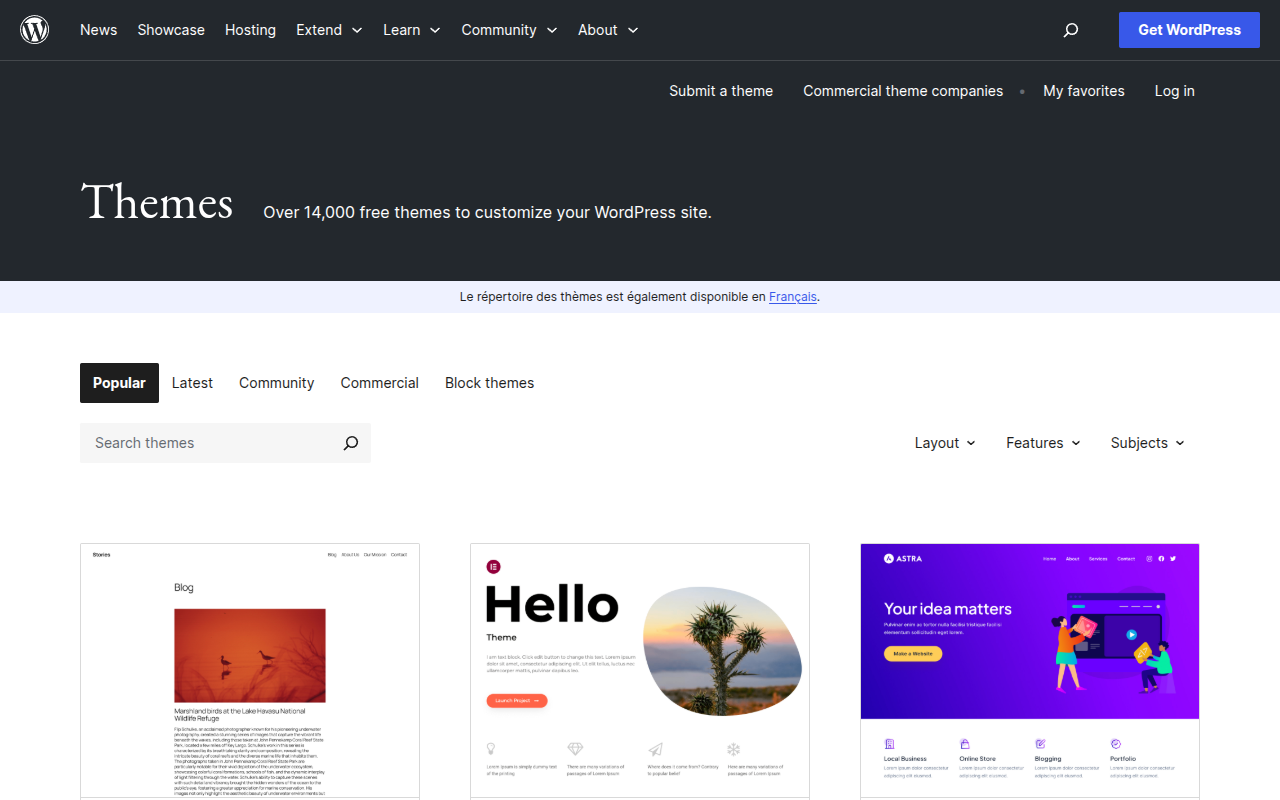
Let's start with the biggest source of free WordPress themes: the official WordPress.org theme directory. This is where you should begin your search, especially if you're on a budget.
How the Theme Directory Works
Every theme in the WordPress.org directory has been reviewed by the WordPress Theme Review Team — a group of volunteers who check themes against a set of coding standards and guidelines. This review process isn't perfect, but it ensures a baseline level of quality, security, and WordPress compatibility that you won't find on random theme websites.
When you browse the directory, you can filter themes by:
- Popular: Sorted by active installations (how many sites are currently using the theme)
- Latest: The newest themes added to the directory
- Community: Themes that are fully community-maintained
- Commercial: Free versions of themes that also have paid upgrade options
- Block Themes: Themes built for Full Site Editing (the future of WordPress theming)
You can also filter by layout (one column, two columns, etc.), features (custom colors, custom header, featured images, etc.), and subjects (blog, e-commerce, portfolio, etc.).
What the Numbers Tell You
Every theme listing shows some key metrics that most beginners ignore but you absolutely shouldn't:
Active Installations: This is the most important number. It tells you how many WordPress sites are currently using this theme. A theme with 100,000+ active installations has been battle-tested on hundreds of thousands of real websites. A theme with 10 active installations is essentially untested in the wild.
My general guidelines:
- 500,000+: Extremely popular, well-tested, very likely to be maintained long-term
- 100,000-499,999: Popular, reliable, good community support
- 10,000-99,999: Decent adoption, probably safe to use
- 1,000-9,999: Use with caution — check the update history
- Under 1,000: Risky unless it's very new (check the "last updated" date)
Star Ratings: Most popular themes have 4-5 star ratings. Pay more attention to the number of ratings than the average. A theme with 5 stars and 3 ratings tells you almost nothing. A theme with 4.5 stars and 5,000 ratings tells you a lot — it's been used by thousands of people and the overwhelming majority are happy with it.
Last Updated: This is crucial. WordPress releases major updates 2-3 times per year, and themes need to be updated to maintain compatibility. If a theme hasn't been updated in the last 6 months, proceed with caution. If it hasn't been updated in over 12 months, I'd skip it entirely — it may have security vulnerabilities or compatibility issues with the current version of WordPress.
Tested Up To: This shows the latest WordPress version the theme has been tested with. If it says "6.4" and WordPress is on version 6.7, the theme may or may not work — but the developer clearly isn't keeping up.
Free vs Premium Themes — The Honest Breakdown
One of the first questions every WordPress beginner asks is: "Do I need to pay for a theme?" The answer, as with most things in WordPress, is "it depends."
When Free Themes Are Enough
Free themes have gotten remarkably good over the past few years. Themes like Astra, GeneratePress, Kadence, and Blocksy offer more features in their free versions than many premium themes offered a few years ago. You can build a genuinely professional-looking website with a free theme — no asterisks, no caveats.
Free themes work well when:
- You're building a personal blog or portfolio
- You're just starting out and learning WordPress
- Your budget is tight (investing in hosting matters more than a theme)
- You're using a page builder like Elementor that handles most of the design
- You want a lightweight, fast-loading site
The best free themes — Astra, GeneratePress, Kadence, Blocksy, and the WordPress default themes (Twenty Twenty-Five, etc.) — are maintained by professional development teams and receive regular updates.
When Premium Themes Are Worth It
Premium themes typically cost between $40 and $80 per year or $150-300 for a lifetime license. What do you get for your money?
- More Starter Templates: Premium themes usually include a much larger library of pre-built website designs that you can import with one click
- Advanced Customization: More granular control over colors, typography, spacing, headers, footers, and layouts
- Premium Support: Dedicated support teams that will help you troubleshoot issues (free theme support is usually community-based)
- Advanced Features: Things like mega menus, sticky headers, custom hooks, white labeling, and WooCommerce enhancements
- Regular Updates: Premium themes are almost always actively maintained because the developer has a financial incentive
Premium themes are worth it when:
- You're building a business or client site that needs to look polished
- You need features that the free version doesn't offer (header builder, mega menu, etc.)
- You want priority support for troubleshooting
- You're a freelancer or agency and need to build sites quickly using starter templates
- You want the security of knowing the theme will be maintained long-term
I'll be straightforward: if you're building a site that will generate revenue — whether through ads, affiliate links, product sales, or services — the $47-59/year for a premium theme like Astra Pro or GeneratePress Premium is one of the best investments you can make. It's less than the cost of a single lunch per month.
A Note on ThemeForest
You'll inevitably come across ThemeForest (by Envato) during your theme search. It's the largest third-party WordPress theme marketplace, with 11,000+ themes at one-time prices of typically $29-$69 (including 6 months of developer support). ThemeForest is great for finding niche-specific designs — themes built specifically for restaurants, law firms, fitness studios, or any industry you can think of. However, be cautious: many ThemeForest themes are packed with so many bundled plugins and features that they become bloated and slow. Stick to themes with recent updates, high ratings, and clean code. When in doubt, the themes I recommend in my best WordPress themes guide are leaner, faster, and better supported long-term.
7 Things to Check Before Installing ANY Theme
This is the framework I use when evaluating themes, whether they're free or premium. Run through this checklist and you'll eliminate 90% of bad themes before they waste your time.
1. Performance and Speed
Your theme is the foundation of your site's performance. A bloated theme will make your site slow no matter how good your hosting is or how many caching plugins you install.
What to check:
- Install the theme on a test site (or use the theme's demo site) and run it through Google PageSpeed Insights
- Check the total page size — a well-built theme should generate less than 100KB on a fresh install
- Look at the number of HTTP requests — fewer is better
- Check the PageSpeed performance score — anything above 90 is good
The fastest themes I've tested are GeneratePress (~30KB), Kadence (~50KB), Astra (~50KB), and Blocksy (~60KB). If a theme generates over 200KB on a fresh install, I walk away.
2. Mobile Responsiveness
Over 60% of web traffic comes from mobile devices. If your theme doesn't look great on phones and tablets, you're losing more than half your visitors.
What to check:
- Preview the theme on your actual phone, not just the browser's responsive mode
- Check that text is readable without zooming
- Make sure buttons and links are large enough to tap with a finger
- Verify that images resize properly and don't overflow their containers
- Test the navigation menu — does it collapse into a hamburger menu that works smoothly?
Every theme on WordPress.org is technically required to be responsive, but "responsive" and "looks great on mobile" are not the same thing. Some themes technically scale down but still look terrible on small screens.
3. Update Frequency
A theme that isn't regularly updated is a theme that will eventually break your site, leave you vulnerable to security issues, or become incompatible with WordPress.
What to check:
- When was the theme last updated? Anything older than 6 months is a yellow flag. Older than 12 months is a red flag.
- Check the changelog — is the developer adding features, fixing bugs, and maintaining compatibility?
- How frequently does the developer release updates? Monthly or quarterly is ideal.
4. Support Quality
You will eventually run into an issue with your theme. When you do, you need to know that help is available.
What to check:
- For free themes: browse the WordPress.org support forum for the theme. Are the developers responsive? Do they actually solve problems, or do they just post canned responses?
- For premium themes: what support channels are available? Email? Live chat? Knowledge base? How quickly do they respond?
- Look for a documentation site — good themes have extensive documentation that answers most common questions
5. Page Builder Compatibility
If you're planning to use a page builder like Elementor or Divi, make sure your theme plays well with it.
What to check:
- Does the theme explicitly mention compatibility with your chosen page builder?
- Does the theme offer full-width and canvas page templates? (You need these for page builders)
- Are there known conflicts between the theme and your page builder?
Themes like Astra, GeneratePress, Kadence, and Hello Elementor are specifically built with page builder compatibility in mind. If you're using a page builder, start your search with these themes.
6. Customization Options
Can you make the theme look the way you want without writing custom CSS?
What to check:
- Can you change colors, fonts, and layouts from the Customizer?
- How much control do you have over the header and footer?
- Can you control sidebar placement (left, right, none)?
- Can you adjust spacing, padding, and margins?
- Is there a child theme or custom CSS area for more advanced changes?
7. Reviews and Reputation
Don't just look at the star rating — read actual reviews from real users.
What to check:
- Read the 1-star and 2-star reviews on WordPress.org. What are people complaining about? Are the complaints about things that would affect you?
- Search for "[theme name] review" on Google and read independent reviews from WordPress bloggers
- Check if the theme is mentioned in "best WordPress themes" roundups from trusted sources
- Look for the theme in WordPress Facebook groups and subreddits — what's the community sentiment?
Red Flags: When to Run Away
In my years of building WordPress sites, I've learned to spot problematic themes from a mile away. Here are the red flags that should send you running:
Themes with 20+ Bundled Plugins
Some themes — especially on ThemeForest — come "bundled" with 10, 15, or even 20+ plugins. Slider Revolution, Visual Composer, WPBakery, Contact Form 7, a dozen custom plugins... the list goes on. This might sound like a great deal, but it's actually a massive red flag.
Bundled plugins add bloat, create compatibility issues, and — here's the worst part — often don't receive updates because the theme developer included an older version that they never update. You end up with a site running outdated, potentially vulnerable plugins that you can't update through normal channels.
Themes Not Updated in 12+ Months
WordPress evolves constantly. A theme that hasn't been updated in over a year is almost certainly incompatible with the latest WordPress version, PHP version, or both. It may also have unpatched security vulnerabilities. I don't care how good the design looks — if it's abandoned, don't use it.
Themes with No Reviews
A theme on WordPress.org with zero reviews and fewer than 100 active installations might be perfectly fine — or it might be a low-quality theme that no one uses. Unless you're a developer who can evaluate the code yourself, it's a gamble I wouldn't take when there are so many proven alternatives.
"Nulled" Premium Themes (Security Risk!)
This is the most important red flag of all. Never, ever install a "nulled" WordPress theme.
A nulled theme is a premium theme that someone has pirated and distributed for free. They're available on shady download sites and often promoted as "free downloads" of themes that normally cost money.
Here's why nulled themes are dangerous:
- Malware: The vast majority of nulled themes contain malicious code — backdoors that let hackers access your site, scripts that inject spam links, cryptocurrency miners that run on your visitors' devices, or code that redirects your traffic to malicious sites
- No Updates: You won't receive security updates or new features
- No Support: The theme developer won't help you because you didn't pay for the theme
- Legal Risk: Using pirated software violates copyright law
- SEO Damage: Hidden spam links in nulled themes can get your site penalized by Google
I've seen this happen to real people. A client came to me after their site was hacked, and the root cause was a nulled theme they'd installed six months earlier. The theme had a backdoor that went undetected until the hacker decided to use it. We had to rebuild the entire site from scratch. Don't let this happen to you.
My Theme Selection Process
Here's exactly how I choose themes for client sites. This process takes 30 minutes, not three days.
- Start with the Big Four: Astra, GeneratePress, Kadence, or Blocksy. These four themes cover 95% of use cases. I check if any of them have a starter template that's close to what the client wants.
- Check for a starter template match: If Astra has a starter template that's 80% of what we need, we go with Astra. Done in 5 minutes.
- Consider the project requirements: Does the project need maximum performance? GeneratePress. Does the client need lots of design options? Astra. Do they want a modern block theme? Kadence.
- Check compatibility: If the project uses Elementor, I verify the theme works well with it (Astra and Hello Elementor are my go-to choices for Elementor projects).
- Test on a staging site: I install the theme on a staging environment, import a starter template if applicable, and verify everything works before committing.
That's it. I don't browse ThemeForest for hours. I don't scroll through hundreds of WordPress.org listings. I start with themes I trust and pick the one that fits the project. Simple.
Where to Find Quality WordPress Themes
WordPress.org Theme Directory
The official directory is the safest place to find free themes. Every theme is reviewed, and you can install them directly from your WordPress dashboard. Sort by "Popular" to see the most-used themes.
Developer Websites
The best premium themes are sold directly by their developers:
- Astra: wpastra.com — the most popular non-default WordPress theme
- GeneratePress: generatepress.com — the performance champion
- Kadence: kadencewp.com — excellent block theme with free and premium tiers
- Blocksy: creativethemes.com/blocksy — modern, fast, and feature-rich
Buying directly from developers ensures you get legitimate licenses, automatic updates, and access to support.
ThemeForest
ThemeForest is the largest WordPress theme marketplace with thousands of premium themes. Some are excellent; many are bloated and poorly coded. If you shop here, look for themes with:
- High sales numbers (10,000+)
- High ratings (4.5+ stars)
- Regular updates (within the last 3 months)
- Active support forums
- Low bundled plugin count
Be extra careful on ThemeForest. The marketplace model means quality varies wildly, and some of the most popular themes are actually some of the most bloated.
The Block Theme Revolution — Full Site Editing
I'd be doing you a disservice if I didn't talk about the biggest change happening in WordPress theming right now: Full Site Editing (FSE) and block themes.
Traditional WordPress themes use PHP template files to define your site's structure — header.php, footer.php, single.php, etc. To customize these, you either need to modify the theme files directly, use a child theme, or rely on theme options in the Customizer.
Block themes replace all of that with HTML template files that use WordPress blocks. Instead of a header.php file with PHP code, you have a header template that's built entirely with blocks — the same blocks you use in the content editor. This means you can visually edit everything — your header, footer, sidebar, blog layout, single post template, archive pages — all from the WordPress Site Editor.
Why This Matters
Block themes fundamentally change the theme selection equation. With a traditional theme, your choice locks you into that theme's design approach. Want a different header layout? You need a theme that supports it. Want to change your blog layout? Better hope the theme has that option.
With a block theme, the theme is more like a starting point. You can change virtually anything about the design directly in the editor. The theme provides default styles and templates, but you're not limited by them.
Twenty Twenty-Five
WordPress's default block theme, Twenty Twenty-Five, is actually quite good. It's a clean, minimal theme that demonstrates what block themes can do. It's fully customizable through the Site Editor, performs well, and gets updated alongside WordPress itself.
If you're just starting out with WordPress in 2026, I genuinely recommend giving Twenty Twenty-Five a try before shopping for third-party themes. You might find it's all you need. And if it's not, you'll have a much better understanding of what features you actually want in a theme.
The Best Block Themes
If you want a block theme with more design polish than Twenty Twenty-Five, check out:
- Kadence: One of the best block theme experiences available, with a powerful free version
- Blocksy: Beautiful designs with excellent block theme support
- GeneratePress: Increasingly focused on block theme features through GenerateBlocks
- Ollie: A popular free block theme designed specifically for FSE
How Theme Choice Affects SEO
Your theme choice has a direct, measurable impact on your search engine rankings, and most beginners don't realize this until it's too late.
Google's Core Web Vitals — Largest Contentful Paint (LCP), First Input Delay (FID), and Cumulative Layout Shift (CLS) — are official ranking factors. Your theme is the single biggest factor determining your baseline Core Web Vitals scores. A bloated theme with heavy CSS, unnecessary JavaScript, and unoptimized markup will drag your scores down before you've even added a single word of content.
Here's what I mean with real numbers. I tested five popular themes on the same hosting environment with identical content:
| Theme | Page Size | PageSpeed Mobile | LCP |
|---|---|---|---|
| GeneratePress | 30 KB | 99 | 0.8s |
| Astra | 50 KB | 97 | 1.0s |
| Kadence | 50 KB | 96 | 1.1s |
| Popular ThemeForest Theme | 380 KB | 62 | 3.2s |
| Bloated Multipurpose Theme | 520 KB | 41 | 4.8s |
That's a 10x difference in page size between the lightest and heaviest themes. In a competitive niche where everyone has similar content quality, the site running GeneratePress with a 0.8s LCP has a genuine ranking advantage over the site running a bloated theme with a 4.8s LCP.
Beyond Core Web Vitals, your theme also affects:
- Markup quality: Clean, semantic HTML helps search engines understand your content structure
- Schema markup: Some themes add proper schema.org markup for articles, breadcrumbs, and site navigation
- Mobile usability: A poorly responsive theme triggers mobile usability issues in Google Search Console
- Heading structure: Themes that use proper heading hierarchy (H1 > H2 > H3) help Google understand your content
The takeaway: if you're building a site that depends on organic search traffic, your theme choice is a strategic decision, not just an aesthetic one.
Testing Before Committing
Never install a theme on your live site without testing it first. Here's my testing process:
Option 1: Local Development Environment
Install LocalWP (free) or DevKinsta (free) on your computer. Both create a complete WordPress environment on your local machine where you can install themes, import starter templates, and test everything without affecting your live site. This is my preferred approach because it's fast, free, and completely risk-free.
Option 2: Staging Environment
Most decent hosting companies — SiteGround, Cloudways, Kinsta, WP Engine — offer a one-click staging environment. This creates a copy of your live site where you can test changes without affecting the real thing. Install the theme on staging, preview it, and only push changes to production when you're happy.
Option 3: Live Preview
WordPress lets you preview themes before activating them through Appearance > Themes > Live Preview. This is the quickest option but also the least thorough — you're seeing the theme with your existing content and settings, not a complete picture of what it can do.
What to Test
When testing a theme, I check these specific things:
- Does the homepage look the way I want (or close enough to customize)?
- How do blog posts look? Is the typography readable? Is the line height comfortable?
- How does the site look on my phone? Not just "is it responsive" but "does it look good?"
- What happens when I install my required plugins? Any conflicts or styling issues?
- How does the Customizer feel? Are the options organized logically?
- How fast does the site load with this theme? (Run PageSpeed Insights)
- If I'm using a page builder, does the builder work smoothly with this theme?
Spending 30 minutes testing upfront saves you hours of frustration later.
My Recommended Themes for Different Use Cases
Let me save you even more time. Here's what I'd recommend based on what you're building:
Simple Blog: Twenty Twenty-Five (free) or Kadence (free). Both are fast, clean, and fully customizable through the block editor.
Business Website: Astra (free or Pro). Import a starter template, customize the colors and content, and you're done. This is the fastest path from zero to professional-looking business site.
Performance-Critical Niche/Affiliate Site: GeneratePress with GenerateBlocks. The lightest foundation with the cleanest code output. Your Core Web Vitals will thank you.
WooCommerce Store: Astra or Kadence. Both have excellent WooCommerce integration, and Astra's starter templates include several shop designs.
Portfolio/Creative: Kadence or Blocksy. Both have stunning design options that work great for visual portfolios.
Using Elementor: Astra or Hello Elementor. Astra if you want more theme features; Hello Elementor if you want the lightest possible canvas for your Elementor designs.
For a deeper dive into specific themes, check out our guide to the best WordPress themes and our roundup of the best free WordPress themes.
Final Advice
After years of building WordPress sites, here's the most important thing I've learned about choosing themes: the best theme is the one you stop thinking about.
Your theme should be a foundation that fades into the background while you focus on what actually matters — creating great content, serving your audience, and building your business. If you're constantly fighting with your theme, customizing it, troubleshooting it, or worrying about it, you chose the wrong theme.
Pick one of the proven options I've recommended. Install it. Customize it enough to match your brand. Then move on and focus on your content. You can always change themes later — but you can never get back the time you wasted agonizing over the "perfect" theme.
The perfect theme is the one you pick and start building with. Today.

Written by Marvin
Our team tests and reviews WordPress products to help beginners make confident choices.
Learn more about our team →You might also like
GeneratePress vs Astra — Which Lightweight Theme Is Better?
A detailed comparison of the two most popular lightweight WordPress themes — GeneratePress and Astra. Covers speed benchmarks, customization, template libraries, pricing, code quality, and which theme is better for developers versus beginners.
postElementor vs Divi in 2026 — Which Page Builder Should You Choose?
An honest, in-depth comparison of Elementor and Divi — the two most popular WordPress page builders. Covers pricing, performance, ease of use, WooCommerce support, template libraries, and the Gutenberg question so you can pick the right builder for your project.
postAstra Theme Review 2026 — Is It Really the Best WordPress Theme?
An in-depth, hands-on review of the Astra WordPress theme in 2026. Covering performance benchmarks, Customizer options, Starter Templates, page builder compatibility, free vs Pro features, pricing, and an honest verdict on whether Astra deserves its reputation as the most popular WordPress theme.
postBest Free WordPress Themes in 2026 — 10 Options That Don't Look Free
A curated list of the best free WordPress themes in 2026 that rival premium alternatives. Covering Astra Free, Kadence Free, GeneratePress Free, and more — with honest breakdowns of what you get for free and what's locked behind a paywall.