
Robots.txt
Quick Definition
Robots.txt is a small text file in your website's root directory that tells search engine crawlers which pages they can and cannot access. It helps you control how Google crawls your WordPress site and manage your crawl budget.
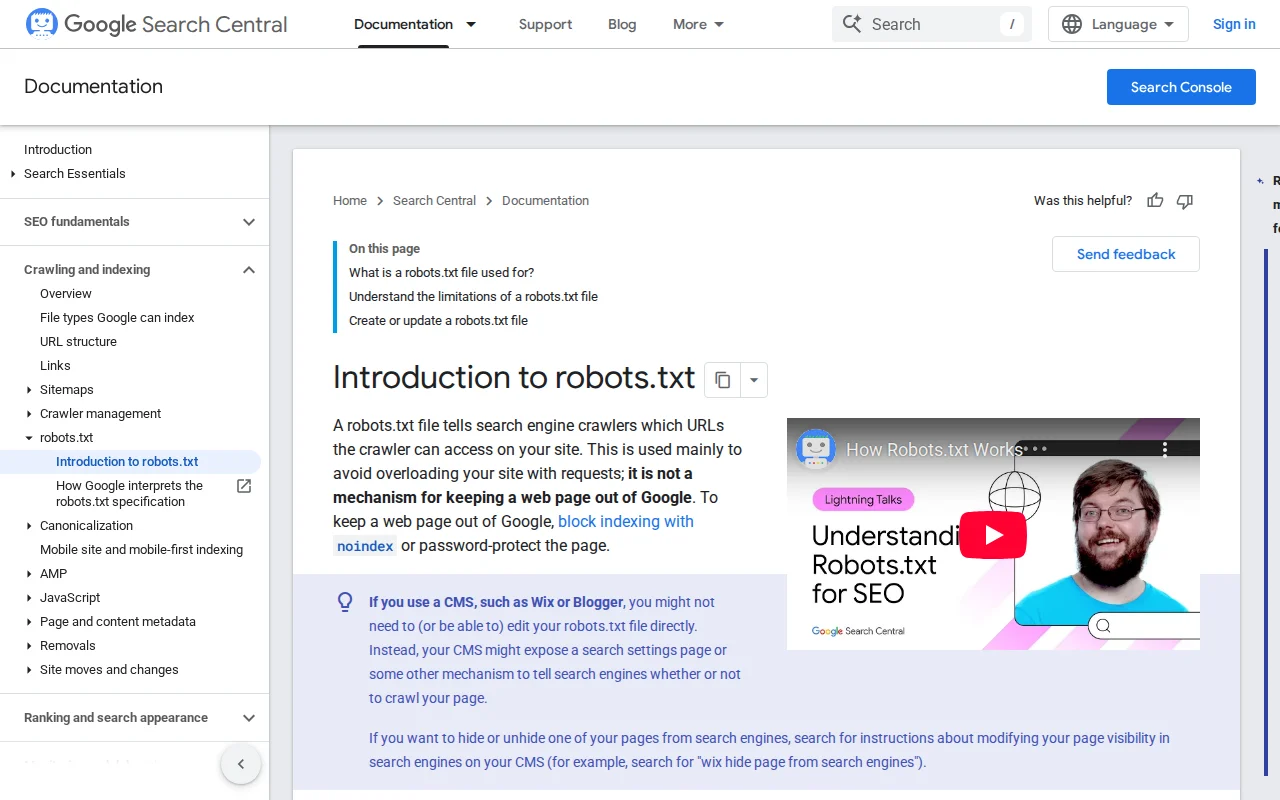
What Is Robots.txt?
Robots.txt is a plain text file that lives at the root of your website (e.g., yourdomain.com/robots.txt). It contains instructions for search engine crawlers — telling them which parts of your site they are allowed to access and which parts they should skip.
Think of it as a doorman at your website's entrance. When Googlebot arrives to crawl your site, the first thing it does is check your robots.txt file. If a page or folder is listed as "Disallow," the crawler will not visit it. If it is "Allow" or not mentioned, the crawler proceeds normally.
Important: robots.txt does not remove pages from Google's search results. If Google already knows about a URL (from backlinks or sitemaps), it may still show it in search results even if you disallow crawling. To actually remove a page from Google, you need a noindex meta tag instead.
WordPress Default Robots.txt
WordPress generates a virtual robots.txt file automatically. The default looks like this:
User-agent: *
Disallow: /wp-admin/
Allow: /wp-admin/admin-ajax.php
Sitemap: https://yourdomain.com/sitemap.xml
This tells all crawlers (User-agent: *) to stay out of the /wp-admin/ folder (your dashboard) but allows access to admin-ajax.php (which some front-end features need). It also points crawlers to your XML sitemap.
You can customize your robots.txt using SEO plugins like Rank Math or Yoast SEO, which provide a visual editor. You can also create a physical robots.txt file and upload it to your site's root directory via FTP.
Common Robots.txt Directives
- User-agent — Specifies which crawler the rule applies to. Use
*for all crawlers, or target specific ones likeGooglebotorBingbot. - Disallow — Blocks crawling of a specific path.
Disallow: /private/blocks everything in the /private/ folder. - Allow — Overrides a Disallow rule for a specific path within a blocked folder.
- Sitemap — Points crawlers to your XML sitemap location for efficient discovery.
Common Mistakes to Avoid
- Accidentally blocking your entire site —
Disallow: /blocks everything. WordPress has a checkbox in Settings → Reading that adds this line. Make sure "Discourage search engines" is unchecked. - Blocking CSS and JS files — Google needs to render your pages to evaluate them. Blocking stylesheets or scripts can hurt your rankings.
- Using robots.txt to hide pages — It does not actually hide pages from Google. Use
noindexfor that.
Why It Matters
For most WordPress sites, the default robots.txt is perfectly fine. But understanding what it does helps you avoid catastrophic mistakes — like accidentally telling Google not to crawl your entire site. It also helps you manage your crawl budget: on larger sites, you can use robots.txt to keep crawlers focused on your important content instead of wasting time on admin pages, tag archives, or duplicate content.
Sources: Google Search Central, Developer.WordPress.org, Google Developers