
WordPress Security Checklist: 12 Steps to Protect Your Site
Let me be upfront with you: WordPress itself is not insecure. It powers over 40% of the entire web, including major enterprise sites, government portals, and news outlets. But its popularity makes it a target, and most hacks happen because of preventable mistakes — not because WordPress has some fundamental flaw.
I've been building WordPress sites for over 20 years, and I've cleaned up hacked sites more times than I care to remember. In almost every case, the breach came down to one of three things: a weak password, outdated software, or a sketchy plugin downloaded from a random website. The good news? You can prevent the vast majority of attacks by following a straightforward checklist. Here are the 12 security steps I implement on every site I build, ranked from most critical to least.
Why WordPress Sites Get Hacked
Before diving into the steps, let me clear up a common misconception. WordPress doesn't get hacked because it's bad software. It gets hacked because it's popular software, and attackers know that millions of site owners skip basic security practices. The three most common attack vectors I see are: weak or reused passwords (especially using "admin" as a username), outdated WordPress core, themes, or plugins with known vulnerabilities, and poorly coded or abandoned plugins that introduce security holes. Fix those three things and you've eliminated about 90% of your risk.
The 12-Step WordPress Security Checklist
#1 Use Strong Passwords and a Unique Admin Username
This is the single most important thing you can do. Brute force attacks — where bots try thousands of username/password combinations — are the most common attack against WordPress sites. If your username is "admin" and your password is "password123," you're practically handing over the keys. Create a unique admin username that isn't "admin," "administrator," or your domain name. Use a password manager like 1Password or Bitwarden to generate and store passwords that are at least 16 characters with a mix of letters, numbers, and symbols. Never reuse passwords across sites.
#2 Keep WordPress, Themes, and Plugins Updated
Most WordPress vulnerabilities are patched within days of being discovered. The problem is that many site owners ignore update notifications for weeks or months. By then, hackers have already written automated scripts to exploit those known vulnerabilities. Enable auto-updates for minor WordPress releases (they're on by default). Check for plugin and theme updates at least weekly — I check mine every Monday morning. If a plugin hasn't been updated in over a year, consider replacing it with an actively maintained alternative.
#3 Install a Security Plugin
A dedicated security plugin adds multiple layers of protection that WordPress doesn't include out of the box. I recommend Wordfence for most site owners — the free version includes a firewall, malware scanner, and login security features. It blocks malicious traffic before it reaches your site and alerts you to potential vulnerabilities. Check out my best security plugins comparison for a detailed breakdown of your options.
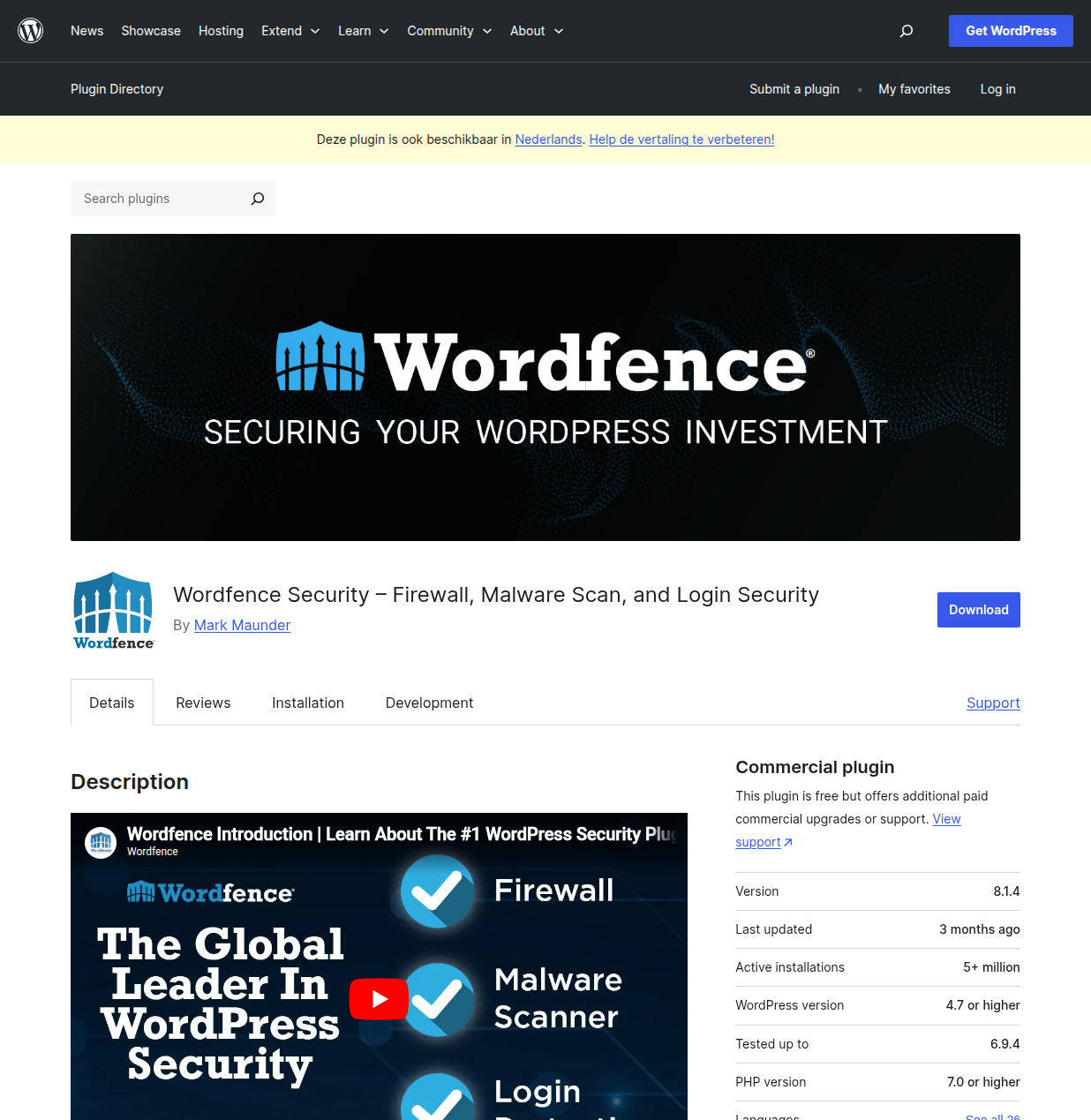
Wordfence is the most popular WordPress security plugin for good reason — it's powerful, well-maintained, and the free tier covers everything most site owners need. Install it, run your first scan, and review the firewall settings.
#4 Enable Two-Factor Authentication
Two-factor authentication (2FA) adds a second verification step when you log in — typically a code from an authenticator app on your phone. Even if someone steals your password, they can't log in without that second code. I use the Two-Factor plugin by WordPress.org on all my sites. It supports authenticator apps (Google Authenticator, Authy, 1Password), email codes, and backup codes for emergencies.
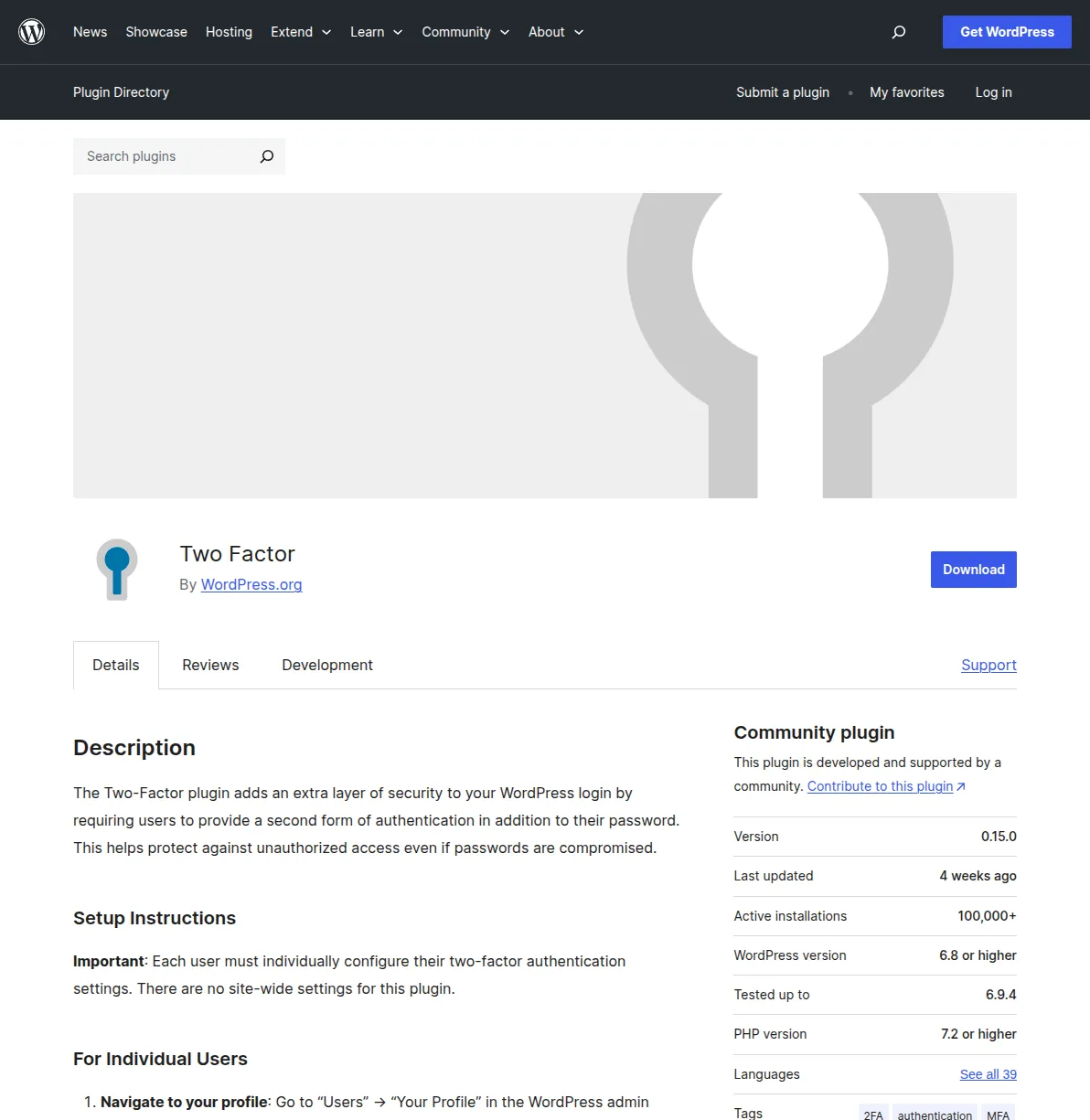
Setting it up takes about two minutes: install the plugin, go to Users → Your Profile, scroll down to Two-Factor Options, scan the QR code with your authenticator app, and you're done. Always generate backup codes and store them somewhere safe in case you lose access to your phone.
#5 Use Quality Hosting with Server-Level Security
Your hosting provider is your first line of defense. Cheap, shared hosting often lacks proper server-level security — no firewalls, no malware scanning, no automatic backups. A good WordPress host provides server-level firewalls, regular malware scanning, automatic backups, free SSL certificates, and PHP version management. I recommend starting with a reputable host like one from my hosting guide. You don't need the most expensive plan, but the $3/month bargain hosts are usually a false economy when you factor in the security risks.
#6 Install an SSL Certificate (HTTPS)
An SSL certificate encrypts the connection between your visitors' browsers and your server. Without it, login credentials, form submissions, and personal data travel across the internet in plain text — anyone on the same network can intercept them. Most hosting providers now include free SSL certificates through Let's Encrypt. To enable it: check your hosting dashboard for an SSL/HTTPS option, activate the free certificate, then update your WordPress Address and Site Address in Settings → General to use https://. Google also uses HTTPS as a ranking factor, so this helps your SEO too.
#7 Limit Login Attempts
By default, WordPress allows unlimited login attempts. That's an open invitation for brute force attacks. Limiting login attempts locks out IP addresses after a set number of failed tries. If you're using Wordfence (step #3), this is already built in — check the Brute Force Protection settings under Wordfence → All Options. Otherwise, install a lightweight plugin like Limit Login Attempts Reloaded. I set mine to lock out after 5 failed attempts for 30 minutes, and after 3 lockouts, ban the IP for 24 hours.
#8 Set Up Regular Backups
Backups aren't technically a security prevention measure, but they're your ultimate safety net. If the worst happens — a hack, a bad update, an accidental deletion — a recent backup means you can restore your site in minutes instead of starting from scratch. I keep daily backups stored off-site (never only on your hosting server). Read my complete WordPress backup guide for step-by-step setup instructions. The short version: use a plugin like UpdraftPlus, schedule daily backups, and store them in Google Drive or Dropbox.
#9 Disable File Editing in the WordPress Dashboard
WordPress includes a built-in code editor that lets you edit theme and plugin files directly from the dashboard (Appearance → Theme File Editor). If an attacker gains admin access, this editor lets them inject malicious code into your site without needing FTP access. Disable it by adding this line to your wp-config.php file:
define('DISALLOW_FILE_EDIT', true);This removes the editor from the dashboard completely. You can still edit files via FTP or your hosting file manager when needed. It's a one-line change that eliminates an entire attack vector.
#10 Change the Default Database Prefix
WordPress uses wp_ as the default database table prefix. Since every attacker knows this, automated SQL injection scripts target tables named wp_users, wp_options, and so on. Changing the prefix to something random (like xk7_) makes these automated attacks fail. The best time to do this is during WordPress installation — most installers let you set a custom prefix. If your site is already live, changing the prefix requires modifying the database and wp-config.php, which is riskier. For existing sites, I recommend leaving it and focusing on the other steps instead.
#11 Hide the WordPress Version Number
WordPress outputs its version number in your site's HTML source code by default. If you're running an older version, attackers can look up known vulnerabilities for that specific version and exploit them. Add this snippet to your theme's functions.php file or use a code snippets plugin:
remove_action('wp_head', 'wp_generator');This removes the version meta tag from your site's source code. It's security through obscurity — not a strong defense on its own, but it removes one piece of information attackers can use against you. Combined with keeping WordPress updated (step #2), it's a worthwhile precaution.
#12 Scan Your Site Regularly with Sucuri SiteCheck
Even with all the preventive measures in place, it's wise to periodically scan your site for malware and security issues from the outside. Sucuri SiteCheck is a free online scanner that checks your site for known malware, blacklisting status, outdated software, and security anomalies. Just enter your domain and it runs a comprehensive scan in seconds.
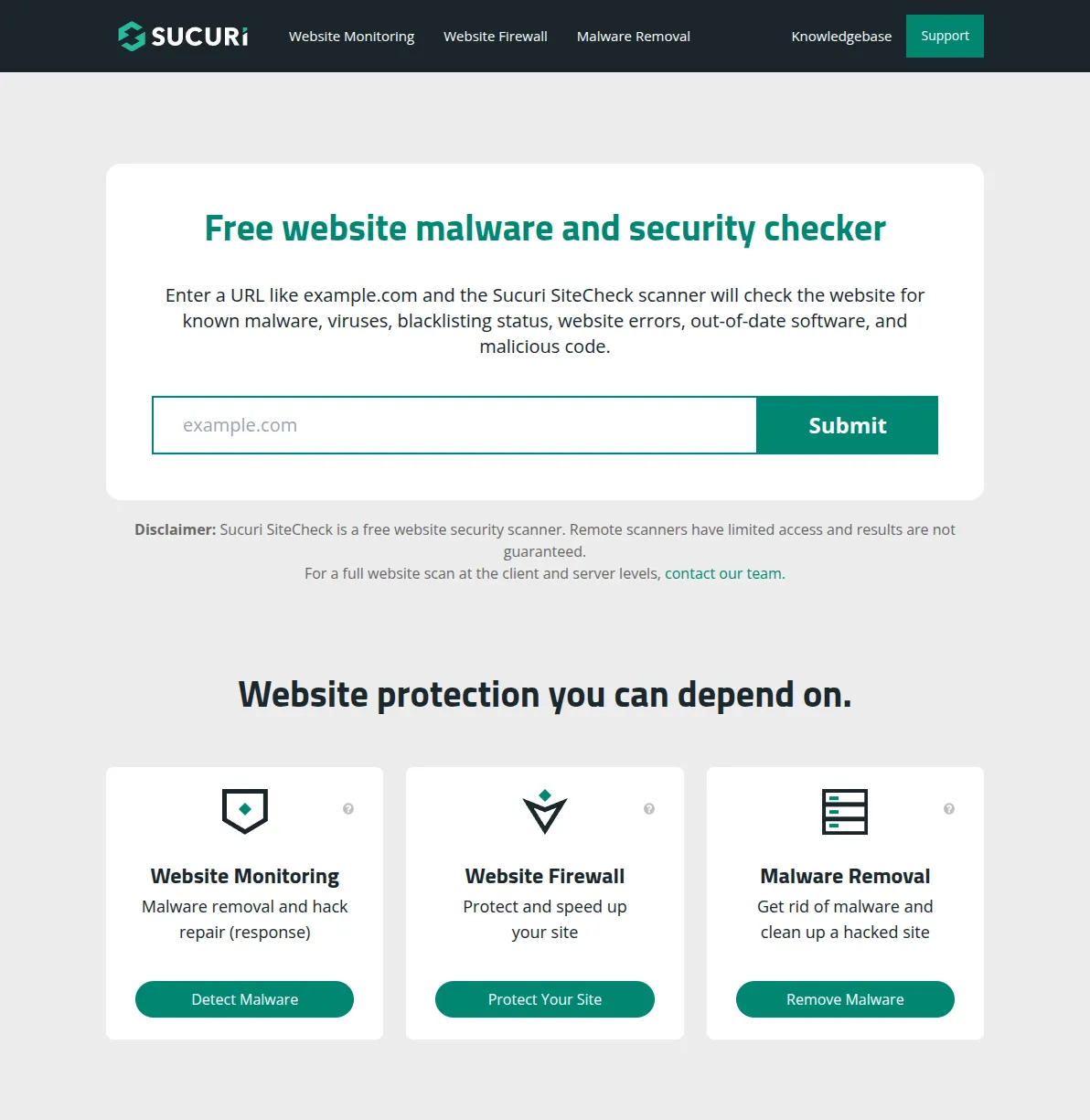
I scan my sites monthly as a routine check, and immediately after installing any new plugin or making significant changes. If SiteCheck finds anything suspicious, investigate immediately — don't wait. Bookmark sitecheck.sucuri.net and make it part of your monthly maintenance routine.
What to Do If Your Site Gets Hacked
First: don't panic. Hacks are stressful, but they're fixable. I've cleaned up dozens of hacked sites, and here's the process I follow every time.
Step 1: Restore from backup. If you have a clean recent backup (and you should — see step #8), restoring it is the fastest fix. Roll back to a backup from before the hack occurred. Step 2: Change all passwords immediately. WordPress admin passwords, hosting account passwords, FTP passwords, database passwords — change everything. Assume all credentials are compromised. Step 3: Scan and clean. Run a full Wordfence scan to identify any remaining malware or modified files. Check for unfamiliar admin users that the attacker may have created. Step 4: Update everything. Update WordPress core, all plugins, and all themes to their latest versions. Delete any plugins or themes you're not actively using. Step 5: Harden. Go through this entire checklist and implement every step you haven't already. A hack is often the wake-up call that motivates people to take security seriously.
If the hack is severe — your site is distributing malware to visitors or your hosting provider has suspended your account — consider hiring a professional cleanup service like Sucuri or Wordfence Care. They have the tools and experience to do a thorough cleanup at the server level.
Frequently Asked Questions
Is WordPress safe to use?
Yes, WordPress core is actively maintained by a large team of security experts and undergoes regular security audits. The vast majority of WordPress hacks happen because of user error — weak passwords, outdated plugins, or installing themes from untrusted sources. If you follow the 12 steps in this guide, WordPress is perfectly safe for any type of website, from personal blogs to eCommerce stores.
Do I need a paid security plugin or is the free version enough?
For most site owners, the free version of Wordfence provides excellent protection. It includes a web application firewall, malware scanner, and brute force protection. The premium version adds real-time firewall rule updates and country blocking, which are nice to have but not essential for smaller sites. I run the free version on several of my sites with no issues. If you're running a store or handling sensitive customer data, the premium version or another paid option is worth the investment for the real-time threat intelligence.
How often should I update WordPress and my plugins?
Check for updates at least once a week. I do it every Monday morning as part of my site maintenance routine. Enable automatic updates for minor WordPress releases (security patches). For major WordPress updates and plugin updates, I prefer to update manually so I can check my site immediately afterward for any compatibility issues. Never let updates sit for more than a week — known vulnerabilities get exploited fast. If you want to know what's coming in the next major version (and why it was pushed back), see my WordPress 7.0 release guide.
Can I secure WordPress without any plugins?
You can implement several security measures without plugins — strong passwords, keeping software updated, disabling the file editor, hiding the version number, and changing the database prefix. But a security plugin like Wordfence adds critical protections that are difficult to replicate manually: a web application firewall, automated malware scanning, and real-time traffic monitoring. I wouldn't run any WordPress site without at least a basic security plugin installed.
Lock Down Your Site Today
You don't need to implement all 12 steps at once, but start with the first five today — they take about 30 minutes total and block the vast majority of attacks. Strong passwords, regular updates, a security plugin, two-factor authentication, and quality hosting form the foundation of a secure WordPress site. Then work through the remaining steps over the next week. Your future self will thank you when your site isn't one of the 30,000+ websites that get hacked every day.
For more on keeping your site safe, check out my guide to the best WordPress security plugins and my WordPress backup guide — because a good backup strategy is the ultimate insurance policy against anything that goes wrong.

Written by Marvin
Our team tests and reviews WordPress products to help beginners make confident choices.
Learn more about our team →You might also like
How to Backup Your WordPress Site (3 Methods, Step by Step)
I lost a client's entire website once because nobody set up backups. It was a $15,000 WooCommerce store, gone overnight after a botched plugin update. That was the day I learned that WordPress backups aren't optional. Here's exactly how to protect your site.
postWooCommerce AI Automation: How to Run Your Store With AI in 2026
A practical guide to WooCommerce AI automation in 2026: the real tools, the working AI agent setups, and the parts of your store you should never hand over to a bot.
postWordPress 7.0: Everything You Need to Know About the 2026 Release
WordPress 7.0 is the biggest release in years — real-time collaboration, the Abilities API for AI, and expanded Block Bindings. Here is the confirmed timeline, the feature list, and exactly how to prepare your site.
postBest AI Plugins for WordPress in 2026 (Tested and Reviewed)
I spent three months testing AI plugins on my own WordPress sites. Here are the 9 that are actually worth installing in 2026 — honest pricing, real install counts, and where each one fits.