
Pattern
Quick Definition
A pattern in WordPress is a pre-designed group of blocks that you can insert into any post or page and customize with your own content — like a layout template for sections of a page.
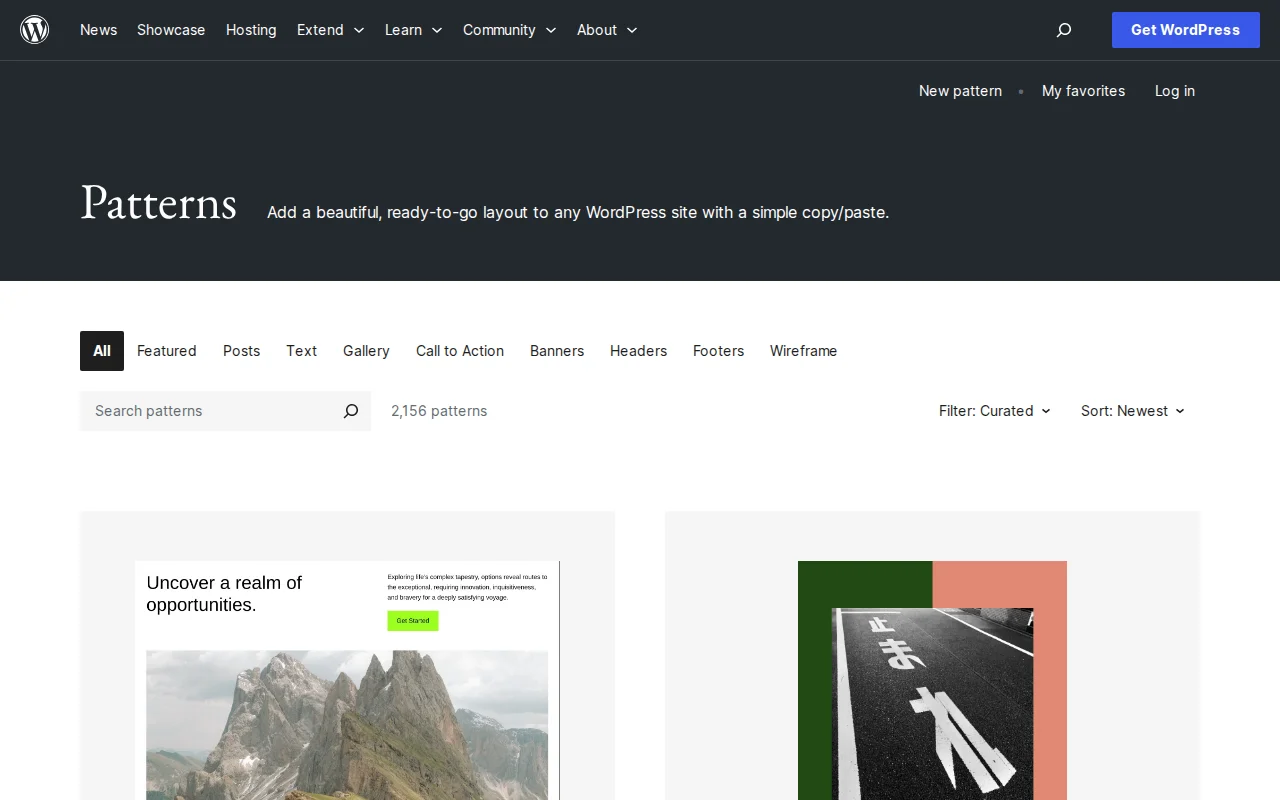
What Is a Pattern?
A pattern (also called a block pattern) is a pre-built collection of blocks arranged into a useful layout. Instead of building a hero section, pricing table, or testimonial grid from scratch every time, you insert a pattern and customize it with your own content. Patterns were introduced in WordPress 5.4 and have become a central part of how modern WordPress sites are built.
There are two types of patterns:
- Standard (non-synced) patterns — When you insert one, it creates an independent copy. Changes you make to the inserted blocks do not affect the original pattern or any other instance. Use these as starting templates.
- Synced patterns — Formerly called "Reusable Blocks" (renamed in WordPress 6.3). Edits propagate to every instance across your site. Use these for content that must stay identical everywhere — like a CTA, disclaimer, or contact information.
You find and insert patterns through the Block Inserter: click the + icon, select the Patterns tab, and browse by category (headers, footers, text, gallery, call-to-action, etc.). Click or drag a pattern into your content, then replace the placeholder text and images with your own.
WordPress also has a public Pattern Directory — a searchable library of community-contributed patterns you can copy and paste into any WordPress site. All images in directory patterns are free to use, though WordPress recommends uploading them to your Media Library so they are hosted on your server.
Theme developers register custom patterns using register_block_pattern() or by placing PHP files in the /patterns directory. This is how block themes provide starter layouts — when you create a new page, WordPress can suggest theme-specific patterns to start from.
Patterns in Practice
Patterns dramatically speed up page creation. Instead of adding a heading, paragraph, two columns, image, and button individually, you insert a "Hero with CTA" pattern and customize the text. The Site Editor in block themes uses patterns extensively — every template and template part is built from patterns.
You create your own patterns by selecting blocks, clicking the three-dot menu, and choosing "Create pattern." Toggle the Sync option if you want changes to propagate everywhere. Manage all patterns from Appearance > Editor > Patterns.
Patterns can also be exported as JSON files, making them portable between sites. This is useful for agencies that want a consistent set of starter layouts across client projects.
Why It Matters
Patterns are the bridge between a blank page and a finished layout. They make professional page designs accessible to non-designers, reduce repetitive work, and standardize design across your site. Understanding patterns — and the difference between synced and non-synced — is essential for anyone building with the block editor.