
Best WordPress Translation Plugins to Build a Multilingual Site
Over half the people on the internet don't speak English. If your WordPress site only serves one language, you're leaving a massive audience on the table. I've built multilingual sites for clients in Europe, the Middle East, and Latin America over the past decade, and picking the right translation plugin is one of the most consequential decisions you'll make. Get it wrong and you're stuck with a clunky workflow, duplicate content headaches, and SEO that falls apart across languages.
In this guide I compare the four best WordPress translation plugins I've actually used on production sites. I'll cover what each one does well, where it falls short, and which one fits your situation. If you're still setting up your site, check my must-have plugins guide first — translation comes after you've nailed the basics.
Quick Comparison
| Plugin | Best For | Price | Active Installs | Translation Method |
|---|---|---|---|---|
| TranslatePress | Visual, beginner-friendly translation | Free / from €99/yr | 400,000+ | Manual + automatic |
| WPML | Complex multilingual sites | From $39/yr | 1,000,000+ | Manual + automatic |
| Polylang | Free manual translations | Free / Pro available | 800,000+ | Primarily manual |
| Weglot | Fastest setup, automatic translations | Free / from €15/mo | 60,000+ | Automatic (cloud-based) |
1. TranslatePress — Best Visual Translation Experience
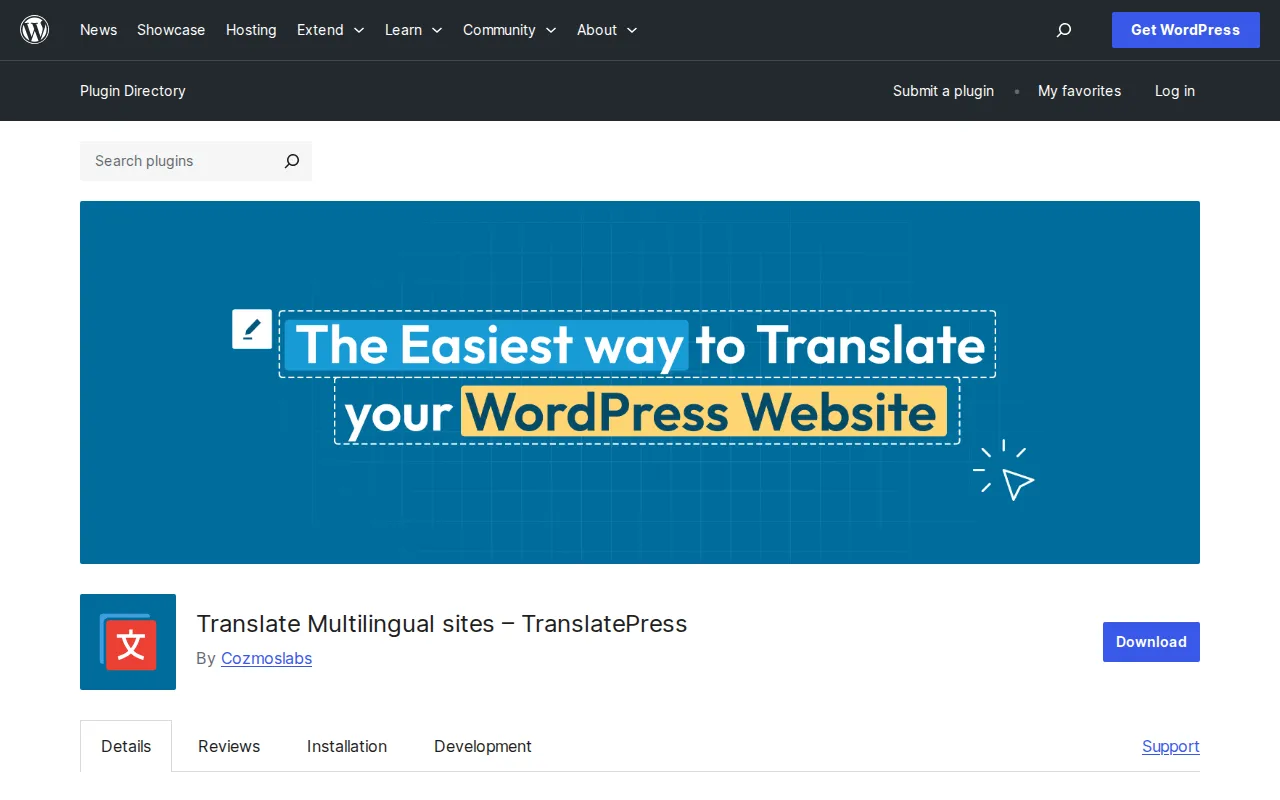
TranslatePress is my go-to recommendation for most WordPress users who want to translate their site without touching code or wrestling with a confusing backend interface. The core idea is simple: you translate your site directly on the front end, seeing exactly how each page looks in both languages while you work. It's the closest thing to a "what you see is what you get" translation experience in WordPress.
The free version supports one additional language, which is enough for many sites. You get the visual editor, Google Translate integration with your own API key, WooCommerce compatibility, and a customizable language switcher. The free tier even includes 2,000 AI-translated words per month to get you started.
Where TranslatePress really shines is the workflow. Instead of jumping between admin screens and trying to match fields, you navigate your actual site and click on any text to translate it. Page builder content, shortcodes, forms, menus — everything is translatable from the same interface. I set up a client's bilingual WooCommerce store with TranslatePress in an afternoon, including product descriptions and checkout flow.
The premium plans start at €99/year (Personal) for one site with unlimited languages, going up to €199/year (Business) for three sites with DeepL integration and translator accounts, and €349/year (Developer) for unlimited sites. The free version is genuinely useful, not just a demo — I've used it on smaller projects where a single extra language was all that was needed.
Best for: Beginners, bloggers, small business sites, and anyone who values a clean visual workflow over raw feature count.
2. WPML — The Industry Standard for Complex Sites
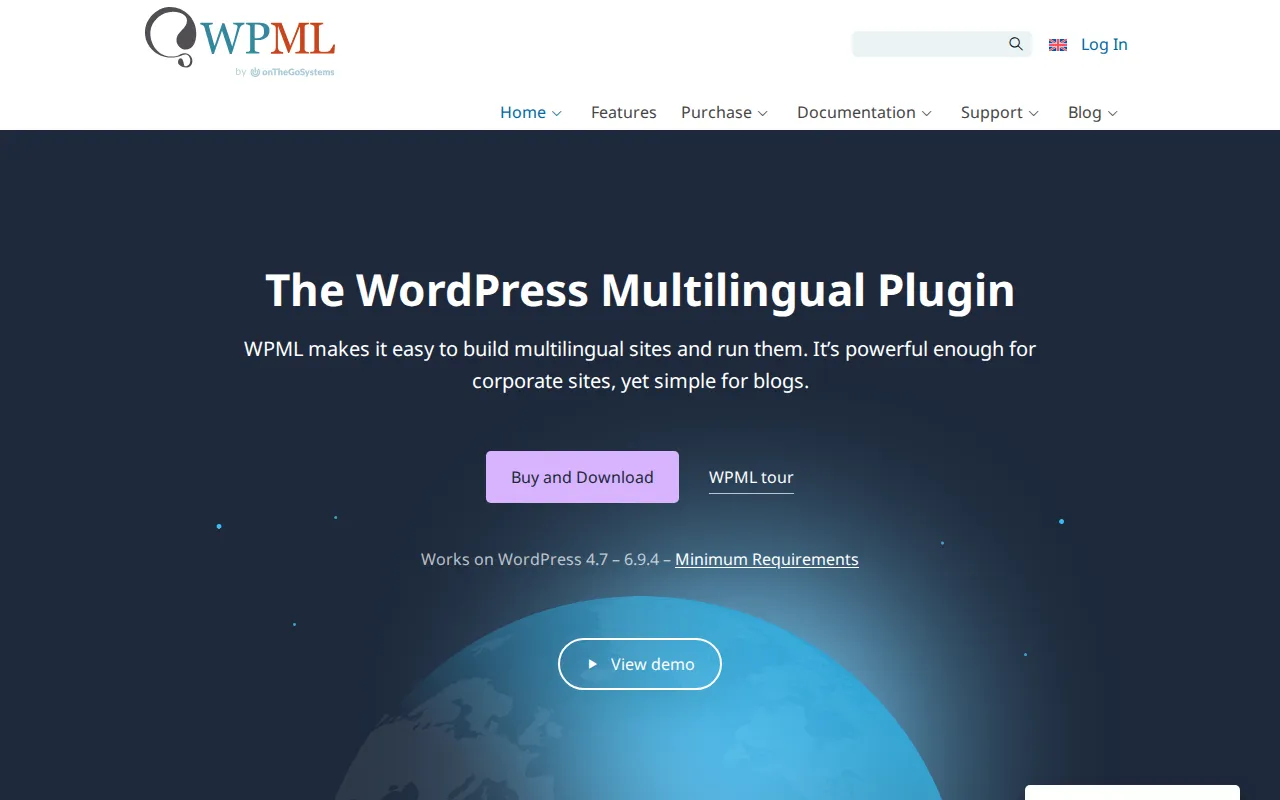
WPML has been the dominant WordPress translation plugin for over a decade. It's used on more than one million websites, and for good reason — it handles complexity that other plugins can't. If you're building a large multilingual site with dozens of languages, custom post types, WooCommerce with multicurrency, and professional translation teams, WPML is the most complete solution available.
The plugin works by creating separate posts for each language and linking them together. This gives you full control over each translation — you can have completely different layouts, images, and content per language if needed. WPML also includes built-in automatic translation powered by AI, and it integrates with professional translation services if you want human translators to handle the work.
WPML's pricing is straightforward. The Multilingual Blog plan starts at $39/year and covers basic multilingual content. The Multilingual CMS plan at $99/year adds custom post types, WooCommerce support, and the Translation Management system for working with translators. Both plans include one year of support and updates. The CMS plan is what most serious sites need.
The downside? WPML has a steeper learning curve than TranslatePress or Weglot. The admin interface is powerful but dense — there are a lot of settings pages and configuration options. I've seen beginners get overwhelmed by the Translation Management dashboard. It's also a heavier plugin that can impact site performance if not configured properly. But if you need the power, nothing else matches it.
Best for: Large corporate sites, multilingual WooCommerce stores, sites with professional translation teams, and projects requiring granular control over every language version.
3. Polylang — Best Free Option for Manual Translations
Polylang is the plugin I recommend when budget is the primary constraint. With 800,000+ active installations and a 4.7/5 rating, it's the most popular free translation plugin on WordPress.org. The free version is remarkably capable — you can add unlimited languages, translate posts, pages, categories, tags, menus, and widgets without paying a cent.
The approach is similar to WPML: each translation is a separate post linked to the original. You write or paste translations in the standard WordPress editor, which feels natural if you're already comfortable writing in WordPress. Polylang handles language switchers, hreflang tags for SEO, and right-to-left language support out of the box.
Where Polylang falls short compared to premium options is automation and workflow. The free version is entirely manual — you write every translation yourself or paste it in from an external tool. There's no built-in automatic translation. Polylang Pro adds machine translation via DeepL, duplicate and synchronize content, and better block editor integration, but pricing for Pro is only available on request.
I've used Polylang on a handful of personal projects where I was doing the translations myself and didn't need automation. For a bilingual blog where you're fluent in both languages and willing to maintain translations manually, it's hard to beat the price. Just know that as your site grows, the manual workflow becomes a real bottleneck.
Best for: Budget-conscious site owners who are personally fluent in their target languages and don't mind manual translation work.
4. Weglot — Fastest Setup with Automatic Translation
Weglot takes a fundamentally different approach from the other three plugins. Instead of storing translations in your WordPress database, Weglot is a cloud-based service that automatically translates your entire site and serves the translated versions from their servers. You install the plugin, pick your languages, and your site is multilingual in minutes — no manual translation required to get started.
The automatic translations use a combination of DeepL, Google Translate, and Microsoft Translator, plus Weglot's own custom AI model. The quality is surprisingly good for most content, and you can manually refine any translation through a visual editor or directly in the Weglot dashboard. The plugin handles SEO properly with dedicated URLs and hreflang tags for each language, and it works with virtually every theme and page builder.
Weglot's pricing is subscription-based, which is the main sticking point. There's a free plan for one translated language with up to 2,000 words, which is only enough for a very small site. Paid plans start at around €15/month for 10,000 translated words and one language, scaling up based on word count and number of languages. For a content-heavy site, costs can add up quickly — and if you stop paying, your translations disappear since they're stored on Weglot's servers, not in your WordPress database.
With 60,000+ active installations and a 4.8/5 rating, Weglot clearly has satisfied users. I've used it on a few client projects where speed of deployment was the priority. One client needed their 50-page business site in three languages within a week — Weglot made that possible without hiring translators.
Best for: Business sites that need to go multilingual fast, teams without in-house translators, and sites where ongoing subscription cost is acceptable.
Manual vs. Automatic Translation — An Honest Take
The quality of automatic translation has improved dramatically with modern AI. For product descriptions, informational content, and general business copy, automatic translation now produces results that are 80-90% usable without editing. That's a massive time saver.
But I'll be direct: automatic translation is not a replacement for human translation on content that matters. Legal pages, marketing copy with cultural nuance, and content where tone is critical still need a human eye. My approach is to use automatic translation as a first draft, then have a native speaker review the output. For a blog post, automatic might be fine as-is. For your homepage headline, get a human involved.
From an SEO perspective, make sure your translation plugin generates proper hreflang tags — this tells Google which language each page targets. All four plugins here handle hreflang correctly. For more on international SEO, see my WordPress SEO checklist.
Which Plugin Should You Choose?
After using all four on real projects, here's my simplified decision framework:
- Choose TranslatePress if you want the easiest visual workflow and your site has fewer than five languages. The free version is great for adding one extra language.
- Choose WPML if you're building a large, complex multilingual site — especially with WooCommerce multicurrency or professional translators.
- Choose Polylang if budget is your main concern and you're happy translating content manually.
- Choose Weglot if you need your site translated immediately and don't mind a monthly subscription.
For most beginners reading this guide, I'd start with TranslatePress. The visual editor makes the process intuitive, the free version is genuinely useful, and upgrading to Pro is straightforward when you need more languages. You can always migrate to WPML later if your needs outgrow it.
Frequently Asked Questions
Do translation plugins slow down WordPress?
Any plugin that adds significant functionality will have some performance impact, but the degree varies. Polylang and TranslatePress are relatively lightweight. WPML is heavier due to its feature set — proper configuration and a good caching plugin help. Weglot has minimal server-side impact since translations are served from their cloud. On all four, I recommend pairing with a caching plugin for the best experience. Check my recommended plugins list for caching options.
Can I switch translation plugins later?
Technically yes, but it's painful. Each plugin stores translations differently — WPML and Polylang use separate posts per language, TranslatePress stores translations in custom database tables, and Weglot keeps everything on their servers. Migrating means re-mapping or re-translating content. Polylang actually offers a "WPML to Polylang" migration tool, which helps for that specific switch. My advice: pick the right plugin upfront and commit to it.
Do I need a translation plugin for hreflang tags?
If you have multilingual content, yes. Hreflang tags tell search engines which language version of a page to show in which country. All four plugins in this guide generate hreflang tags automatically. Without a translation plugin, you'd need to add hreflang tags manually or with a separate SEO plugin, which is more work and more error-prone. If international SEO matters to you, a dedicated translation plugin is the cleanest solution.

Written by Marvin
Our team tests and reviews WordPress products to help beginners make confident choices.
Learn more about our team →You might also like
Best WordPress AI Chatbot Plugins in 2026 — 5 Options Compared
I checked the current WordPress AI chatbot plugin landscape and narrowed it to 5 realistic options: AI Engine, Tidio, Chatway, WPBot, and Smartsupp.
postWooPayments Review: WooCommerce's Built-In Payment Plugin
WooPayments lets you accept credit cards, Apple Pay, Google Pay, and more directly from your WordPress dashboard — no separate Stripe account needed. Here's what it does well, where it falls short, and when you should use the direct Stripe plugin instead.
postAutoptimize Review: Free Speed Plugin That Actually Works
Autoptimize minifies and combines your CSS, JavaScript, and HTML to make your WordPress site load faster. I cover what it does, how it compares to WP Rocket and LiteSpeed Cache, and whether the free version is enough.
postFile Manager Plugin Review: Convenient but Handle With Care
WP File Manager puts FTP-style file access right in your WordPress dashboard. I explain what it does, who should use it, and why you need to be careful about security before installing it.