
Best Image Optimization Plugins for WordPress (2026 Compared)
I'll be honest: I spent years uploading images to WordPress without thinking twice about optimization. Back in 2010, a 200KB image was "big" and internet connections were slow enough that you'd notice. Today, a single unoptimized iPhone photo can easily be 5-8MB, and WordPress themes use huge hero images, background images, and high-resolution featured images that make things even worse. On one client site I audited last year, images accounted for 14MB of a 16MB total page weight. The site took 11 seconds to load on mobile. Eleven seconds. After running every image through ShortPixel, the page weight dropped to 2.3MB and load time fell to 2.8 seconds. Same content, same design — just optimized images.
The good news is that image optimization is one of the easiest speed wins on WordPress because plugins handle everything automatically. Install one, configure it once, and every image you upload from that point forward gets compressed, resized, and converted to modern formats without any extra effort. Most plugins also offer bulk optimization to compress your entire existing media library retroactively. In this guide, I'm comparing the five image optimization plugins I've actually used on real sites, with honest opinions on which ones are worth paying for and which ones you can skip.
What to Look For in an Image Optimization Plugin
Before I get into the specific plugins, here are the features that actually matter. There's a lot of marketing fluff in this space, so let me cut through it based on what I've learned from years of testing these tools on production WordPress sites.
Lossy vs. lossless compression: Lossy compression removes some image data to achieve much smaller file sizes (typically 60-80% reduction). Lossless compression preserves every pixel but achieves smaller reductions (10-30%). For web images, lossy compression is what you want. The quality difference is invisible to the human eye at the compression levels these plugins use, and the file size savings are dramatically better. I've shown clients side-by-side comparisons of lossy and original images on a 4K monitor, and nobody can tell the difference. Don't waste your time with lossless unless you're running a photography portfolio where pixel-perfect quality genuinely matters.
WebP and AVIF support: WebP images are 25-35% smaller than equivalent JPEG images with the same visual quality. AVIF is even better — 40-50% smaller. Every modern browser supports WebP (even Safari, finally), and AVIF support is growing fast. Your image optimization plugin should automatically generate WebP versions and serve them to supported browsers while falling back to JPEG/PNG for older browsers. This is non-negotiable in 2026.
Lazy loading: Images below the fold shouldn't load until the visitor scrolls near them. WordPress has built-in lazy loading since version 5.5 (using the loading="lazy" attribute), but some plugins offer more aggressive lazy loading that can make a noticeable difference, especially on image-heavy pages. This is a nice-to-have in an image optimization plugin, but not essential since caching plugins like WP Rocket handle it well too.
Bulk optimization: If you have an existing site with thousands of images, you need to compress them all retroactively. Every plugin on this list offers bulk optimization, but the speed and convenience vary. Some process locally on your server, others send images to external servers for processing. The external approach is typically faster and produces better results but counts against your monthly quota.
The 5 Best Image Optimization Plugins Compared
| Plugin | Free Tier | Paid From | WebP | AVIF | Lazy Load | Compression |
|---|---|---|---|---|---|---|
| ShortPixel | 100 images/month | $3.99/month | Yes | Yes | Yes | Lossy, Glossy, Lossless |
| Imagify | 20 MB/month | $5.99/month | Yes | No | No | Normal, Aggressive, Ultra |
| EWWW IO | Unlimited (local) | $7/month | Yes | No | Yes | Lossless (free), Lossy (paid) |
| Smush | 50 images/bulk | $6/month | Pro only | No | Yes | Lossless only (free) |
| Optimole | 5,000 visits/month | $19.08/month | Yes | Yes | Yes | Auto (cloud-based) |
1. ShortPixel — My #1 Recommendation
ShortPixel has been my go-to image optimization plugin for the last four years, and I install it on almost every client site. Here's why: it offers the best compression quality I've tested (their "Glossy" mode produces visually identical images at 70-80% smaller file sizes), it supports both WebP and AVIF conversion, it works on all image types including PDFs, and the pricing is straightforward and affordable. The free tier gives you 100 image credits per month — and each "credit" covers one image plus all its generated thumbnails, which is more generous than it sounds since WordPress creates multiple thumbnail sizes for each upload.
What I particularly like about ShortPixel is the granular control it offers. You can set different compression levels for different image sizes, exclude specific folders or image types, and even choose to keep the original images as backups (which I always recommend). The bulk optimization tool processed 3,200 images on one client site in about 45 minutes, and the average compression was 73% with "Glossy" mode — visually identical to the originals. The paid plans start at $3.99/month for 5,000 image credits or $9.99 for a one-time purchase of 10,000 credits that never expire.
Pro tip: ShortPixel offers a separate free plugin called "ShortPixel Adaptive Images" that serves your images through their CDN and automatically resizes them based on the visitor's screen size. It's a different approach from the standard plugin (cloud-based rather than compressing files on your server), but it's worth considering if you want a set-and-forget solution. I prefer the standard plugin because I like having optimized files on my own server, but the adaptive version is a valid alternative.
2. Imagify — Best for WP Rocket Users
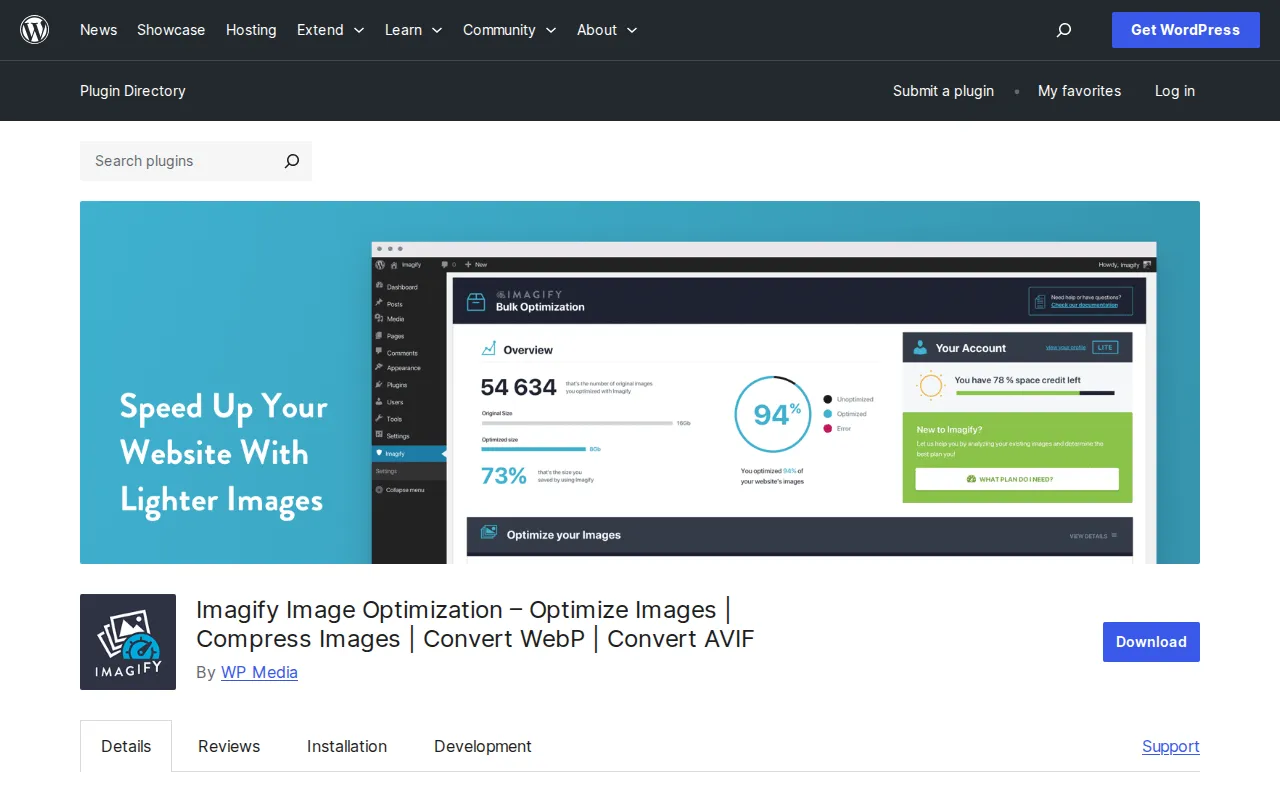
Imagify is made by the same team behind WP Rocket, and if you're already using WP Rocket (which I recommend in our caching plugins guide), the integration is seamless. They share a single dashboard account, and Imagify's WebP conversion works perfectly with WP Rocket's WebP delivery feature. The compression quality is excellent — their "Aggressive" mode is comparable to ShortPixel's "Glossy" and produces visually lossless results at significant file size reductions.
The main downside is the free tier: you only get 20 MB per month, which sounds like a lot but goes fast when you're bulk-optimizing existing images. A single high-resolution photo can be 5MB before compression, so 20MB covers only 4-5 images if you're uploading large files. For ongoing optimization of new uploads, 20MB/month is usually adequate for a blog publishing 3-4 posts per week. The paid plans start at $5.99/month for 500MB, which is enough for most sites. Imagify doesn't support AVIF yet, which is a minor drawback compared to ShortPixel, but WebP support is solid.
Honestly, if you're using WP Rocket, Imagify is the natural companion. The combined dashboard is convenient, the compression quality is top-tier, and the "Imagify Visual Comparison" tool lets you see exactly what the compression did to each image with a side-by-side slider. The only reason ShortPixel edges it out as my #1 is the more generous free tier and AVIF support.
3. EWWW Image Optimizer — Best Free Option
EWWW (which stands for "Exactly WWW") is the most unique plugin on this list because it can compress images locally on your server without sending them to an external API. This means the free version offers unlimited lossless compression — no monthly quotas, no image limits, no API keys. For site owners who don't want to pay anything or who have privacy concerns about sending images to third-party servers, EWWW is the clear winner.
The catch? Free EWWW only does lossless compression, which typically achieves 10-25% file size reductions — decent, but nowhere near the 60-80% you get with lossy compression from ShortPixel or Imagify. For lossy compression, WebP conversion, and their CDN delivery feature, you need the paid "Compress API" plan at $7/month. The local lossless compression still makes a meaningful difference — I've seen it reduce total image weight by 15-20% on sites with lots of PNG screenshots, which is basically free performance. But if you're serious about image optimization, the paid tier is worth it.
EWWW also has the best lazy loading implementation of any image optimization plugin I've tested. Their "Easy IO" paid feature includes responsive image sizing, automatic WebP delivery, and a built-in CDN — essentially combining image optimization and CDN delivery into one solution. It's more expensive than ShortPixel or Imagify, but if you want a single plugin handling images, lazy loading, and CDN, EWWW Easy IO is compelling. For most users though, I'd stick with ShortPixel for compression and Cloudflare for CDN — it's cheaper and more flexible.
4. Smush — Popular but Limited
Smush by WPMU DEV has over 1 million active installations, making it the most popular image optimization plugin by install count. I've used it on several sites, and my honest assessment is: it's fine for basic optimization, but the free version is frustratingly limited. Free Smush only offers lossless compression (similar reduction to free EWWW), limits bulk optimization to 50 images at a time (you have to manually re-click "Bulk Smush" repeatedly for larger libraries), and doesn't support WebP conversion. The Pro version ($6/month as part of a WPMU DEV membership) unlocks lossy compression, WebP, and removes the bulk limit.
The reason Smush is so popular is its user-friendly interface and the fact that WPMU DEV promotes it heavily across their network of WordPress tutorials. It's genuinely easy to use — the one-click setup is the simplest of any plugin here. But when I compare compression results, Smush's free lossless compression achieves roughly the same results as EWWW's free local compression, while EWWW doesn't have the 50-image bulk limit. And Smush Pro's lossy compression doesn't match ShortPixel or Imagify in quality-to-size ratio based on my testing. I'd only recommend Smush if you're already a WPMU DEV member getting it as part of your subscription — otherwise, ShortPixel or EWWW offer better value.
5. Optimole — Best for High-Traffic Sites
Optimole takes a fundamentally different approach from the other plugins. Instead of compressing your images and storing optimized versions on your server, Optimole serves images through its own cloud infrastructure, automatically optimizing and resizing them on-the-fly based on the visitor's device, browser, and screen size. A visitor on a Retina MacBook gets a high-resolution WebP; a visitor on a budget Android phone gets a smaller, more compressed version. It's smart, and for high-traffic sites with lots of images, it can deliver better results than static optimization.
The downside is pricing and control. The free tier is limited to 5,000 monthly visits (not images — visits), which is very restrictive for a growing site. The paid plans start at $19.08/month for 25,000 visits, which is significantly more expensive than ShortPixel or Imagify. You're also dependent on Optimole's CDN — if their service has an outage, your images don't load. I've never experienced this, but it's a consideration. And since your original images stay unoptimized on your server, if you ever deactivate Optimole, your site immediately becomes slow again until you optimize the originals with another tool.
For most WordPress sites — blogs, business sites, portfolios, even small WooCommerce stores — Optimole is overkill. It shines on media-heavy sites with tens of thousands of images and high traffic where the automatic device-based resizing saves significant bandwidth. Think news sites, stock photo galleries, or large ecommerce stores with thousands of product images. For everyone else, ShortPixel gives you better compression at a fraction of the cost with files that live on your own server.
Which Plugin Should You Choose?
After testing all five extensively, here's my honest recommendation based on different scenarios:
- Best overall: ShortPixel — best compression quality, AVIF support, generous pricing, and it works well with any caching plugin.
- Best for WP Rocket users: Imagify — same developer, shared dashboard, seamless WebP delivery integration.
- Best free option: EWWW Image Optimizer — unlimited local lossless compression with no monthly quotas.
- Best for beginners: Smush — simplest interface, but limited free version makes it hard to recommend over ShortPixel.
- Best for high-traffic image-heavy sites: Optimole — automatic device-based optimization is powerful at scale.
For 90% of WordPress sites, ShortPixel is the answer. Install it, set compression to "Glossy," enable WebP conversion, run the bulk optimizer on your existing library, and you're done. Your images will be 60-80% smaller, your pages will load noticeably faster, and your overall site speed will improve immediately. If you've been putting off image optimization, stop procrastinating — it's genuinely a 5-minute setup that delivers massive results.
How to Set Up Image Optimization (Quick Start)
Regardless of which plugin you choose, the setup process is similar. Here's the workflow I follow on every new WordPress site:
- Install and activate your chosen plugin from Plugins → Add New.
- Create an account on the plugin's website (ShortPixel, Imagify, etc.) and grab your API key. Paste it into the plugin's settings.
- Set compression level to lossy/aggressive — ShortPixel "Glossy" or Imagify "Aggressive" are the sweet spots.
- Enable WebP conversion — this is usually a checkbox in the plugin settings. Make sure your caching plugin or the optimization plugin itself is configured to serve WebP to supported browsers.
- Enable auto-optimization — every new upload should be compressed automatically without manual intervention.
- Run bulk optimization — process your entire existing media library. For large libraries (1000+ images), this might take a few hours. Let it run in the background.
- Verify results — check a few optimized images to make sure quality is acceptable, then test your site speed with PageSpeed Insights to see the improvement.
Pro tip: Before running bulk optimization, make sure you have a recent backup of your uploads folder. While I've never had a plugin corrupt images during optimization, having a backup means you can restore originals if you're unhappy with the compression quality. ShortPixel and Imagify both offer built-in backup features that save original images on your server, but they take up extra disk space. I enable backups during the initial bulk optimization, verify everything looks good, then disable them to save storage.
Beyond Plugins: Image Best Practices
Even the best optimization plugin can only do so much if you're uploading poorly prepared images. Here are the habits I've developed over years of managing WordPress content that complement your plugin's work:
Resize before uploading. If your content area is 800px wide, don't upload a 4000px wide image and let WordPress handle the resizing. Resize to 1600px wide (2x for Retina displays) before uploading. This reduces the file size that your plugin needs to work with and speeds up the compression process. I use Squoosh.app for quick manual resizing — it's free, browser-based, and gives you real-time quality previews.
Choose the right format. Use JPEG for photographs, PNG for screenshots and images with text/transparency, and SVG for icons and logos. Your plugin will convert JPEGs and PNGs to WebP automatically, but starting with the right source format gives better results. Never use PNG for photographs — a photo saved as PNG can be 10x larger than the same photo as JPEG with no visible quality difference.
Set meaningful filenames. Name your files descriptively before uploading: wordpress-speed-optimization-settings.jpg is better than IMG_4523.jpg. WordPress uses the filename as the default alt text, and descriptive filenames are a minor SEO signal. It also makes your media library much easier to navigate when you have thousands of files.
Frequently Asked Questions
Will image optimization affect my image quality?
With lossy compression at the levels these plugins use (ShortPixel "Glossy" or Imagify "Aggressive"), the quality difference is imperceptible to the human eye on web-sized images. I've done blind tests with designers and photographers — nobody can consistently identify the compressed version on screen. The only scenario where you might notice quality loss is with very aggressive compression on images with fine text or detailed gradients. For 99% of blog images, product photos, and screenshots, lossy compression is perfectly safe. If you're genuinely worried, start with ShortPixel's "Glossy" mode — it's specifically designed to be visually lossless.
Do I need a separate CDN if my image plugin includes one?
It depends. EWWW's Easy IO and Optimole include their own CDN for serving images, which means your images are delivered from edge servers worldwide. However, this only covers images — your CSS, JavaScript, fonts, and HTML still need a CDN. I recommend using Cloudflare as your primary CDN (it's free and covers everything) and then deciding whether you need the image plugin's CDN on top of that. In most cases, Cloudflare + ShortPixel (without CDN) gives you the best of both worlds: globally distributed delivery of all assets plus excellent image compression. Less complexity, fewer potential points of failure.
Can I switch between image optimization plugins?
Yes, but it's a bit of a process. If you switch from Imagify to ShortPixel, for example, the images on your server are already compressed by Imagify. ShortPixel can't meaningfully compress an already-compressed image. You'd need to restore the originals (if you kept backups) and then re-compress with ShortPixel. Both ShortPixel and Imagify store original backups if you enable the feature, making switching possible. This is one reason I recommend enabling original backups during initial setup — it gives you flexibility to switch plugins or adjust compression settings later without re-uploading everything.
How much server space does image optimization save?
With lossy compression, expect your uploads folder to shrink by 50-70%. On a site with 5GB of images, that's 2.5-3.5GB saved. However, if you enable original image backups (which I recommend initially), the savings are offset by the backup copies. Once you're satisfied with the optimization quality, you can delete the backups to reclaim that space. WebP conversion doesn't save server space by default since both the original format and WebP version are stored — but it saves bandwidth, which is what actually affects your page load speed and hosting costs.

Written by Marvin
Our team tests and reviews WordPress products to help beginners make confident choices.
Learn more about our team →You might also like
Lazy Loading in WordPress — Complete Guide
Lazy loading defers images, iframes, and videos until they're scrolled into view. WordPress has native lazy loading since version 5.5, but there's more to it than just the built-in solution. Here's everything you need to know.
postWordPress Speed Optimization: The Complete Guide to a Faster Site
Your WordPress site is probably slower than you think. After 10+ years of optimizing WordPress performance, here's everything I know about making sites load in under 2 seconds — from quick wins to advanced techniques.
postWordPress Database Optimization — Clean Up for Speed
Your WordPress database accumulates junk over time — post revisions, spam comments, expired transients, orphaned metadata. I'll show you how to clean it up safely with WP-Optimize and phpMyAdmin, and how to schedule automatic cleanups.
postHow to Set Up Cloudflare CDN for WordPress (Free & Fast)
Cloudflare's free CDN tier can cut your WordPress load times in half. I've set it up on every site I manage, and the process takes about 15 minutes. Here's exactly how to do it, step by step.