
WordPress Speed Optimization: The Complete Guide to a Faster Site
I've been building WordPress sites since 2006, and if there's one thing I've learned the hard way, it's this: speed is not optional. A slow WordPress site doesn't just annoy visitors — it actively tanks your search rankings, kills your conversion rates, and makes your entire online presence feel amateur. I've seen sites go from page 3 to page 1 on Google just by shaving two seconds off their load time. No new content, no new backlinks — just speed.
The frustrating part? Most WordPress sites are slow for completely fixable reasons. Bad hosting, unoptimized images, zero caching, too many bloated plugins — these aren't hard problems. They're just problems nobody told you about when you installed WordPress. This guide is everything I know about making WordPress fast, distilled from optimizing hundreds of client sites over the past decade. Whether your site takes 8 seconds to load or you're trying to squeeze out that last 0.3 seconds to hit a perfect Core Web Vitals score, you'll find actionable advice here.
Why WordPress Speed Matters More Than You Think
Let me give you some numbers that should make you uncomfortable. Google's own research shows that as page load time goes from 1 second to 3 seconds, the probability of a visitor bouncing increases by 32%. Push that to 5 seconds and bounce probability jumps to 90%. That's not a typo — nine out of ten visitors will leave before they even see your content if your site takes 5 seconds to load. I've watched this play out in real analytics data more times than I can count. One client was spending $2,000/month on Google Ads driving traffic to a site that took 7 seconds to load. They were literally paying people to leave.
But it's not just about bounce rates. Since 2021, Google has used Core Web Vitals as a direct ranking factor. Your Largest Contentful Paint (LCP), Interaction to Next Paint (INP), and Cumulative Layout Shift (CLS) scores directly influence where your pages appear in search results. Two sites with identical content and backlink profiles — the faster one ranks higher. Period. If you're investing time in SEO (and if you're reading this, you should be checking out our WordPress SEO checklist), then ignoring speed is like training for a marathon but refusing to buy running shoes.
There's also the trust factor. A fast, snappy site feels professional. A slow, laggy site feels like a scam. Your visitors form an opinion about your credibility in the first 50 milliseconds, and nothing screams "don't trust this site" louder than a loading spinner that won't quit. If you're trying to sell anything — products, services, affiliate recommendations, ad impressions — speed directly affects your bottom line.
Test Your Speed First (Don't Optimize Blind)
Before you change a single setting, you need to know where you stand. I see people installing caching plugins and CDNs without ever measuring their baseline speed, which means they have no idea if their changes actually helped. Here's my testing workflow that I use on every client site before I touch anything.
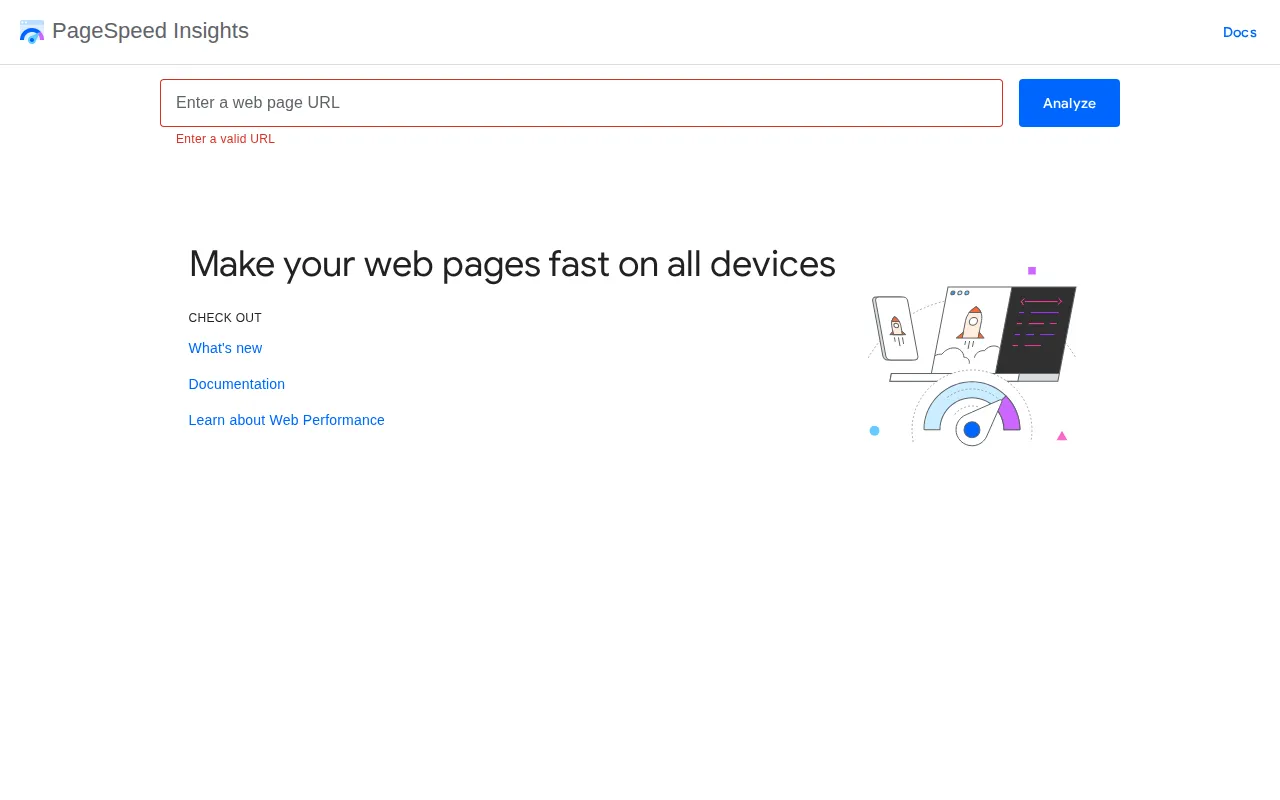
Google PageSpeed Insights (pagespeed.web.dev) is your primary tool. It gives you both lab data (simulated test) and field data (real user metrics from the Chrome User Experience Report). The field data is what Google actually uses for rankings, so pay attention to that section. Run your homepage, your most popular blog post, and a category page. These three tests will give you a representative picture of your site's performance. A green score (90-100) is excellent, yellow (50-89) needs work, and red (0-49) is an emergency.
GTmetrix is my second go-to tool because it shows a waterfall chart — a visual timeline of every resource your page loads. This is gold for diagnosing why your site is slow. You can see exactly which CSS file, JavaScript library, or oversized image is causing the bottleneck. I've found rogue analytics scripts, forgotten A/B testing tools, and 4MB hero images hiding in waterfall charts that would have taken hours to diagnose otherwise. Both tools are free, both take 30 seconds, and together they tell you almost everything you need to know.
Pro tip: Test from multiple locations. A site hosted in Amsterdam will naturally load faster when tested from Europe than from Australia. GTmetrix lets you choose your test server location — always test from where your actual audience is. If you're targeting US visitors and your hosting is in Europe, that's already a problem we need to fix.
The 8 Biggest WordPress Speed Killers
After optimizing hundreds of WordPress sites, I've found that slow sites almost always suffer from the same handful of problems. Fix these eight issues and you'll handle 95% of performance problems. Here they are in order of impact.
1. Cheap Shared Hosting
This is the #1 speed killer, and it's the hardest one to hear because it means spending more money. Cheap shared hosting ($3-5/month plans) crams hundreds of sites onto the same server, sharing CPU, RAM, and disk I/O. Your site is literally competing for resources with hundreds of strangers. I've tested sites that went from a 4.5-second load time on shared hosting to 1.8 seconds on a quality managed host with zero other changes. If you're on a budget host and nothing else in this guide helps enough, upgrading your hosting is the single biggest improvement you can make. For serious sites, I recommend checking out managed WordPress hosting — the speed difference is dramatic.
2. No Caching
WordPress is dynamic — every page request triggers PHP execution and database queries to assemble the HTML. Without caching, your server rebuilds the entire page from scratch for every single visitor. A caching plugin generates static HTML files and serves those instead, bypassing PHP and the database entirely. The speed difference is massive: I've measured 300-500ms response times dropping to 50-80ms after enabling page caching. If you don't have a caching plugin installed, stop reading and go install one right now. Check out our guide to the best WordPress caching plugins for my recommendations — WP Rocket is worth every penny, but LiteSpeed Cache and WP Super Cache are excellent free options.
3. Unoptimized Images
Images are typically the heaviest resources on any web page. An unoptimized 5MB DSLR photo uploaded straight from your camera will take seconds to load on a fast connection and might never load on mobile. Every image on your site should be compressed, properly sized (don't upload a 4000px wide image for a 800px wide content area), and served in modern formats like WebP or AVIF. I cover the best tools for this in our image optimization plugins guide, but the short version is: install ShortPixel or Imagify and let them handle it automatically.
4. Too Many Plugins
Every plugin you install adds PHP code that executes on every page load. Some plugins are well-optimized and barely register. Others — especially social sharing plugins, page builders with excessive frontend JavaScript, and poorly coded sliders — add hundreds of kilobytes of CSS and JavaScript to every single page, even pages that don't use those features. I once audited a client's site that had 47 plugins installed. We deactivated 23 of them (most were redundant or unused) and the homepage load time dropped from 6.2 seconds to 2.8 seconds. My rule of thumb: if you can't explain why a plugin is installed and what it does for your visitors, deactivate it.
5. No CDN (Content Delivery Network)
If your server is in New York and your visitor is in Tokyo, every resource has to travel 11,000 kilometers. A CDN solves this by caching your static files (images, CSS, JavaScript) on servers distributed worldwide. When that Tokyo visitor requests your page, the static assets are served from a nearby Asian data center instead of crossing the Pacific Ocean. Cloudflare offers a free CDN that takes about 10 minutes to set up — there's genuinely no excuse not to use one. I've seen CDNs cut load times by 40-60% for international visitors.
6. Render-Blocking Resources
When a browser loads your page, it has to download and process all CSS and JavaScript files in the <head> before it can start rendering content. If you have 8 CSS files and 12 JavaScript files loading synchronously in the head, your visitor stares at a blank screen while the browser fetches and parses all of them. The fix involves minifying and combining files, deferring non-critical JavaScript, and inlining critical CSS. Most caching plugins (especially WP Rocket) handle this automatically — it's one of the main reasons I recommend them beyond just page caching.
7. Bloated Database
Over time, your WordPress database accumulates junk: post revisions (WordPress saves every draft automatically), spam comments, transient options, orphaned metadata from deleted plugins, and auto-draft posts. A database with 50,000 post revisions is going to be slower than a clean one. I use WP-Optimize to clean the database on client sites — it safely removes revisions, drafts, spam comments, and transients. On one site with 4 years of accumulated junk, a database cleanup reduced the average query time by 40%. Schedule monthly cleanups and your database will stay lean.
8. Outdated PHP Version
PHP 8.2+ is significantly faster than PHP 7.4 or (god forbid) PHP 7.0. Each PHP version brings substantial performance improvements — PHP 8.0 alone was roughly 10% faster than 7.4 for WordPress workloads, and 8.2 pushed that further. Updating your PHP version is free and takes about 2 minutes in your hosting control panel. Check your current version in Tools → Site Health in your WordPress dashboard. If you're running anything below PHP 8.1, update today. Just make sure your theme and plugins are compatible first — Site Health will warn you about any issues.
Quick Wins Checklist: 10 Things to Do Right Now
If you're feeling overwhelmed by everything above, here's the prioritized action list. Work through these in order — each one is a concrete, specific action that will measurably improve your site speed.
- Install a caching plugin — WP Rocket (paid) or LiteSpeed Cache (free) are my top picks; enable page caching, browser caching, and GZIP compression in one click.
- Optimize your images — install ShortPixel or Imagify to automatically compress all existing and future uploads to WebP format.
- Update PHP to 8.2+ — log into your hosting control panel (cPanel, hPanel, or Site Tools), find the PHP version setting, and switch to the latest available version.
- Enable a CDN — sign up for Cloudflare's free plan, point your nameservers, and let their global network serve your static files.
- Delete unused plugins — deactivate and delete every plugin you don't actively use; don't just deactivate, actually delete them.
- Minify CSS and JavaScript — enable this in your caching plugin's settings (WP Rocket: File Optimization tab; LiteSpeed Cache: Page Optimization settings).
- Lazy load images — WordPress enables basic lazy loading by default since 5.5, but your caching plugin can handle it more aggressively, including iframes and videos.
- Clean your database — install WP-Optimize, run the one-click cleanup, then schedule weekly automatic cleanups.
- Limit post revisions — add
define('WP_POST_REVISIONS', 5);to yourwp-config.phpfile to cap revisions at 5 per post instead of unlimited. - Use a fast, lightweight theme — heavy page builder themes (looking at you, Avada) add 500KB+ of frontend assets; switch to GeneratePress, Kadence, or Astra for a leaner foundation.
Dive Deeper: Supporting Guides
This pillar guide gives you the overview, but each topic deserves its own deep dive. Here are the detailed guides in this speed optimization series:
- Core Web Vitals Explained for WordPress — understand LCP, INP, and CLS, what good scores look like, and exactly how to fix each metric on your WordPress site.
- Best Image Optimization Plugins for WordPress — detailed comparison of ShortPixel, Imagify, EWWW, Smush, and Optimole with free vs. paid breakdowns and real compression results.
- Best WordPress Caching Plugins — our guide to the top caching solutions including WP Rocket, LiteSpeed Cache, WP Super Cache, and W3 Total Cache.
- Recommended Tools — browse our complete toolkit of speed optimization plugins and services.
Frequently Asked Questions
What's a good load time for a WordPress site?
Aim for under 2.5 seconds for your Largest Contentful Paint (LCP) — that's the threshold Google considers "good" for Core Web Vitals. Ideally, you want your total page load under 3 seconds. In my experience, most well-optimized WordPress sites on decent hosting load in 1.5-2.5 seconds. If you're under 2 seconds consistently, you're in the top tier. Anything over 4 seconds needs immediate attention — you're losing visitors and search rankings with every extra second.
Do I really need a premium caching plugin like WP Rocket?
Honestly? If you're on a budget, no. Free plugins like LiteSpeed Cache (if your host supports LiteSpeed) or WP Super Cache will get you 80% of the way there. Where WP Rocket earns its price ($59/year) is in the extras: automatic critical CSS generation, JavaScript delay loading, database cleanup, and CDN integration — all configured through a dead-simple interface. It saves me hours of configuration time on client sites. For a personal blog, free caching is fine. For a business site or anything earning revenue, WP Rocket pays for itself in the time it saves.
Will switching hosting really make that big of a difference?
Yes — and I don't say that lightly. I've done controlled tests where I migrated sites from budget shared hosting to managed WordPress hosts like Cloudways or Kinsta, changing nothing else. Average load time improvements ranged from 40-60%. The server response time (TTFB) alone often drops from 800ms+ on shared hosting to under 200ms on a managed host. If you've done everything else in this guide and your site is still slow, hosting is almost certainly the bottleneck. Check our hosting guide for my recommendations at every budget level.
How many plugins is too many?
There's no magic number — I've seen sites with 30 well-coded plugins that load in 1.5 seconds and sites with 8 plugins that take 6 seconds because one of them is a resource hog. It's about quality, not quantity. That said, every plugin adds some overhead, so fewer is generally better. My typical lean WordPress setup uses 10-15 plugins. If you're north of 25, I'd audit carefully. The best test is simple: deactivate plugins one at a time and measure the speed impact of each. You'll quickly find the culprits — they're usually social sharing plugins, page builders, and poorly coded sliders.

Written by Marvin
Our team tests and reviews WordPress products to help beginners make confident choices.
Learn more about our team →You might also like
Lazy Loading in WordPress — Complete Guide
Lazy loading defers images, iframes, and videos until they're scrolled into view. WordPress has native lazy loading since version 5.5, but there's more to it than just the built-in solution. Here's everything you need to know.
postCore Web Vitals Explained for WordPress: Fix LCP, INP & CLS
Google uses Core Web Vitals to rank your site. Here's what LCP, INP, and CLS actually mean, what good scores look like, and exactly how to fix each one on WordPress — no developer required.
postWordPress Database Optimization — Clean Up for Speed
Your WordPress database accumulates junk over time — post revisions, spam comments, expired transients, orphaned metadata. I'll show you how to clean it up safely with WP-Optimize and phpMyAdmin, and how to schedule automatic cleanups.
postHow to Set Up Cloudflare CDN for WordPress (Free & Fast)
Cloudflare's free CDN tier can cut your WordPress load times in half. I've set it up on every site I manage, and the process takes about 15 minutes. Here's exactly how to do it, step by step.