
WordPress Database Optimization — Clean Up for Speed
Here's something most WordPress tutorials won't tell you: your database is quietly getting bloated every single day. Every time you hit "Save Draft," WordPress creates a post revision. Every spam comment Akismet catches stays in the database. Every plugin that stores temporary data creates transients that may never get cleaned up. After a year, a typical WordPress database can be 5-10x larger than it needs to be.
I've seen WordPress sites where a simple database cleanup dropped query times by 40%. That's not a typo. The database is the backbone of your WordPress site — every page load involves multiple database queries. When the database is bloated, every single query takes longer. In this guide, I'll show you exactly what to clean, how to clean it safely, and how to automate the process so your database stays lean.
Why Your WordPress Database Slows Down Over Time
WordPress stores everything in a MySQL (or MariaDB) database — your posts, pages, comments, settings, plugin data, theme options, all of it. Over time, several types of unnecessary data accumulate:
- Post revisions: WordPress saves a new revision every time you click "Save Draft" or "Update." A single post can easily have 50+ revisions, each storing a complete copy of the content.
- Auto-drafts: WordPress auto-saves your work every 60 seconds. These auto-drafts pile up in the database.
- Trashed posts and pages: Items in the trash stay in the database until you empty it.
- Spam and trashed comments: Even after Akismet flags spam, those comments live in the database.
- Expired transients: Plugins use transients (temporary cached data). Many plugins don't clean up their transients when they expire.
- Orphaned postmeta: When you delete a post, the associated metadata sometimes gets left behind.
- Orphaned relationships: Tags and categories assigned to deleted posts leave behind orphaned term relationships.
All of this junk inflates your database tables, makes indexes less efficient, and slows down the queries that power every page of your WordPress site. Cleaning it up is one of the easiest wins for WordPress speed optimization.
Method 1: Using WP-Optimize (Recommended)
WP-Optimize is my go-to plugin for database cleanup. It's free, well-maintained by the team behind UpdraftPlus, and handles everything you need without touching phpMyAdmin. Over a million sites use it, and I've never had it cause a problem.
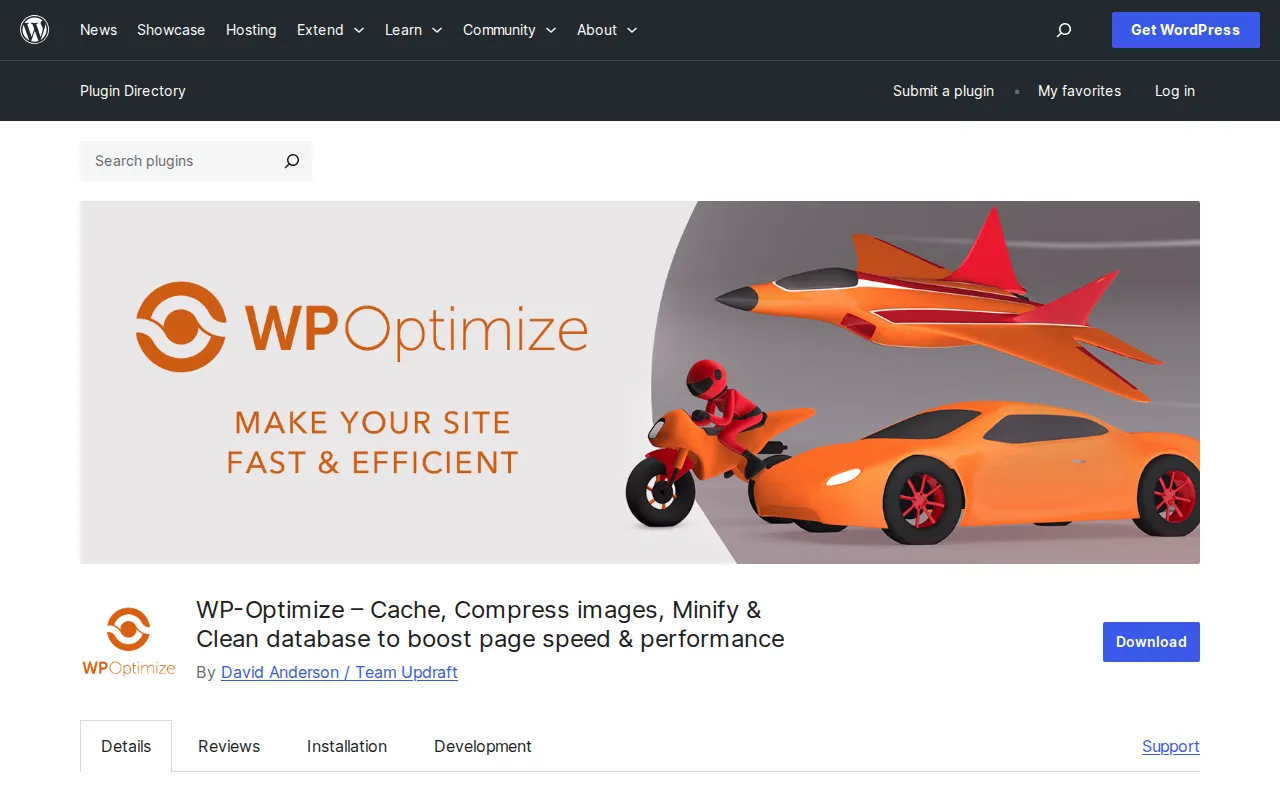
Step 1: Install WP-Optimize
In your WordPress dashboard, go to Plugins → Add New. Search for "WP-Optimize". Click "Install Now", then "Activate".
Step 2: Run Your First Cleanup
After activation, go to WP-Optimize → Database in the left sidebar. You'll see a list of optimization options with checkboxes. Here's what I recommend enabling for your first cleanup:
- Clean all post revisions — check this. This is usually the biggest space saver.
- Clean all auto-draft posts — check this.
- Clean all trashed posts — check this.
- Remove spam comments — check this.
- Remove trashed comments — check this.
- Remove expired transient options — check this.
- Remove orphaned post meta — check this.
- Optimize database tables — check this. This runs MySQL's
OPTIMIZE TABLEcommand, which defragments your tables and reclaims wasted space.
Before clicking anything, take note of the numbers next to each item. WP-Optimize tells you exactly how many items it will remove. On a site that's been running for a year without cleanup, I typically see 500-2000+ post revisions and hundreds of expired transients.
Step 3: Take a Backup First
I know, I know — nobody wants to hear "take a backup first." But seriously, do it. WP-Optimize even has a button to create a backup before optimizing if you have UpdraftPlus installed. Click "Create a backup with UpdraftPlus" at the top of the optimization page. If you don't have UpdraftPlus, use whatever backup solution you have — just make sure you have a recent database backup before proceeding.
Step 4: Run the Optimization
Click "Run all selected optimizations". WP-Optimize will process each task and show you how many items were removed and how much space was recovered. On a typical year-old site, you'll see anywhere from 5MB to 50MB of database bloat removed.
Step 5: Verify Everything Works
After the cleanup, visit your site's front end and check a few pages. Log into the admin, create a test post draft, check your comments. Everything should work exactly as before, just faster. If anything looks wrong (extremely unlikely), restore from the backup you created in Step 3.
Method 2: Manual Cleanup via phpMyAdmin (For Developers)
If you prefer direct database access or want more granular control, you can clean up your WordPress database manually through phpMyAdmin. This method is faster for experienced users but riskier if you make a mistake. Always back up your database before running any SQL queries.
Access phpMyAdmin
Log into your hosting control panel (cPanel, Plesk, or your host's custom panel). Find "phpMyAdmin" under the Databases section and click it. Select your WordPress database from the left sidebar.
Delete Post Revisions
Click the "SQL" tab at the top and run this query:
DELETE a, b, c
FROM wp_posts a
LEFT JOIN wp_term_relationships b ON (a.ID = b.object_id)
LEFT JOIN wp_postmeta c ON (a.ID = c.post_id)
WHERE a.post_type = 'revision';
Replace wp_ with your actual table prefix if you changed it during installation.
Delete Expired Transients
DELETE FROM wp_options
WHERE option_name LIKE '%_transient_timeout_%'
AND option_value < UNIX_TIMESTAMP();
Then clean up the corresponding transient values:
DELETE FROM wp_options
WHERE option_name LIKE '%_transient_%'
AND option_name NOT LIKE '%_transient_timeout_%';
Delete Spam and Trashed Comments
DELETE FROM wp_comments WHERE comment_approved = 'spam';
DELETE FROM wp_comments WHERE comment_approved = 'trash';
Optimize All Tables
After deleting data, select all tables in phpMyAdmin, choose "Optimize table" from the dropdown menu at the bottom, and click "Go". This reclaims the freed space and rebuilds table indexes.
What to Clean and What to Keep
Here's my definitive list of what's safe to clean and what you should leave alone:
| Data Type | Safe to Clean? | Notes |
|---|---|---|
| Post revisions | Yes | Keep the last 3-5 per post (see below) |
| Auto-drafts | Yes | Safe to remove all |
| Trashed posts | Yes | Check trash first — you might want something back |
| Spam comments | Yes | Remove all without hesitation |
| Trashed comments | Yes | Safe to remove all |
| Expired transients | Yes | Plugins will recreate them as needed |
| Orphaned postmeta | Yes | Metadata for deleted posts — no longer needed |
| Active transients | Careful | Only delete if you know what plugin created them |
| wp_options autoload | Careful | Disable autoload on large values, don't delete them |
Limit Post Revisions Going Forward
The single most impactful thing you can do is limit post revisions so your database doesn't bloat up again. Add this line to your wp-config.php file, just above the line that says /* That's all, stop editing! */:
define('WP_POST_REVISIONS', 5);This limits WordPress to keeping only the last 5 revisions per post. That gives you enough undo history without the database growing out of control. Some people set it to 3, some to 10 — I find 5 is the sweet spot. If you want to disable revisions entirely (I don't recommend this), set the value to false.
Disable Auto-Saves or Increase the Interval
WordPress auto-saves every 60 seconds by default. If you want to reduce how often auto-saves happen, add this to wp-config.php:
define('AUTOSAVE_INTERVAL', 300); // Auto-save every 5 minutesSchedule Automatic Database Cleanups
Manual cleanups are great, but the real power move is automating the process. WP-Optimize makes this simple.
Go to WP-Optimize → Settings (or the scheduling section within the Database tab). Enable "Enable scheduled clean-up and target of optimization". I recommend the following schedule:
- Frequency: Weekly
- Day: Sunday (or whenever your traffic is lowest)
- Optimizations to run: Enable all the same options from your manual cleanup — revisions, auto-drafts, spam comments, expired transients, and table optimization
With scheduled cleanups, your database stays lean without you ever having to think about it. I set this up on every WordPress site I manage, and database performance stays consistently fast over the long term.
If you're not using WP-Optimize, you can also schedule cleanups using WP-Sweep (another excellent free plugin) or by setting up a cron job on your server. But for most people, WP-Optimize's built-in scheduler is the easiest and most reliable option.
Frequently Asked Questions
Can database optimization break my WordPress site?
Not if you use WP-Optimize or stick to the safe cleanup items listed above. These operations only remove genuinely unnecessary data — spam comments, old revisions, expired temporary data. I've run database cleanups on hundreds of sites and never had one break. That said, always take a backup before your first cleanup. It takes two minutes and gives you a safety net.
How often should I optimize my WordPress database?
Weekly is ideal for active sites (sites where you publish regularly or have active comment sections). Monthly is fine for sites that don't change much. Set up automatic scheduling in WP-Optimize and forget about it. If you notice your site getting sluggish and it's been a while since your last cleanup, run a manual optimization and check if it makes a difference.
Does database optimization help with Core Web Vitals?
Indirectly, yes. A bloated database means slower server response times, which increases your Time to First Byte (TTFB). TTFB affects all three Core Web Vitals because everything else waits for the server to respond. I've seen TTFB drop by 100-200ms after a thorough database cleanup on sites that hadn't been optimized in over a year. Combined with a good caching plugin, your TTFB should be well under 500ms.
Database optimization is one of those things that doesn't sound exciting, but the results speak for themselves. A clean database means faster queries, lower server load, and snappier page loads for your visitors. Pair it with the other techniques in my WordPress Speed Optimization guide for the full picture.

Written by Marvin
Our team tests and reviews WordPress products to help beginners make confident choices.
Learn more about our team →You might also like
Lazy Loading in WordPress — Complete Guide
Lazy loading defers images, iframes, and videos until they're scrolled into view. WordPress has native lazy loading since version 5.5, but there's more to it than just the built-in solution. Here's everything you need to know.
postHow to Set Up Cloudflare CDN for WordPress (Free & Fast)
Cloudflare's free CDN tier can cut your WordPress load times in half. I've set it up on every site I manage, and the process takes about 15 minutes. Here's exactly how to do it, step by step.
postCore Web Vitals Explained for WordPress: Fix LCP, INP & CLS
Google uses Core Web Vitals to rank your site. Here's what LCP, INP, and CLS actually mean, what good scores look like, and exactly how to fix each one on WordPress — no developer required.
postWordPress Speed Optimization: The Complete Guide to a Faster Site
Your WordPress site is probably slower than you think. After 10+ years of optimizing WordPress performance, here's everything I know about making sites load in under 2 seconds — from quick wins to advanced techniques.