
Plugin Conflict
Quick Definition
A plugin conflict happens when two or more WordPress plugins clash with each other, your theme, or WordPress core — causing errors, broken layouts, or site crashes.
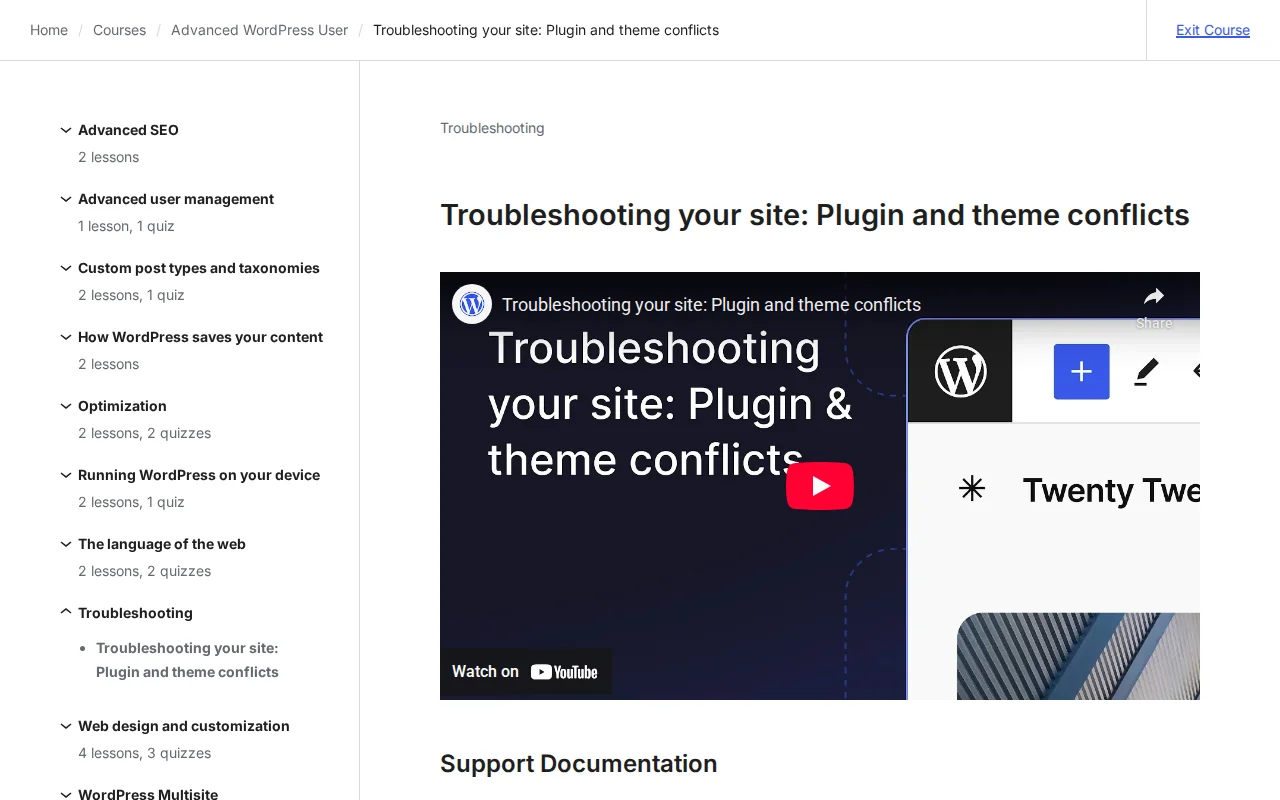
What Is a Plugin Conflict?
A plugin conflict occurs when two or more WordPress plugins try to do something that contradicts each other — like loading different versions of the same JavaScript library, hooking into the same WordPress hook in incompatible ways, or overriding the same function. The result: something breaks.
Common symptoms of plugin conflicts include:
- White Screen of Death — The entire site goes blank due to a fatal PHP error
- Broken layouts — Elements overlap, disappear, or render incorrectly
- JavaScript errors — Features stop working (sliders, forms, popups) because scripts clash
- Admin errors — Settings pages do not load, or you see PHP warnings in the dashboard
- Slow performance — Two plugins running redundant database queries or loading duplicate assets
Conflicts typically happen after an update — either a plugin update, a theme update, or a WordPress core update. They can also occur when you install a new plugin that overlaps with an existing one (e.g., two SEO plugins, two caching plugins, or two security plugins running simultaneously).
How to Diagnose and Fix Plugin Conflicts
The standard troubleshooting method is systematic deactivation:
- Deactivate all plugins — Go to Plugins > Installed Plugins, select all, and choose "Deactivate" from Bulk Actions. If the problem disappears, a plugin is the cause.
- Reactivate one by one — Enable each plugin individually and check the site after each. When the problem returns, the last activated plugin is the culprit.
- Test the theme — If the problem persists with all plugins disabled, switch to a default theme (Twenty Twenty-Five) to rule out a theme conflict.
If you cannot access the admin dashboard (WSOD), connect via FTP and rename the wp-content/plugins folder to plugins-disabled. This deactivates all plugins without the dashboard.
WordPress also offers a built-in tool: the Health Check & Troubleshooting plugin. It lets you enter Troubleshooting Mode — which disables all plugins and switches to a default theme only for your browser session. Your visitors continue to see the live site while you diagnose the issue privately.
Once you identify the conflicting plugin:
- Update it — The conflict may already be fixed in a newer version
- Contact the developer — Report the conflict on the plugin's support forum with specific details
- Roll back — Use WP Rollback to temporarily revert to the previous working version
- Find an alternative — If the plugin is poorly maintained, switch to a better-supported alternative
Why It Matters
Plugin conflicts are the #1 cause of WordPress site issues. With 59,000+ plugins in the ecosystem, conflicts are inevitable. Knowing the systematic deactivation method turns a stressful site crash into a 10-minute diagnostic process. Always test plugin updates on a staging site first, avoid running plugins that duplicate functionality, and keep everything updated — these three habits prevent most conflicts before they happen.