
How to Fix the WordPress Memory Exhausted Error
You are working on your WordPress site — maybe uploading an image, installing a plugin, or just loading a page — and suddenly you see this:
Fatal error: Allowed memory size of 67108864 bytes exhausted (tried to allocate 2097152 bytes) in /home/user/public_html/wp-includes/class-wpdb.php on line 2154That number — 67108864 bytes — translates to 64MB of PHP memory. Your site tried to use more than that, and PHP refused. The page crashes and shows this error instead of your content.
I have seen this error on sites of all sizes. It is especially common on shared hosting plans that set low memory limits. The fix is almost always the same: increase the memory limit. Let me show you exactly how.
What Is the PHP Memory Limit?
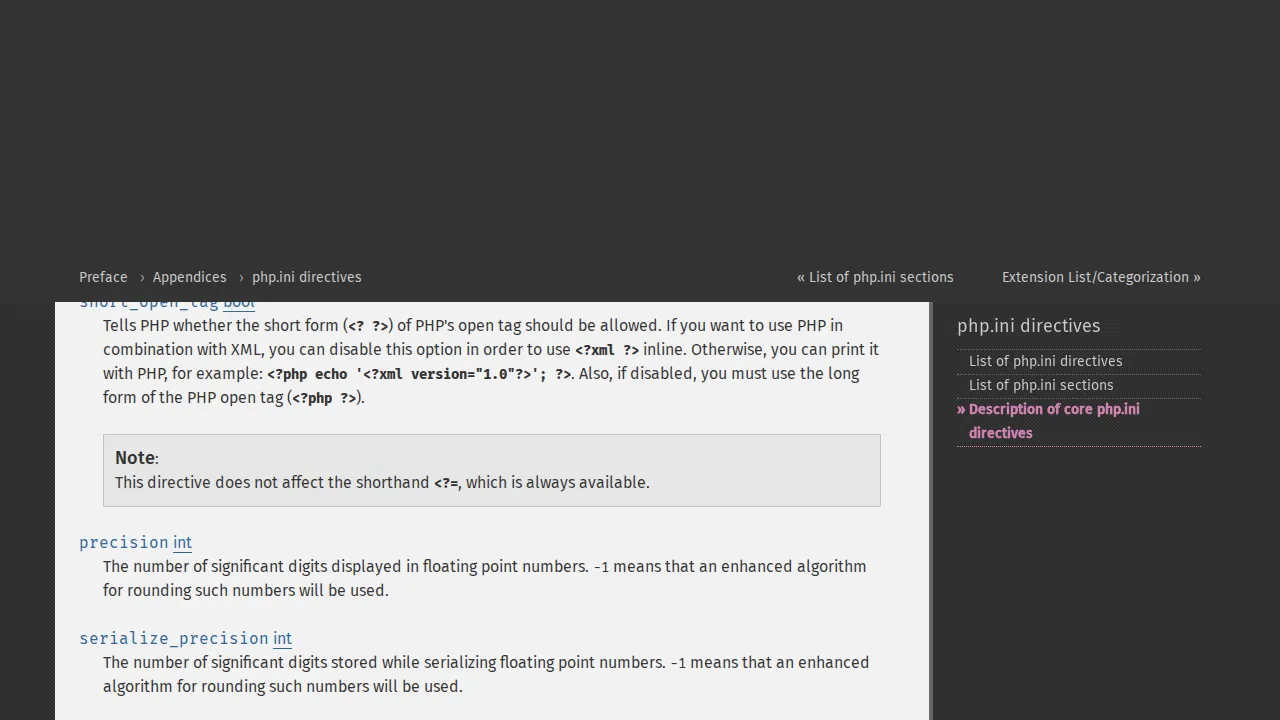
Every PHP script that runs on your server has a maximum amount of memory (RAM) it is allowed to use. This limit exists to prevent a single buggy script from consuming all available server memory and crashing the entire server.
WordPress sets its own internal memory limits:
- Front-end: 40MB by default (defined by
WP_MEMORY_LIMIT) - Admin area: 256MB by default (defined by
WP_MAX_MEMORY_LIMIT)
However, your hosting provider also sets a PHP memory limit at the server level. If the server limit is lower than what WordPress needs (for example, 64MB on a cheap shared host), the server limit wins and WordPress crashes.
Why Does This Error Happen?
The memory exhausted error typically occurs when:
- A resource-heavy plugin loads — Page builders, WooCommerce, and backup plugins use significant memory.
- You upload large images — WordPress generates multiple sizes of each image, which uses memory.
- You import content — Importing a large XML file or database can exceed the limit.
- Multiple plugins conflict — Each plugin adds to memory usage. When you have 20+ active plugins, the total can exceed the limit.
- Your theme is complex — Themes with lots of options, custom widgets, and built-in features use more memory.
Method 1: Increase WP_MEMORY_LIMIT in wp-config.php (Recommended)
This is the fastest and most reliable method. It tells WordPress to request more memory from PHP.
- Connect to your site via FTP or your hosting file manager.
- Open
wp-config.phpin the root directory of your WordPress installation. - Find the line that says:
/* That's all, stop editing! Happy publishing. */ - Add these lines just above that comment:
define('WP_MEMORY_LIMIT', '256M');
define('WP_MAX_MEMORY_LIMIT', '512M');
WP_MEMORY_LIMIT sets the front-end memory limit. WP_MAX_MEMORY_LIMIT sets the admin area limit. For most sites, 256M is plenty. WooCommerce stores or sites with many plugins might need 512M.
Save the file and reload your site. If the error is gone, you are done.
Note: This method only works if your hosting provider allows WordPress to use that much memory. Some shared hosts cap PHP memory at 128MB regardless of what you put in wp-config.php. If this method does not work, try Method 2 or contact your host.
Method 2: Increase the PHP Memory Limit in .htaccess
If the wp-config.php method did not work, you can try setting the PHP memory limit directly in .htaccess. This method works on Apache servers (which most shared hosts use).
- Open the
.htaccessfile in your WordPress root directory. - Add this line at the very top of the file, before the WordPress rewrite rules:
php_value memory_limit 256MSave and reload your site. If you see a 500 Internal Server Error after adding this, your host does not allow php_value overrides in .htaccess. Remove the line and try Method 3.
Method 3: Create or Edit php.ini
Some hosts read PHP settings from a php.ini file in your WordPress root directory. If your host supports this method:
- Check if a
php.inifile already exists in your WordPress root. If it does, open it. If not, create a new file calledphp.ini. - Add this line:
memory_limit = 256MSome hosts use .user.ini instead of php.ini. If php.ini does not work, try creating .user.ini with the same content.
Save the file and wait a few minutes (some hosts cache PHP settings). Then reload your site.
Method 4: Increase Memory via Your Hosting Control Panel
Many hosting providers let you change PHP settings directly from their control panel. This is the most reliable method because it changes the server-level setting.
cPanel (most shared hosts):
- Log in to cPanel.
- Look for "MultiPHP INI Editor" or "PHP Configuration".
- Select your domain.
- Find the
memory_limitsetting. - Change it to
256M(or higher if available). - Click "Apply" or "Save."
Plesk:
- Go to Websites & Domains.
- Click PHP Settings.
- Find
memory_limitand set it to256M. - Click "OK" or "Apply."
How to Check Your Current Memory Limit
Want to verify what your current PHP memory limit is? Go to Tools → Site Health in your WordPress dashboard, then click the Info tab. Expand the Server section and look for "PHP memory limit." This shows you the effective limit — the actual amount of memory PHP is allowed to use.
You can also check by creating a simple PHP file. Create phpinfo.php in your WordPress root:
<?php phpinfo(); ?>Visit yourdomain.com/phpinfo.php and search for "memory_limit" on the page. Delete this file immediately after checking — it exposes sensitive server information.
What If Increasing Memory Does Not Fix It?
If you have increased the memory limit to 256M or higher and still see the error, the problem is not the limit — something on your site is using an abnormal amount of memory. Here is what to check:
- Deactivate plugins one by one — Find out which plugin is consuming all the memory. Start with the heaviest ones: page builders, WooCommerce, backup plugins, and analytics plugins.
- Switch to a default theme — Complex themes can use 50MB+ of memory on their own.
- Check for infinite loops — A plugin or theme might have a coding bug that creates an infinite loop, consuming all available memory.
- Optimize your images — If you upload very large images (5000x3000 pixels), WordPress tries to generate multiple sizes and can run out of memory. Resize images before uploading, or use an image optimization plugin.
Recommended Memory Settings
| Site Type | Recommended WP_MEMORY_LIMIT |
|---|---|
| Simple blog (few plugins) | 128M |
| Business site (10-15 plugins) | 256M |
| WooCommerce store | 512M |
| Membership site / LMS | 512M |
| Heavy page builder usage | 512M |
If your hosting plan does not allow memory limits above 128MB, you are on a plan that is too small for your site. Consider upgrading to a host with more resources — my hosting guide covers the best options at every price point.
The memory exhausted error is one of the most common WordPress errors, but it is also one of the easiest to fix. Add one line to wp-config.php and you are usually back in business. For more fixes, see my complete guide to common WordPress errors.
Frequently Asked Questions
What is the PHP memory limit in WordPress?
The PHP memory limit is the maximum amount of RAM that a single PHP script is allowed to use on your server. WordPress has two internal limits: WP_MEMORY_LIMIT (40MB by default for the front-end) and WP_MAX_MEMORY_LIMIT (256MB for the admin area). However, your hosting provider also sets a server-level PHP memory limit, and whichever limit is lower takes precedence. When a script exceeds this limit, PHP kills it and displays the "Allowed memory size exhausted" fatal error.
How much PHP memory does WordPress actually need?
A basic WordPress blog with a few lightweight plugins runs comfortably on 128MB. But most modern WordPress sites — especially those using page builders, WooCommerce, or 15+ active plugins — need at least 256MB. I recommend setting WP_MEMORY_LIMIT to 256M as a baseline and 512M for WooCommerce stores or sites with heavy page builders like Elementor or Divi.
Which WordPress plugins use the most memory?
Page builders (Elementor, Divi, WPBakery) are the biggest memory consumers, often using 50-100MB on their own. WooCommerce with many products is another heavy hitter. Backup plugins (UpdraftPlus, BackupBuddy) use significant memory during backup operations, and analytics plugins that process data locally (like Jetpack Stats) also contribute. You can check individual plugin memory usage with the Query Monitor plugin.
Is it safe to increase the PHP memory limit to 512M or higher?
Yes, increasing the memory limit itself is safe — it just allows PHP to use more RAM when it needs to. It does not mean PHP will always use that much. The only risk is on shared hosting where your account has a fixed amount of total RAM. Setting the limit higher than your host actually allows will have no effect. On a VPS or dedicated server, make sure you leave enough RAM for the operating system and MySQL.
Why does the memory error keep coming back after I increase the limit?
If you have already set the limit to 256M or higher and still see the error, the problem is not the limit itself — something on your site is using an abnormal amount of memory. This usually points to a plugin with a memory leak, a theme with an infinite loop in its code, or extremely large images being processed. Deactivate plugins one by one to find the culprit, and check that you are not uploading unoptimized images larger than 2500 pixels wide.
Can my hosting provider override the memory limit I set in wp-config.php?
Yes. Your hosting provider sets a server-level PHP memory limit, and your wp-config.php setting cannot exceed it. For example, if your host caps memory at 128MB, putting 256M in wp-config.php will not work — you will still be limited to 128MB. Many budget shared hosts enforce low limits. You can verify your actual effective limit in WordPress under Tools, Site Health, Info, Server. If your host's limit is too low, you will need to upgrade your plan or switch to a host that offers higher limits.

Written by Marvin
Our team tests and reviews WordPress products to help beginners make confident choices.
Learn more about our team →You might also like
How to Fix the 500 Internal Server Error in WordPress
The 500 Internal Server Error tells you nothing useful — just that something broke. I walk through the most common causes and the exact steps to fix each one, from .htaccess to plugin conflicts.
postHow to Fix "Error Establishing a Database Connection" in WordPress
Seeing "Error establishing a database connection" on your WordPress site? I walk through every cause and fix — from wrong credentials in wp-config.php to corrupted databases and server issues.
postHow to Fix the WordPress White Screen of Death (Step by Step)
Your WordPress site shows a blank white page — no error, no clue. I walk through every method I use to fix the White Screen of Death, from enabling debug mode to disabling plugins via FTP.
postCommon WordPress Errors and How to Fix Them (Complete Guide)
WordPress errors are frustrating but rarely fatal. I cover the 11 most common WordPress errors with quick-fix solutions for each one — based on years of troubleshooting real sites.